How to Find A Chrome Account and Password
Your Chrome account and password serve as gateways to various other details stored by your browser while you browse, including login credentials for your mail and shopping sites. These account details, including usernames and passwords, are easily accessible from your Chrome account, which is essentially your primary Google account. If you're wondering how to find your Chrome account and password, this article is for you.
To find a Chrome account and password, ensure you're logged into your Chrome account. If you've forgotten your password, follow Google's password recovery options. You must have a working Google account to try the suggested methods.
| Workable Solutions | Step-by-step Troubleshooting |
|---|---|
| Option 1. Find Chrome Account and Password via Qiling KeyFinder |
Step 1.Click "Internet & Network" under Password. Step 2.Check Browser Accounts & Passwords of Chrome...Full steps |
| Option 2. View and Export Saved Passwords by Chrome | To launch the Chrome browser, click on the profile option on the top right corner, which will allow you to access various settings and features.Full steps |
| To find your account and password on an Android device, go to Settings > Google, then select your account. Your account email and password will be displayed. | Open the Chrome app installed on the Android/Apple phone....Full steps |
Option 1. Find Chrome Account and Password via Qiling KeyFinder
Qiling KeyFinder is a tool that can find stored browser accounts and passwords, including Chrome, Firefox, Edge, and IE, offering additional features compared to legacy tools.
Get A Quick Download:
Two Steps to Find Chrome Account and Password:
Step 1. Click "Internet & Network" under Password.
Step 2. Check Browser Accounts & Passwords of Chrome, Edge, Firefox, and IE.
"Copy" - Click it, then directly paste.
"Save" - Save as a PDF file.
"Print" - Connect Printer to print.
More Stunning Features of Qiling KeyFinder:
1. Find Product Keys of Windows and Applications:
The tool scans the Windows Registry, discovers existing product keys, lists them out, and allows users to store and track the product keys from the list whenever needed.
Once the product key list is available, it can be exported in various ways, including as a PDF file, which can then be printed, or copied directly to the clipboard for easy reference.
The Qiling KeyFinder is a helpful tool that allows users to track and find product keys, making it easy to install software on a different computer. Often, product keys are lost over time, and when reinstalling on a new PC, users struggle to locate the correct key. This is where the Qiling KeyFinder comes in, serving as a solution to this common problem.
2. Find Wi-Fi Passwords:
It can scan and track Wi-Fi passwords safely, making it easy to manage multiple Wi-Fi networks in the home or office. Qiling KeyFinder can track all utilized passwords, but only displays those that are currently in use, helping to avoid the frustration of forgotten passwords.
3. Get Product Keys from Dead or Unbootable PC/Laptop:
If your device suddenly turns off, Qiling KeyFinder can scan your system drive to find product keys.
Option 2. View and Export Saved Passwords by Chrome
If you want to access the password manager, it will authenticate every time before showing the password, even if you're logged in to your account, which can be annoying. However, this ensures your passwords are secured. To avoid this, you can export the passwords and save them on your system, although this will only include passwords up to the time of export, not the latest ones. To do this, follow the steps.
1.Launch the Chrome browser.
2. To change your password, click on the profile option on the top right, and then click on password.
3. To access the password manager settings, you can either go to the password manager and click on the Settings button at the top right, or you can directly go to the password manager.
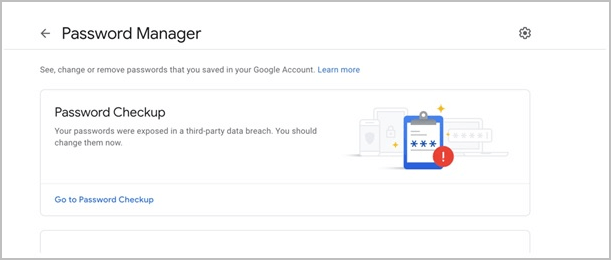
4. To export passwords from your browser, click on Settings, then select the option to import and export passwords, and finally click on export. This will allow you to save your passwords to a file. This file can then be used to import your passwords into another browser.
Once you click on the Export option, a pop-up will appear on the screen with a security warning, prompting you to proceed with exporting the data.
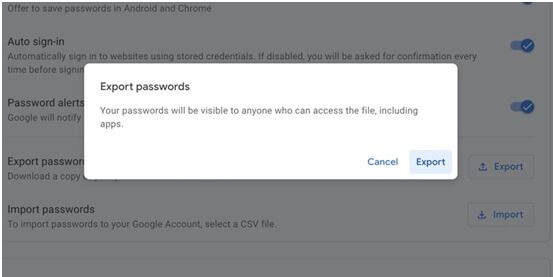
6. After clicking on the Export option, a CSV file named GooglePasswords.CSV will be saved to your local drive.
To view the exported password, you can open the exported file from your local drive.
More Info: Find Account and Password on Android and iOS Device
We can also find the accounts and passwords associated with them on our Android and Apple devices.
For Android & iOS Users:
1. Open the Chrome app installed on the Android/Apple phone.
2. To access the More menu, tap on the More icon located on the left of the address bar.
3. From the drop-down menu, click on Settings.
4. On the password screen, you can view, edit, delete, and export your passwords.
5. Tap on export passwords, and export the passwords in CSV format to your Google Drive or iCloud, or even save them to a local folder on the phone.
Final Thoughts
Chrome offers various options to view and export passwords, but it's recommended to access them from a secure and authenticated password finder like Qiling KeyFinder. On the other hand, exporting passwords provides more flexibility, but it's also safe, as anyone with access to the system can access the file.
Related Articles
- Forgot OneDrive Password, How Do I Restore It [2022 Guide]
- 2 Easy Ways to Recover Ubisoft Account and Password
- How to Find Windows Server 2008 Product Key
- Windows Credential Manager Free Download and View Password
- What Is RTOS? Real-Time Operating System Explained
RTOS or real-time operating system is used in many different types of computers and machinery. In this article, we'll define its basics, benefits and key features. - What Is SMTP? Everything You Need to Know about Simple Mail Transfer Protocol
SMTP is one of the key protocls in emailing systems today. So, what exactly is it and how does it work? This article will help you answer these questions and explore the key traits of SMTP.
Products
Articles & Tutorials
- Data Recovery
- Data Backup
- File Recovery
- File Backup
- System Backup and Restore
- Disk and Partition Clone
- Technical articles
- Mobile articles
- Disk Master Help
- Windows Data Recovery Tutorials
- Windows Secure Delete Tutorials
- Windows Partition Management Tutorials
- Windows File Backup and Restore Tutorials
- Windows System Backup and Restore Tutorials
- Windows Disk Backup and Restore Tutorials
- Windows Clone Tutorials