How to Find Windows Server 2008 Product Key
| Workable Solutions | Step-by-step Troubleshooting |
|---|---|
| Fix 1. Qiling Key Finder | Click "Application" tab under the Registry Key...Full steps |
| Fix 2. ProduKey | the ProduKey does not require installation...Full steps |
| Fix 3. CMD | Locate the search box...Full steps |
| Fix 4. Powershell | Use Windows + S shortcut keys...Full steps |
To find the product key for your installed Windows operating system, software, and important programs, you can check the following locations:
The Windows Server 2008 product key, along with that of many other software programs, can be found using various methods. These methods involve clear and detailed steps that are easy to follow, making them accessible to beginners. By using these methods, you can successfully locate the product key for your Windows Server 2008 and other software programs.
Review the options below and select the method that works best for your situation.
Fix 1. Find Windows Server 2008 Product Key with Qiling Key Finder
The Qiling Key Finder is a user-friendly tool that can find Windows Server 2008 product keys, compatible with all Windows Server and Microsoft SQL server versions.
Qiling Key Finder is a software that supports a wide range of programs, including Microsoft Office, Adobe programs, Google Chrome, and even WIFI codes, making it the best product key finder. It allows users to easily recover their lost product keys and passwords with just a few clicks, and is particularly useful for finding Windows Server 2008 product keys.
Step 1. Click "Windows" tab under the Registry Key.
Step 2. Check the Windows product key displayed on the right side of the screen. You can click "Copy" to paste it, or use the other options.
"Save" - Save to local as a PDF file.
"Print" - Click to print key file.
Fix 2. Use ProduKey to Recover Server Product Key
The ProduKey utility can find Windows server 2008 product keys, as well as those of other installed programs and operating systems, and is compatible with all Windows versions, including 32-bit and 64-bit. It works by using command-line functions to extract the required product keys, displaying both the Product ID and CD Product key in a consistent format.
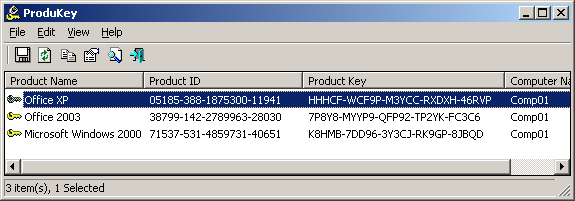
The ProduKey tool can be used to recover lost product keys, including those for Microsoft Office, Windows OS, Microsoft SQL Server, and Exchange Server. It can also be used to get the product key of another computer by learning the correct command-line set. This makes it a useful tool for recovering lost product keys.
Note: The feature to check product details of another computer is only supported on Windows Vista, Windows 7, Windows 2000, Windows XP, Windows 2003, and Windows 2008.
See how to use the ProduKey:
Step 1. ProduKey does not require installation to run, but you can download a setup to launch the application.
Step 2. The ProduKey app displays the product details of installed programs.
Fix 3. Find Windows Server Product Key in CMD
You can also find the Windows Server 2008 product key using the CMD tool instead of PowerShell command lines. The CMD prompt is available on all Windows versions, making this method a popular choice for users working on older Windows versions.
To find the desired product keys using the Command Prompt, follow these steps:
Step 1. To open the Command Prompt as an administrator, locate the search box or press Windows + S. Type "command prompt" and select the "Run as Administrator" option to launch the Command Prompt with administrator privileges.
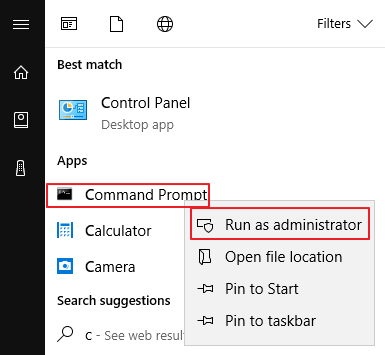
Step 2. Type the following command in the Command Prompt window and press Enter:
wmic path softwarelicensingservice get OA3xOriginalProductKey
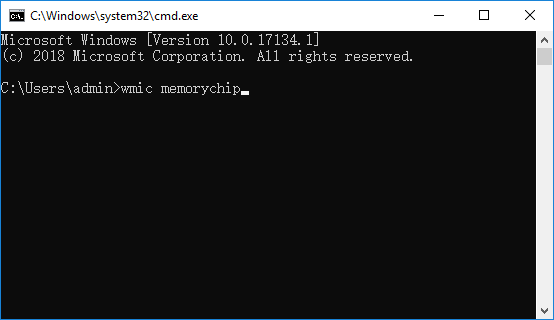
Step 3. That's all. Wait for the command to run and display the product key.
Fix 4. Get Lost Server Product Key in Powershell
Running Windows PowerShell is another method to find the product keys of your important programs and applications, including Windows Server 2008, which may be stored on the BIOS or UEFI hardware by the computer manufacturer.
To find the Windows Server 2008 product key using Windows PowerShell, follow these steps: Open Windows PowerShell and type the command "wmic path softwarelicensingservice get OA3Info" and press Enter. This will display the product key. Alternatively, you can also use the command "Get-WmiObject -Class Win32_Bios" to get the product key.
Step 1. To open Windows PowerShell, press the Windows + S keys on your keyboard, which will open the search bar. Then, type "Windows PowerShell" and click the app icon that appears to launch the application.
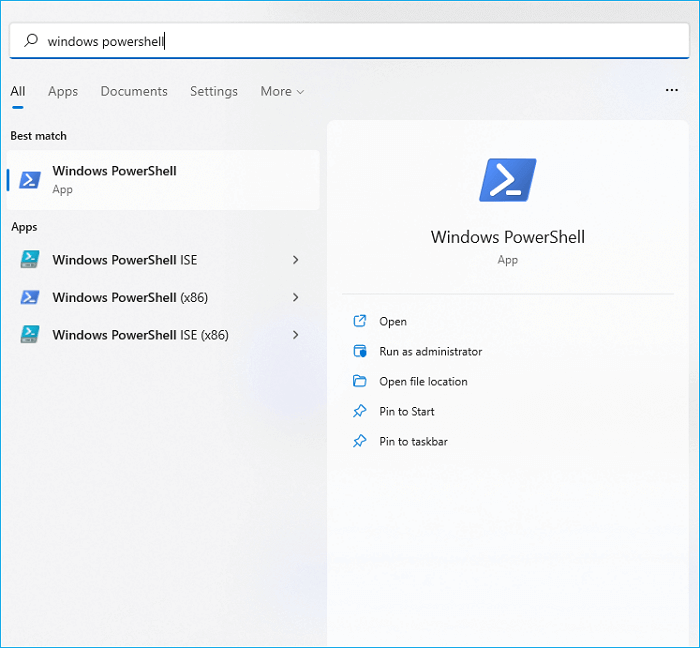
Step 2. Type the following command line into the Windows PowerShell environment:
(Get-WmiObject -query 'select * from SoftwareLicensingService').OA3xOriginalProductKey

Step 3. Wait a few seconds for PowerShell to display the license key of the current version of your Windows operating system.
Final Verdict
The methods to find Windows Server 2008 product key are straightforward and easy to follow, allowing you to access the product keys of your operating system and other essential programs with just a few clicks.
We recommend the Qiling Key Finder as our top choice, having tested it and guaranteeing its excellent benefits. It not only helps you find the Windows Server 2008 product key but also offers a lot more.
Ready to try it out? Check out the official page for more details.
Related Articles
- How to Find/Redeem Game Key on Epic Games (Complete Guide)
- How to Find Product Keys for Installed Programs on Windows? 3 Ways
- How To Find Windows Server 2019 Product Key
- eSATA External Hard Drive: Everything You Should Know
In this article, we will discuss what is eSATA external hard drive and its pros and cons. Besides, you can get some recommendations for eSATA external hard drives. - [100% Working] 3 Easiest and Successful Ways to Unprotect Excel
If you've forgotten the password for your Excel sheet, there are ways to unprotect it. You can try one of three methods to regain access to your file, and it's a good idea to make a backup of the original file in case you need it. - How to Fix Unsupported SanDisk SD Card Error [Step-by-Step Guide]
SanDisk SD card has proven useful when you're looking to expand the storage capacity of a device. If your SD card is showing the Unsupported SanDisk SD Card error, there might be some issue that needs fixing. In this article, you'll find effective ways to fix unsupported SanDisk SD card errors.
Products
Articles & Tutorials
- Data Recovery
- Data Backup
- File Recovery
- File Backup
- System Backup and Restore
- Disk and Partition Clone
- Technical articles
- Mobile articles
- Disk Master Help
- Windows Data Recovery Tutorials
- Windows Secure Delete Tutorials
- Windows Partition Management Tutorials
- Windows File Backup and Restore Tutorials
- Windows System Backup and Restore Tutorials
- Windows Disk Backup and Restore Tutorials
- Windows Clone Tutorials