How to Clean Install macOS Ventura [2023 Detailed Guide]
Apple has recently released macOS Ventura, and if you're interested in its unique features, you may want to perform a clean install on your Mac. Before doing so, you'll need to prepare your computer and create a bootable USB drive to install the operating system. This article will guide you through the process, covering what to do before the clean installation of macOS Ventura and how to perform it using a bootable USB drive.
Part 1: Why Perform a Clean Installation of macOS Ventura
A clean install on a Mac deletes any previous version, making it a good choice for a fresh start, but not ideal if you want to keep your files, apps, and settings. It's better for performance and a clean OS. (shortened to 1 paragraph)
A clean installation of macOS Ventura on Mac is always preferred, offering benefits to users.
- Enjoying better stability and responsiveness.
- Having better compatibility with applications.
- Making full use of storage space.
- Improving performance and efficiency.
Part 2: All You Need to Know Before Clean Install macOS Ventura
To start the clean installation process, we need to ensure we have the necessary information and materials. This includes identifying the type of installation (e.g.
Compatibility
To use macOS Ventura, you need to know if your Mac computer is compatible with the operating system. Fortunately, Apple has provided a list of devices that can run Ventura, so you can check if your system is on the list before installing the update.
- Mac Studio (2022)
- Mac Pro (2019 and later)
- MacBook Air (2018 and later)
- Mac Mini (2018 and later)
- iMac (2017 and later)
- iMac Pro (2017 and later)
- MacBook (2017 and later)
- MacBook Pro (2017 and later)
Storage Requirements
To create a bootable installer for your Mac, you'll need two external hard drives: one with at least 16GB of storage space to create the boot disk, and another to back up your files. This will enable you to create a bootable installer and safely backup your files.
Before making a clean install of macOS Ventura, ensure you have at least 16GB of free space on your Mac, as the installer itself is around 12GB, and you'll also need extra space for software and applications. If you're short on space, you can use macOS Optimize Storage to clean up unnecessary files.
Backup
To avoid losing critical data, it's essential to back up your Mac computer before performing a clean installation, as it will erase all files stored on the device. You can use various methods to back up your data, such as using the built-in Time Machine feature, an external hard drive, or cloud storage services like iCloud or Google Drive. This ensures that your important files and information are safely preserved.
Method 1. Using Time Machine
Time Machine is a built-Time Machine is a backup feature of macOS that allows users to automatically back up their data, including apps, photos, music, email, and documents, to an external drive. Once set up, Time Machine enables users to restore their data after a clean installation. However, it has some limitations, such as not having cloud storage, and cannot back up certain items, including system files, login information, and some app settings.
- iOS devices.
- Network settings.
- Email messages or accounts.
- iCloud content.
- Specific system files or applications.
Method 2. Using Professional Backup Software
Qiling Backup is a top-notch backup software for Mac that can help you back up everything on your device, offering a more comprehensive solution compared to Time Machine.
Qiling Backup for Mac is a user-friendly tool that allows you to back up your entire Mac, create automated backups, change iTunes backup locations, compress backups for storage space, and clone USB drives, all with just three simple steps.
The following are the steps to back up your Mac.
Step 1. Launch and run Qiling Backup for Mac.
To create a backup project, click the first Backup tab or the + button in the bottom-left corner, name the backup project, and then click OK.
Step 2. Set up the backup destination where you want to store Mac files as backups, automatic backup frequency, etc and click OK.
Step 3. Add files and folders to the backup project.
To back up your Mac, click File+ to select the files and folders you want to include in the backup, then click the blue Start button to initiate the backup process, sending the selected data to another drive or external device.
Part 3: How to Clean Install macOS Ventura with USB Installer Drive
Now that you're familiar with the requirements and considerations before installing macOS Ventura on your Mac, let's move on to the actual installation process. I'll provide a concise guide on how to perform a clean installation of macOS Ventura, covering the essential steps to get you started. Let's dive in!
| Workable Solutions | Step-by-step Troubleshooting |
|---|---|
| Step 1. Download macOS Ventura | To download and install macOS Ventura 13.0 Final on your Mac...Full steps |
| Step 2. Create macOS Ventura USB Installer | 1. Create a macOS Ventura USB Installer by executing a few...Full steps |
| Step 3. Adjust Startup Security to Use Ventura USB Installer | 1. Reboot your Mac and start it in Mac Recovery Mode...Full steps |
| Step 4. Clean Install macOS Ventura | 1. Connect the bootable USB drive to your Mac. 2. Enter the...Full steps |
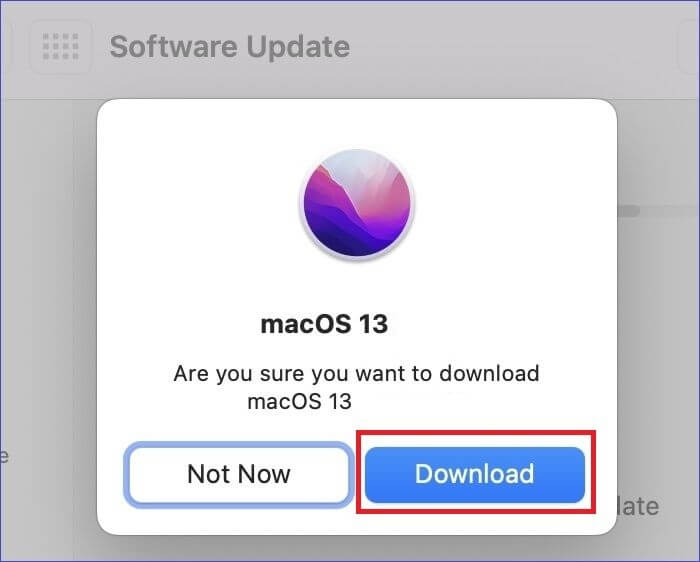
Step 1. Download macOS Ventura
To download and install macOS Ventura 13.0 Final on your Mac, simply launch the App Store and find the "macOS Ventura" update, which will guide you through the installation process.
Step 2. Create macOS Ventura USB Installer
1. To create a macOS Ventura USB installer, first, you need to download the macOS Ventura installation file from the Apple Developer website. Once downloaded, open the Terminal app on your Mac and navigate to the directory where the installation file is located.
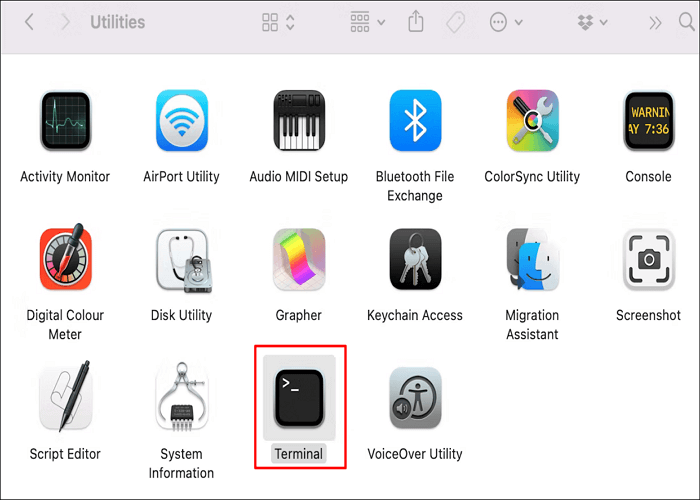
2. Launch the Terminal app on Spotlight search, then run the commands below.
sudo /Applications/Install\ macOS\ Ventura.app/Contents/Resources/createinstallmedia --volume /Volumes/Installer --nointeraction
Note: You should replace Installer with your USB drive's actual name.
3. Hit Return after the command line is written into the Terminal.
Step 3. Adjust Startup Security to Use Ventura USB Installer
1. To reboot your Mac and start it in Mac Recovery Mode, press the power button and hold down the Command (⌘) + R keys simultaneously. This will boot your Mac into the Recovery Mode, allowing you to access various built-in utilities and options, including Disk Utility, Terminal, and more.
2. Enter the Recovery Mode to adjust your Mac's security settings.
- For M1/M2 Macs, press the Power button until you see Loading Startup Options.
- For Intel-Hold the "Command + R" keys when Mac starts to boot in safe mode.
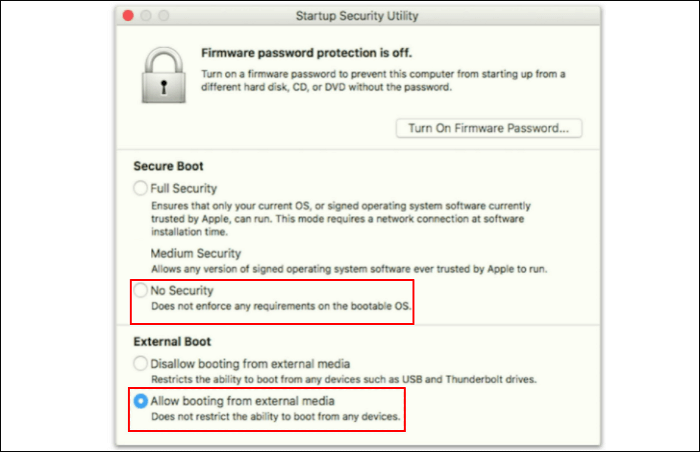
3. To access the Startup Security Utility, click on the "Utilities" option from the top menu, followed by selecting "Startup Security Utility."
4. To prepare your Mac for the installation of a new operating system, select "No Security" and "Allow booting from external or removable media" in the Startup Security Utility. Save the changes and shut down your Mac.
Step 4. Clean Install macOS Ventura
1. Connect the bootable USB drive to your Mac.
2. To boot your Mac in safe mode, turn it on and immediately hold the Option key (also known as the Alt key) as long as the boot options appear on the screen. This will give you the option to boot in safe mode, which can help resolve issues with your Mac.
3. Choose Disk Utility from the options.
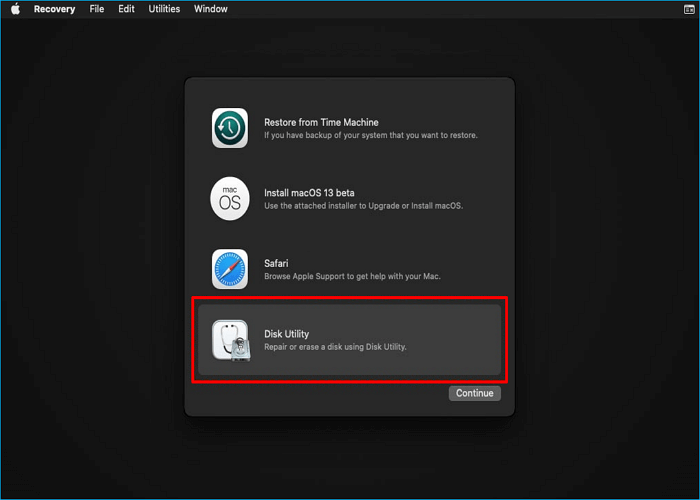
4. Click View, and select Show all devices.
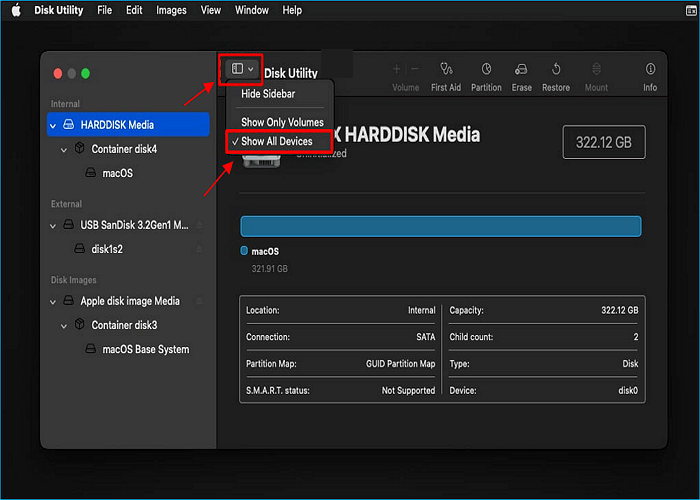
5. To format Mac's internal disk, select it, click "Erase" and choose the APFS format. Click "Erase" to finalize the formatting process.
6. Close the Disk Utility after the cleaning process is complete. Then, choose "Install macOS 13 Beta" to perform a clean installation of macOS Venture.

Part 4: The Bottom Line
To clean install macOS Ventura on your Mac, follow these steps: create a bootable USB drive, back up your Mac with a reliable tool like Qiling Backup for Mac, and then restart your Mac, hold down the power button, and select the bootable USB drive as the startup disk. This clean installation process is ideal for experiencing the new features of the latest operating system, and having a backup ensures your data is safe. By following these steps, you can successfully install macOS Ventura and enjoy its benefits.
FAQs
1. Is it worth doing a clean install of macOS?
A clean install of an operating system (OS) allows you to erase all existing files and start with a completely blank slate, ensuring a fresh and organized setup. This process is especially useful when selling or transferring ownership of a device, such as a Mac, to guarantee a secure and clean start.
2. Why does my Mac keep saying error while installing?
If your Mac experiences an error while preparing an installation, try booting into Safe Mode and ensuring the date and time settings are correct. Next, boot into Recovery Mode, run the First Aid utility, and attempt to reinstall the OS without erasing the drive. If the issue persists, consider erasing the drive and reinstalling the OS.
3. Does factory resetting a Mac remove viruses?
In most cases, yes, resetting a Mac will help. However, it won't be effective if the backup, recovery partition, or other devices are infected. Additionally, resetting the Mac won't help if it was infected with a rootkit that allows administrator-level access.
4. Should I restore from Time Machine or reinstall macOS?
If your Mac's system or startup disk is damaged, you can recover your data by using Time Machine to back up your Mac. First, reinstall macOS on your Mac, then restore your data using your Time Machine backup.
Related Articles
- Quick Solutions to SanDisk SSD Not Showing up in Windows 11/10/8/7
- How to Fix Dev Error 6634 in Warzone in Windows 10/11
- How to Reinstall macOS in 3 Methods [ Ventura/Monterey/Big Sur Available ]
- How to Format SD Card on Chromebook [With Specific Steps]
- New 16TB External Hard Drive Released: Perfect for Storing Large Data Files
A 16 TB External Hard Drive can hold a huge amount of documents, various forms of media, software, and applications. This article will introduce the 5 best 16 TB External Hard Drive and talk about the perks of each one. - 7 Days to Die Save File Location [Every Detail You Want to Know]
The 7 Days to Die save location is a file that can be tricky to find. This article aims to guide you in locating it and creating a backup, which is essential for future game saves.
Products
Articles & Tutorials
- Data Recovery
- Data Backup
- File Recovery
- File Backup
- System Backup and Restore
- Disk and Partition Clone
- Technical articles
- Mobile articles
- Disk Master Help
- Windows Data Recovery Tutorials
- Windows Secure Delete Tutorials
- Windows Partition Management Tutorials
- Windows File Backup and Restore Tutorials
- Windows System Backup and Restore Tutorials
- Windows Disk Backup and Restore Tutorials
- Windows Clone Tutorials