How to Install DirectPlay in Windows 11/10 [Full Guide]
DirectPlay is a crucial feature for gamers on Windows, allowing users to play multiplayer games online simultaneously. It enables people to join games and connect with friends. DirectPlay can be easily installed on a Windows computer, and since Windows 10/11 Operating System sets up the app to suit games on your computer, you don't need to manually download it from a store. This article will guide you through various methods to install DirectPlay on Windows 10/11.
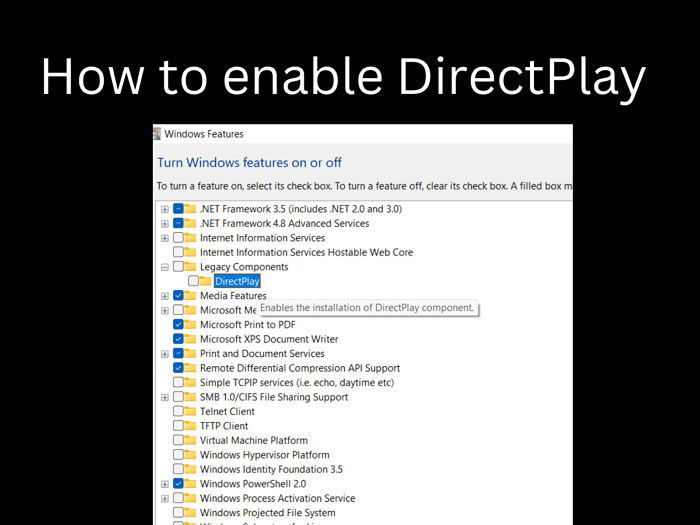
Windows is rapidly improving its technology to stay competitive in the market. The OS is enhancing its features, replacing outdated ones with more efficient ones to meet modern needs. One such feature being phased out is DirectPlay, a multimedia component that was part of Microsoft DirectX, enabling multiplayer gaming over the internet in older versions.
In Windows 10/11, the DirectPlay feature is not enabled by default, but the necessary files are still included in the operating system. Therefore, no additional downloads are required, and enabling the feature will make it functional on your PC.
This article will explore various methods for installing DirectPlay, providing detailed information on the different approaches to achieve this.
How to enable DirectPlay in Windows
Enabling DirectPlay is a straightforward process that can be completed in no time. There are several ways to do it, including installing the app through the control panel, using Deployment Image Servicing and Management (DISM), and Powershell. By following these methods, you can easily enable DirectPlay and get it up and running.
Method1. Enable DirectPlay using Turn Windows features on or off
To get DirectPlay working on your system, follow these steps: First, ensure that you have the necessary drivers installed, which include the Microsoft DirectPlay 8.0 drivers.
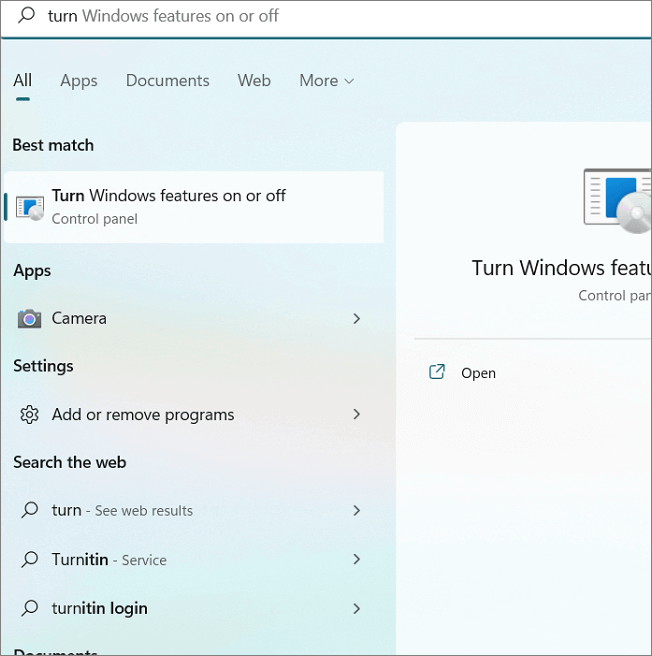
Step 1. Open the Turn Windows features On or Off using the control panel.
Step 2. Scroll down and find DirectPlay in the Legacy Components.
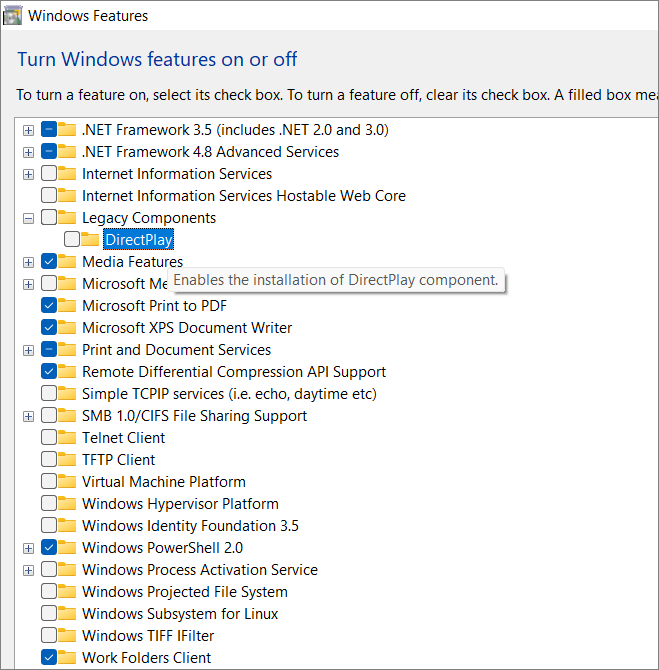
Step 3. Check both components by ticking the box.

Step 4. Click "OK" and restart the device to notice the changes.
DirectPlay is a deprecated API (Application Programming Interface) that was used by older games to communicate with the operating system (OS) and access certain features. The OS sets up the necessary files and enables the DirectPlay API, allowing games that rely on it to function correctly. This is necessary for games that require DirectPlay to run, as the API is no longer supported by modern operating systems.
Method2. Enable DirectPlay with DISM Command
Users can enable DirectPlay using the DISM command. Follow the steps to know how to activate the feature using DISM.
Step 1. To search for the Terminal App, click on the "Windows" icon on the taskbar and type "Terminal" in the search bar. Alternatively, you can also use the Command Prompt to complete this process.
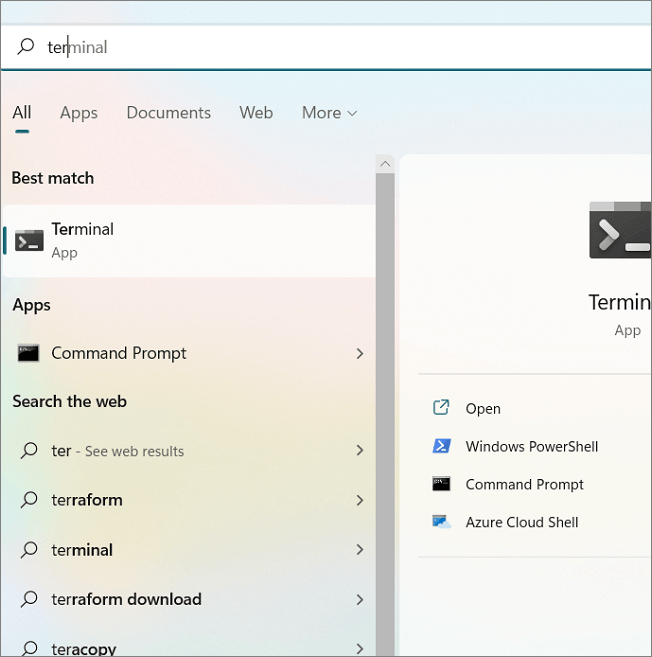
Step 2. The app opens Powershell and you can copy and paste the command in the default window.
dism /online /Enable-Feature /FeatureName:DirectPlay /All
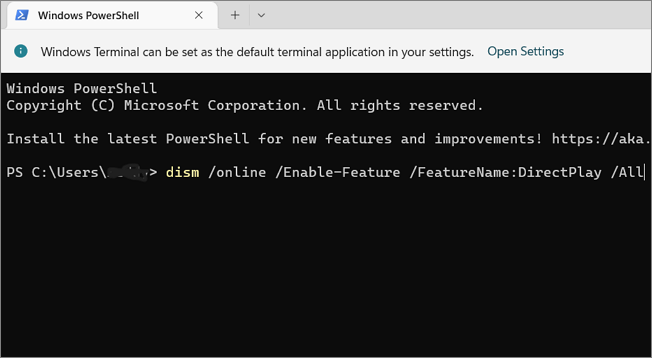
Step 3. Run the command and wait until the DISM setup the DirectPlay files for use.
Step 4. After the process, you will see a "Restart" prompt. Press "Y" to restart your device.
Method3. Enable the DirectPlay using Powershell
Step 1. Press the Windows key + X, then click on "Windows Terminal (Admin)" to open it.

Step 2. The action invokes the Powershell Window, now copy and paste the command.
Enable-WindowsOptionalFeature –FeatureName "DirectPlay" -All -Online
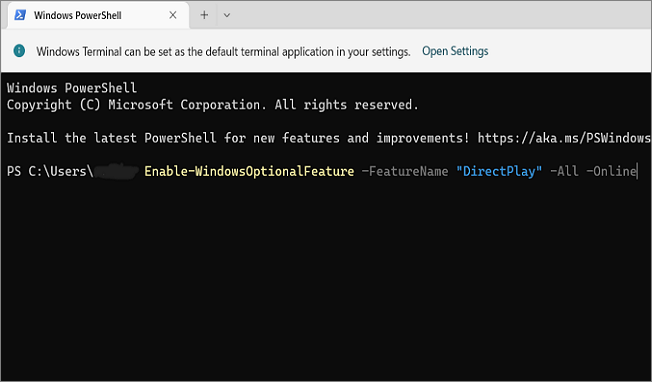
Step 3. Run the command and wait for the OS to complete the setup for installing Directplay.
Step 4. After completion, you can see the "Restart" prompt on the screen. Press "Y" to restart your device.
To install or activate DirectPlay, you can follow these simple methods. If a game also requires an older version of DirectX, you can download it from Microsoft's official website. This may be necessary for some games to function properly.
Even after enabling Directplay and downloading DirectX, if you still can't play Legacy games, it's likely due to a software issue, not a hardware problem. To fix this, you can try enabling the .NET Framework in the "Turn Windows features on or off" section. This may resolve the issue and allow you to play the games.

To ensure smooth running of games, enable the NETFramework as a precautionary measure.
Final Verdict
DirectPlay is a built-in feature in the OS that can be activated by installing it. This allows multiplayer games to run smoothly without any interruptions. To install DirectPlay, you can follow three simple methods, which may involve downloading and enabling supporting frameworks such as DirectX, as some issues may arise due to its unavailability. By doing so, you can get DirectPlay working for your games.
If you have found this article useful, share it with your friends.
Related Articles
- Real Fixes: This app can't run on your PC in Windows 10
- How to Enable Windows Defender on Windows 11/10/8
- How to Fix Galaxy S5 SD Card Corrupted? [Ultimate Guide]
- How Long Does It Take to Format an External Hard Drive [Full Guide]
- What Is Net Use Command and How to Map a Network Drive with It
Feeling stuck while trying to map a network drive using Net Use Command in Microsoft Windows? Read this article to find out the step-by-step process with screenshots to do it easily. - NetBIOS: What It is, How It Works and How to Use It
NetBIOS is a network protocol that allows devices to communicate with each other on a local area network (LAN). It works by assigning a unique name to each device, which can then be used to identify and access shared resources.
Products
Articles & Tutorials
- Data Recovery
- Data Backup
- File Recovery
- File Backup
- System Backup and Restore
- Disk and Partition Clone
- Technical articles
- Mobile articles
- Disk Master Help
- Windows Data Recovery Tutorials
- Windows Secure Delete Tutorials
- Windows Partition Management Tutorials
- Windows File Backup and Restore Tutorials
- Windows System Backup and Restore Tutorials
- Windows Disk Backup and Restore Tutorials
- Windows Clone Tutorials