How Long Does It Take to Format an External Hard Drive [Full Guide]
Formatting an external hard drive typically takes a few minutes to several hours, depending on the size of the drive and the operating system being used. The process involves deleting all data on the drive and reconfiguring it for use with a specific file system, such as NTFS or HFS. The time it takes to format an external hard drive can vary significantly, with smaller drives taking around 5-10 minutes and larger drives taking up to several hours. This is because the formatting process involves writing a new file system to the drive, which can take longer on larger drives with more data to process. Additionally, some operating systems may require additional steps or formatting options, which can also impact the overall time it takes to format an external hard drive.
How Long Does It Take to Format an External Hard Drive?
The time it takes to format a hard drive can vary depending on several factors, such as the speed and age of the cable used, which can slow down the process if it's old or not performing well.
Many types of cables connect an external storage device to a PC, including Type-C, USB 3.0, etc. However, the speed of each cable type depends on the computer being used. An alternative way to gauge the formatting time is to consider the storage capacity of the hard drive itself, such as 1TB, 2TB, etc.
1. How Long Does It Take to Format a 500GB External Hard Drive?
In modern computing, quick formatting of a 500GB storage device typically takes less than 5 seconds, while a full format may take around 2-3 minutes, given the rapid processing speeds of contemporary computers.
2. How Long Does It Take to Format a 1TB External Hard Drive?
1TB hard drives are sufficient for running an operating system and storing files, but formatting an external 1TB drive can take 10-15 seconds in quick format and 5-10 minutes in full format.
3. How Long Does It Take to Format a 2TB External Hard Drive?
2TB and 1TB hard drives aren't much different, except for the additional memory chips on the external hard drive, which might increase the full format time to around 10-12 minutes. However, the quick format time will remain the same.
4. How Long Does It Take to Format a 4TB External Hard Drive?
A 4TB storage is double the size of 2TB and will take almost double the time to format, which can take around 15-20 minutes with optimal conditions.
Well, do you want to know how long it takes to format a hard drive? This link below can help.

Formatting a hard drive can take anywhere from a few minutes to several hours, depending on the size of the drive and the operating system being used. For a small drive, such as a 32GB SSD, formatting can be done in under 10 minutes, while a larger drive, such as a 1TB HDD, can take around 30-60 minutes. Additionally, if the drive is heavily fragmented or contains a large amount of data, the formatting process can take significantly longer.
The time it takes to format a hard drive in Windows Explorer or Windows Disk Management can vary depending on the size of the drive and the speed of the computer, but it is generally a quick process that can take anywhere from a few seconds to a few minutes.
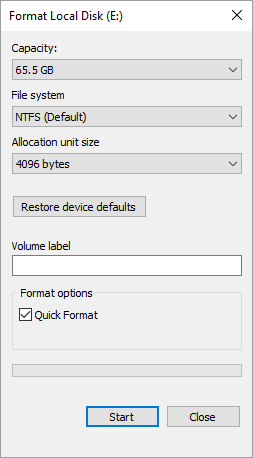
Formatting an external hard drive can take anywhere from 5-30 minutes, depending on the storage capacity, the speed of the drive, and the computer's processing power.
- Storage capacity
- Occupied capacity
- Health condition of the device
- Formatting type
- Interface connection type
When formatting an external device, there are several key factors to consider. The proper file format for the device should be determined, and links are available to help with this process. Additionally, troubleshooting tips are available to resolve any issues that may arise during the formatting process, such as problems related to formatting an external hard drive.
How to Format an External Hard Drive?
Formatting an external device involves various options, including using external or third-party software, or an in-built tool like Disk Management on your computer. You can try different methods if one doesn't work.
Formatting an external hard drive is a simple process, but it can be tricky for those unfamiliar with storage devices. To format an external hard drive, you can either use the built-in formatting tools provided by the operating system or use a dedicated formatting software. The built-in formatting tools are usually accessible through the computer's file explorer or disk management utility, while dedicated software like Disk Utility or Qiling Partition Master can provide more advanced formatting options. Regardless of the method used, formatting an external hard drive will erase all data on the device, so it's essential to back up any important files before proceeding.
Method 1: Format an External Hard Drive with Third Party Tool
To format an external hard drive, you can use a professional tool like Qiling Partition Master Free, which is capable of dealing with bothersome factors such as formatting an external hard drive.
Now, let's learn how to use it to format an external hard drive.
Step 1. To format a partition on an external hard drive, USB, or SD card using Qiling Partition Master, launch the program, right-click the partition you wish to format, and select the "Format" option from the context menu. This will initiate the formatting process, erasing all data on the selected partition.

Step 2. Assign a new partition label, file system (NTFS, FAT32, EXT2, EXT3, EXT4, exFAT), and cluster size to the selected partition, then proceed.

Step 3. Click "Yes" to confirm and start formatting your external drive in the Warning window.
Besides formatting, it has many other features. Let's learn more.
What Makes Qiling Partition Master the Best Option?
Here are a few reasons:
- Check disk and partition
- It supports Windows 7 up to 11
- It's an all-in-one partition management utility
- It offers conversion methods, like MBR (Master Boot Record) to GPT (GUID Partition Table)
- It offers file system format conversion, like FAT to exFAT
Besides that, it's exceedingly quick and remarkably easy to use. Therefore, if you're looking for an all-around storage solution, this software is.
Method 2: Format an External Hard Drive with Disk Management
The next step is to use the in-To access Disk Management on your computer, go to Start, type 'diskmgmt.msc' in the search bar, and press Enter. This will open the Disk Management window, where you can format and manage your external drive. Alternatively, you can also right-click on the Start button, select Disk Management from the menu, or use the Windows Key + R to open the Run dialog box and type 'diskmgmt.
Step 1. Press Windows + X and open Disk Management.
Step 2. Locate and select your external device.
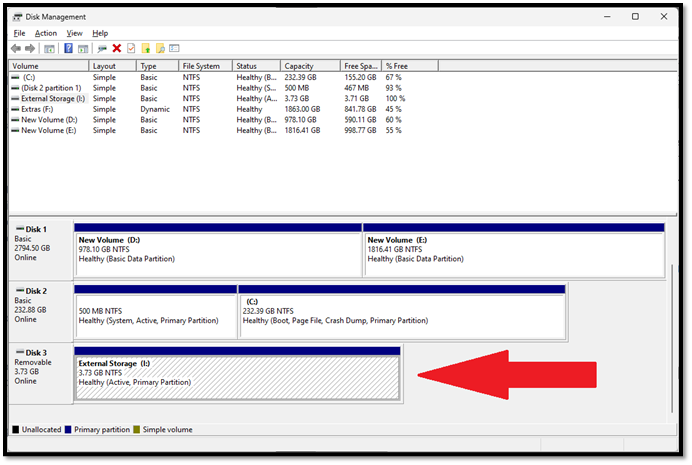
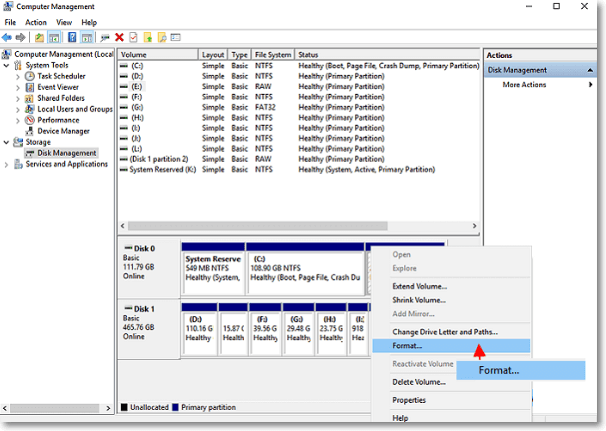
Step 3. Right-click on the document and select Format, then click Yes when prompted.
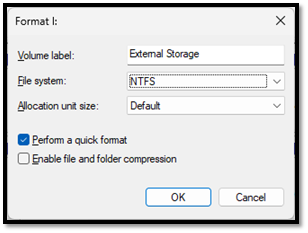
Step 4. Check or uncheck "Perform a quick format," depending on your preference.
Step 5. Select file system.
Step 6. Click OK, then Yes when prompted again.
Formatting your external hard drive will change its file system to the one you've chosen. This process will erase all data on the drive, so make sure to back up any important files before proceeding.
4 Fixes About External Hard Drives Takes Forever to Format
If your external hard drive is taking too long to format, don't worry, there are other fixes you can try. You can attempt to format the drive using a different method, such as using a third-party formatting tool or a disk formatting software, to see if that resolves the issue. Additionally, you can try checking for any disk errors or bad sectors on the drive, and if you find any, you can try to repair or replace the drive.
Fix 1. Use Different Interface Connection
If your external hard drive is not transferring or formatting data quickly, try switching to a different interface or replacing the cable. Old or low-voltage cables can be the main reason for slow data transfer/format speeds.
If your external device has various options, such as USB 3.0 and Type-C, switch to the latter to allow the device to work at its full potential speed.
Fix 2. Choose "Quick Format"
The full format is helpful, but it's not always necessary. For example, if you're only formatting your device for a few reasons, such as changing the file system or deleting a bulk of files, then try using the Quick Format option.
When troubleshooting your device, only use the full format option as a last resort to eliminate errors or other issues, as it will erase all data on the device.
Fix 3. Check Bad Sectors
Using an external hard drive with bad sectors or file system errors can be painfully slow. A professional tool is needed to resolve this issue, and Qiling Partition Master is a suitable solution.
This tool can help you check bad sectors and other file system-related issues. To use it, you can check bad sectors.
Step 1. Open Qiling Partition Master. Right-click the disk that you want to check, and then click "Surface Test" to check the disk.
Step 2. The operation will be performed immediately and all bad sectors will be marked as red.
Fix 4. Remove Virus
If your external hard drive is slow to format, it could be due to a virus. Check your computer for viruses using Windows Defender, and if it's clean, try formatting the hard drive on another computer. Alternatively, the drive itself might be the issue, so consider replacing it.
Conclusion
To format your external hard drive, use the most plausible fixes and methods, ensuring optimal performance. A blend of in-built and professional tools, such as Qiling Partition Master, should be utilized to achieve this. By using the right methods and fixes, you can keep your hard drive running smoothly.
We recommend the latter because it helps format your device and fix other issues and errors with it.
FAQs About How Long Does It Take to Format the External Hard Drive
If you have any further queries or issues, here are some questions frequently asked by people facing external hard drive problems.
1. Why is formatting taking so long?
The article discusses potential reasons for slow formatting, including storage capacity, occupied capacity, device health, and formatting type. It suggests that issues like a faulty cable or a problematic disk could be the cause and advises verifying everything before attempting to format again.
2. Can I cancel a format in progress?
It's not recommended to cancel the formatting process, as it can cause other issues like bad sectors and directly affect the hard drive's health. If you're trying to cancel to change the file system or fix the slow formatting issue, let it continue and try the fixes mentioned in this article to format again.
3. How long should a full format take?
The choice of a storage device depends on various factors such as the type of storage, capacity, interface, file system, and more, which are all discussed in this article.
Related Articles
- Xbox One External Hard Drive Format: NTFS, FAT32, exFAT? [Best Choice]
- How to Clear Memory and Increase RAM in Windows 10/8/7?
- How to Create macOS Ventura Bootable USB and Install macOS Ventura
- How to Delete File PowerShell [with Precise Command Lines]
- Forgot OneDrive Password, How Do I Restore It [2022 Guide]
OneDrive may be showing an incorrect password message if you've forgotten your password or made typing mistakes while entering it. - What to Do When You Forgot Thunderbird Password
If you're constantly forgetting your Thunderbird passwords, this article provides a step-by-step guide to help you recover your login password easily.
Products
Articles & Tutorials
- Data Recovery
- Data Backup
- File Recovery
- File Backup
- System Backup and Restore
- Disk and Partition Clone
- Technical articles
- Mobile articles
- Disk Master Help
- Windows Data Recovery Tutorials
- Windows Secure Delete Tutorials
- Windows Partition Management Tutorials
- Windows File Backup and Restore Tutorials
- Windows System Backup and Restore Tutorials
- Windows Disk Backup and Restore Tutorials
- Windows Clone Tutorials