How to Fix Galaxy S5 SD Card Corrupted? [Ultimate Guide]
The widespread adoption of SD cards is a prime example of our rapid transition into a paperless society, where people increasingly rely on them to store personal and educational data.
If you're experiencing issues with your phone, such as it no longer reading your SD card and running out of space, it's possible that your SD card may have become corrupted. This is a common problem that can occur with any SD card, including those used in the Samsung S5, and is often indicated by a notification that you are running out of space. This article will provide guidance and solutions to help you resolve the issue of a corrupted SD card on your Galaxy S5.

Why Is Galaxy S5 SD Card Corrupted?
If your Galaxy S5 doesn't recognize the SD memory card you've inserted, try turning off the phone, removing the battery, and reinserting the card. This might resolve the issue. The problem could be due to a corrupted memory card, which may be caused by a software glitch, a faulty card reader, or physical damage to the card.
- A file system format might get corrupted due to the operating system.
- The erroneous ejection of Samsung SD card.
- A viral assault on a storage device.
- Samsung's SD card formatting process was interrupted.
- The Samsung SD card might have been physically damaged.
- Sharing the same card across many gadgets.
How to Fix Galaxy S5 SD Card Corrupted on Windows?
Computers running Windows can be used to repair Samsung Galaxy S5 SD cards, allowing for quick identification and resolution of issues. Any version of Windows can facilitate this process, and there are multiple methods to fix a corrupted Samsung SD card, as long as they are followed exactly.
Solution 1: Check the Bad Sectors
For the best all-For disk and partition management solutions, Qiling Partition Master Free is the way to go. This tool is a fast and reliable SD card tester that can detect problems on SD cards. If it doesn't work, don't worry - a free third-party disk manager can check SD card health and even restore damaged SD cards if needed.
Solution 2: Assign a Drive Letter
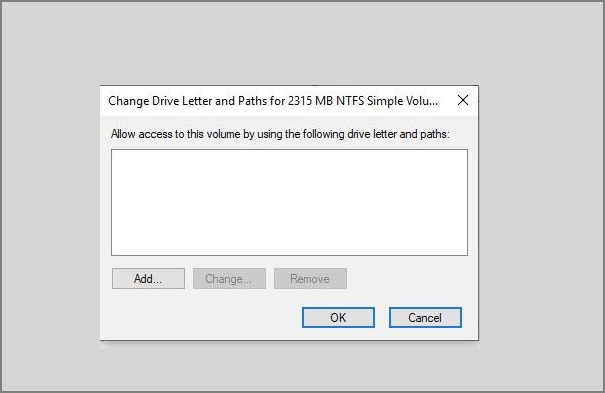
To assign a drive letter to Windows with Disk Management, follow these steps: First, open Disk Management by searching for it in the Start menu. Then, find your SD card in the list of available drives and right-click on it. From the context menu, select "Change Drive Letter and Paths." Choose an available drive letter from the dropdown menu and click "OK" to confirm.
Step 1: Right-click "This PC" or "My Computer," then choose "Manage," "Storage," and "Disk Management."
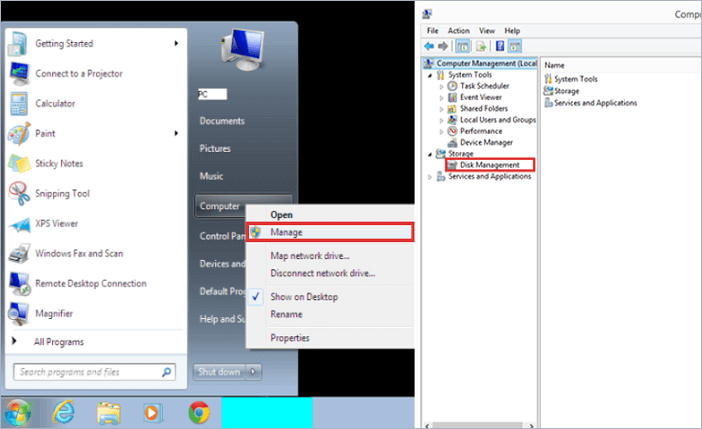
Step 2: To verify whether the drive letter is shown after locating the SD card, you can follow these steps: 1. Insert the SD card into your computer's SD card reader.
Step 3: To change the drive letter and paths, right-click on the drive you want to modify and select "Change Drive Letter and Paths..." from the context menu. This will open the "Map Network Drive" window where you can change the drive letter and path.
Step 4: To assign a drive letter to an SD card, select the SD card in the list, click the "Add" button, and follow the on-screen instructions.
Solution 3: Reformat Galaxy S5 SD Card
If the problem persists with the Samsung Galaxy S5 SD card, format the SD card using Qiling Partition Master, a reliable tool for managing storage devices. Before formatting, make sure to backup the SD card to avoid losing any important data.
Step 1. To format your SD card, locate it and right-click on the partition you want to format, then select "Format" from the menu.

Step 2. Set a new partition label, file system, and cluster size to the selected partition, then click Proceed.

Step 3. The process of formatting an SD card involves deleting all data on the card and preparing it for new data. This is typically done when you want to reuse the card or transfer data from one device to another.
What Else Can Qiling Partition Master Do?
Qiling Partition Master offers various features, including check disk and format functions, in addition to other functionalities.
- Convert NTFS to FAT32 without data loss
- Format 64GB SD card to FAT32
- Convert MBR to GPT for Windows 11 upgrade
- Resize, create, delete, merge, and move partitions
How to Fix Galaxy S5 SD Card Corrupted on Mac?
If your SD card has been corrupted and you have a Mac at home, you can try recovering your data or fixing the card using the Disk Utility program developed by Apple. This program has first aid capabilities that allow you to fix external devices connected to your Mac, including potentially retrieving lost data from your SD card. To do this, make sure your SD card is properly connected to your Mac and follow the instructions carefully.
Step 1: To access the main menu in the Finder, click on "Finder" in the top left corner of your screen, then select "Preferences" from the dropdown menu. This will open the Finder Preferences window, where you can make various adjustments to the Finder's behavior, such as changing the default location for new folders or setting up the Finder's sidebar. You can also use the "Finder" menu to access other features, such as the "Go" menu, which allows you to navigate to specific locations on your Mac.
Step 2: At this point, choose the "Utilities" option.
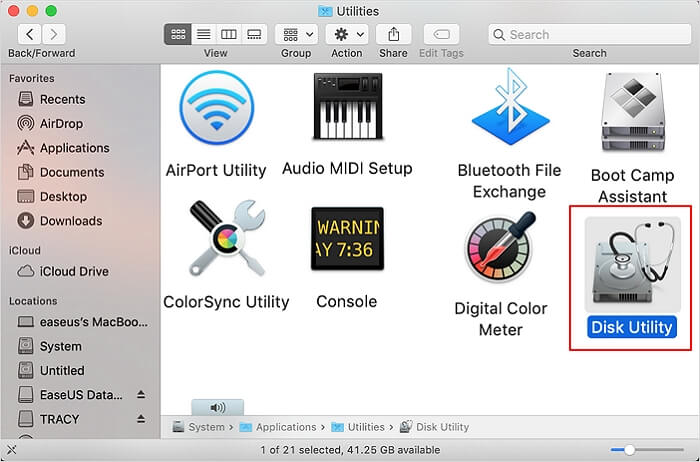
Step 3: Launch the software that manages your disk space.
Step 4: To locate your SD card, navigate to the left side of the screen, then click on the SD card icon to access its contents.
Step 5: The drive can be selected from the list of available drives on the computer. The "First aid" tab is located at the top of the screen, and clicking on it will initiate the first aid process.
Step 6: Finally, click "Run."
How to Fix Galaxy S5 SD Card Corrupted on Android?
If your Android phone's micro SD card becomes corrupted, you can easily fix it without syncing with a computer. Even if you don't want to sync your Samsung Android device with a computer, there's a simple solution available. Some Android smartphones can format an SD card, which is a safe option. To resolve the issue quickly, follow the steps shown.
Step 1: Insert the microSD card that came with your Samsung handset.
Step 2: Open your "Setting."
Step 3: Choose the maintenance for the device.

Step 4: Select "Storage" from the menu.
Step 5: Select "SD card corrupted" from the drop-down menu.
Step 6: Your choices will be "Cancel" and "Setup."
Step 7: Select "Setup" on your mobile device.
Conclusion
The Samsung Galaxy S5 SD card corruption issue can be addressed by finding a suitable solution. Alternatively, the third-party program Qiling Partition Master can repair damaged files and pictures with their constituent parts, allowing you to give it a try.
FAQ of Galaxy S5 SD Card Corrupted
1. How do I fix a corrupted SD card on my Samsung?
Follow the steps below to fix a corrupted SD card on your Samsung
Step 1: Insert the microSD card back into your phone or tablet to see if it resolves the issue.
Step 2: To troubleshoot the issue with the card, try using it with a different device. This can help determine if the problem lies with the card itself or with the device it's currently being used with. Simply swap the card with one from another device and see if the issue persists.
Step 3: Format the card.
Step 4: Utilize the SD Card Formatter application.
2. How do I format my SD card on my Galaxy s5?
To format an SD card on your Galaxy S5, follow these steps: First, insert the SD card into your phone, then go to Settings > Storage > SD card. Tap on the three vertical dots on the top right corner, and select "Format SD card".
Step 1: To perform routine upkeep on your device, go to the Apps screen, select "Settings" from the menu, and follow the on-screen instructions. This will help keep your device running smoothly and efficiently.
Step 2: Tap "Storage" and select the option to see more.
Step 3: Tap "Storage settings" and tap on the SD card.
Step 4: Tap "Format" was used.
3. What format does Samsung use for SD cards?
The FAT32 file system is the most recommended format for usage on Android operating system devices.
Related Articles
- How to Fix IRQL_NOT_LESS_OR_EQUAL Error in Windows 10/8/7
- Excel AutoSave Not Working Error in Windows 10/8/7
- How to Recover Unsaved/Lost/Corrupted Adobe Acrobat Files on Windows PC
- 2022 Guide | How to Turn On Offline Sync Google Drive/Google Docs
- How to Find Windows Server 2019 Product Key Using PowerShell Like an Expert
Locating the Windows Server 2019 product key can be challenging, but it's essential to have it active to ensure that some programs run smoothly and without limits. Fortunately, there are ways to find the product key using PowerShell, as discussed in the guide. - How Do I Find Windows Server 2019 Product Key [3 Methods]
If you're having trouble finding the Windows Server 2019 Product key, you can try using one of three methods: PowerShell, Command Prompt, or registry. However, the easiest approach is to use the Qiling Key Finder, which has a Product Key feature that allows for an instant find.
Products
Articles & Tutorials
- Data Recovery
- Data Backup
- File Recovery
- File Backup
- System Backup and Restore
- Disk and Partition Clone
- Technical articles
- Mobile articles
- Disk Master Help
- Windows Data Recovery Tutorials
- Windows Secure Delete Tutorials
- Windows Partition Management Tutorials
- Windows File Backup and Restore Tutorials
- Windows System Backup and Restore Tutorials
- Windows Disk Backup and Restore Tutorials
- Windows Clone Tutorials