Solved: Windows Recovery Environment Servicing Failed.
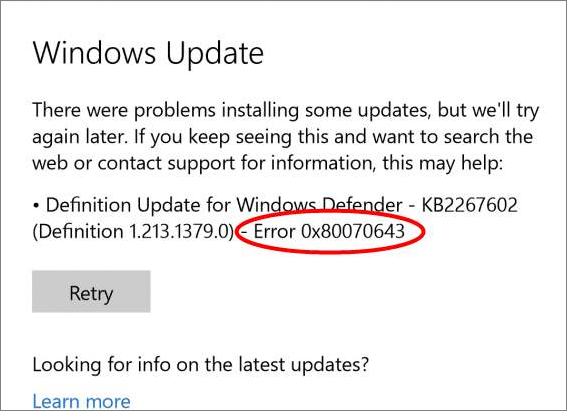
Microsoft released a security update (KB5034441) for Windows 10 to fix a vulnerability that can bypass BitLocker encryption, but some users are experiencing an error (0x80070643) during installation due to insufficient disk space in the Windows recovery environment.
Qiling offers two reliable ways to help users extend their recovery partitions and fix the 0x80070643 error, which occurs when the Windows 10 recovery partition is not large enough to support the new Windows RE image (winre.wim) file.
How to Fix Windows Recovery Environment Servicing Failed.
The issue of Windows Recovery Environment servicing failed is often caused by insufficient space on the recovery partition, which the built-in Disk Management tool cannot reset because it stores system recovery files. Fortunately, there are two reliable solutions to fix this problem, which will be introduced in this section.
Create a complete backup of your recovery partition or entire system disk to ensure a smooth recovery in case of any unexpected errors or system crashes. This backup will serve as a failsafe, allowing you to restore your system to its previous state and minimizing downtime.
Way 1. Using Professional Disk Manager to Extend the Recovery Partition
Qiling Disk Master Professional allows users to create, resize, merge, and split partitions, providing control over disk space by enabling partition resizing and relocation. This empowers users to extend the recovery partition and make room for updates.
To extend the recovery partition using the Qiling Disk Master, follow the detailed instructions provided, which will guide you through the process.
Step 1. Locate the Target Partition.
To resize or move a partition, go to Partition Manager, locate the target partition and select "Resize/Move".

Step 2. Extend the Target Partition.
To add unallocated space to your current partition, simply drag the partition panel to the right or left, incorporating the unallocated space into your existing partition.

Extra Option: Get Space from Another Drive
If there's not enough free space on your disk, right-click on a larger partition with available space, select "Resize/Move".
Select the target partition that you want to extend at the allocate space to column. Then, click on the "Add" button to add the selected partition to the list of partitions to be extended.
Step 3. Execute Operations to Extend Partition.
The target partition needs to be resized to the unallocated space. This can be achieved by dragging the dots of the target partition into the unallocated space.
Click the "Proceed" button to keep all the changes you've made.
Other Key Features Related to Low Disk Space
Qiling Disk Master is a tool designed to efficiently manage disk space by extending or shrinking partitions, thereby freeing up space on the disk.
- Fix extend volume greyed out
- Free Up Disk Space in Windows 11
- Solve C drive full, D drive empty
- Resize and Move Partitions
Way 2. Run Diskpart to Create a Larger Recovery Partition
Microsoft released a guide to teach users to shrink the C: partition by 250 MB and create a new recovery partition using the reagentc.exe and dispart command lines, which can accommodate WinRE security updates, but this solution requires users to be proficient in operating command lines.
Step 1. Launch the Command Prompt, run it as administrator, and type the following cmd(press "Enter" each time to confirm the action):
- reagentc /info (check the WinRE status)
- reagentc /disable (disable the WinRE before the process)
Step 2. Run diskpart to shrink the OS partition for a new recovery partition and delete the old one. Input the command lines (press "Enter" for each cmd):
- list disk
- sel disk(which is the same disk index as WinRE)
- list part
- sel part
- shrink desired=250 minimum=250
- sel part
- delete partition override
Step 3. The disk partition type needs to be checked beforehand to create a new recovery partition. This can be done by running commands to determine if the disk uses the GPT or MBR partition scheme. Once the type is confirmed, a new recovery partition can be created.
- list disk The GPT disk will show an asterisk character in the GPT column, indicating that the disk is a GPT disk. This is a characteristic feature of GPT disks, which are a type of disk that uses the GUID Partition Table (GPT) to store partition information.
If your disk is GPT:
- create partition primary id=de94bba4-06d1-4d40-a16a-bfd50179d6ac
- gpt attributes =0x8000000000000001
If your disk is MBR:
- create partition primary id=27
- format quick fs=ntfs label="Windows RE tools"
- list vol
- exit
- reagentc /enablem (enable WinRE)
- reagentc /info (confirm the WinRE is enabled)
To repair the BitLocker bug on Windows 10 by updating the KB5034441 patch, follow these steps: First, ensure your Windows 10 is updated to the latest version. Then, go to the Settings app, click on "Update & Security," and select "Windows Update." Click on "Check for updates" to see if the KB5034441 patch is available.
Conclusion
This guide provides two efficient solutions to resolve the Windows recovery environment servicing failed error, including using Qiling Disk Master to extend the recovery partition and manually creating a larger recovery partition by running commands. These fixes enable users to seamlessly resolve the 0x80070643 = CBS_E_INSUFFICIENT_DISK_SPACE error, providing a user-friendly platform for extending disk partition space and saving users time and energy.
FAQs: Fix Windows recovery environment servicing failed.
The Windows recovery environment servicing failed. (CBS_E_INSUFFICIENT_DISK_SPACE) error occurs when the system does not have enough free space on the drive where the Windows Recovery Environment (WinRE) is stored. To resolve this issue, you can try deleting any unnecessary files or programs to free up space, or consider expanding the drive where WinRE is stored.
1. What is the error code 0x80070643?
The error 0x80070643 message is usually caused by a malfunctioning driver, corrupted or missing system files, improperly configured system settings, malware or virus infestation, or outdated software that wasn't properly resolved when downloading a new update.
2. How do you find the Windows recovery environment?
Follow the steps here to find the Windows recovery environment on your computer:
Step 1. Launch Command Prompt as administrator.
Step 2. Type reagentc /info and hit "Enter" to see the details.
If the WinRE status is disabled, you can enable it by typing reagentc /enable and disable it by typing reagentc /disable.
3. How do I fix insufficient disk space when installing the update?
To address insufficient disk space when installing the update, you can remove the useless Apps to free up disk space.
- To access storage settings, click the "Start" icon, then select "Settings." From the Settings menu, choose "System," followed by "Storage." Next, click on "Cleanup recommendations" and finally select "Storage settings.
- Right-click and remove the temporary files or unused Apps.
You can also consider using Qiling Disk Master, a professional disk space manager, to thoroughly clean up your storage space.
🔍Read More: How to Fix Low Disk Space Error on Windows 11/10/8/7
Related Articles
- How to Repair Windows 10 From USB [Complete Guide]
- How to Format USB to NTFS & Convert USB to NTFS in Windows 10/11 (All 4 Ways)
- How to Fix Computer Stuck on Restarting | 2024 Hot Ways🔥
- How Do I Clone Windows to New Computer/PC? Your Checklist in 2024 [New]
- How to Fix Data Error Cyclic Redundancy Check on External Hard Drive
If you're experiencing a data error cyclic redundancy check on your external hard drive, you can find effective solutions in this post. You can try using the Qiling partition tool, a professional file system checker, to check and fix disk errors. - Fix DiskPart I/O Device Error in Windows 10/8/7
If you're experiencing issues with DiskPart, specifically receiving the error message “DiskPart has encountered an error: the request could not be performed because of an I/O device error”. This issue can be resolved with a few simple solutions.
Products
Articles & Tutorials
- Data Recovery
- Data Backup
- File Recovery
- File Backup
- System Backup and Restore
- Disk and Partition Clone
- Technical articles
- Mobile articles
- Disk Master Help
- Windows Data Recovery Tutorials
- Windows Secure Delete Tutorials
- Windows Partition Management Tutorials
- Windows File Backup and Restore Tutorials
- Windows System Backup and Restore Tutorials
- Windows Disk Backup and Restore Tutorials
- Windows Clone Tutorials