OneDrive Files Corrupted | How to Restore Them in 2024
OneDrive is a cloud solution and file hosting service developed by Microsoft, which has been a game-changer since its launch in 2007. It was first integrated into Windows in 2009 with the release of Windows 7, and has since become a prominent feature in Windows 10 and 11.
OneDrive corrupted files are a common issue, but there are ways to fix them. Users can try to recover corrupted files by checking the file's properties, deleting the corrupted version, and then syncing the file again. Additionally, users can try to use the OneDrive desktop app's built-in recovery feature or contact Microsoft support for further assistance. By following these steps, users can resolve OneDrive corrupted files and access their files again.
This article delves into the fundamentals of OneDrive corrupted files and provides a solution to resolve the issue. We'll start by exploring the basics and then move on to the fix.
OneDrive is an online storage/cloud service that syncs files from your PC to the online storage, updating both locally and online whenever a file changes.
OneDrive corrupted files can cause issues with Microsoft Office applications, such as Word. When a user experiences corrupted files in OneDrive, they may encounter errors or inconsistencies in their Word documents. For instance, a user may find that their Word document is not displaying correctly, or that certain features or formatting are missing or altered.
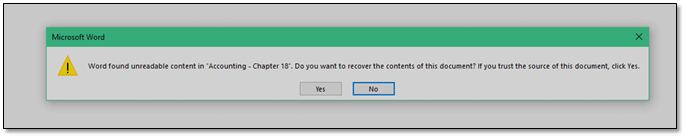
Corrupted OneDrive files can be a frustrating issue, causing problems both on your PC and in your cloud storage. To avoid such issues, you should be cautious when editing or deleting files, and consider using the OneDrive desktop app to sync your files. If you do encounter corrupted files on your PC, you can try fixing them by using the OneDrive desktop app's built-in repair tools or by syncing the files with OneDrive to see if the issue resolves itself. However, if the files are severely corrupted, you may need to contact Microsoft support for further assistance. Regularly backing up your files to an external drive or another cloud storage service can also help prevent data loss in case of a OneDrive outage or corruption.
[Causes] Why OneDrive Files Corrupted
Files in OneDrive can become corrupted due to various reasons, including hardware issues, software corruption, or computer viruses on the user's own device. Additionally, a poor internet connection can also cause files to become corrupted when syncing with OneDrive. These issues can result in a file being rendered unusable, making it essential to identify and address the root cause to prevent further damage.
Here are a few reasons that cause OneDrive files to get corrupted:
- Software corruption, such as bad MS Word, can cause corruption in files like DOCX, leading to errors and potential data loss.
- Slow or bad internet connection
- Hardware issues such as hard drive failure or storage problems
- Virus or malware attack
- Bad synchronization between PC and OneDrive, causing OneDrive not syncing
The most common reasons behind OneDrive files getting corrupted include slow internet or bad synchronization, but a virus attack on the PC should also be considered. After scanning the PC for viruses, the next step is to attempt to solve the issue.
[Solutions] How to Restore OneDrive Corrupted Files
Now that the basics are out of the way, let's talk about the solutions. Every problem has a solution or a way to work around it, and it's no different for OneDrive corrupted files. We'll explore two possible solutions, which include addressing the issue directly or finding a way to work around it, to help resolve the problem.
How do you do this? Let's explore each solution separately.
1. Reset OneDrive and Return It to the Previous State
To restore OneDrive files to a previous state, start by navigating to the OneDrive settings and selecting the "Restore" option. From there, you can choose the date and time you want to restore your files to, and OneDrive will revert them to that state. This can be a useful troubleshooting step if your files have become corrupted or are no longer functioning as intended.
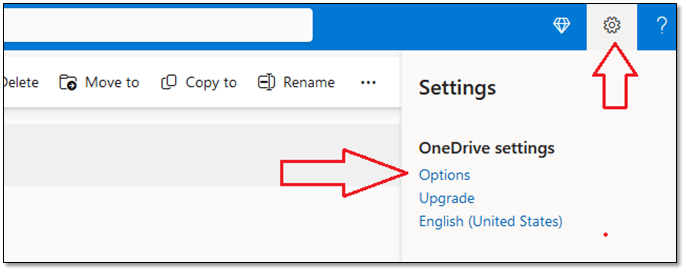
Step 1. Go to the OneDrive website, sign in to your account, and click on the Settings cogwheel in the top-right corner, then select Options.
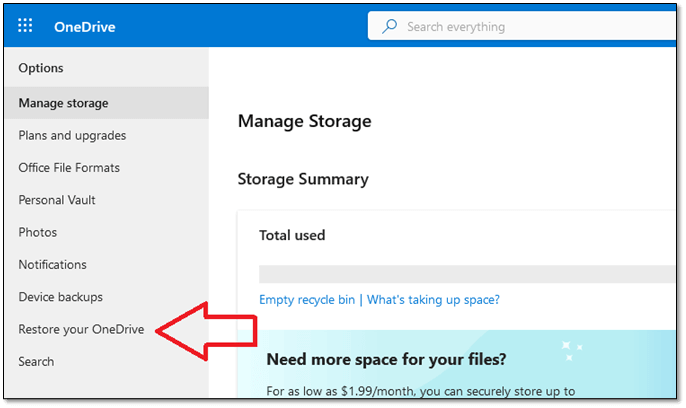
Step 2. In the navigation bar, go to Restore your OneDrive.
Step 3. Inside this option, select the nearest date.

Step 4. To recover a deleted file, first locate it in the recent activity chart, which typically displays a list of files that have been accessed or modified recently. Once you find the file you're looking for, click on the "Restore" option to retrieve it.

If your file got corrupted, try restoring it to a previous version to see if it's recoverable. This may resolve the issue without any further action. If not, proceed with other methods.
2. Restore A Shared Library
If the previous method didn't work, you can try restoring a shared library. This method is useful if you have a SharePoint with other users in your OneDrive or Microsoft 365 suite. By restoring a shared library, you can recover corrupted files in OneDrive.
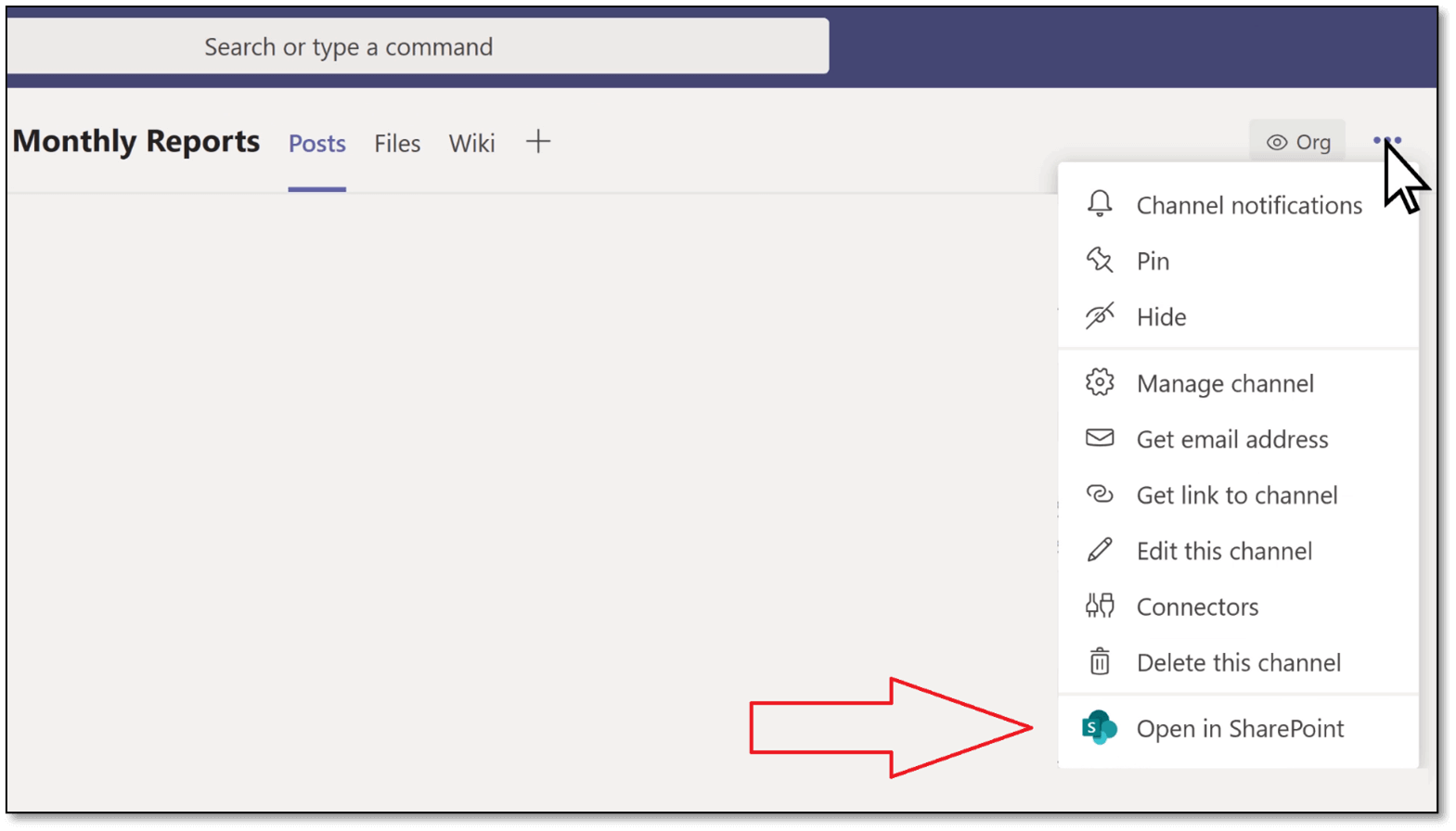
Step 1. Go to Teams, open the settings menu, and choose Open in SharePoint.
Step 2. Inside SharePoint, head into Settings and select Restore this Library.
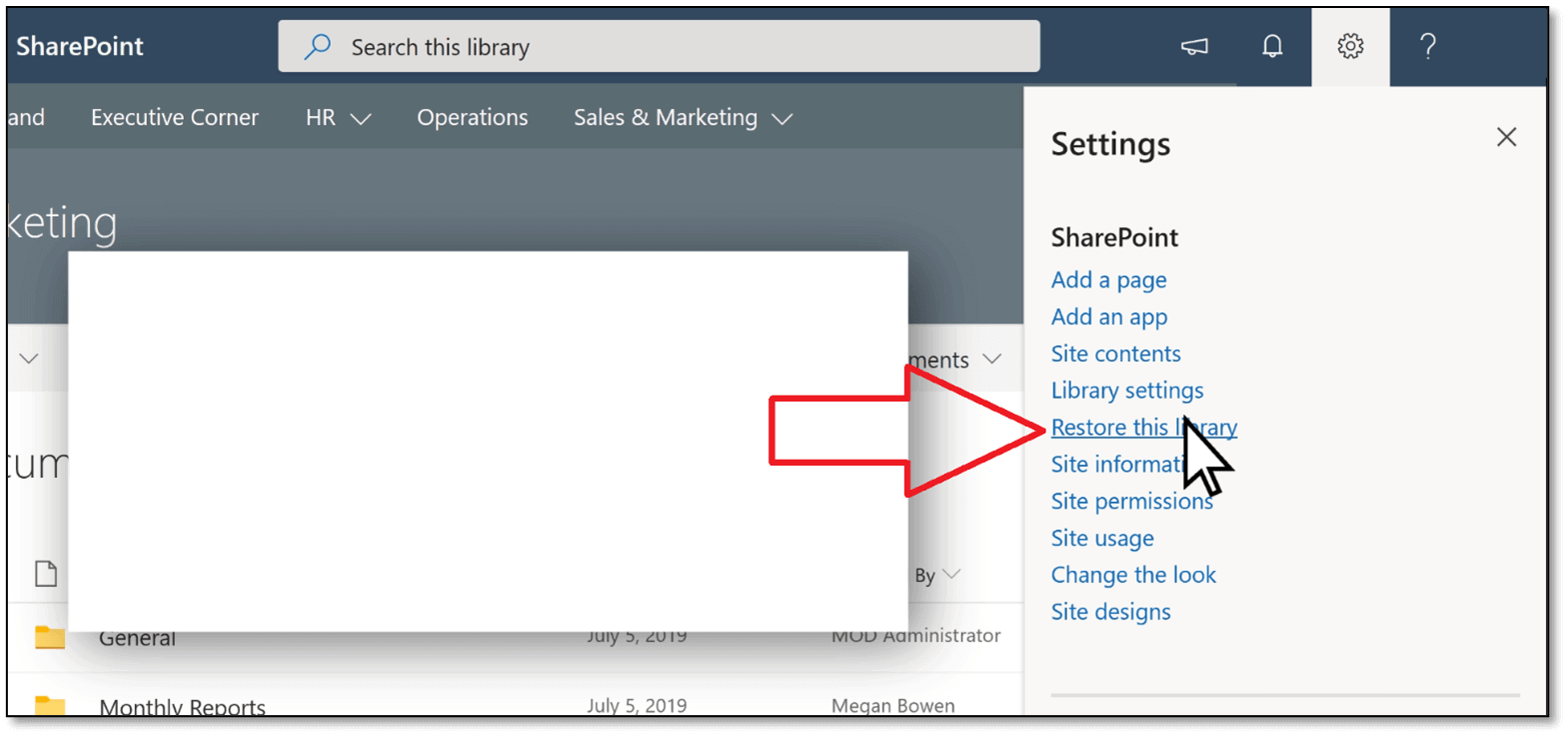
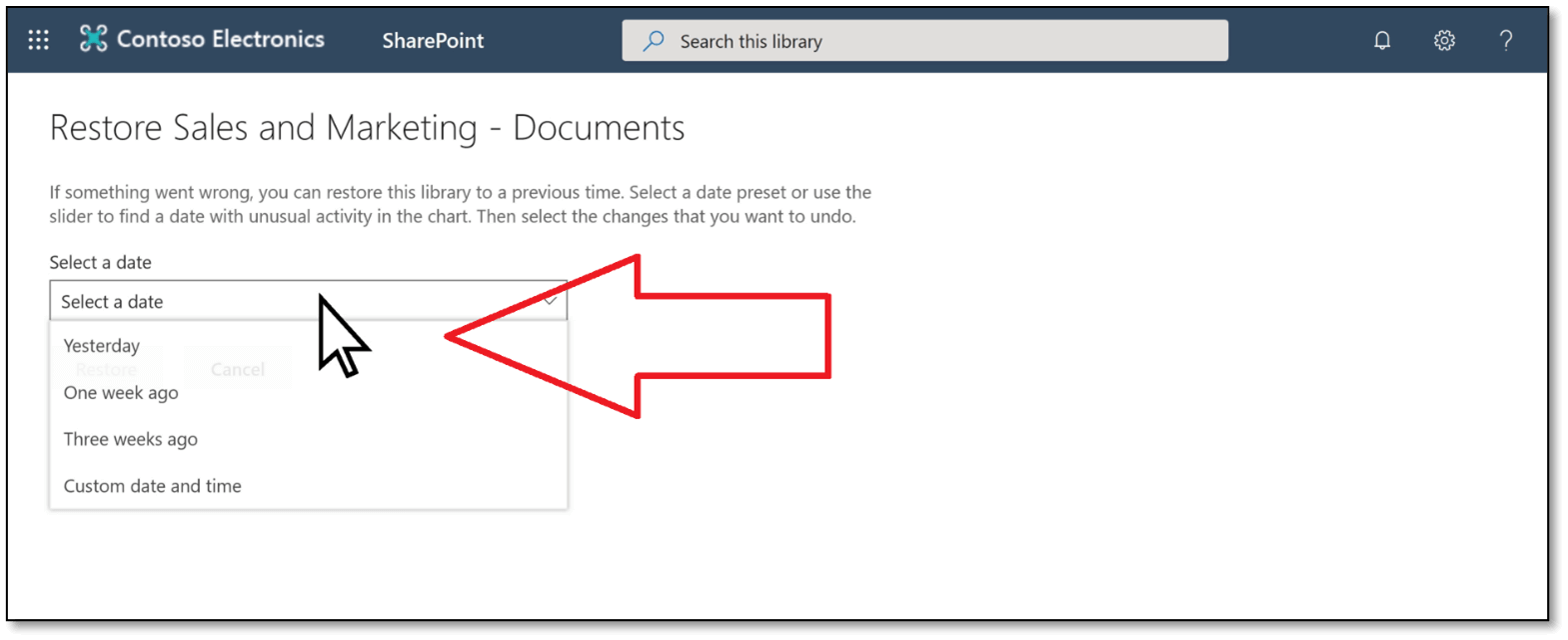
Step 3. Select the date for restoration
Step 4. Click on the Restore button
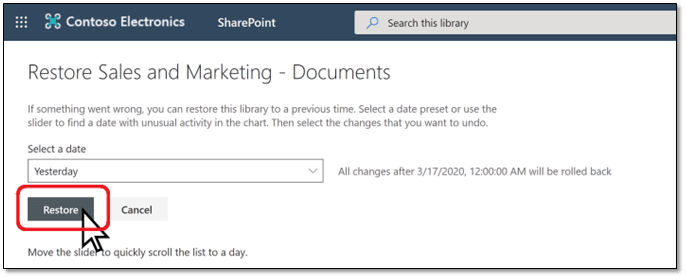
This method will restore the file in the same way as the other method, but this time it will be done in a shared library.
[Bonus Tip] Back Up OneDrive Files to Prevent Data Loss
Restoring OneDrive files from the settings can be a hassle, and in some cases, it may even result in permanent loss of files. However, taking proactive measures can prevent this from happening, and backing up OneDrive files is a simple and effective way to ensure that your data remains safe and recoverable.
You might wonder if you need to back up your OneDrive files since it's a cloud storage service, but the answer is yes. OneDrive files can be vulnerable to security threats, and even Microsoft's own recovery options may not be able to retrieve lost files. Backing up your OneDrive files ensures you can easily restore them in the future.
OneDrive Sync can cause data corruption, so it's better to use a third-party tool like Qiling Disk Master, which is a comprehensive backup and restore program that can back up OneDrive files to any location you want.
The incredible option is a standout choice due to its unique combination of features and benefits. It offers a perfect blend of style, functionality, and affordability, making it an ideal solution for those seeking a hassle-free experience. With its user-friendly interface, seamless performance, and robust security, this option is sure to impress even the most discerning users.
- The ability to back up important data from a hard drive and APP, files/folders to a cloud storage service, ensuring the safety and accessibility of digital information.
- Enhanced security zone to protect your files from virus attacks
- Create a system image easily
- Quick and easy backup setting - and then recovery
With its robust features, Qiling Disk Master is the perfect choice to protect your OneDrive files from potential threats, providing a reliable safety net for your data security needs.
Concluding Thoughts
To revive corrupted OneDrive files, try running the OneDrive troubleshooter, checking for corrupted files using the OneDrive settings, and attempting to recover files from the OneDrive recycle bin. If these methods fail, consider using a third-party file recovery software. Additionally, it's crucial to back up your OneDrive files through other means to prevent data loss in the future.
Qiling Disk Master is a reliable option for setting up a backup system, allowing for quick recovery in case of data loss. It ensures backup on your computer and provides cloud backup, giving you peace of mind knowing your data is secure.
OneDrive Corrupted Files FAQs
1. Why are OneDrive files corrupted?
When synchronizing, OneDrive requires a reliable internet connection. Disruptions caused by internet issues, hardware problems, or viruses can lead to corrupted files on both the cloud and PC sides.
2. Can OneDrive get corrupted?
Users report that OneDrive software can get corrupted on their PC, causing files to fluctuate between their local and cloud versions and fail to synchronize. This can be resolved by reinstalling the software, but it may cause temporary discrepancies between the two.
3. Is OneDrive easily hacked?
OneDrive is a secure cloud storage service that protects against hacking due to its two-factor authentication, making it difficult for viruses and malware to exploit.
Related Articles
- Disk Utility First Aid Process Has Failed [with 5 Proven Ways to Fix It]
- [Tips] AutoSave Is Greyed Out or Not Working in Office, Word, Excel
- Guide on Format Partition in Linux [Effective & Easy Solutions]
- How to Fix Physxloader.dll Is Missing or Not Found Errors
Fix Physxloader.dll is missing or not found errors by reinstalling PhysX, repairing games, or checking system files. - How to Fix 7 Days to Die Corrupted Save on PC (2024 New Guide)
Fix a corrupted 7 Days to Die save on PC. Learn how to locate save files, restore backups, and reduce the risk of losing progress. - 7 Days to Die File Disappeared? Find Causes & Solutions Here
Have you recently lost files on your 7 Days to Die game? In this article, we'll show you how to solve the 7 Days to Die save file disappeared issue. Read on to know the 5 fixes you can apply and have your game resume normally.
Products
Articles & Tutorials
- Data Recovery
- Data Backup
- File Recovery
- File Backup
- System Backup and Restore
- Disk and Partition Clone
- Technical articles
- Mobile articles
- Disk Master Help
- Windows Data Recovery Tutorials
- Windows Secure Delete Tutorials
- Windows Partition Management Tutorials
- Windows File Backup and Restore Tutorials
- Windows System Backup and Restore Tutorials
- Windows Disk Backup and Restore Tutorials
- Windows Clone Tutorials