Right-click Not Working on Mac [6 Methods]
The right-click function on a Mac is an essential tool for efficient navigation and interaction. It can sometimes become unresponsive or faulty.
Troubleshooting the right-click not working on Mac issue is a straightforward process. To resolve this problem, start by checking the mouse settings in System Preferences, ensuring that the correct mouse button is selected.
- 🖱️Fix 1. Check Mouse Settings
- ⚙️Fix 2. Check Trackpad Settings
- 💻Fix 3. Restart Your Mac
- 🧩Fix 4. Reset SMC on Your Mac
- ✅Fix 5. Update Your Mac
- ⌨️Fix 6. Use Keyboard Shortcut to Right-click
If your right-click function isn't working on your Mac, don't worry - it's likely due to a software glitch or system setting that can be easily fixed. With these step-by-step solutions, you'll be back to right-clicking in no time. Keep reading to learn how to troubleshoot and resolve the issue.
Why Right-click is Not Working on Mac
Right-On a Mac, secondary click, also known as click, is a function that can be activated by clicking with two fingers on the Trackpad or using a mouse. This action opens a contextual menu that provides quick access to various options depending on the element being clicked, such as cutting and pasting files, deleting, or modifying settings.
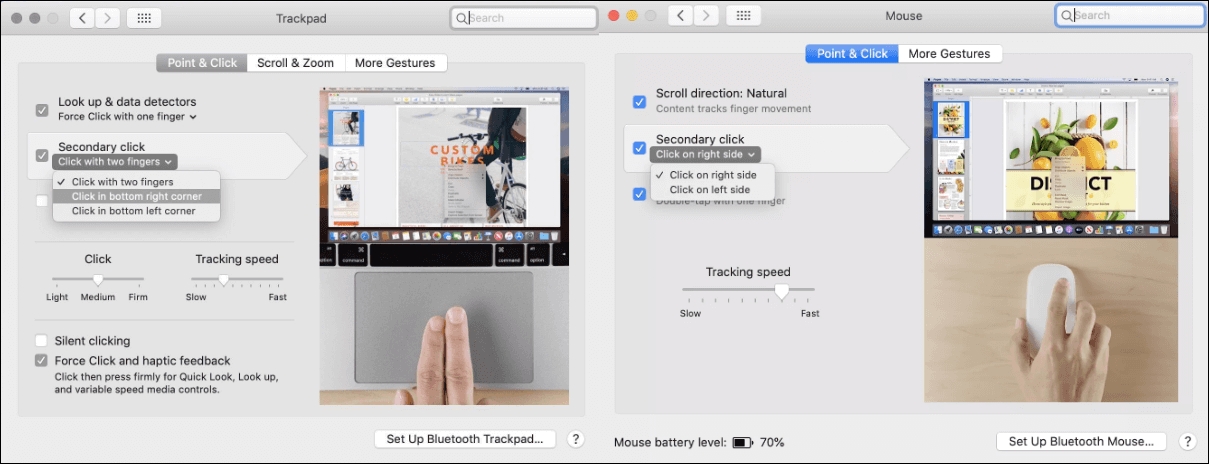
Some users have reported issues where the right-click function fails to work, causing inconvenience and disrupting their workflow.
On a Mac, using a Magic Mouse or Trackpad to right-click can be problematic due to technical issues, preventing the right-click function from working properly. This can occur for several reasons.
🖱️Trackpad or Mouse Issue: Physical issues with the trackpad or mouse can cause the right-click function to not work, possibly due to hardware damage, dirt, or misalignment.
⚠️Software Glitch: Software bugs or glitches can cause right-click to stop working temporarily due to issues in the operating system or applications.
Third-Party Software Interference: Some third-party applications or extensions can interfere with the normal functioning of the right-click function.
⚙️Trackpad or Mouse Settings: Incorrect settings in the trackpad or mouse preferences may be disabling the right-click function. To resolve this, ensure that the right-click (secondary click) option is enabled in the settings.
❎Outdated Operating System or Software: Using an outdated macOS version or software might cause compatibility issues that affect right-click functionality. Upgrading to the newest version, macOS 14, can resolve this issue.
❌Malware or Virus: Malicious software can interfere with system functions, including right-clicking, as part of its malicious operation.
Many system failures can lead to unexpected data loss, so it's recommended to back up important data before repairing the system or setting up a malfunction. To protect your data, use Deep Data Recovery for Mac Pro, the all-in-one backup and recovery program.
Back Up Your Mac and Never Lose Data
You can back up and restore your MacBook/iMac without relying on Time Machine, iCloud, or external hard drives. To do this, you can use the built-in "Backup" feature in macOS, which allows you to create a backup of your system and restore it in case of a problem.
How to Fix the Right-click Not Working on Mac Error
If Right-If click isn't working on your Mac, don't worry, there are several fixes to resolve this issue. You can try restarting your Mac, checking for software updates, or resetting the System Management Controller (SMC). If the problem persists, you can try resetting the NVRAM, disabling the Trackpad and Mouse in System Preferences, or using the Terminal to reset the click functionality.
Fix 1. Check Mouse Settings
Mac users can personalize their mouse experience by adjusting settings to suit their preferences, whether that's changing double-click speed, scrolling behavior, or switching between traditional button mice and Apple's Magic Mouse.
Here's a simple guide to achieve this:
Step 1. To navigate to the top-left corner of your screen, tap on the Apple icon located there.
Step 2. Choose "System Preferences" from the options presented.
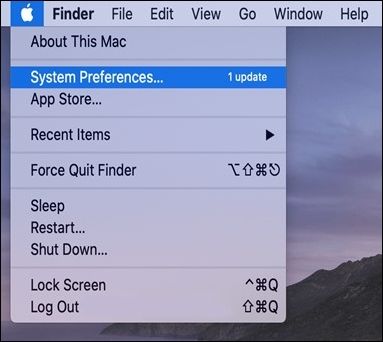
Step 3. In the "System Preferences" window, locate and click "Mouse".
Step 4. To review your secondary click preferences, click on the dropdown menu next to "Secondary Click" in your settings.
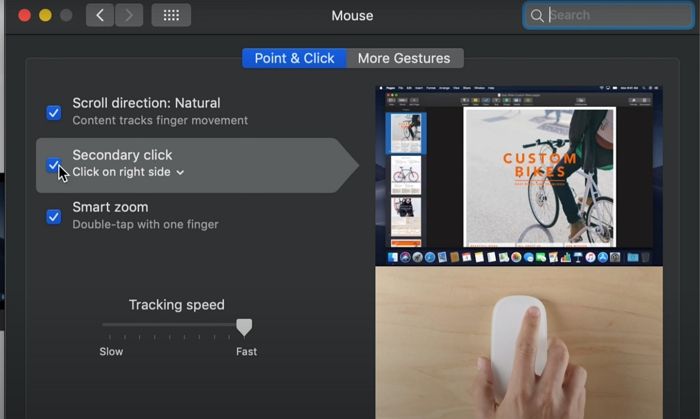
Step 5. To resolve the issue, select your desired right-click preference and close the window to confirm if the issue is resolved.
Suppose System Preferences not responding on your Mac, or this method doesn't fix the right-click not working error, don't worry! The next fix may help.
Fix 2. Check Trackpad Settings
It's a good idea to check the Secondary Click settings on your Mac, especially if you use the Trackpad, as someone else may have changed the right-click method.
Also, to ensure right-To activate the Secondary Click feature on your Mac, follow these steps:
Step 1. To open Spotlight Search, press the "Spacebar + Command" keys, then select "System Preferences" from the results and hit the "Return" key.
Step 2. Look for and click on "Trackpad".
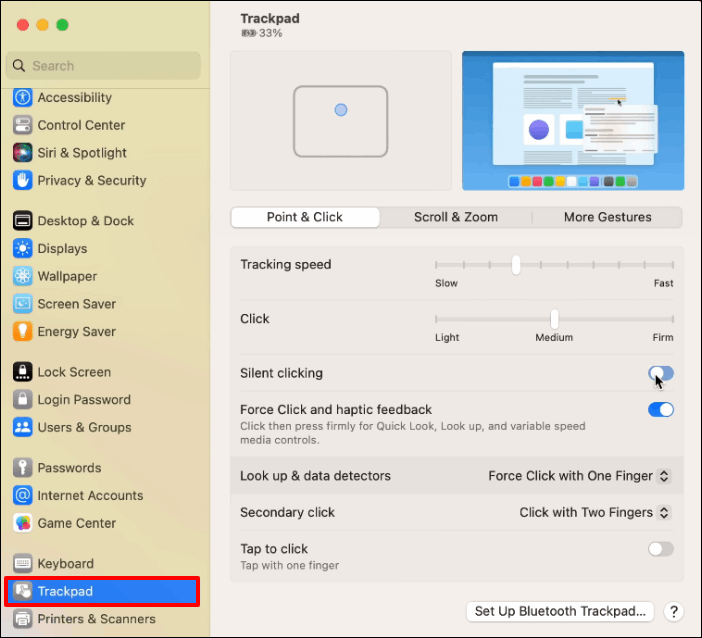
Step 3. To configure secondary click settings, navigate to the "Point & Click" tab in your mouse settings. Select the option for "Secondary Click" to access its settings.
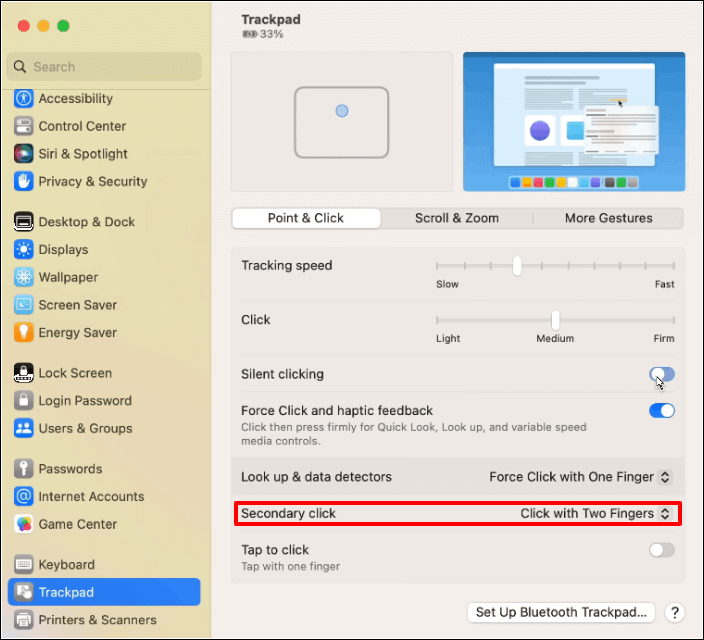
Step 4. To modify the settings for secondary click, click on the downward arrow under the "Secondary Click" heading. This will reveal available options for customization.
Step 5. Test your preferred method of right-clicking to ensure it works correctly.

Unfortunately, the conversation has just started. There is no article to share.
Fix 3. Restart Your Mac
To resolve minor issues with your Mac, a simple reboot can often solve problems caused by system or settings anomalies. You can restart your Mac using a key combination, or by shutting it down completely and then turning it back on. This can resolve issues related to system glitches or software conflicts, and is a quick and easy troubleshooting step.
Step 1. Press the "Control" and power button simultaneously.
Step 2. Click on the "Restart" button in the confirmation window that appears, asking if you want to shut down your computer.
After initiating the process, your Mac will automatically restart, so be patient and wait for it to complete.
To restart your Mac, click the Apple menu and select the "Restart" option. This will immediately shut down your computer and then restart it.
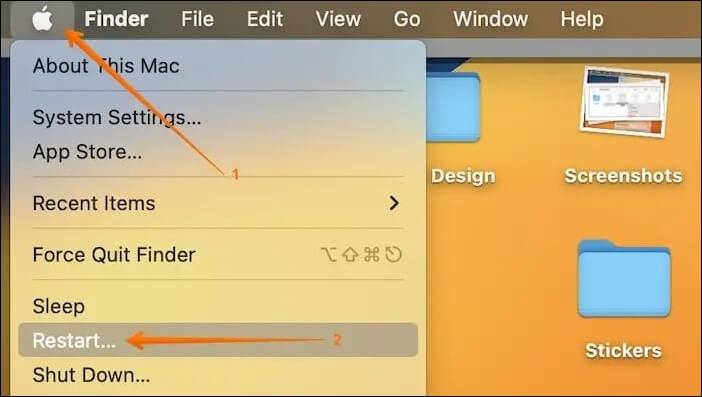
If you have any files in progress, you will be prompted to save them. You can also choose to reopen your currently running apps or windows upon reboot by ticking the "Reopen windows when logging back in" option. After that, your computer will shut down and reboot.
Fix 4. Reset SMC on Your Mac
If the right-If the right-click issue persists after a System Management Controller (SMC) reset on a MacBook Pro or Air, consider applying more advanced troubleshooting steps. This may involve performing an SMC reset, which is responsible for critical hardware functions like the Trackpad's right-click feature, to see if it resolves the issue.
For Intel-based Macs, SMC reset is used to troubleshoot issues, and can be performed by shutting down the Mac, unplugging the power cord, waiting 30 seconds, and then plugging it back in and turning it on. This process is similar to a restart for Macs with Apple's M-series chips.
Step 1. Hold down the power button until your Mac powers off.
Step 2. After the shutdown, wait a brief moment, then simultaneously press the "Shift", "Option", and "Control" keys, and hold the power button.

Hold the power button and the volume down button for 8 seconds, then release the power button but keep holding the volume down button for another 8 seconds. If your Mac starts up, you'll hear the default startup chime.
Release the keys once the Apple logo appears and the display activates, then check if the right-click functionality has been restored.
Fix 5. Update Your Mac
The current version of macOS may have inherent bugs or glitches that affect right-click functionality, but updating your Mac could potentially fix the issue.
For software downloaded from the App Store, follow these steps to update:
Step 1. Click on the Apple menu and choose "App Store".
Step 2. Navigate to the "Updates" tab.
Step 3. Click "Update" beside any updates listed to install them.
Step 4. Alternatively, select "Update All" to install all available updates.
Step 5. After updating, recheck for updates to ensure everything is up to date. You can tick the "Automatically keep my Mac up to date" button.
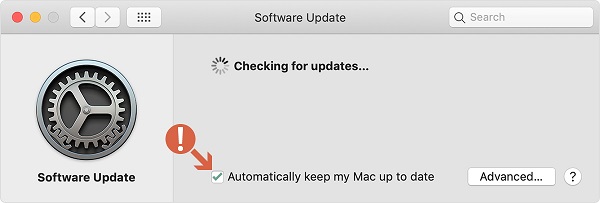
To download software updates for macOS, follow these steps:
Step 1. Click the Apple menu.
Step 2. Choose "About This Mac" from the available options.
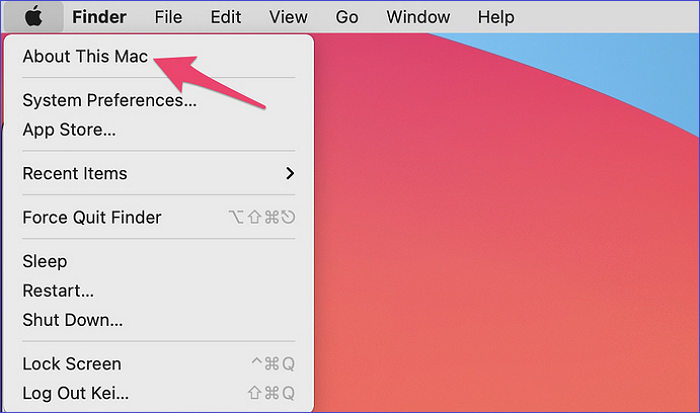
Step 3. Tap "Software Update".
Step 4. If there's an update, proceed to download and install it.
Step 5. After installation, confirm whether the issue has been resolved.
If the macOS 14 Sonoma update is not showing or you're experiencing problems with the installation, don't worry! This article can help you solve your issue and find a solution to upgrade to macOS Sonoma.
macOS Sonoma Upgrade Failed | 3 Tested Solutions in 2023
If you're experiencing issues with the macOS Sonoma upgrade failing, there are three proven ways to resolve the problem. Firstly, you can try restarting your Mac and then attempting the upgrade again, as this can sometimes resolve any underlying issues. Secondly, you can use the built-in Disk Utility app to verify and repair the disk permissions, which can help to resolve any problems that may be preventing the upgrade from completing.
Fix 6. Use Keyboard Shortcut to Right-click
If the right-If the click function on your Trackpad isn't working, you have an alternative option. Press and hold the Control key while clicking an item on your Mac.
If your Trackpad's right-click feature isn't working, you can try using a workaround by tapping with two fingers on the Trackpad instead. If this doesn't resolve the issue, it's recommended to visit an Apple Store for professional help to rule out any internal problems with the Trackpad.
Conclusion
it can be difficult if right-If the click function is not working on your Mac, don't worry - it's often fixable. You can try troubleshooting by checking for software updates, but be aware that data loss can occur during this process or due to other unforeseen circumstances. However, by following practical steps, you can resolve the issue and get your Mac's click function up and running again.
To protect your important files and data, especially if you suspect issues with your storage devices, use professional software like Deep Data Recovery for Mac Pro to create secure backups and safeguard against data loss.
Right-click Not Working on Mac FAQs
Mac users often experience issues with right-click not working, and common questions about this problem include understanding what happens when you try to right-click, troubleshooting steps to resolve the issue, and whether there are any specific software or hardware requirements for right-click functionality. Additionally, users may wonder if there are any workarounds or alternatives to right-click, such as using keyboard shortcuts or third-party software to mimic the right-click functionality. Furthermore, users may be concerned about whether their Mac's hardware or software is outdated or incompatible with the right-click feature, and what steps they can take to update or resolve the issue.
1. Why is my Mac not letting me right-click?
The right-The click function on a Mac might not work for several reasons, such as a faulty mouse or trackpad, issues with the operating system or software, or hardware problems with the Mac itself. In some cases, it may be due to a stuck key or a malfunctioning keyboard.
- Trackpad or Mouse Issue
- Software bugs or glitches
- Third-Party Software Interference
- Trackpad or Mouse Settings
- Outdated Operating System or Software
- Malware or Virus
2. How do you get the right click to work on a Mac?
Control-On a Mac, clicking the mouse button while holding down the Control key (also known as a "Control click") functions similarly to a right-click on a Windows computer. This action provides access to shortcut or contextual menus on a Mac. To perform a Control click, press and hold the Control key while clicking on an item, such as an icon, the desktop, the toolbar, a window, or any other element.
3. Why is the right click not working on the Mac trackpad?
To enable right-click on a Mac, check the trackpad settings by going to System Preferences, then Trackpad, and ensure the "Secondary click" function is turned on. This allows you to perform a right-click using a two-finger tap.
Related Articles
- Fix App Store Not Working on Mac: 5 Quick Solutions and 4 Practical Fixes
- How to Start Mac in Recovery Mode [macOS Ventura/Monterey/Big Sur]
- How to Factory Reset Mac Without Keyboard? Keyboard Not Working
- Mac Error Code 8072 Occurs? Check Here to Get Rid of It
- How to Factory Reset ASUS Laptop from BIOS🔥
There are cases like technical issues or passwords forgotten, and you can't log in to your laptop. You may need to factory reset the ASUS laptop from BIOS. In this article, we'll show you how to restore your ASUS laptop. Read on to find out more. - 4 Ways to Factory Reset ASUS Laptop Without Password
Are you looking to learn how to factory reset an ASUS laptop without a password? This comprehensive guide outlines four effective methods to reset your laptop.
Products
Articles & Tutorials
- Data Recovery
- Data Backup
- File Recovery
- File Backup
- System Backup and Restore
- Disk and Partition Clone
- Technical articles
- Mobile articles
- Disk Master Help
- Windows Data Recovery Tutorials
- Windows Secure Delete Tutorials
- Windows Partition Management Tutorials
- Windows File Backup and Restore Tutorials
- Windows System Backup and Restore Tutorials
- Windows Disk Backup and Restore Tutorials
- Windows Clone Tutorials