How to Factory Reset ASUS Laptop from BIOS🔥
Factory resetting your ASUS laptop can resolve system issues such as slow performance, crashing apps, and errors. This process restores all settings to their factory default state. If you're experiencing system problems or want a fresh start, resetting from the BIOS provides a complete factory restore by erasing all data and customizations. This guide explains how to factory reset your ASUS laptop from the BIOS.
Why Do You Need a Factory Reset From BIOS
A factory reset from BIOS restores a device to its original factory settings, erasing all changes and personal data, and resetting it to its default settings, similar to when it was first purchased.
A BIOS factory reset is necessary when you need to restore your computer's BIOS settings to their original factory defaults. This is typically done when you want to resolve issues related to BIOS settings, such as incorrect boot order, incorrect time and date, or other problems that prevent your computer from booting properly.
- Experiencing troublesome problems that you can't resolve Factory resetting your ASUS laptop will erase all data, settings, and applications, giving you a clean slate to start fresh and resolve any software issues.
- Clearing viruses or malware Resetting a device to its factory settings can remove stubborn viruses and malware that are difficult to delete.
- Preparing to sell or give away the laptop Wiping your personal data and settings off a laptop protects your privacy by completely erasing all information stored on the device.
- Purchased a used computer Factory resetting the laptop will erase all personal data, including passwords, and restore the device to its original settings, effectively securing your privacy from the former owner.
- Fixing issues caused by a Windows update If a bad update is causing problems, a factory reset can be used to revert back to the original settings, undoing any changes made by the update.
- Updating BIOS error Factory resetting your ASUS laptop will erase all data, apps, and settings, returning it to its factory settings, as if it were brand new.
📚Related reading: How to Factory Reset Dell Laptop From BIOS
What to Do Before Resetting ASUS from BIOS
You now understand the importance of a factory reset from the BIOS, its capabilities, and the need to be aware of the consequences, such as the total wipe of personal data, and the things to pay attention to.
- Remove external devices: To avoid software conflicts between external devices and peripherals, disconnect all of them.
- Save License Keys: Note down the license keys or registration info.
- Charge the device: To ensure your laptop has enough power to complete a factory reset, plug it in to a power source and let it charge for at least 30 minutes to an hour before starting the process. This will guarantee that the laptop's battery is fully charged, reducing the risk of it shutting down during the reset.
- Backup important data: You should use backup software to save your important files before factory resetting your computer from the BIOS settings. This ensures your data is safe and can be easily restored after the reset.
Factory resetting from BIOS can cause data loss, so it's essential to back up significant files beforehand. Windows has a built-in backup feature, but it doesn't support cloud backup and has limitations on what can be backed up. For a more comprehensive solution, we recommend using professional backup tools like Qiling Disk Master.
Qiling Disk Master provides various backup options, including system, disk, file, and OS backup, allowing you to safely back up your computer to an external hard drive. It also enables you to clone a hard drive and factory reset a PC without losing any data.
Share this post with your friends if it's useful:
Restore ASUS Laptop to Factory Settings from BIOS
You can restore your ASUS laptop to its factory settings by accessing the BIOS settings, navigating to the "Restore" or "Recovery" option, and following the on-screen instructions to complete the process. This will erase all data on the laptop, so be sure to back up any important files before proceeding.
To reset your computer from BIOS, start by pressing the designated key (usually F2, F12, or Del) to enter the BIOS settings. Once in the BIOS menu, navigate to the "Reset" or "Restore Defaults" section and select the option to reset the BIOS settings to their factory defaults.
Step 1. Restart your computer.
Step 2. To enter the BIOS on an ASUS computer, press the "Del" key when you see the ASUS logo on the screen. This will allow you to access the BIOS settings and make any necessary changes.

Step 3. To reset your motherboard settings, navigate to the Exit section and click on the option to load setup defaults or restore settings. The exact wording may vary depending on your specific motherboard model. This will reset all settings to their default values.
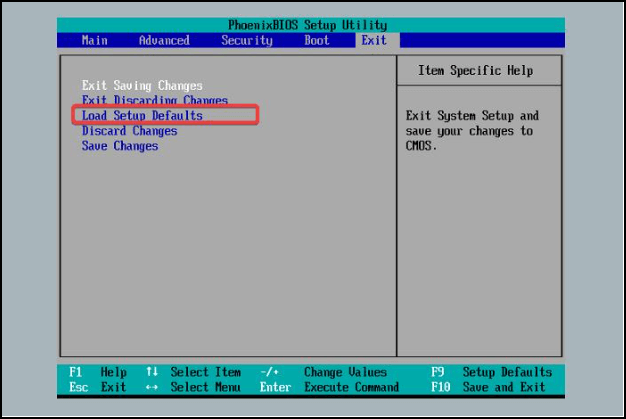
Step 4. Press "Enter" and select "Yes" to confirm, and BIOS reset will start.
Step 5. To exit the BIOS settings, navigate to the "Exit" section, select "Exit Saving Changes" and choose "Yes", or press the "F10" key to save your settings and exit the BIOS.
After solving this problem, you may also be interested in:
Conclusion
Performing a factory reset on an ASUS laptop from the BIOS can be an effective solution when Windows is not functioning properly. This process allows the laptop to be reset to its original settings, potentially resolving system issues caused by software errors. However, it is recommended to use Qiling Disk Master to create a backup of critical data before proceeding with the factory reset from BIOS.
FAQs on Factory Reset ASUS Laptop From BIOS
1. How do I factory reset my laptop without opening settings?
- Click on "Start", then press Shift and click on "Restart".
- Follow the guide to the troubleshooting section.
- Click on "Reset my PC" and select "Keep my files".
- The system will reboot itself and restore to its factory settings.
2. Can you force Reset a laptop?
Disconnect all devices such as USB drives, printers, webcams, and media cards (SD/xD). Press and hold the power button for about 17 seconds to drain the residual power. After that, Connect the power cable (for desktops) or AC adapter and battery (for laptops). Turn on the computer.
3. Why can't I factory reset my computer?
If you're getting an error while resetting your PC, it might be due to recent changes made to your system that are incorrect. To fix this, you can use Windows' System Restore tool to roll back your changes. This tool restores your system to a previously created restore point, effectively undoing your recent modifications.
4. How to reset the laptop using cmd?
To reset your Windows 10 computer to its factory settings, press the Windows key + R to open the Run dialog box, type "cmd" to open Command Prompt, and press Ctrl + Shift + Enter to run Command Prompt as an administrator. Then, type "systemreset -factoryreset" and press Enter. This will initiate the factory reset process, which will delete all installed apps, user accounts, and settings, restoring your computer to its original factory configuration.
Related Articles
- How to Factory Reset Windows 10 Without Settings | 3 Ways🔥
- [Fixed] Boot Camp Error "The Startup Disk Cannot Be Partitioned Or Restored To A Single Partition"
- How to Fix Lenovo Laptop Stuck in Boot Loop in Windows 10/11 [Quick and Easy]
- What Is the Best LG TV USB Format & How to Set It? [Step-by-Step Guide]
this guide will hely you to choose the suitable format for LG TV USB. And you will also be familiar with the three simplest ways to set the best LG TV USB format. - RAR vs ZIP. What Is The Difference Between ZIP and RAR?
The article explores the differences between ZIP and RAR files, two popular compression formats used to reduce the size of digital files. - eSATA External Hard Drive: Everything You Should Know
In this article, we will discuss what is eSATA external hard drive and its pros and cons. Besides, you can get some recommendations for eSATA external hard drives.
Products
Articles & Tutorials
- Data Recovery
- Data Backup
- File Recovery
- File Backup
- System Backup and Restore
- Disk and Partition Clone
- Technical articles
- Mobile articles
- Disk Master Help
- Windows Data Recovery Tutorials
- Windows Secure Delete Tutorials
- Windows Partition Management Tutorials
- Windows File Backup and Restore Tutorials
- Windows System Backup and Restore Tutorials
- Windows Disk Backup and Restore Tutorials
- Windows Clone Tutorials