How to Factory Reset Windows 10 Without Settings | 3 Ways🔥
Factory resets are often the best solution for Windows issues. If your PC is significantly slower than it once was, you have malware that you can't remove, or you plan to sell your machine, a reset is the most convenient option. However, if the Settings app won't launch or crashes, you'll need to use alternative methods to reset Windows 11/10, such as the built-in troubleshooting and system reset features, or other methods like the one described in "how factory reset Windows 10 without settings".
To reset your Windows 11/10 computer, you can follow these steps: Press the Windows key + S, type 'reset this PC', and select the 'Get started' button. You can choose to keep your files, remove everything, or remove files but keep apps and settings. If you're selling your computer, removing everything is recommended.
Why Do You Need to Factory Reset Your Computer
Factory resetting a PC can resolve performance issues and erase personal data for a secure sale or donation.
Factory resetting your PC may destroy all your data and settings, so proceed cautiously. Before executing a factory reset, back up crucial files to an external hard disk or cloud service, and ensure you have all software and driver installation files, as the reset will remove all pre-installed programs.
A factory reset may not always solve computer problems, as it won't address hardware-related issues. If the problem lies with the hard disk or memory, a specialist or replacement may be necessary.
Preparations for Factory Resetting a Laptop
Before factory resetting your laptop, create a system image of your computer, which can be quickly restored after the reset to retrieve crucial files and settings. If you're unfamiliar with backup software, don't worry, as Qiling Disk Master Pro makes system image backups simple and reliable.
Qiling Disk Master Pro helps you factory reset your computer without losing data, using its powerful backup technology to create reliable and efficient backups, and scheduling feature to arrange automatic backups. It allows you to back up files, systems, disks, partitions, and computer apps, saving the backups in various locations, and even image a hard drive and create an iso image of your operating system.
You can find what makes this backup tool so unique in the following.
- One-click backup and recovery options
- Clone a hard drive
- Create full, incremental, and differential backups
- 250G free cloud storage
- Install Windows 10 from one PC to another
Here is how to back up your Windows 10 PC.
Step 1. On the main page, click "Select backup contents".

Step 2. Among the four available categories, click System backup.

Step 3. Qiling Disk Master will automatically select your system partition, requiring only the selection of the backup destination.

Step 4. You can save the backup file to either a local drive or a network-attached storage (NAS) device.
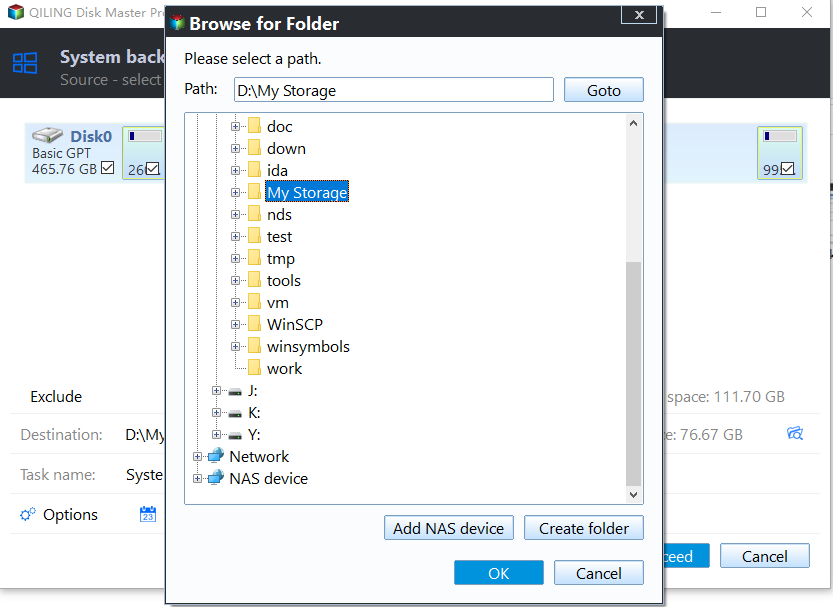
Step 5. After completing the backup process, you can view the backup status and perform actions such as recovering, opening, or deleting the backup by selecting the backup task in the list view.

3 Ways to Factory Reset Windows 10 Without Using Settings
To perform a factory reset on your computer without using settings apps, you can try resetting Windows, utilizing the Recovery Drive, or backing up your data before the reset. One option is to reset Windows, which can be done by going to the Windows Settings, then clicking on Update & Security, and finally selecting Recovery. Alternatively, you can use the Recovery Drive, which is a USB drive that contains the Windows Recovery Environment. This drive can be used to boot your computer and perform a factory reset.
| Workable Solutions | Step-by-step Troubleshooting |
|---|---|
| Way 1. Using the Advanced Startup Option | Using the Advanced Startup Option is the first way to reset...Full steps |
| Way 2. Using the Fresh Start Option | If you use an older Windows 10, you can use Fresh Start...Full steps |
| Way 3. Using a Recovery Drive | Windows 10 may be factory reset using a recovery drive...Full steps |
Way 1. Using the Advanced Startup Option
To reset your Windows 10 computer to factory settings without using the settings app, you can use the Advanced Startup Option. First, click the Start button and select the Power icon, then hold the Shift key while clicking Restart. This will take you to the Advanced Startup Options screen.
Step 1: To reset your Windows 11/10 computer, boot into the Advanced Startup menu, which can be accessed by pressing the Windows key + X and selecting the Power button, then holding the Shift key down while clicking Restart. This will allow you to choose whether to perform a Reset or a Refresh of your computer, or to access other advanced options.
- Tip
- When you restart your computer in the Advanced Setup Option mode, you can access the setup options by pressing the appropriate key during the boot process. This allows you to configure your computer's settings and make changes to the boot process.
- 1. To start your computer, press the Start button on the taskbar or press the Windows key on your keyboard.
2. Click the Power button on the bottom right corner of the screen.
3. Hold down the Shift key on your keyboard while clicking Restart. This will open the Windows Recovery Environment, which will allow you to troubleshoot and repair your system.
Step 2: To reset your Windows 11/10 computer, follow these steps: Boot your computer and immediately start tapping the F11 key on your keyboard. This will open the Advanced Startup menu.
Step 3: Choose Troubleshoot and then Reset this PC to do this.
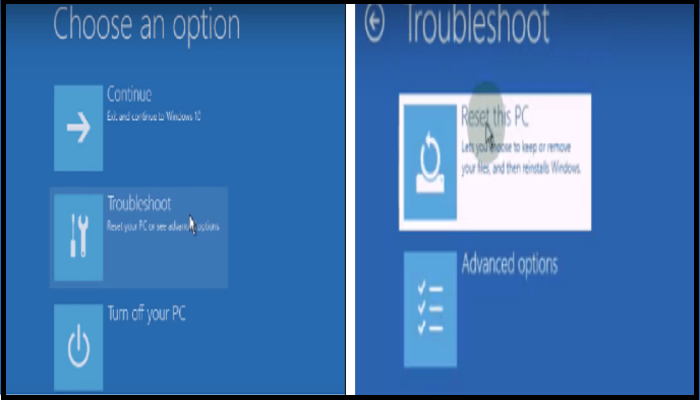
Step 4: After backing up your files, you can choose to either Keep your files or Remove everything. Select the option that best suits your needs, and then follow the on-screen instructions to complete the reset process.
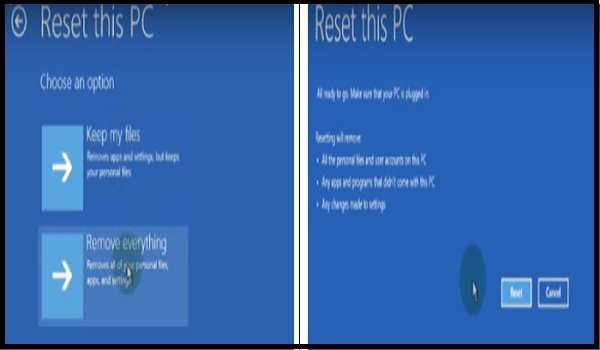
Step 5: Under Ready to reset this PC window, click Reset.
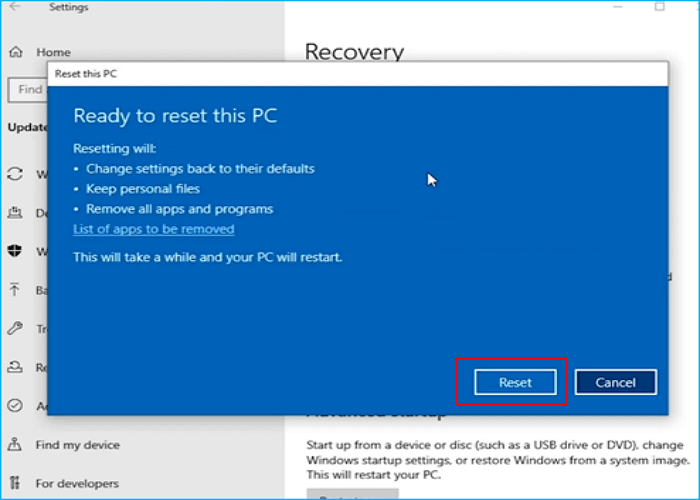
Step 6: The system will restart and reset to its original factory settings, effectively erasing all personal data and settings.
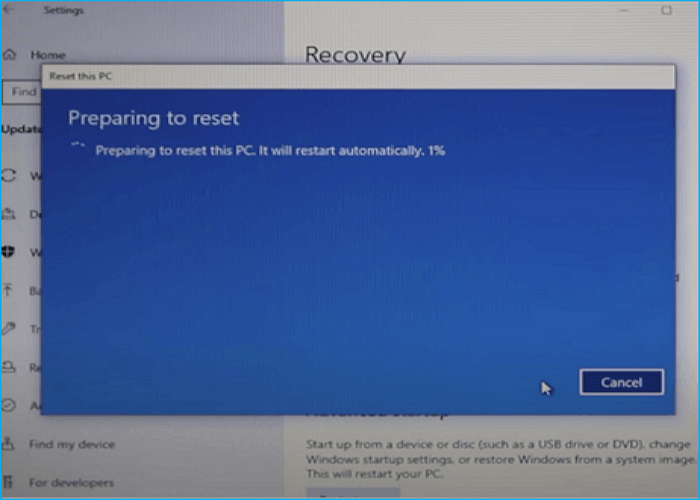
Restoring your computer to its original form will delete all loaded programs and Windows settings, but keep or remove your personal files. It's essential to back up your data before resetting your PC to avoid losing any important information. Once the process is complete, your computer will be restored to its original state, allowing you to start over and troubleshoot any issues.
You May Also Like:
Way 2. Using the Fresh Start Option
If you're using an older version of Windows 10, you can use Fresh Start to factory reset your device. If you're using a newer version, simply reboot your machine.
Here's how Fresh Start works:
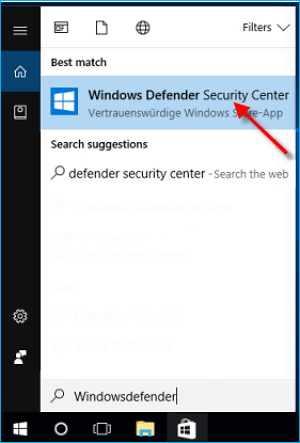
Step 1. Click Start and search Windows Defender Security Center.
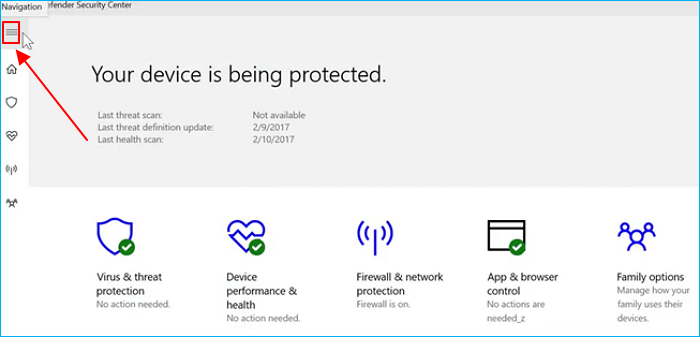
Step 2. Click the side menu.
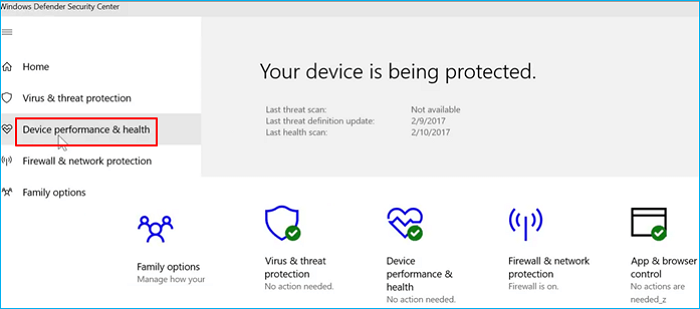
Step 3. Select Device Performance & health.
Step 4. Click Additional info for the Fresh start option.
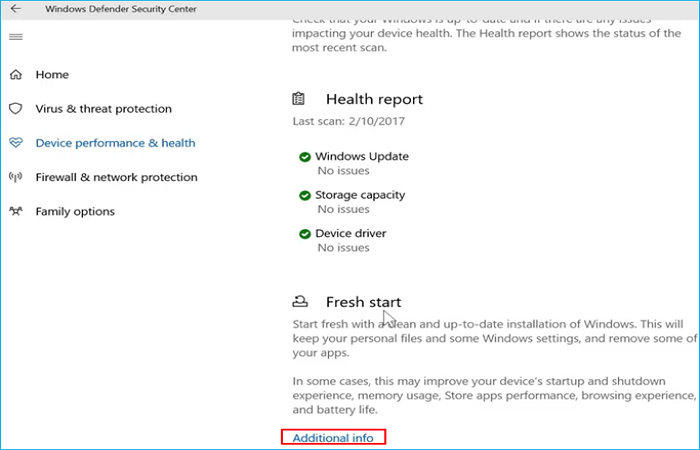
Step 5. To start the Fresh Start process, navigate to Settings, then click on Accounts, then select the account you want to reset, and finally click on Fresh start. This will guide you to the Fresh Start dialog box, then click on Get started.
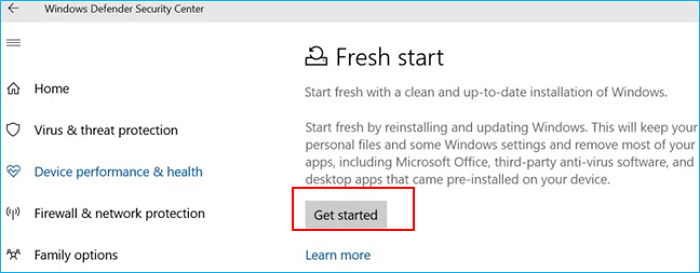
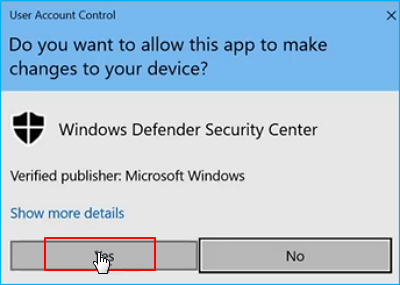
Step 6. Click on Yes.
Step 7. The Fresh start window will appear. Hit Next, and then follow the on-screen guide.
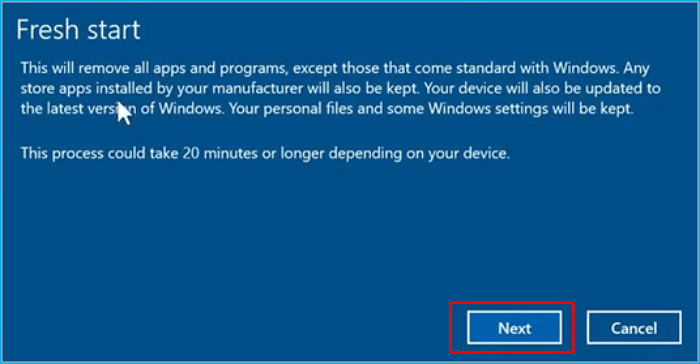
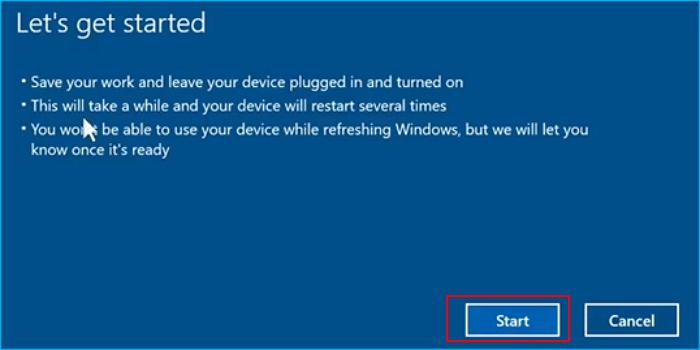
Step 8. A window will appear informing you about all processes. Click Start, and your computer will begin to reset.
Way 3. Using a Recovery Drive
Windows 10 can be factory reset using a recovery drive, which doesn't restore Windows settings, or a bootable USB drive with Windows 10 that can troubleshoot and reset the computer.
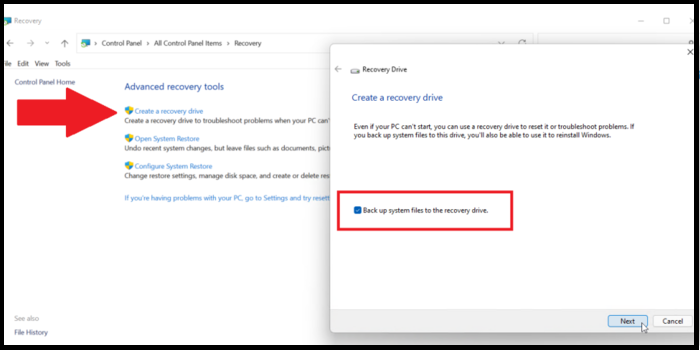
- To create a recovery drive, you'll need a USB device with at least 16 GB of capacity. Microsoft provides detailed instructions on its website to guide you through the process.
- Insert a USB disk and restart your computer, then insert the USB disk again to access the recovery drive. Once you have accessed it, you can reset your computer.
- To boot from a USB drive, select the USB as the boot device using the key that includes the boot menu, typically F12 or Esc.
- Follow the on-To access the recovery environment and reset your PC, go to Settings, then Update & Security, and click on Recovery. From there, click on Restart now under Get started, and then select Troubleshoot.
Before conducting a factory reset, it's essential to back up all essential data to prevent its loss. This process will reinstall Windows 10 and erase all files and apps on the computer.
The Bottom Line
To factory reset your Windows 10 PC without using the Settings app, you can create a recovery drive or bootable USB. This allows you to reset your PC to its original condition, which can be helpful if you've forgotten your login password or want to erase all data.
Before factory resetting your computer, create a backup of your PC to avoid data loss risks, and use Qiling Disk Master to make your data secure.
FAQs
1. Can you factory reset Windows 10 without a password?
You can factory reset Windows 10 without a password by holding the Shift key while clicking Restart in the Start menu, which leads to the Advanced Startup Settings menu. From there, select Reset this Computer and follow the on-screen instructions to reset your PC.
2. How to reset Windows 10 to factory settings without losing data?
To reset Windows 10 to factory settings without losing data, go to Settings > Update & Security > Recovery, select "Keep my files" under "Reset this PC", and follow the on-screen directions. This will reinstall Windows without deleting your files.
3. How do I Reset Windows 10 to factory settings if I can't log in?
If you're unable to log in to Windows 10, you can use the Advanced Startup Settings option to reset the operating system to its factory settings. To do this, hold down the Shift key while clicking the Start and Restart buttons. This will take you to the Advanced Startup Settings screen, where you can select Troubleshoot and then Reset this PC. Follow the on-screen instructions to complete the system reset.
4. Does resetting the PC delete everything?
When you reset a PC, the operating system is restored to its original settings, deleting all installed apps and personal files. However, if you choose the "Keep my files" option, only personal files will be preserved, while programs and settings will be erased.
Related Articles
- [FIXED] Bluetooth Disappeared Windows 10 Issue
- Fix There Are No Free MBR Slots on the Disk [2023 Best Solution]
- Fix CS:GO "VAC Was Unable to Verify Your Game Session"
- What Does SMART Status Mean, Here Is Everything You Want
- How to Find Windows Server 2012 Product Key [3 Ways]
To avoid losing your activation key in the Windows Registry, you should save it in a safe place, such as a note or a secure document, before reinstalling Windows. If you - How to Find Windows Server 2016 Product Key
Are you unable to find your Windows Server 2016 Key? Is your Server dead, and do you need to find the key? Follow this quick and easy guide on how you can find Windows Server 2016 product key using various methods and third-party tools.
Products
Articles & Tutorials
- Data Recovery
- Data Backup
- File Recovery
- File Backup
- System Backup and Restore
- Disk and Partition Clone
- Technical articles
- Mobile articles
- Disk Master Help
- Windows Data Recovery Tutorials
- Windows Secure Delete Tutorials
- Windows Partition Management Tutorials
- Windows File Backup and Restore Tutorials
- Windows System Backup and Restore Tutorials
- Windows Disk Backup and Restore Tutorials
- Windows Clone Tutorials