Fix CS:GO "VAC Was Unable to Verify Your Game Session"
CS: GO has recently grown in popularity, with the number of players increasing daily. The game's popularity has skyrocketed since it became free to play. Recently, some players have been having a lot of trouble with a very common issue in the game. When they start the game, they get an error saying, " VAC was unable to verify your sessionSome players believed the error was due to a VAC ban, while others thought the culprit was hidden on the backend.
VAC, or Valve Anti-The game's built-in cheat detection mechanism, called Cheat, detects and punishes hackers and cheaters. If you encounter a "verify game session" error, it's likely due to corrupt files preventing the game's source from being verified. This article provides guidance on resolving the issue.
| Workable Solutions | Step-by-step Troubleshooting |
|---|---|
| Fix 1. Reboot Your Computer | Some apps and processes (such as disc indexing) on your computer are responsible...Full steps |
| Fix 2. Run the Game as an Admin | Running the game as an administrator prevents the game from crashing due to a lack...Full steps |
| Fix 3. Restart PC | To fix this, startup Steam, navigate to the Library, right-click Counter-Strike...Full steps |
| Fix 4. Repair the Steam Client | Another reason for this error may be that your Steam client could be corrupted...Full steps |
| Fix 5. Completely Reinstall CS: GO | If none of the above fixes work, your problem is likely not one that can be solved...Full steps |
"VAC was Unable to Verify Your Game Session" Error
To fix this problem, you must first understand how VAC works.
The software uses Steam to track and ban players who try to enter a game session while using hack or cheat software, detecting unauthorized programs or scripts and abnormal game file changes, leading to immediate user bans.
VAC was unable to verify your game session due to a third-party program or script altering the game processing or Tempered game files, resulting in an error message.
Perform Some Preliminary Checks
Perform some preliminary checks if you still need to do so.
- Leave your game session, restart it, and try again to matchmake.
- Relaunch the Steam client.
- After logging out, re-enter your Steam.
- Restart your Windows computer.
- Disable Windows Defender or any other antivirus software you use, or allow the Steam client and directory folders to run normally.
- The US government has issued a warning to users of Virtual Private Networks (VPNs), stating that they may be required to disclose information about their VPN use. This has led to concerns about the potential for government surveillance and the erosion of online privacy.
If none of the steps work, it's time to look for another easy solution.
Fix 1. Reboot Your Computer
To resolve the issue of VAC failing to verify game files, reboot your computer, which can help stop apps and processes from accessing the game files, allowing VAC to successfully verify them.
Step 1. Close all applications and windows.
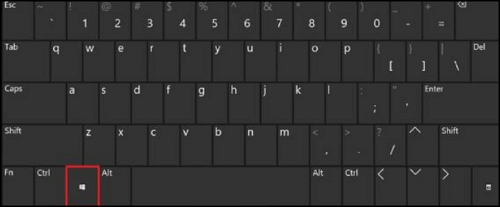
Step 2. To open the Start menu in Windows, press the Windows key on your keyboard, or click the icon in the lower-left corner of your screen.
Step 3. When the Start menu appears, click the Power icon. Then press the Restart button.
Step 4. If you're still experiencing issues, try resetting your game's settings to their default values. This can often resolve problems with the game's performance or functionality.
Fix 2. Run the Game as an Admin
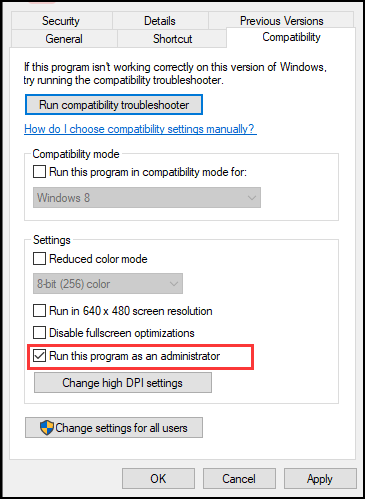
To prevent the game from crashing due to a lack of permissions, you can run it as an administrator. This can be done by right-clicking on the game's executable file, selecting "Run as administrator" from the context menu, and then clicking "Yes" to confirm. Alternatively, you can also search for the game's executable file in the Start menu, right-click on it, and select "Run as administrator" from the context menu.
Step 1. Right-click the.exe shortcut file for the game on your device.
Step 2. Select Properties.
Step 3. Go to the Compatibility tab.
Step 4. Check the box Run this program with administrative privileges.
Step 5. To save the changes, click "OK".
Fix 3. Verify Integrity of Game Files and Restart PC
To fix the issue, start Steam, navigate to the Library, right-click Counter-Strike: Global Offensive, and select "Properties" from the context menu.
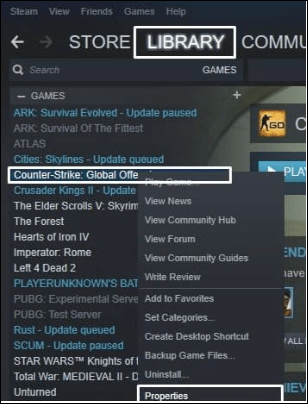
Step 1. After opening the properties window, navigate to "Local Files" and click the "Verify Integrity of Game Files" button.
Step 2. The "Verifying the Integrity of Game Files" button in CS: GO's Local Files tab is used to check if the game files are corrupted or missing, and to ensure that the game is running with the correct and complete files. This process can help resolve issues such as crashes, errors, or discrepancies in the game's behavior.
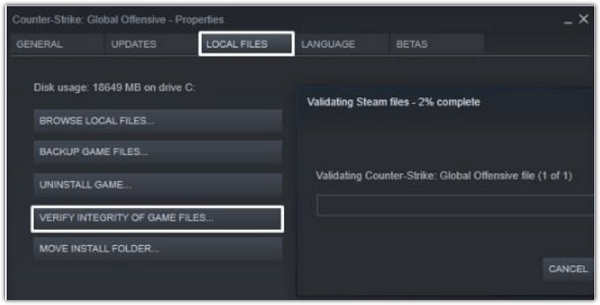
Step 3. Allow this to finish before restarting your computer.
After completing the steps, your CS: GO should be operational, and you should no longer receive "Matchmaking Failed - VAC was unable to verify your game session" errors.
Hope these fixes have worked to solve your current problems, and if you like the provided solutions please share this guide to help more people around you!
Fix 4. Repair the Steam Client
You may encounter the Steam client error due to corrupted or malicious files in your Steam client. To resolve this issue, you can try reinstalling Steam, checking for any malware or viruses, and also verifying the integrity of your game files. This should help you identify and fix the root cause of the error.
Step 1. On your screen, click the Start button.

Step 2. To open Command Prompt as an administrator, click on the Start button, type "cmd" in the search bar, right-click on Command Prompt, and select "Run as administrator".
Step 3. When the UAC prompt appears, select 'Yes.'
Step 4. To repair the Steam service, copy and paste the following line into your command prompt and press Enter: "C:Program Files (x86)SteambinSteamService.exe"/repair. This will initiate the repair process for the Steam service, which may resolve any issues you're experiencing.
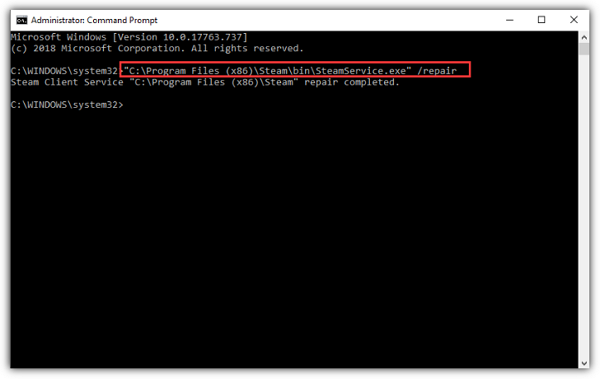
Step 5. Wait for the process to complete. It'll take some time.
Step 6. Restart your computer after closing Command Prompt. Check if the 'VAC was unable to verify the game session' error has been resolved.
Fix 5. Completely Reinstall CS: GO
If the above fixes don't work, your issue might not be solvable by adjusting settings or restarting your computer. Try searching online to see if other solutions exist, but reinstalling CS: GO will likely resolve the problem quickly and save you time, as it eliminates the need to try various fixes that may not work.
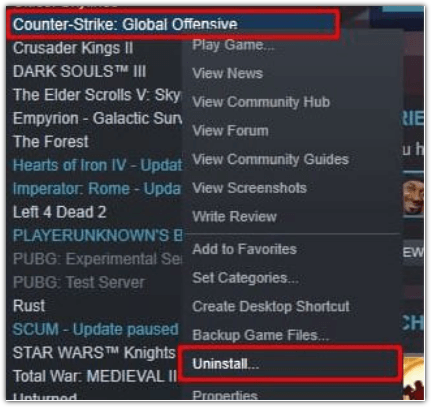
Step 1. To completely reinstall Counter-Strike: Global Offensive, go to your Steam Library, right-click "Counter-Strike: Global Offensive," and select "Uninstall" to remove the game, then restart Steam, and finally, re-download and install the game from your Steam Library.
Step 2. Click "Delete" in the window that appears.
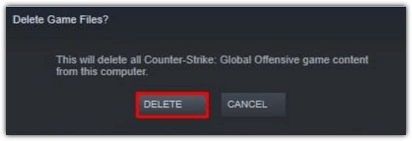
Then you'll have to reinstall CS: GO.
Final Words
This article provides a solution to the CS: GO "VAC was unable to verify your game session" error, offering a quick fix in just a few minutes.
Related Articles
- What Is Volume Shadow Copy and How to Use It Correctly on Windows 11/10
- 5 methods-Windows Did Not Detect a Properly Installed Network Adapter
- (Answered!) How to Reinstall Windows 10 from BIOS🔥
You are facing software issues or want to upgrade your PC for better performance. A Windows 10 reinstallation does the job for you. In this post, we will see two methods for how to reinstall Windows 10 from BIOS. - Learn How to Install on ReFS Partition Today | Windows 11 Installation Made Simple
Have you ever thought about installing your Windows 11 on ReFS partition? This article is going to give you a full guide on how to install Windows 11 on ReFS partition with a full tutorial. - Windows 7 Black Screen with Cursor - 7 Quick Solutions
Fix Windows 7 black screen with cursor using seven troubleshooting methods to help your PC boot normally again. - Windows 7 Stuck on Welcome Screen (Fixed with 5 Ways)
If your Windows 7 computer stuck on Welcome screen out of some reasons, you can refer to this article and find effective solutions.
Products
Articles & Tutorials
- Data Recovery
- Data Backup
- File Recovery
- File Backup
- System Backup and Restore
- Disk and Partition Clone
- Technical articles
- Mobile articles
- Disk Master Help
- Windows Data Recovery Tutorials
- Windows Secure Delete Tutorials
- Windows Partition Management Tutorials
- Windows File Backup and Restore Tutorials
- Windows System Backup and Restore Tutorials
- Windows Disk Backup and Restore Tutorials
- Windows Clone Tutorials