Fix App Store Not Working on Mac: 5 Quick Solutions and 4 Practical Fixes
The Mac App Store is a digital distribution and updates software hub for Apple's desktop operating system, but users may experience issues accessing it, such as the App Store not launching or loading content.
The App Store on macOS Sonoma, Ventura, and Monterey can be frustrating due to common issues that hinder users from installing necessary software. This article will discuss these problems and provide troubleshooting tips, enabling consumers to resolve them independently.
Here are the 4 practical fixes to fix the App Store not working on Mac:
| Workable Solutions | Step-by-step Troubleshooting |
|---|---|
| Fix 1. Delete App Store Cache File | To close the App Store in the background, double-click the Dock icon to open Finder, which will allow you to access and manage your files and applications.Full steps |
| Fix 2. Unrestrict App Store Usage | To continue, launch the Mac's System Preferences menu, and choose Security & Privacy. From there, select the "General" tab and then click on the lock icon to unlock the preferences. You can then select the "Allow" button next to "Camera" or "Microphone" to enable access to the camera or microphone. Alternatively, you can also select the "Allow" button next to "Accessibility" to enable access to the Accessibility features.Full steps |
| Fix 3. Force Quite and Restart | To force quit an app on a Mac, click the Apple icon in the top left corner of the screen, then select Force Quit from the menu.Full steps |
| Fix 4. Update macOS | Select System Preferences, select Software Update, and click Update Now...Full steps |
App Store Not Working on Mac: Possible Causes
Various things may cause your MacBook Pro's App Store incompatibility, including software updates, corrupted cache, and outdated operating system, which can be permanently fixed by identifying and resolving these issues.
- 🌐Unstable Internet connection: The App Store may not load or function properly if your internet connection is slow or unstable.
- ❌Apple Computer Outage: If Apple's machines are broken or being repaired, the App Store may be affected.
- 🪪Apple ID Problems: If your Apple ID is restricted or you're using the wrong login details, the App Store may not work properly.
- ⚙️Misconfigured System Settings: Misconfigured system settings can impact your App Store experience, potentially causing issues like incorrect date and time settings or limitations on app downloads.
- 🍏Incompatible macOS: If your MacBook Pro is outdated or incompatible, using the App Store may become problematic due to compatibility issues or disruptions.
The App Store not functioning on your MacBook Pro may be caused by various reasons, including issues with installing macOS Sonoma, which can be resolved by troubleshooting the problem to apply the correct fixes.
5 Quick Solutions to Fix App Store Not Working on Mac
If you're experiencing issues with the Mac App Store, a detailed video guide is available to assist you. The video provides comprehensive guidelines and troubleshooting techniques to help resolve any problems you're facing.
If you're having trouble accessing the Mac App Store, try these simple workarounds. These approaches address common issues and can help restore the App Store's functionality.
Quick Solution 1. Check the Internet Connection: To ensure your Mac is connected to the internet safely and effectively, ensure all your web-based programs are operational. This includes your web browser, email client, and any other online services you use. Additionally, make sure your Mac's firewall and security software are up-to-date and enabled to protect against malware and other online threats.
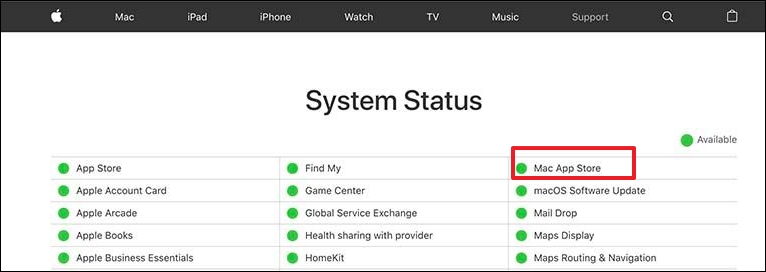
Quick Solution 2. Check Apple's Server Status: To check if there are any issues with the App Store or other Apple services, visit their System Status website, which may display a delay in processing your request if a server outage persists.
Quick Solution 3. Check Settings: To access the Mac App Store, go to System Preferences from the Finder menu. Make sure the correct Apple ID is selected and review the settings for any download limits or automated features.
If your Mac's System Preferences or Settings aren't working or responding, try restarting your computer, checking for software updates, and ensuring that your user account has the necessary permissions. You can also try resetting the System Management Controller (SMC) or the Power Management Unit (PMU) to resolve the issue.
System Preferences Not Responding on Mac: Possible Causes and Solutions
This article will introduce 4 effective methods to fix the System Preferences not responding on your Mac, providing a solution to this frustrating issue.
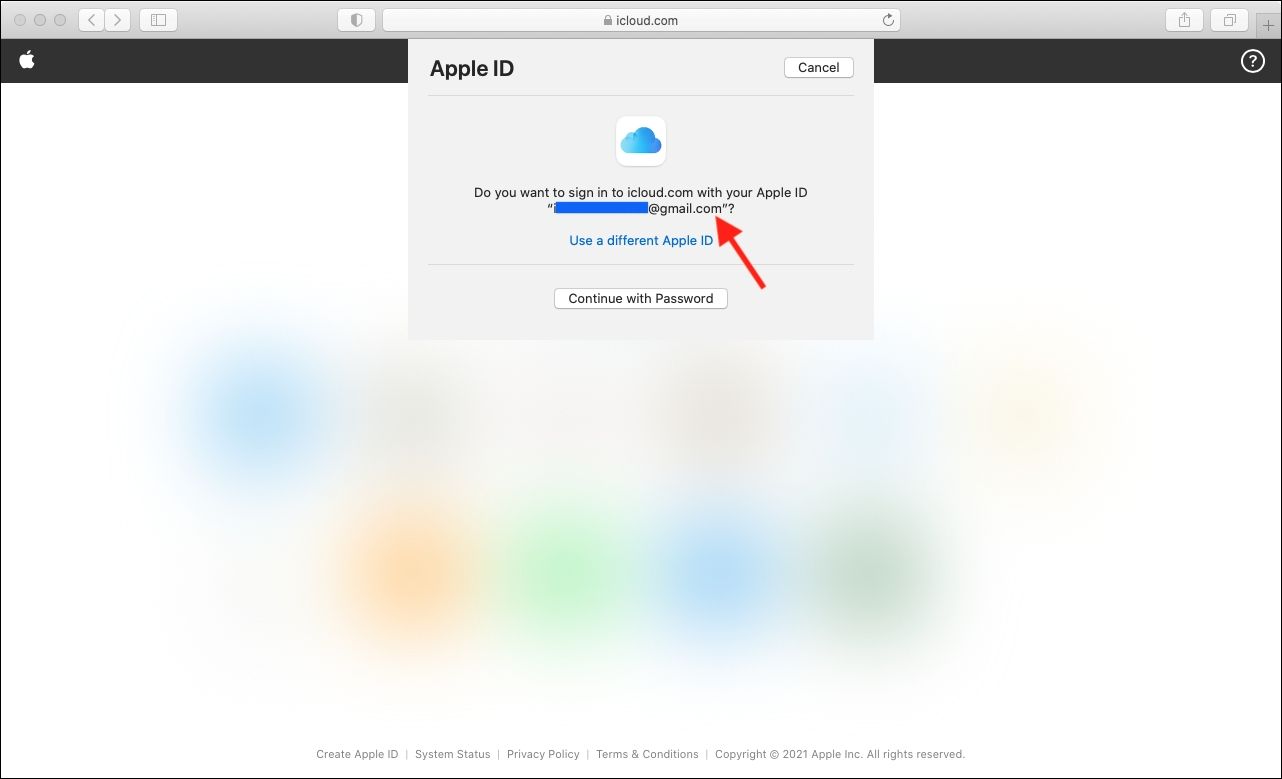
Quick Solution 4. Check Apple ID: To resolve the issue, you need to log out of the App Store and then log back in using a different Apple ID. This may help refresh the link and resolve any login issues.
Quick Solution 5. Restart Your Mac: Sometimes, a simple restart is needed to fix small program problems, so try restarting or hard restarting your Mac and then re-opening the App Store.
Fix 1. Delete Cache File to Fix App Store Not Working Issue
To resolve the issue of the App Store not opening on your Mac, try clearing the App Store's cache files. This process involves deleting temporary files and data stored by the App Store. To do this, navigate to the Finder on your Mac, click on "Go" in the top menu bar, and select "Library." Then, click on "Caches," followed by "com.
Step 1. Close the App Store in the background.
Step 2. Double-click the Dock icon to open Finder.
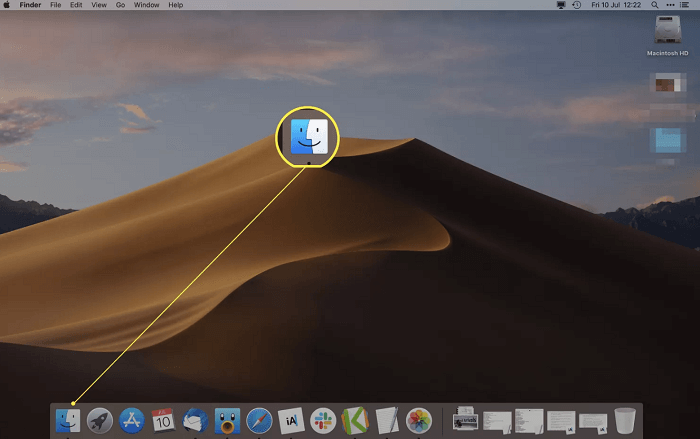
Step 3. Select "Go" and "Go to Folder.".
Step 4. To access the App Store cache folder, navigate to the "Go to Folder" dialogue box and enter the path specific to your macOS version.
Step 5. To find the App Store cache files, navigate to the cache folder, which is typically located at `~/Library/Caches/com.apple.
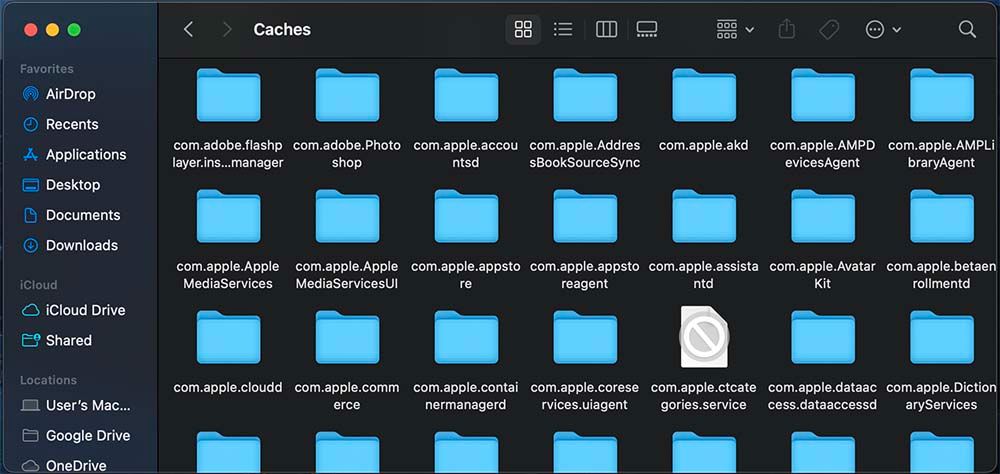
Step 6. Choose the cache folder, delete its contents, and then empty the trash, which may require entering an administrator password for verification.
Step 7. To delete temporary files, right-click the Dock's Trash icon and select "Empty Trash".
Step 8. Restart the Mac after removing the cache.
Step 9. Apple has acknowledged the issue and is working on a fix. The company has not provided a specific timeline for when the issue will be resolved.
To avoid accidental data loss, consider using a reliable data recovery solution like Deep Data Recovery to recover permanently deleted files on your Mac. This software can help you recover cache files, deleted photos, documents, and other important data that you may have mistakenly erased. By using such a tool, you can safeguard your data and avoid potential losses.
If you have Deep Data Recovery for Mac installed, you can troubleshoot with confidence, knowing that your important data can be restored if accidentally deleted. To recover deleted cache files on Mac, you can follow a simple 3-step process.
Note: To create a backup, click on "Disk Backup" on the left first. This will recover deleted files from the backup image, preventing further damage to your disk and data, making it a safer and more reliable process.
Step 1. Scan for deleted files
Select the drive where your deleted data was stored and click "Search for lost files".

Step 2. Filter the lost files
The software performs quick and deep scans on the selected volume to find deleted files, allowing users to filter results by type and path.

Step 3. Recover deleted files
Double-To recover deleted files, click on the deleted files to preview them. After previewing, click the "Recover" button to restore them.

Fix 2. Unrestrict the Usage of the App Store
If the Mac App Store is malfunctioning, try removing any restrictions that may be hindering its use. This can be done by going to System Preferences, clicking on Security & Privacy, and then clicking on the "Allow" button next to "App Store" to enable it. Additionally, check the App Store's settings to ensure that it is set to allow all apps to be installed.
Step 1. Launch the Mac's "System Preferences" menu.
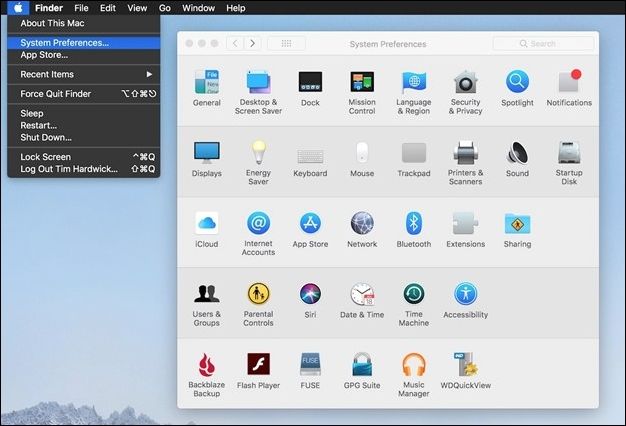
Step 2. To access this section, choose "Security & Privacy".
Step 3. Choose the "Privacy" menu item.
Step 4. Click "Full Disk Access" on the menu bar's left side.
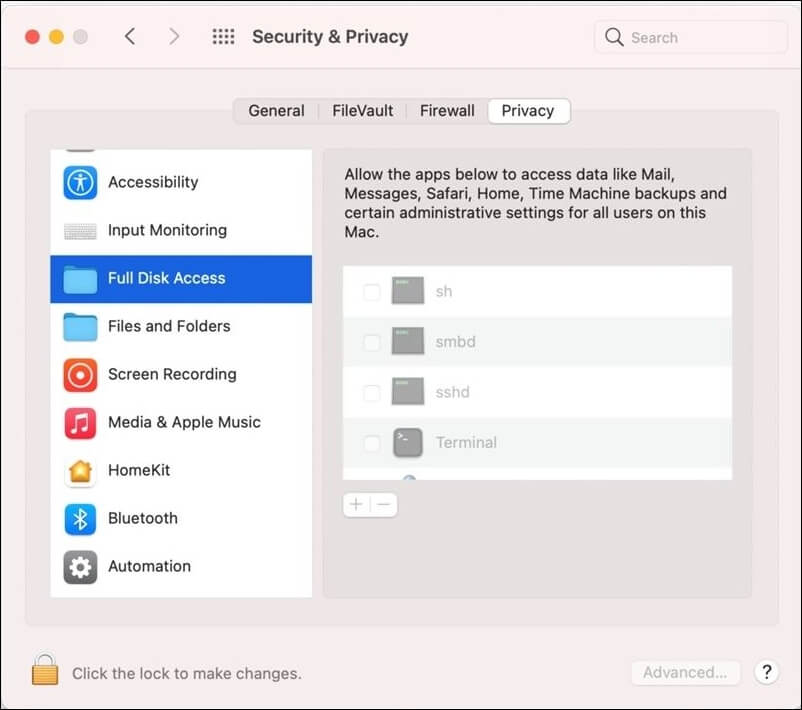
Step 5. To make modifications, you'll need to click the lock symbol and enter your administrator password.
Step 6. To give the App Store access to your disk space, click the "+" button.
Step 7. Close the System Settings window.
Step 8. To apply the modifications, restart your Mac.
Unrestricting the App Store allows it to access your disk, which may resolve any issues that have prevented it from functioning correctly on your Mac.
If the App Store is not working on your Mac, don't worry! There are several solutions to fix the issue.
Fix 3. Force Quite and Restart App Store to Make it Work Normally
If the App Store is still malfunctioning after restarting your Mac, you can use the Force Quit command to try and resolve the issue. To do this, click on the Apple logo in the top left corner of the screen, then select "Force Quit" from the dropdown menu. From there, you can select the App Store process and click "Force Quit" to close it.
Step 1. Select the "Apple icon" from your screen's menu bar.
Step 2. Select "Force Quit" from the drop-down menu.
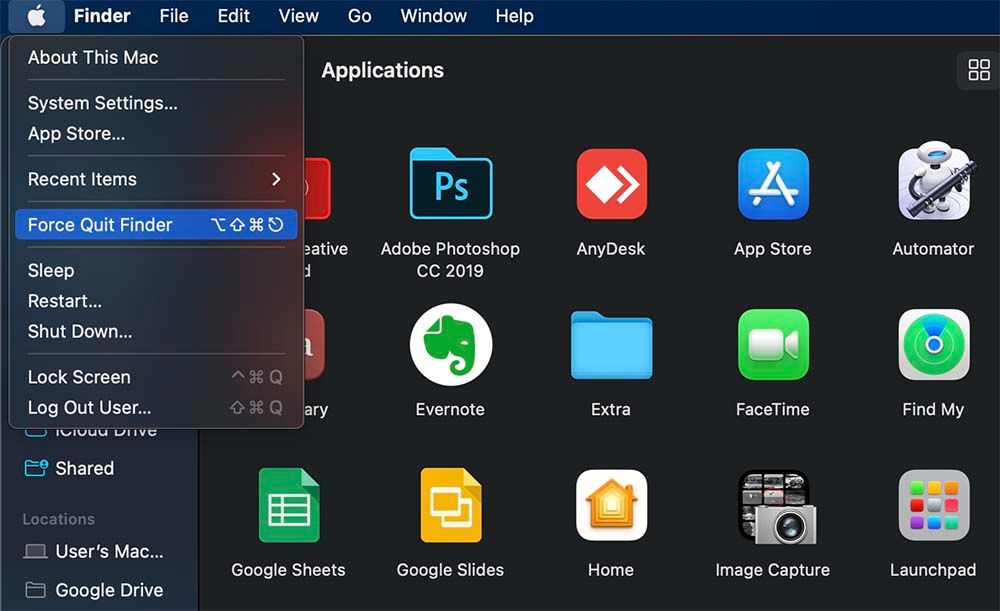
Step 3. When the popup to force quit applications appears, select the "App Store" option.
Step 4. Select the "Force Quit" option.
Step 5. To restart the App Store, simply wait for a short period of time and then choose it again from the Dock or Applications. This will typically resolve any issues and allow you to continue using the App Store without any problems.
Step 6. Confirm that you may download applications from the App Store.
Stopping and relaunching the App Store can resolve temporary glitches or issues, as it refreshes the software and restores it to normal. If Force Quit doesn't work on your Mac, refer to the article for further assistance.
Force Quit Not Working on MacBook Pro/Air
If you're experiencing issues with Force Quit not working on your Mac, there are several effective methods to resolve this problem. Firstly, you can try restarting your Mac in Safe Mode, which can help identify and resolve any software-related issues causing the problem. Alternatively, you can try using the Activity Monitor to force quit the problematic application, or use the Terminal to kill the process. Additionally, checking for any system updates and installing the latest version of macOS can also help resolve the issue.
Fix 4. Update macOS to Fix the App Store Not Working on Mac
If you're experiencing issues with updating your Mac to the latest version, such as a failed macOS Sonoma installation, follow these easy steps to upgrade your macOS.
Step 1. Choose Apple from the top-left corner.
Step 2. Select "System Preferences" from the menu.
Step 3. Choose "Software Update" from System Preferences.
Step 4. Choose "Update Now" if an update is available.
Step 5. Follow the screen instructions to update.
Step 6. When the update finishes, your Mac must restart.
Step 7. Launch the App Store and see whether everything is OK.
If you're having trouble downloading apps from the App Store, updating macOS will ensure your system has the most recent patches.
Mac Software Update not working? Don't worry, here's a quick fix: try restarting your Mac, then check for updates again.
If you're experiencing issues with Mac Software Update not working, there are several effective fixes to try. Firstly, ensure that your Mac is connected to the internet and that the date and time are set correctly. Next, restart your Mac and try updating again.
Conclusion
If you're having trouble with the Mac App Store, try checking your network connection, Apple server status, and account settings and Apple ID. Restarting your Mac, updating the software, and clearing temporary internet files may resolve the issue.
Deep Data Recovery for Mac is a program that helps recover lost files if they are accidentally erased during troubleshooting. It's essential to back up important information to avoid losing it. To restore the normal operation of the Mac App Store, follow the given instructions and suggested fixes.
App Store Not Working on Mac FAQs
Here are questions people also ask when they search for App Store not working on Mac: What to do if App Store won't open on Mac, how to fix App Store not updating on Mac, how to reset App Store on Mac, why is App Store not working on Mac, how to troubleshoot App Store on Mac, and how to reinstall App Store on Mac.
1. Why is the App Store not working on my Mac?
The App Store may not work due to various reasons such as unreliable internet, Apple server issues, incorrect system settings, problems with Apple ID, or an incompatible macOS version.
2. How do I reset the App Store on my Mac?
To reset the App Store on your Mac, sign out of your Apple ID, stop the App Store, restart your Mac, and then sign back in.
3. Why is my Mac not letting me download apps?
If you're unable to download programs from the App Store on your Mac, it's likely due to network issues, parental controls, or an issue with your Apple ID. Check your Apple ID permissions, network connection, and settings to resolve the problem.
4. Why won't my Apple App Store open?
A malfunction or software issue can prevent a Mac from opening the Apple App Store. Restarting the device, updating macOS, or clearing the App Store cache may resolve the problem.
Related Articles
- How to Solve File Stops Copying Halfway (5 Ways)
- Computer Restarts When Playing Games | 10 Fixes🔥
- [Fixed] The File Is Corrupted and Cannot Be Opened in Excel/Word
- 6 Ways to Fix System Restore Is Initializing in Windows 11/10
- What Is MBR Maximum Size [Full & Quick Guide]
This article details MBR maximum size and provides an easy way to convert MBR to GPT without losing data. - 8 Ways to Fix Migration Assistant Not Working on Mac
Is migration assistant not working on your mac? Worry no more; this article will help fix the issue with multiple methods!
Products
Articles & Tutorials
- Data Recovery
- Data Backup
- File Recovery
- File Backup
- System Backup and Restore
- Disk and Partition Clone
- Technical articles
- Mobile articles
- Disk Master Help
- Windows Data Recovery Tutorials
- Windows Secure Delete Tutorials
- Windows Partition Management Tutorials
- Windows File Backup and Restore Tutorials
- Windows System Backup and Restore Tutorials
- Windows Disk Backup and Restore Tutorials
- Windows Clone Tutorials