[Fixed] Windows Cannot Delete the Active System Partition on This Disk
When using Disk Management to delete a partition, you may encounter an error message stating "Windows cannot delete the active system partition on this disk." This occurs when you attempt to delete the partition where Windows is installed, which is usually the C: drive. To resolve this, you can boot from a Windows installation media, open the Command Prompt as an administrator, and use the command "bootrec /fixmbr" to repair the boot sector.
If you're experiencing the "Windows cannot delete the active system partition on this disk" issue on a single or dual system, this article offers alternative solutions to help you resolve the problem.
Why Windows Cannot Delete the Active System Partition on This Disk?
The system partition, typically labeled as "System Reserved" or "EFI System Partition", contains the Windows operating system and its core components. It's a protected partition that cannot be deleted or formatted while Windows is running on it. If you try to delete this partition, you'll get an error message saying that the partition is in use and cannot be deleted.
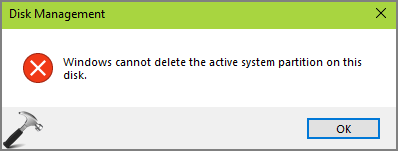
The active system partition is the partition on a computer's hard drive that contains the operating system and is designated as the one from which the system boots. This partition is typically marked as active in the boot sector. The active system partition is usually the primary partition that contains the operating system files, and it is designated as such by the operating system.
The system partition is not recommended to be deleted as it may cause the computer to fail to boot. This partition is also the active partition, which is the primary partition that the system boots to, and Disk Management won't allow Windows to delete it.
- Notice:
- On Windows 7/8/10, disk 1 has partitions marked as "System, Active, Primary Partition" which cannot be deleted or formatted.
Windows Cannot Delete the Active System Partition on This Disk Solutions
Although Windows does not allow you to delete active system partitions, there are two situations where you may still need to delete it: when you need to install a new version of Windows, or when you need to delete a partition to free up space for other uses. In the first situation, you would need to boot from a Windows installation media, go to the installation menu, and select the option to delete the active partition. In the second situation, you would need to use a third-party partition manager software to delete the partition and then extend the adjacent partition to fill the newly freed space.
1. To reinstall an operating system, the original system must be erased, and then the new system can be installed.
2. To free up storage space and gain unallocated space, you can delete the partition you don't need or delete the active system partition on your PC, which has two operating systems.
Case 1: Delete Active System Partition in Single System
For case one, there are three solutions:
Fix 1. Use Qiling Partition Master
Fix 3. Use Windows Installation Disc
To fix the issue where Windows cannot delete the active system on this disk, let's break down the steps. First, we'll check if the disk is in use and if so, close any programs or services using it. Next, we'll check if the disk is a system disk and if so, we'll need to boot from a different disk or USB drive.
Fix 1. Use Qiling Partition Master
You need to enter the Win-In a PE environment, you can create a bootable media to delete system partitions in a single system using a tool like Qiling Partition Master, which is easy to use yet powerful for managing disks and partitions.
Here are the steps to fix "Windows cannot delete the active system partition on this disk" in one paragraph:
Guide 1. Create Bootable Media
You need to create a bootable disk or DVD/CD to enter the operating system. You can follow the steps.
Step 1. To create a bootable disk of Qiling Partition Master, prepare a storage media such as a USB drive, flash drive, or CD/DVD disc, and correctly connect it to your computer.
Step 2. Launch Qiling Partition Master, and click on the "Bootable Media" feature on the left.
Step 3. You can choose to save the ISO file to a USB drive or CD/DVD when it's available, but if not, you can save it to a local drive and burn it to a storage media later. Once you've made your choice, click the "Create" button to start the process.
- Check the Warning message and click "Yes".
When the process is complete, you'll have a Qiling Partition Master WinPE bootable disk that allows you to manage your hard disks and partitions even when your computer can't boot normally.
To add the RAID driver under WinPE, click "Add Driver" from the menu bar, which allows you to install the driver for your device, particularly useful for devices like RAID drives that may not be recognized by WinPE without the necessary drivers installed. This ensures that the device is recognized and can be accessed properly.
Guide 2. Restart the Computer from the Bootable USB
Step 1. Restart the computer and long-press "F2," "F8," or "Delete" to enter BIOS. (Which button depends on your computer)
Step 2. In BOIS, start the computer from the bootable USB.
Guide 3. Delete Partition
After running the software, you will enter the Qiling Partition Master page, where you need to click on it to start the process of deleting the disk's active system.
Be aware that running this command will completely wipe all existing partitions on the system disk, including the operating system, so make sure you have backed up all essential data beforehand.
Step 1. Launch Qiling Partition Master, go to the Partition Manager section, right-click your OS disk and select "Delete All".
Step 2. This will permanently delete all data stored on the selected disk, including any operating systems and partitions. Proceed with caution, as this action cannot be undone.
Note: After deleting the OS drive and other data partitions, you'll just need to wait patiently for Qiling Partition Master to automatically complete the process.
- Tip
- To delete the active system partition without issues using Qiling Partition Master, follow these simple steps. This method will also help you understand how to format an SSD with Windows on it.
Fix 2. Run Diskpart Command
You can try using the Diskpart command to delete the Windows active partition, which may work as an alternative method.
Step 1. Open a cmd window and run it as administrator.
Step 2. Type diskpart.
Step 3. Type list disk to see all disks.
Step 4. To display the disk numbers that contain the active system partition, you would type select disk n in the command line, replacing "n" with the actual number of the disk that contains the active system partition.
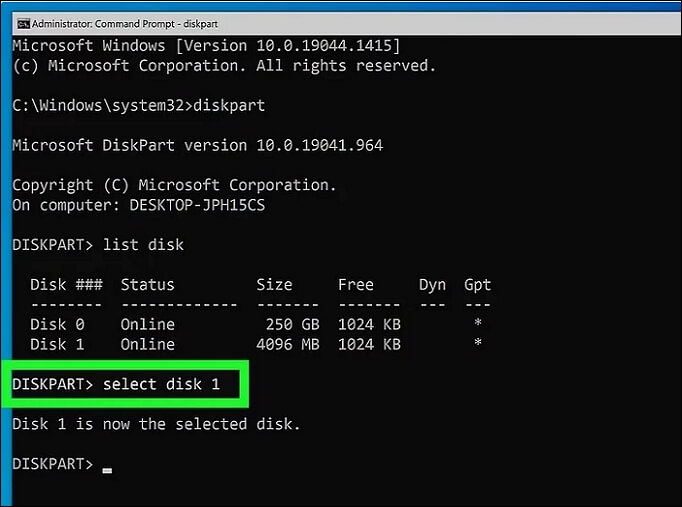
Step 5. You can list the volume status and information about the system partition by typing "list volume" in the command line.
Step 6. Enter select volume n.
Step 7. Type delete volume to delete the system volume.
- Warning
- Windows may prevent you from deleting the volume and display: "The selected volume or partition is in use. To continue with the operation, use the OVERRIDE parameter." Then you need to enter the command: `delete partition [noerr] [override]`.
Fix 3. Use Windows Installation Disc
If Windows is unable to delete the active system partition on the disk, you can use the Windows installation disk to complete the task. Alternatively, you can follow these steps: .
Step 1. Connect a Windows installation disc to the computer.
Step 2. Choose the language, time, and keyboard method.
Step 3. Click "Install Now."
Step 4. Accept the terms of the license and click "Next."
Step 5. Choose the custom or advanced installation type.
Step 6. Select the system partition and click "Delete."
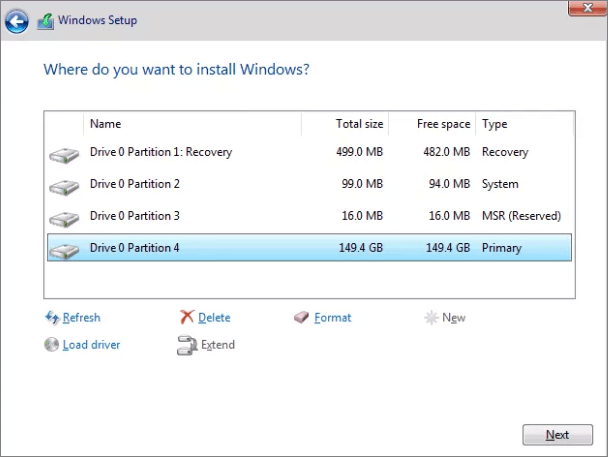
The steps to delete the system partition and install a new system involve backing up important files, creating a bootable USB drive, booting from the USB drive, opening the installation interface, selecting the installation location, and then deleting the system partition. This process allows for a clean installation of the new system.
Case 2: Delete Active System Partition in Dual System
For case two, there are two situations:
Situation 1. Two OS on Two Different Hard Drives
Situation 2. Two OS on One Hard Drive
To fix the issue where Windows cannot delete the active system on this disk, you can try two different solutions depending on the situation. If the disk is not in use, you can simply delete the system on that disk. However, if the disk is currently being used by the operating system, you'll need to boot from a different drive, such as a USB drive or another internal hard drive, and then delete the system on the problematic disk from there. This will allow you to safely delete the system without disrupting the operating system's functionality.
Situation 1. Two OS on Two Different Hard Drives
If you have two operating systems, one on partition C of disk 0 and the other on partition F of disk 1, you can use a third-party tool like Qiling Partition Master to delete the system partition. This is necessary when you have multiple hard drives with different operating systems.
If your computer is unable to boot due to a corrupted MBR, you can try using a third-party tool to restore the MBR. One such tool is Qiling Partition Master, which can help you repair the MBR and get your computer up and running again.
Situation 2. Two OS on One Hard Drive
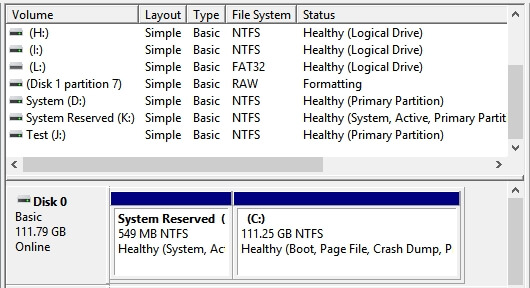
If there are two operating systems on the same hard drive, it may be due to a system reserved partition.
1. There Is System Reserved Partition
A system reserved partition may exist at the beginning of a disk, especially if you have multiple operating systems installed. This partition is active by default and stores the boot files for all operating systems. If you need to delete this partition, you can follow the provided link for guidance.

What is System Reserved Partition and How to Delete It
If you directly delete the System Reserved partition, which contains OS information or boot files, you'll likely encounter an issue where your computer won't boot. This is because deleting this partition without verifying its deletability can cause the system to become unbootable.
2. There Is No System Reserved Partition
If there are two systems but no system reserved partition, you'll need to set the system partition you're using to active, which can be done by restarting your computer from a bootable CD, deleting the partition, and then setting it to active.
Guide 1. Delete Partition via Qiling Partition Master
Guide 2. Set Active
Step 1. Run Qiling partition manager software. On the disk map, right-click the target partition and choose "Advanced".
Step 2. Then, select "Set Active" from the drop-down menu.
Conclusion
The active system partition cannot be deleted, and this guide provides a solution for the error "Windows cannot delete the active system partition on this disk." Qiling Partition Master is a tool that can help, whether you have a single or dual system, by creating bootable disks, deleting partitions, and setting the system to an active state.
FAQs About Windows Cannot Delete the Active System Partition on This Disk
Here are some frequently asked questions about deleting partitions. If you're interested, keep reading.
1. How do I delete an active partition?
You can use Qiling Partition Master to create a bootable disc and then delete the system partition, or use the Diskpart command as an alternative efficient method.
2. What happens if you delete an active partition?
You can't delete the active partition because it's used to boot your computer, which would result in losing all data and operating systems if deleted.
3. Can I delete the system partition?
You can't delete system partitions using Disk Management on Windows, but you can delete the system partition via Qiling Partition. To do this, follow the steps outlined in the passage.
Related Articles
- How to fix Top 6 macOS Ventura Issues, Bugs, Promblems [2022 Updated]
- How to Solve SD Card Deleting Files by Itself in Every Possible Way
- Windows 10 Internet Explorer Has Stopped Working
- Clean C Drive without Formatting in Windows 10/8/7 [Tested & Worked]
- [2023 Tips] Update Not Found - The Requested Version of macOS Is Not Available
If you encounter the error “Update not found. The requested version of macOS is not available,” you can try to resolve the issue. If data is lost during the upgrade process, you can use Deep Data Recovery for Mac to restore your lost Mac data with ease. - How to View and Clear Clipboard History to Windows
A clipboard is a Windows tool that temporarily holds texts, images, files, and other items before they are pasted somewhere else. It's particularly useful for moving files and copying texts from one location to another.
Products
Articles & Tutorials
- Data Recovery
- Data Backup
- File Recovery
- File Backup
- System Backup and Restore
- Disk and Partition Clone
- Technical articles
- Mobile articles
- Disk Master Help
- Windows Data Recovery Tutorials
- Windows Secure Delete Tutorials
- Windows Partition Management Tutorials
- Windows File Backup and Restore Tutorials
- Windows System Backup and Restore Tutorials
- Windows Disk Backup and Restore Tutorials
- Windows Clone Tutorials