How to Solve SD Card Deleting Files by Itself in Every Possible Way
A Secure Digital (SD) card is a micro-size memory card used to store large volumes of data in portable devices like smartphones, tablets, and HD cameras, making it a convenient option for those needing to store a significant amount of data.
One drawback of SD cards is that they can delete files by themselves, a problem you're unlikely to encounter with fixed storage.
If your SD card is deleting files by itself, there are five ways to solve this issue: you can try formatting the SD card, checking for malware, running a disk check, updating the SD card's firmware, or using a third-party tool to recover deleted files. Additionally, to protect your SD card data, consider backing up your files regularly and using a reliable antivirus software to prevent any potential threats. By trying out these methods, you should be able to resolve the issue and keep your files safe.
Why Does SD Card Keep Deleting Files by Itself
An SD card may delete files on its own due to various reasons, including corruption, formatting issues, or a faulty SD card reader. This can cause frustration and data loss, but there are ways to prevent and recover from such incidents. Here are five practical ways to solve the issue:
- The most common reason for a malfunctioning SD card is due to malicious files that have been written to it, causing it to malfunction.
- Bad sectors on an SD card can cause it to delete files automatically due to the damaged areas.
5 Ways to Fix SD Card Deleting Files by Itself
Losing your important files can cause havoc for the end-users. They even end up facing substantial financial or personal loss because of losing essential data. Here are the five best ways to control SD card deleting files by itself to avoid this situation.
- Method 1. Format SD Card to Normal State
- Method 2. Use CHKDSK to Solve Files Disappearing from SD Card
- Method 3. Unmount/Reinsert the SD Card
- Method 4. Uninstall Faulty Applications
- Method 5. Delete the Nomedia File
Method 1. Format SD Card to Normal State
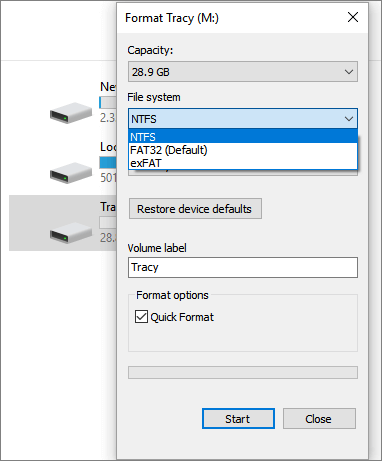
Formatting an SD card can resolve the issue of automatic file deletion, but it's essential to back up the data first, as formatting will erase all contents.
Step 1. Connect your SD card to a PC and locate it.
Step 2. Right-click on its icon and select the Format option.
Step 3. Now, either select FAT32 or NTFS and proceed further with formatting.
Method 2. Use CHKDSK to Solve Files Disappearing from SD Card
CHKDSK is a system tool in Windows that checks and scans connected drives, resolving logical errors like bad sectors, and can even help fix issues like deleting files from an SD card. To use it, follow these steps.
Step 1. Press Windows+R to open the Run command. After this, type CMD in the Search Bar to open Command Prompt.
Step 2. To run a check on your SD card, open the Command Prompt, type `chkdsk g: /r /f`, and press Enter, assuming your SD card's drive name is "g".
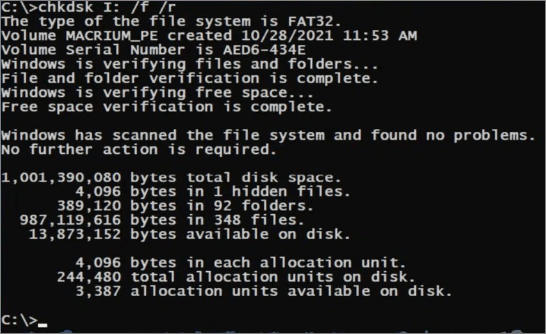
Windows will automatically check and repair bad sectors on the hard drive. Once the process is completed, you can check if the issue is resolved.
Method 3. Unmount/Reinsert the SD Card
To eliminate the issue of the SD card being unmounted, try unmounting and reinserting it. For Android, go to Settings > Storage > Unmount SD card, then unmount and reinsert the SD card. This process varies on PC, but the principle is the same.
Locate the drive of the SD card on your PC, right-click on it, and select the "eject" option to safely remove it virtually. You can then physically unmount and reinsert the SD card from the card reader and USB slot.
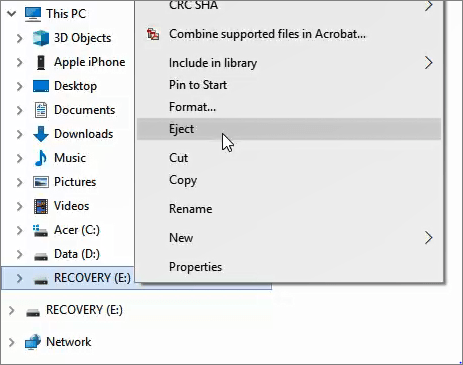
Unmounting/reinserting the SD card is a simple yet less effective way to resolve the issue at hand.
Method 4. Uninstall Faulty Applications
If your SD card is deleting files automatically, it may be due to a faulty app installed on it, which can be resolved by uninstalling the app.
Method 5. Delete the Nomedia File
This issue is specific to SD cards in Android devices, where the SD cards typically contain no media files, leading the installed multimedia players to report the unavailability of media files.
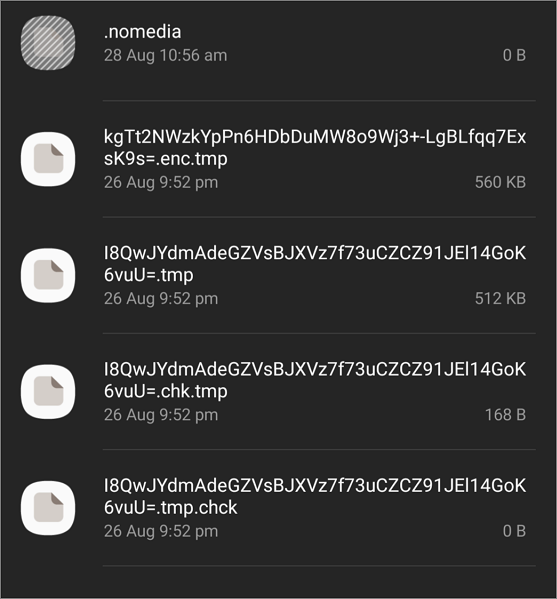
A No Media file can hide other files in the same folder. Deleting it will resolve the issue. The card itself is fine, and removing the No Media file will allow the other files to be visible again.
Using SD Card Backup Software
To ensure the security of your SD card data, which contains important files such as photos and documents, consider using an SD card backup software like Qiling Backup Home to back up your SD card. This way, you can prevent data loss in case your SD card is deleted by itself or becomes corrupted. If you do experience data loss, you can try using data recovery tools to restore your files. However, prevention is always the best option, and using a backup software can give you peace of mind.
Qiling Backup Home is a cloud storage solution that protects against computer viruses by backing up your entire system and drive to the cloud, allowing you to access them anytime and anywhere.
To back up an SD card with Qiling Backup Home, first, download and install the software on your computer. Then, connect the SD card to your computer and launch Qiling Backup Home.
Step 1. To start a disk backup, click the "Disk backup" button. This will initiate the backup process.

Step 2. It is available to back up a whole disk or a certain partition. Choose the one you need.

Step 3. Select the destination where you want to save the backup.

Step 4. You can choose to save the disk/partition backup to either a local drive or a Network-Attached Storage (NAS) device.

Step 5. After the backup process is completed, your task will be displayed on the left. From there, you can manage your backup by clicking on a task, which will allow you to recover it, create incremental backups, and more.

The Bottom Line
SD card deleting files by itself could be a costly mistake if you store critical data on it. While data recovery software exists, it's best to avoid any risks. To prevent this, consider implementing one of the five solutions available.
It's recommended to have a backup of important data, and cloud storage is a better option than recovery software, with Qiling Backup being a platform for creating a backup of essential data.
FAQs
1. Why are my files getting deleted automatically?
Files keep getting deleted due to various reasons, including the presence of malicious files or applications on the SD card, as well as bad sectors on the storage device.
2. What kind of virus deletes files?
The CIH virus, also known as Chernobyl or Spacefiller, is a Windows-specific virus that can erase files stored on an SD card.
3. Can you get a virus without downloading anything?
You can get a virus by connecting your device to a corrupted device or visiting a malicious website.
4. Why is my SD card suddenly corrupted?
Your SD card might suddenly get corrupted due to improper use, malware, bad sectors, manufacturing defects, or physical damage.
Related Articles
- 3 Proven Ways to Download & Install macOS 12 Monterey for Free [2022 Tips]
- Will Windows Backup Restore Programs? How to Restore Programs in Windows 10
- [Step-by-step Guide] How to Enable and Disable Secure Boot
- [Tips] AutoSave Is Greyed Out or Not Working in Office, Word, Excel
- Delete Files Using rm Command on Windows, Linux, and Mac
The rm command is a fundamental tool for deleting files on various operating systems, including Linux, Windows, and Mac. This article will provide an overview of the rm command and demonstrate its usage on different platforms. - Samsung Portable SSD T7 Processes Fast Transfer Speed with Robust Security
After the standard T7 and T7 Touch, Samsung has released the Samsung portable ssd T7, a new SSD in its rugged line of portable SSDs. Is this SSD good? This guide contains all details about the Samsung portable ssd T7. Continue to read and learn.
Products
Articles & Tutorials
- Data Recovery
- Data Backup
- File Recovery
- File Backup
- System Backup and Restore
- Disk and Partition Clone
- Technical articles
- Mobile articles
- Disk Master Help
- Windows Data Recovery Tutorials
- Windows Secure Delete Tutorials
- Windows Partition Management Tutorials
- Windows File Backup and Restore Tutorials
- Windows System Backup and Restore Tutorials
- Windows Disk Backup and Restore Tutorials
- Windows Clone Tutorials