Will Windows Backup Restore Programs? How to Restore Programs in Windows 10
What Is Windows Backup? Does It Back up Programs?
Windows Backup allows you to make copies of your data, with two main tools: File History and Backup and Restore (Windows 7). Backup and Restore can create file and folder backups and system image backups, but File History only backs up versions of your files in documents, music, pictures, and videos, with no capability to back up hard drives or programs.
Windows backup software cannot back up individual programs, but the Backup and Restore feature can restore a program while saving time on reinstallation. Since programs are stored on the internal hard disk, it's possible to restore them indirectly by restoring the entire disk, but this requires that the programs have been previously backed up to the hard disk.
How to Backup and Restore Programs with System Restore
System Restore is a feature that protects and restores computer files and programs by returning the system to a previous working condition without reinstalling the operating system. It allows users to create a restore point manually, which can be done by following a series of steps to recover programs.
Step 1. Open Start and search for Create a restore point.
Step 2. Open the System Properties page and select the system drive
Step 3. Click the System Restore button.
Note: If the option to restore system is grayed out, the system does not have any restore points available, you can refer to the Tips to create restore points.
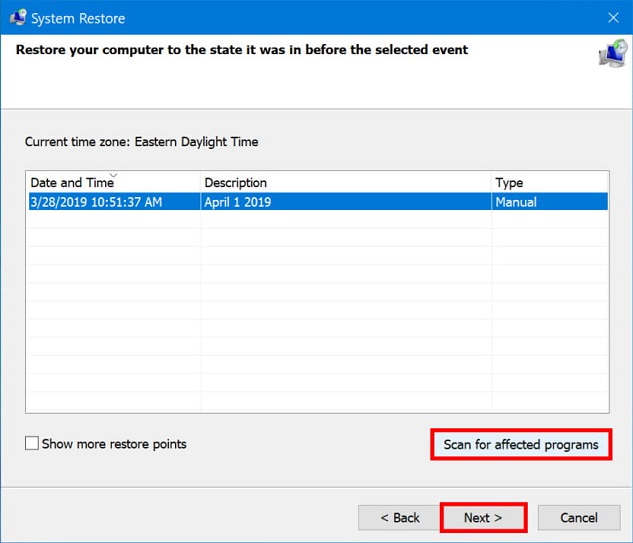
Step 4. Click the Next button.
Step 5. Select the restore point to begin your restore process.
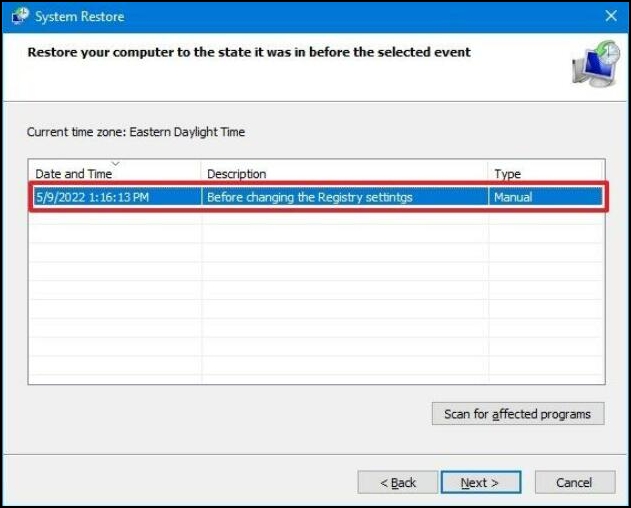
Step 6. Click the Scan for affected programs button to confirm.
Step 7. Click Close > Next > Finsh.
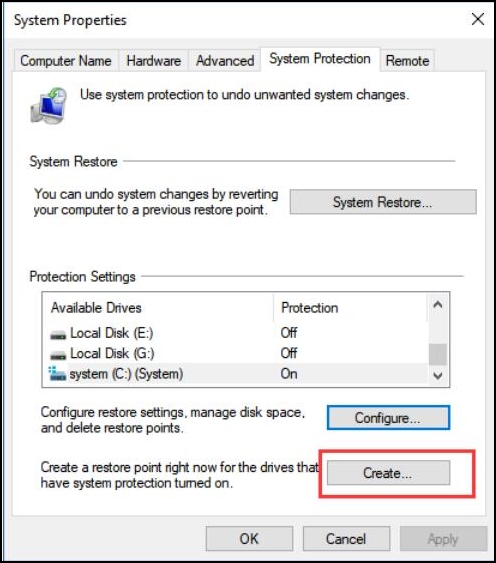
Tips: To manually create a significant system restore point in Windows, you can go to the System Properties window, click on the "System Protection" tab, and then click on the "Create" button to create a new restore point. This will allow you to create a significant system restore point at a specific point in time, which can be useful for troubleshooting or rolling back changes.
Step 1. Open the System Properties page as before.
Step 2. Under the "Protection Settings" section, click the Create button.
Step 3. Create a restore point with a descriptive name, such as "Before modifying Registry settings," to mark the current system state before making changes to the Registry settings. This way, you can easily revert to this point if any issues arise.
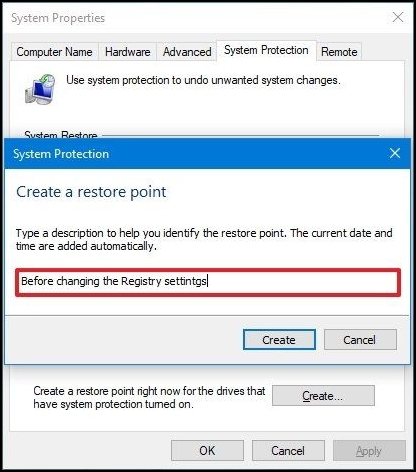
Step 4. Click Create and Close button
How to Backup and Restore Programs with Hard Disk Backup Software
Consider using Qiling Backup, a free software that offers features like automatic, incremental, and differential backups, and supports various backup types such as file, disk, partition, system, and external hard drive.
Backing up the entire disk is the best way to ensure all programs are saved, and Qiling Backup excels in this area. In the event of a system crash, it can restore all programs in bulk, saving time and preserving settings and configurations. Additionally, when replacing a computer, Qiling Backup can create a system image with all programs and files, making it easy to restore to a new computer.
This software is powerful and useful as it offers multiple backup options to cater to different needs. If you only need to back up and restore files, you can refer to the guides on how to back up files on Windows 11/10, which also applies to folders and the operating system. However, if you need to restore programs, you can use this software to back up your internal hard disk initially, providing a comprehensive solution for your backup and restore needs.
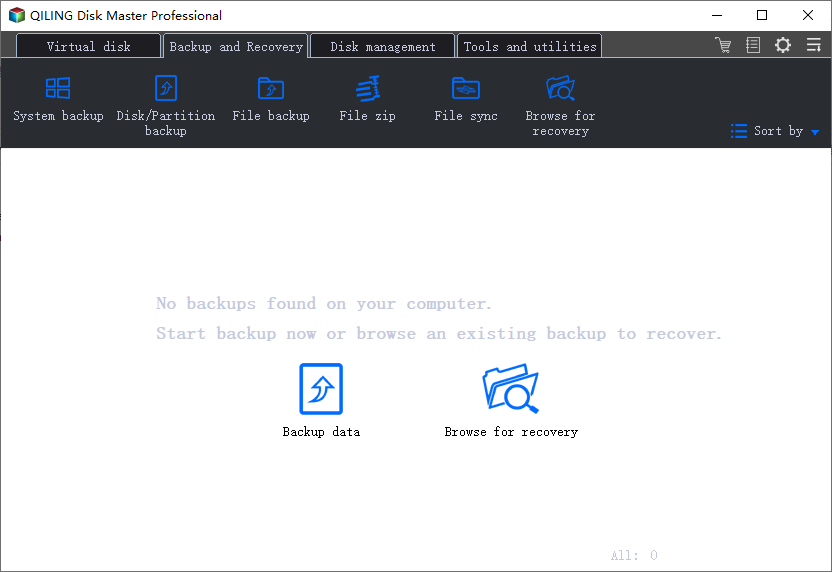
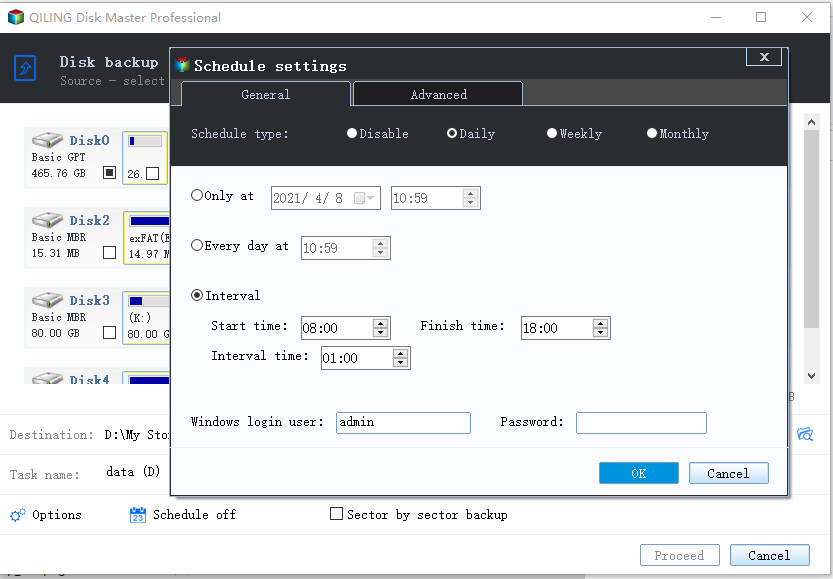
Step 1. Start with selecting the Disk backup button.
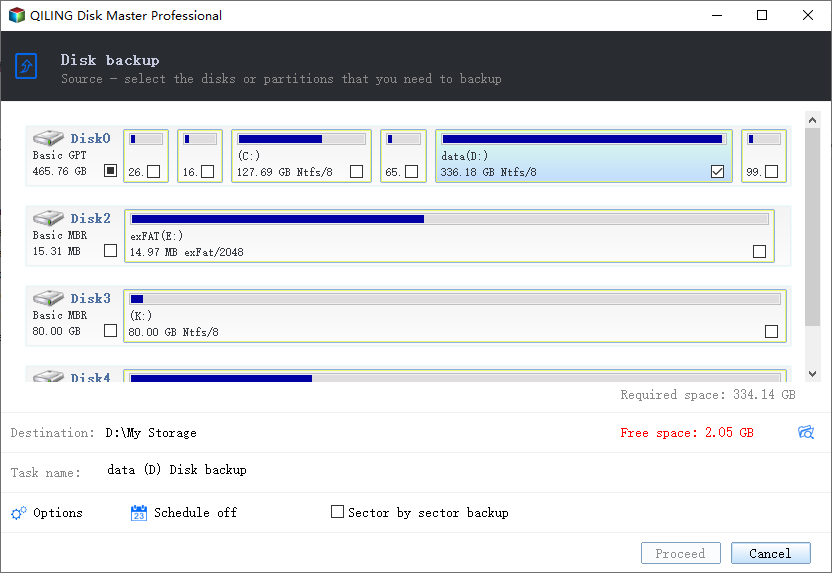
Step 2. You can back up a whole disk or a specific partition with this feature. Choose the one you need.
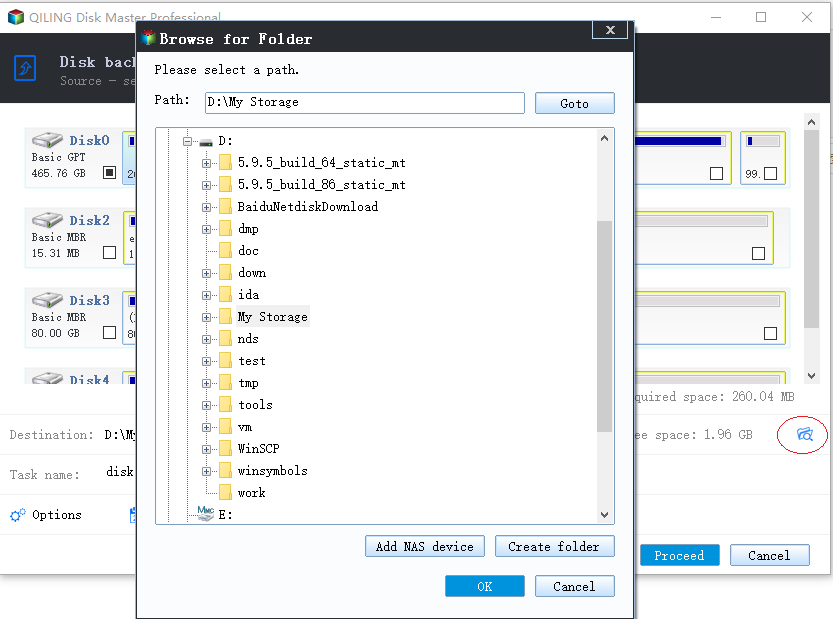
Step 3. Select the destination where you want to save the backup.
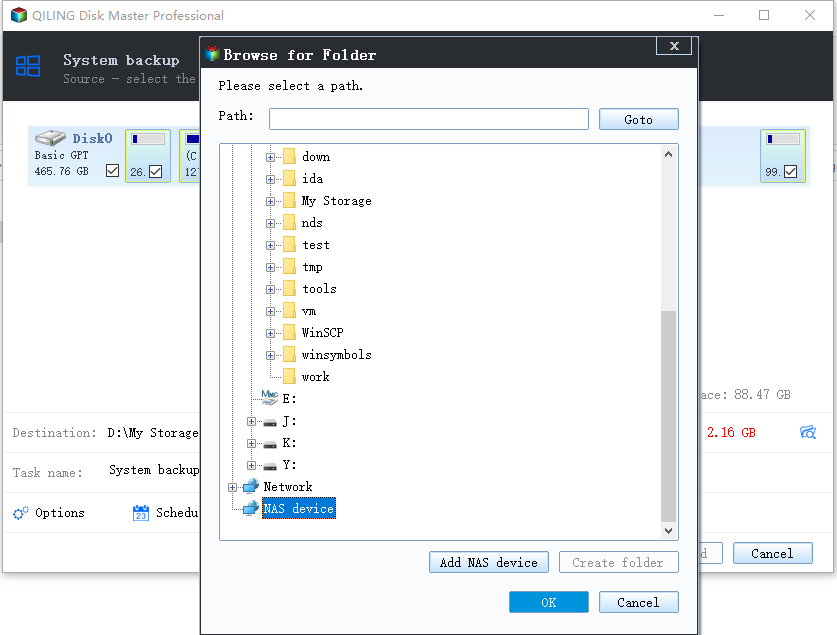
Step 4. For disk/partition backup, you can save the backup to either a local drive or a Network-Attached Storage (NAS) device.
Step 5. After completing the backup process, the task will be displayed on the left side. To further manage the backup, click the "Advanced" button on the task, where you can recover the backup, create an incremental backup, and perform other actions.
Conclusion
Now you know all the information about Windows backup, including whether it can restore programs, and which disk you need to restore the program. Considering what kind of backup and restore software can improve efficiency and help you more, Qiling Backup is highly recommended as it's reliable and easy to use.
FAQs
1. Does Windows Backup and Restore save everything?
Backup and Restore will back up all data files in your libraries, on the desktop, and in the default Windows folders by default, and also creates a system image that can be used to restore Windows if the system is not functioning properly.
2. Can you restore programs from Windows old?
It's not possible to recover programs from the "Windows.old" folder. You'll need to reinstall any lost programs.
3. Does File History backup programs?
File History regularly backs up versions of your files in the Documents, Music, Pictures, Videos, and Desktop folders, and the OneDrive files are available offline on your PC.
Related Articles
- [Fixed] Destination Folder Access Denied You Need Permission to Perform This Action in Windows 10/8/7
- 5 Simple Ways to Zoom Out on Mac
- Full Guide to Fix Windows 10 Slow Boot After Update
- Fixed: CHKDSK Failed to Transfer Logged Messages to the Event Log with Status 50
- Guide on Diskpart Fix Raw Partition: How to Use Diskpart to Fix Raw Partition
A Raw partition is an unrecognizable file system that makes it impossible to access the data on it. - How to Use Diskpart to Set Boot Partition in Windows 10 New Guide]
This article provides a step-by-step guide on how to set the boot partition using Diskpart in Windows 10. By following the easy instructions outlined in the guide, users can successfully complete the process and have their system up and running in no time.
Products
Articles & Tutorials
- Data Recovery
- Data Backup
- File Recovery
- File Backup
- System Backup and Restore
- Disk and Partition Clone
- Technical articles
- Mobile articles
- Disk Master Help
- Windows Data Recovery Tutorials
- Windows Secure Delete Tutorials
- Windows Partition Management Tutorials
- Windows File Backup and Restore Tutorials
- Windows System Backup and Restore Tutorials
- Windows Disk Backup and Restore Tutorials
- Windows Clone Tutorials