Delete Files Using rm Command on Windows, Linux, and Mac
What Is rm Command
The rm command on Unix/Unix-like OS is used to remove files, directories, and symbolic links, similar to the del command in Windows. It is a basic command that deletes files you no longer need.
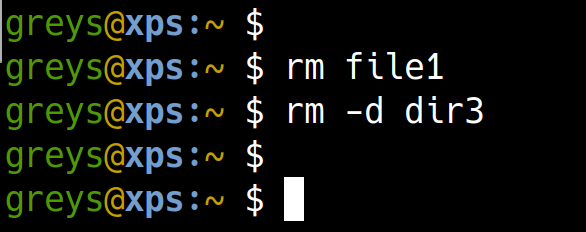
The rm command is typically used with caution, as deleted files using this command cannot be easily restored from the recycle bin or trash, making it essential to exercise care when using it.
After deleting files with the rm command, you can recover them using data recovery software, or restore them from backups if you have them. This can help you recover lost data in case of accidental deletions.
The rm command in Linux is used to remove a specified file from a directory, and it doesn't require read or write permissions for the file itself, but rather write permission for the directory where the file is located.
Delete Files Using rm Command on Linux, Windows, and Mac
To use the rm command to delete files on Linux, Windows, or Mac, ensure you have write permission for the directory contents. You can then use the rm command to remove entire files or select files from a list within a directory.
rm [Option]...FILE...
The rm command can be used with various options to specify how it will behave. These options include -i, which prompts the user before deleting each file, -r, which allows the deletion of directories and their contents, -I, which is similar to -i but skips directories, and -v, which displays the names of files as they are deleted.
- The -d flag removes empty directories.
- The -e flag displays a message after each file is deleted.
- The -f flag ignores non-existent files and overrides any confirmation prompts.
- The -i flag asks for every deletion to be confirmed.
- The -r flag removes directories and their contents recursively, which is equivalent to the -R flag.
- The -v flag prints what the command is doing onto the Terminal, providing a visual representation of the files being deleted. This can be useful for verifying that the correct files are being removed, especially when deleting multiple files at once.
To delete a large number of files without prompting for confirmation, you can modify the command to include the "-f" option after the "-i" option, like this: "rm -i -f". This will override the interactive mode and force the deletion of the files. By doing so, you can avoid being prompted to confirm the deletion of each file, making the process more efficient for large numbers of files.
The rm command is a fundamental tool in Linux, Windows, and Mac operating systems that allows users to delete files and directories permanently. To use it, simply type "rm" followed by the name of the file or directory you want to delete, and press enter.
🐧rm Command: Examples on Linux
rm testfile1
rm testfile1
To delete all the files in the target directory one by one, you can use a loop to iterate over each file and delete it individually. This approach ensures that each file is deleted separately, preventing any potential issues that might arise from deleting multiple files at once.
rm -i tragetdir/*
To remove a file that is not in the current directory, you should mention the path and type `rm` followed by the path. For example, if the file is located at `/home/user/file.
rm ~/Documents/testfile3.txt
The command "rm -i testfile3" will remove the file named "testfile3" located in the Documents directory, prompting for confirmation before deletion.
🪟rm Command: Examples on Windows
To delete a non-empty folder on a Windows PC, you can use the `rmdir /s /q` command in the Command Prompt. The `/s` option forces the deletion of the entire directory tree, including all subdirectories, and the `/q` option suppresses the confirmation prompt, allowing you to delete the folder without being asked to confirm. For example, to delete a folder named "test" in the current directory, you would use the command `rmdir /s /q test`.
C:\> rmdir /s /q
The /s option means deleting the folder with all its sub-folders and files.
The /q option means no prompt for confirmation.
🍏rm Command: Examples on Mac
If you're using macOS, you can delete a file by typing "rm" in the Terminal window, dragging the file you want to delete into the Terminal window, and then pressing "Enter". For example, typing "rmdir Pictures" would delete the "Pictures" directory from the current directory.
Can I Recover Files Deleted by rm Command
The rm command permanently deletes files, making it impossible to recover them, unlike the Recycle Bin on Windows or Trash on Mac, which allows for file recovery after deletion.
🧑🔧Recover Files Deleted by rm Command Using Data Recovery Software on Windows
Although the rm command permanently deletes files, some command line tools and data recovery software can help recover deleted files. A powerful data recovery software like Deep Data Recovery can recover various file types under numerous situations, making it a useful tool for recovering files that have been mistakenly deleted by the rm command.
To understand how Qiling data recovery software works, follow these steps:
Step 1. To recover deleted files, install and open the Qiling data recovery software on your computer, then select the partition where the deleted files are stored.
Step 2. Click "Scan" to view all deleted files, including those removed by the rm command.
Step 3. Users can select the files they want to recover, preview their contents, and then recover them.
⏱️Recover Files Deleted by rm Command from Time Machine on Mac
To recover files deleted by the rm command on a Mac, you can utilize previous backups, such as Time Machine Backup Schedule, to retrieve the deleted files.
Step 1. Open "System Preferences" and find "Time Machine".
Step 2. To turn on the "Show Time Machine in the menu bar" option, go to the Time Machine window, click on "Preferences" from the top menu bar, and select the checkbox next to "Show Time Machine in the menu bar" in the "General" tab. This will add a Time Machine icon to your menu bar, allowing you to easily access and control Time Machine from the top of your screen.
Step 3. To recover deleted files, click on the "Enter Time Machine" option from the Apple menu bar, and then use the arrow buttons to navigate to the snapshot that contains the deleted files.
Step 4. To undelete files or folders, select the items you want to recover and click the "Restore" button to return them to their original location.
⚠️Recover Files Deleted by rm Command Using CMD
Note that using the attrib command in CMD only allows you to unhide files, not recover deleted ones. If the rm command permanently deletes your files, the CMD won't be helpful, and you'll need to use Deep Data Recovery as an alternative.
Follow the steps below to unhide your files using CMD:
Step 1. Press the Windows key + X and select Command Prompt (Admin) from the context menu.
Note: To open Command Prompt as an administrator on Windows 8 and Windows 7, press the "Windows" key and the "R" key simultaneously to open the Run dialog box, then type "cmd" in the text box and press "Ctrl + Shift + Enter" to open Command Prompt with administrator privileges.
Step 2. Run the command `chkdsk 'drive letter:'/f` in the Command Prompt, press "Enter", and then press "Y" to confirm the scan. The process will restart the command lines.
Step 3. Type the drive letter again, press Enter, and type [drive letter: \ attrib -h -r -s/s/d *.*] to remove hidden, read-only, and system attributes from all files and subfolders.
Conclusion
The rm command in Linux is used to remove files, directories, and symbolic links. It is typically used with caution due to its ability to permanently delete data without a trash or recycle bin.
If the rm command accidentally deletes your files, there are three methods to restore them: using the Command Line to recover deleted files, employing data recovery software like Deep Data Recovery, or retrieving them from previous backups.
rm Command FAQs
Here are some questions people also ask when they search for the rm command, and you can read the questions below to learn more about the rm command: What is the rm command used for? How do I permanently delete a file?
1. How to delete files using cmd?
Follow the steps below to delete files using CMD:
Step 1. Type in del with a space after it.
Step 2. To delete files, type the path for each file you want to delete, separated by spaces. For example: `rm /path/to/file1 /path/to/file2 /path/to/file3`.
Step 3. Press Enter to execute the command. The specified files will be permanently deleted from your system.
2. What is the rm rf command?
The rm -rf command is used to remove files and directories in Linux, with the -r option allowing for recursive removal of directories and their contents, and the -f option forcing removal without prompting for confirmation, which can be useful for removing root-owned files and directories.
3. How do I recover files after the rm command?
You can recover files deleted by the rm command using data recovery software like Deep Data Recovery, using CMD, and using your previous backups.
4. Does the rm command delete a directory?
The rm command can be used to delete a directory entirely, which means it deletes a directory and all files or subdirectories within it.
Related Articles
- What Is MOV File | How to Play MOV Video Files
- What Is C-Band in 5G and How to Get It?[ 2023 Complete Understanding ]
- What Is DOS? Disk Operating System Explained (All You Need to Know)
- What Is an ISO File, Full Explained in Detail 2023
- Portal/Portal 2 Save File Location - Everything You Need to Know
The Portal Save File allows you to resume your progress from where you left off, and in this post, we'll show you how to locate it and use a professional backup tool to safeguard your save files. - PowerShell Check If File Exists | 4 Examples
Do you want to check if a file exists using PowerShell? Then this post explains how to use PowerShell to check if a file exists. You can use this command inside a batch file or a script or in your program, and figure out if the path exists or not.
Products
Articles & Tutorials
- Data Recovery
- Data Backup
- File Recovery
- File Backup
- System Backup and Restore
- Disk and Partition Clone
- Technical articles
- Mobile articles
- Disk Master Help
- Windows Data Recovery Tutorials
- Windows Secure Delete Tutorials
- Windows Partition Management Tutorials
- Windows File Backup and Restore Tutorials
- Windows System Backup and Restore Tutorials
- Windows Disk Backup and Restore Tutorials
- Windows Clone Tutorials