How to Fix Samsung Magician Won't Recognize SSD [Full Guide]
Samsung Magician is a tool for managing and optimizing Samsung SSDs, but sometimes it may fail to recognize the SSD, leaving you unable to access performance and maintenance features, which can be frustrating if you rely on your SSD for critical applications or gaming, but Qiling can help resolve this issue.
We'll investigate the common causes of this issue and provide detailed solutions to resolve it. The step-by-step instructions are designed to troubleshoot the problem and unlock the full potential of your Samsung SSD.
Why Samsung Magician Won't Recognize SSD
The Samsung Magician may fail to recognize an SSD due to various reasons, including outdated software, issues with the SSD's controller, or other problems. Some of the most common causes include outdated software, faulty controllers, and other technical issues.
- Outdated Samsung Magician: If the current version is outdated, it may struggle to identify newer SSDs and could encounter compatibility issues with the operating system.
- Samsung NVMe Drivers Issues: Samsung SSDs need specific NVMe drivers to work properly, and if these drivers are missing or outdated, Samsung Magician may not be able to recognize the SSD.
- RAID Mode Problems: If the system is set to use RAID mode, Samsung Magician may not be able to detect the SSD. Switching to AHCI mode may resolve the issue.
- Power Insufficiency: If an SSD doesn't get enough power, it can't work properly, which means Samsung Magician won't be able to recognize it.
- Not Connected via Intel Controller: If a Samsung SSD is connected to a third-party controller, it may cause compatibility issues with Samsung Magician software.
After exploring the reasons why your Samsung Magician won't recognize your SSD, let's move on to the solutions. Fortunately, various fixes are available, and depending on the underlying cause, they can resolve the issues with Samsung Magician, getting your SSD recognized and functioning properly.
Best Solution: Find Samsung Magician Replacement
If your Samsung Magician won't recognize your SSD, finding a better replacement is the best solution. Qiling Disk Master is the best Samsung Magician replacement, offering comprehensive features to manage your SSDs and hard drives.
Here is a brief comparison of Qiling Disk Master and Samsung Magician:
| Comparison | 🏅Qiling Disk Master | 🥈Samsung Magician |
|---|---|---|
| ✍️Compatibility |
Support all devices |
Only support Samsung product |
| ⭐ Key Features |
|
|
| 🧑💻Operation Difficulty | Easy for all | Medium for experienced |
- Analyze Disk Space: Qiling Disk Master provides a detailed analysis of disk space on Samsung SSDs, offering a clear breakdown of used space and its allocation.
- Format Samsung SSD: With Qiling Disk Master, you can easily format your Samsung SSD to ensure it functions optimally, and also utilize a secure erase feature to permanently delete data from drives.
- The Samsung SSD Health tool allows you to check the temperature, performance, and total host writes/reads of your Samsung SSD, and also provides a repair function to help maintain the health of your drive.
- Resize Partition on Samsung SSD: You can resize the partition on your Samsung SSD using Qiling Disk Master, which helps utilize available space efficiently.
- 4K Alignment: The data on an SSD can become cluttered, leading to the accumulation of junk data that hampers SSD performance. To get your SSD back to its full speed, you can use 4K Alignment, a feature available through Qiling Disk Master.
Download Qiling Disk Master:
Qiling Disk Master is a free, powerful, and easy-to-use tool that can help you manage and optimize your Samsung SSD. Its comprehensive features and user-friendly interface make it an excellent replacement for Samsung Magician.
How to Fix Samsung Magician Won't Recognize SSD
If Samsung Magician does not recognize your SSD, try several fixes because the cause may vary. Common solutions include checking the connection, updating drivers, updating Samsung Magician, and verifying SSD compatibility.
Fix 1: Update SSD Driver
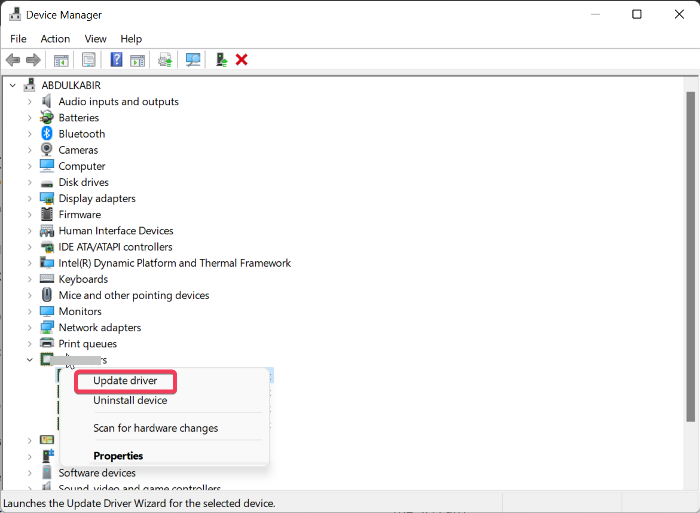
To fix the issue where the Samsung Magician won't recognize SSD issues due to outdated or corrupt SSD drivers, update the driver. This can be done by going to the Device Manager, finding the SSD, right-clicking on it, and selecting "Update driver." Alternatively, you can use the Samsung Magician software to update the driver. If the issue persists, try reinstalling the driver or seeking further assistance from a professional.
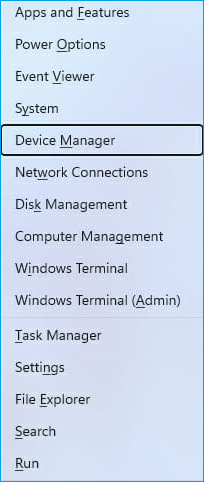
Step 1: To access the Power Menu, press the "Win + X" keys, then click "Device Manager". Navigate to "Disk Drivers" and right-click the SSD driver.
Step 2: To update the SSD driver, select "Update driver" and follow the on-screen instructions, which will update the SSD driver. After the update, check if the issue is resolved.
If you found the method in this article helpful, consider sharing it with friends by clicking the social media buttons. More solutions will be provided next.
Fix 2: Update Samsung Magician
It's possible that the reason your Samsung Magician won't recognize your SSD is that you're using an outdated version. To fix this, you should remove the old Samsung Magician and download a new version, then install it to update your software.
Step 1: To uninstall the old Samsung Magician, go to Settings by pressing the "Win + I" key, then click on "Apps" and select "App & Features", and find Samsung Magician to uninstall it.
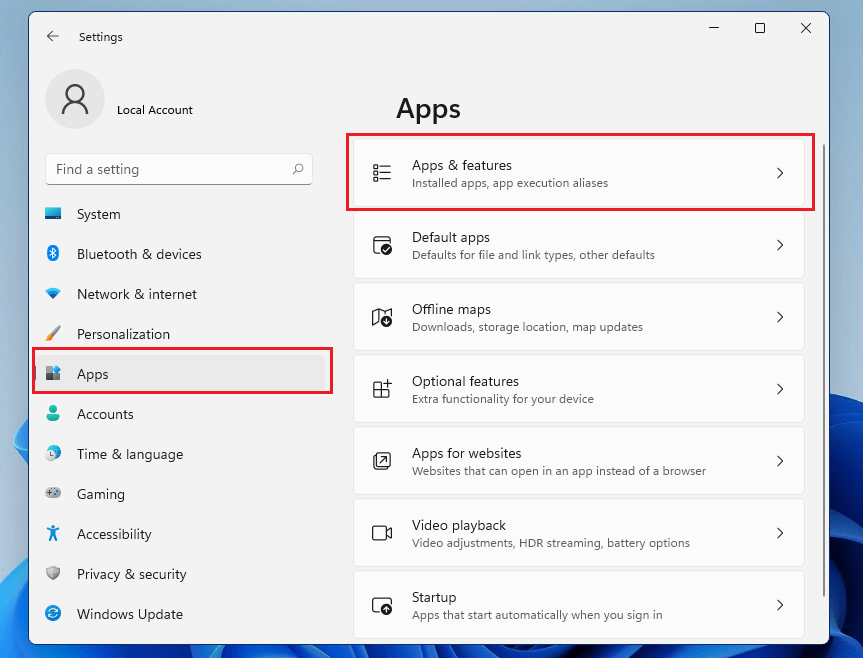
Step 2: To uninstall Samsung Magician, click on it and select "Uninstall" from the dropdown menu. Follow the on-screen instructions to complete the removal process. Once done, reboot your system to prevent any potential errors during the reinstallation.
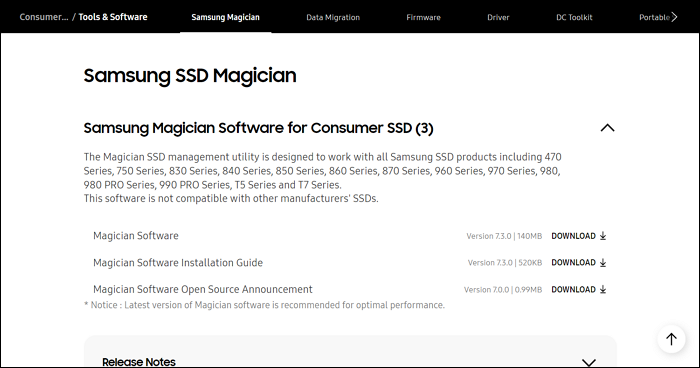
Step 3: Download the latest version of Samsung Magician from the official website, install it, and check if the issue is resolved.
Fix 3: Install NVMe Drivers
Installing the latest NVMe drivers can resolve the issue of Samsung Magician not detecting your NVMe SSD. These drivers, specific to NVMe SSDs, enable your computer to communicate with the drive. You can download them from the manufacturer's website, and installing them may help Samsung Magician recognize your SSD and ensure it functions optimally.
You May Like:
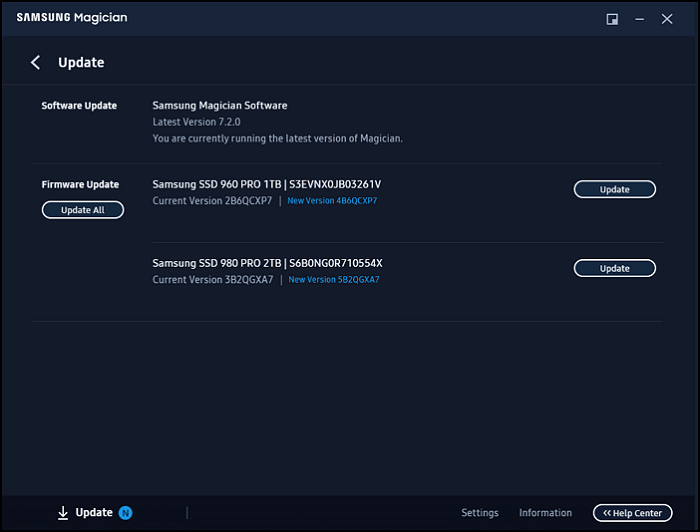
Fix 4: Update the Firmware
Firmware is the software that controls the functions and activities of a Samsung SSD. If the firmware is outdated, it may cause issues with Samsung Magician not recognizing the SSD, but updating the firmware using Samsung Magician can help resolve the problem.
Step 1: Launch Samsung Magician on your computer and click "Update."
Step 2: To resolve the issue, download and install the available update, then reboot your computer to see if the problem is resolved.
Fix 5: Disable RAID Mode
If your system is set to RAID mode instead of AHCI mode, it can cause the Samsung Magician to not recognize the SSD. Disabling RAID mode and switching to AHCI mode can fix the issue, which can be done by following these steps.
Step 1: To access the BIOS settings, press the BIOS key repeatedly during the initial reboot, which is usually F2, F4, F5, F8, F10, or Del, and find the correct key for your system online.
Step 2: To disable RAID and enable AHCI, access the BIOS settings, locate the "RAID/RAID Support" option, disable it, and then change the "SATA Mode" to "AHCI".
Step 3: If you find the "RAID Mode entry," set it to "AHCI." Save and exit the BIOS settings, then reboot your computer.
Fix 6: Check SSD Power
The issue of Samsung Magician not recognizing your SSD may be caused by insufficient power to the SSD. To resolve this, ensure that the power cable is properly attached and the SSD is connected to a suitable power source, as some SSDs may require more power than a USB 3.0 port can provide.
The maximum power output for these ports is 0.9A, which can be resolved by using a USB 3.0 adapter with a double USB cable.
Fix 7: Connect via Intel
Samsung Magician may not recognize your SSD if it's connected to a third-party storage controller. Connecting it to an Intel storage controller instead might help fix the issue. If you're already using a third-party controller, switching to an Intel one could be a good solution.
Intel storage controllers are highly compatible with Samsung SSDs, ensuring that Samsung Magician can recognize and function properly with the SSD when connected.
Conclusion
Samsung Magician's inability to recognize SSDs can be a frustrating issue, especially for those who rely on this software to manage their Samsung SSDs. Fortunately, there are solutions to fix this problem, with Qiling Disk Master emerging as the best choice. This software is easy to use, affordable, and offers a range of features, making it an all-in-one solution for managing Samsung SSDs.
With Qiling Disk Master, you can resize partitions, clone disks, and migrate your OS to an SSD, and it also supports features like 4K Alignment to keep your SSD running smoothly.
FAQs About Samsung Magician Won't Recognize SSD
What are some common issues that can cause Samsung Magician to not recognize SSD?
1. Why is the Samsung 980 Pro SSD not showing up?
A Samsung 980 Pro SSD may not show up on a computer due to various reasons such as corrupted or outdated drivers, issues with the connecting cable, or incorrect BIOS settings.
2. Can Samsung Magician work with any SSD?
Samsung Magician is a software tool specifically designed to work with Samsung SSDs, which means it may not be compatible with SSDs from other manufacturers. It optimizes performance, provides firmware updates, and monitors health for Samsung SSDs, but may offer limited functionality for non-Samsung SSDs.
3. How to fix the Samsung Magician not working?
If your Samsung Magician is not working, you can try running it as an administrator by right-clicking on the application and selecting "Run as administrator". This may resolve the issue.
Step 1: Use the search bar on Windows to look for Samsung Magician.
Step 2: Once it appears, choose "Run as administrator" to launch the software with admin privileges.
Related Articles
- How to Convert Basic Disk to Dynamic Disk in Windows Server 2012/2016/2008
- Formatting Stuck in Disk Management? Try Qiling Partition Format!
- Can't Delete Recovery Partition? Fix It Now!
- MMC Format Tool: SD Card Formatter Free Download [2024 Full Guide]
If you're looking for tools to format your USB or SD cards, this post provides an introduction to MMC Format Tool, which allows you to format multimedia cards, SD cards, and USB drives. - How to Safely Resize Partitions in Windows 11 Without Losing Data
Want to resize a Windows 11 partition or move it without losing data? You can achieve this by following a step-by-step guide that provides an effective solution to move, resize, or merge partitions. - How to Resize Window Server Partition (3 Ways Available)
Having trouble deleting a recovery partition? This step-by-step guide shows how to safely delete it with DiskPart or a third-party partition manager, helping you remove the partition and free up disk space.
Products
Articles & Tutorials
- Data Recovery
- Data Backup
- File Recovery
- File Backup
- System Backup and Restore
- Disk and Partition Clone
- Technical articles
- Mobile articles
- Disk Master Help
- Windows Data Recovery Tutorials
- Windows Secure Delete Tutorials
- Windows Partition Management Tutorials
- Windows File Backup and Restore Tutorials
- Windows System Backup and Restore Tutorials
- Windows Disk Backup and Restore Tutorials
- Windows Clone Tutorials