How to Resize Windows Server Partition (3 Ways Available)
You can resize the partition drives to your desired size when setting up a new system or creating partitions for the first time. It's recommended to separate your data, files, and applications into different partitions to ensure proper organization and avoid potential issues. This approach allows you to customize the size of each partition according to your needs.
When data is stored in multiple partitions, it minimizes the risk of data loss and allows for better data organization, which can improve the system's overall performance by preventing the "Low disc space" notification from appearing when the C drive is full.
This article will help you resolve low disk space issues or resize partitions to improve system efficiency, and we'll provide detailed methods for resizing partitions. We'll also recommend a tool that can execute the task flexibly while protecting your data and resizing partitions quickly. By the end of this article, you'll be able to create and resize partitions with ease.
Why do You Need to Resize Windows Server Partition?
You may need to resize the Windows Server partition if you have a low running space problem or need to resize partitions for your system, even if partitions already exist.
Partitions are necessary to manage data effectively, especially when a drive is running low on space. If a C drive is almost full, it can negatively impact system performance. To ensure the system runs smoothly, partitions must be allocated correctly, allowing for efficient data organization and preventing potential errors.
The system will remain safe and data on drives other than the C drive will be secure in case of system failure or virus infection. Additionally, unallocated space in the system partition can be assigned to optimize available partition capacity.
Partitions are useful for organizing data, especially when transferring it to an external drive or cloning a system. They also help in resizing the partition to allocate available space correctly, which is essential when the system is not working properly. This helps in keeping data organized and ensures that the available space is utilized efficiently.
Run Disk Management to Extend/Shrink Server Partition
To create a partition on a drive, you can use a disk management system, which is a default feature that can create a partition. However, this feature is limited to working only if there is unallocated space behind your partition.
The steps to extend/shrink a server partition are as follows:
Step 1. To access Disk Management in Windows, go to the Windows icon in the bottom left corner, click on it, and select Disk Management with a right-click.
Step 2. We will start by shrinking the basic disk. To do this, right-click the drive and select shrink volume. This will allow us to make space for the new operating system.
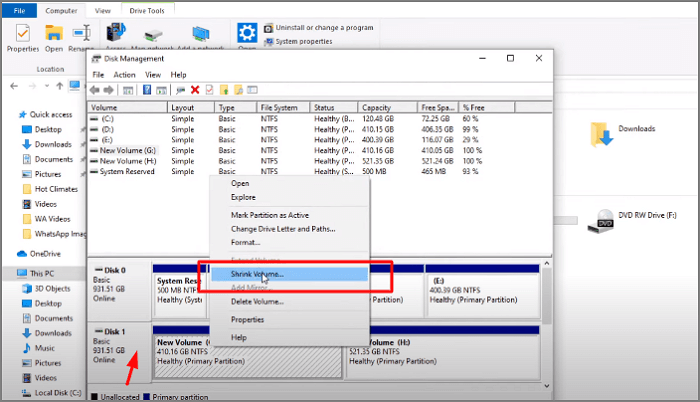
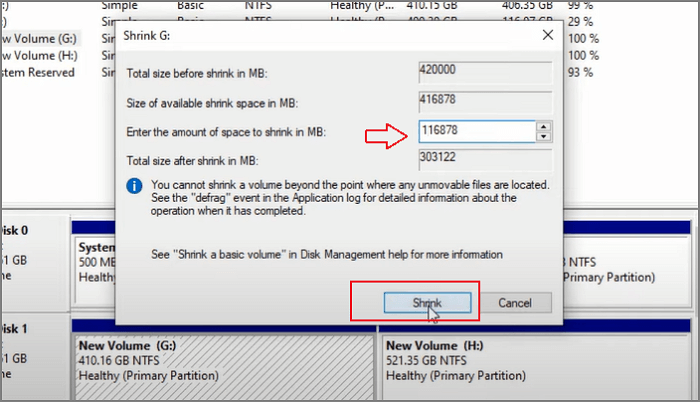
Step 3. To shrink a volume in MB, enter the desired volume size, click "Shrink", and the drive will be resized accordingly.
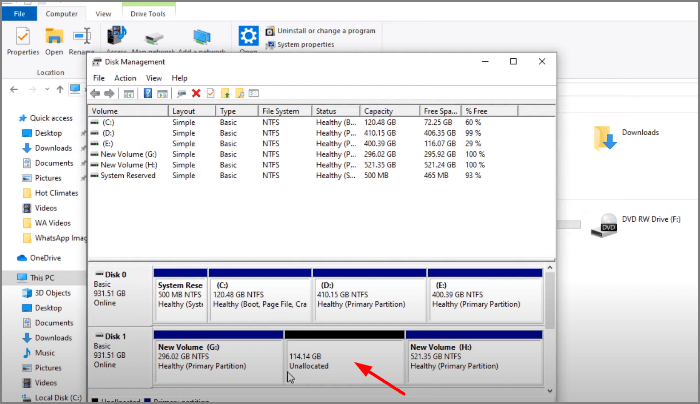
Step 4. After shrinking the volume, you'll be able to see the unallocated space available in your drive.
Now we will look at Extending the disk volume.
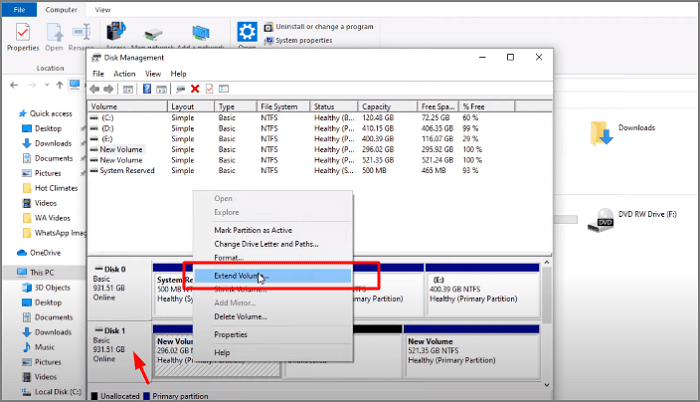
Step 1. To extend the volume, select the drive you want to extend, right-click on it, and then select "Extend Volume" from the context menu.
Step 2. The Extend Volume Wizard will appear. Click on Next.
Step 3. You will see the unallocated space on the hard drive. Enter the amount of MB and click Next.
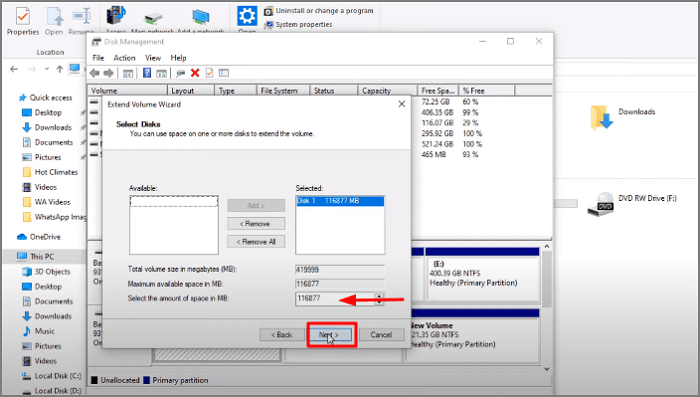
Step 4. To complete the partition extension procedure, click on the Finish button. This will finalize the changes and extend the partition size accordingly.
Resize Server Partition with Diskpart
To resize the Server partition using Diskpart, follow these steps: First, open the Command Prompt as an administrator, then type "Diskpart" and press Enter. Next, type "list disk" and press Enter to display a list of all disks on the computer, including the Server partition. Note the disk number of the Server partition, then type "select disk X" (where X is the disk number) and press Enter.
Step 1. Go to the search box. Type command prompt and click to run it.
Step 2. Type diskpart and press enter.
Step 3. You will need to type "select disk 0" and press enter, then specify the name of your disk.
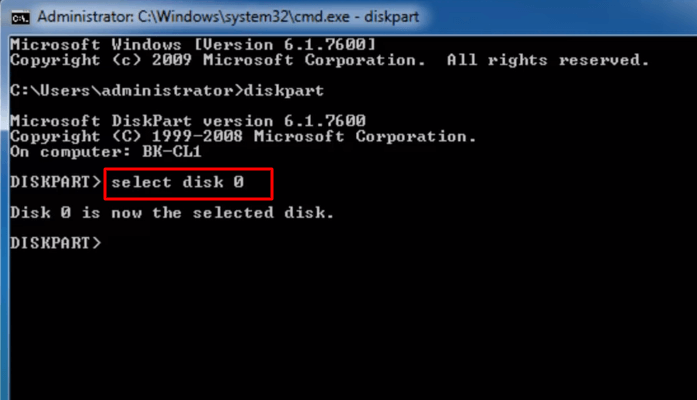
Step 4. The system has two partitions.
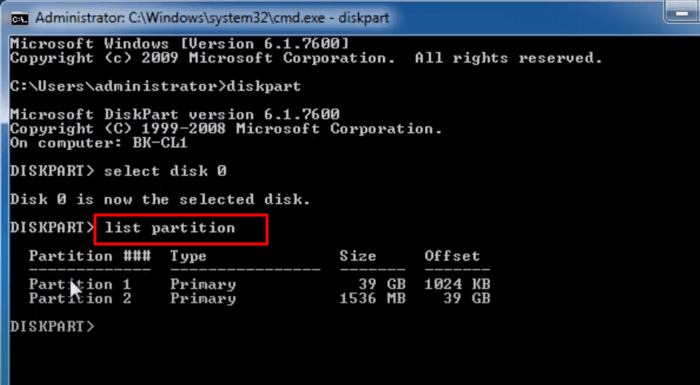
Step 5. To select the partition that you want to extend, type "select partition 2".
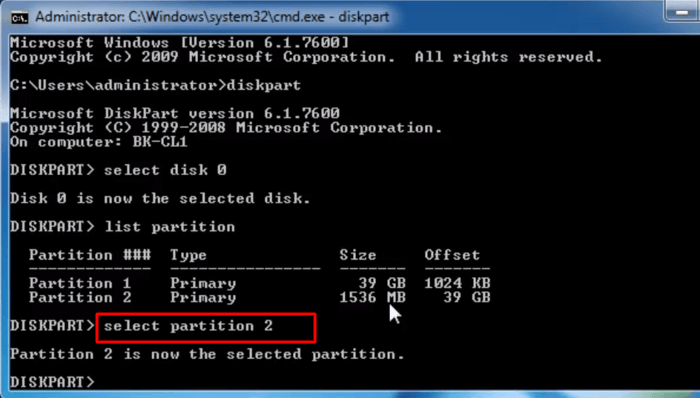
Step 6. To extend the size of a type, you can use the command "extend size=512" and press enter. This command allows you to specify the size as per the available system space in your system.
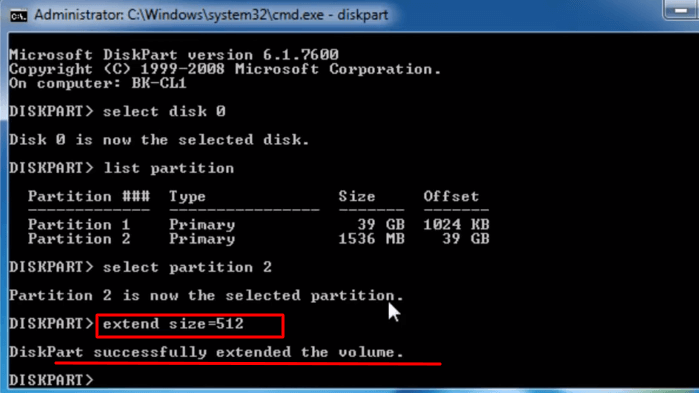
Step 7. Now your drive is partitioned. Type exit to end the process.
The Diskpart command can resize a partition, but it requires an unallocated partition behind the target partition and cannot move the partition itself.
Try the Professional Server Disk Manager-Qiling Partition Master Enterprise
To resolve all of your disk management issues, Qiling Partition Master Enterprise is a viable solution and the best disk management software for Windows servers. It can now enhance and improve partition recovery, allowing you to resize partitions using functions beyond the default options available in Windows Server.
Qiling Partition Master Enterprise efficiently maximizes disk space, utilizing storage to its full potential, and guards against data loss, making it a reliable tool for managing storage needs.
- The software supports various versions of Windows servers, including 2003, 2008(R2), 2012 (R2), 2011, 2016, and 2019.
- This software is utilized by a wide range of users, including IT technicians, enterprises, organizations, and service providers.
- This solution efficiently reallocates space and resolves low disk space issues by optimizing the use of available storage resources.
- Speed up the performance of the Windows server
- You can download the free trial version
- Provide complete data protection and security
Step 1: Locate the drive/partition
To resize a drive or partition, select it and click on "Resize/Move" to make changes to its size.

Step 2: Resize or move the partition
1.To shrink the partition, simply drag one of its ends to free up unallocated space. Once done.

2. To extend the partition, ensure there's unallocated space adjacent to it. If not, create some by following the previous steps. Then, drag the partition boundary into the unallocated space.
3. To move a partition position, you need to have some unallocated space next to the target partition. If not, free up some space first.
To move a partition, click on the target partition and select "Resize/Move" from the context menu. Then, drag the partition left or right to adjust its position.
Step 3: Apply changes
At this step, you will see the new disk partition information & diagram.
To save changes, click the "Proceed".
Qiling Partition Master Enterprise offers flexible space reallocation, allowing you to resize partitions and enlarge disk space without being limited by unallocated space. This user-friendly tool enables you to manage disk partitions quickly and error-free, making it easy to download and try the trial version.
Related article:
Conclusion
A properly managed disk not only eliminates the need for an additional storage drive but also improves overall system performance. This can be achieved by using the default methods for resizing partition sizes, which only has a limitation - disk management only works if there is unallocated space left on the system.
Qiling Partition Master Enterprise is a utility that allows users to resize disk partitions without restrictions on unallocated space, featuring an explanatory user interface that guides users through the process.
Related Articles
- Lenovo Laptop Running Slow Windows 11/10 | Speed It Up
- How to Repair and Restore Unallocated Space on a USB/SD Card
- What to Do with Corrupted Operating System
- How to Wipe External Hard Drive on Windows 10 and Mac Without Recovery
- Best NTFS to exFAT Converter [2024 Top]
Struggling to use your drive on both Windows & Mac? Convert NTFS to exFAT quickly and safely with a top-rated converter for 2024, which is compatible with both Windows and Mac operating systems. - 5 Best OS Cloning Software Recommend and Free Download
If you're looking for reliable OS cloning software to clone your operating system to a new disk or computer, this page highlights the top 5 options you shouldn't miss. They are designed to help you successfully transfer your OS to a new device with ease.
Products
Articles & Tutorials
- Data Recovery
- Data Backup
- File Recovery
- File Backup
- System Backup and Restore
- Disk and Partition Clone
- Technical articles
- Mobile articles
- Disk Master Help
- Windows Data Recovery Tutorials
- Windows Secure Delete Tutorials
- Windows Partition Management Tutorials
- Windows File Backup and Restore Tutorials
- Windows System Backup and Restore Tutorials
- Windows Disk Backup and Restore Tutorials
- Windows Clone Tutorials