Lenovo Laptop Running Slow Windows 11/10 | Speed It Up
If your Lenovo laptop is running slow in Windows 11/10, try the following solutions to improve its performance: uninstall unnecessary software, disable startup programs, update drivers, enable Windows Search, run Disk Cleanup and Disk Defragmenter, disable animations, and consider reinstalling Windows. These steps can help resolve common issues that may be causing your laptop to slow down.
| Workable Solutions | Step-by-step Troubleshooting |
|---|---|
| Fix 1. Clean out the dust | Your Lenovo laptop running slow on Windows 10 may result from heavy dust in fan and heat sink...Full steps |
| Fix 2. Check memory usage | Press Ctrl + Alt + Delete and then select Task Manager. In Task Manager, select the "Performance"...Full steps |
| Fix 3. Free up disk space | To speed up your Lenovo laptop, you can clean your computer for more space and increase C drive...Full steps |
| Fix 4. Disable unnecessary startup | You can disable some programs in Startup so they don't run when your PC starts and speed up...Full steps |
| Fix 5. More useful solutions | Run antivirus software, upgrade RAM, upgrade HDD to SSD, disable Windows 10 automatic update...Full steps |
Lenovo IdeaPad 330 Running Very Slow on Windows 11/10
Your Lenovo IdeaPad 330 is experiencing slow performance and lag, with issues logging in, Chrome and Adobe crashing, and no malware detected. This could be due to various reasons such as a full hard drive, outdated drivers, or resource-intensive programs running in the background. To improve performance, try running a disk cleanup, updating drivers, and closing unnecessary programs. You may also consider upgrading to a solid-state drive (SSD) or adding more RAM to enhance your laptop's speed. If the issue persists, consider seeking professional help from Lenovo support or a computer technician.
Why Is My Lenovo Laptop So Slow
Lenovo laptop slow issues can be caused by a variety of factors, which can be broadly categorized into several areas. These include software-related issues such as outdated operating systems, malware, or conflicting software, as well as hardware-related problems like a failing hard drive, overheating, or outdated graphics drivers. Additionally, user behavior such as running too many applications simultaneously, having too many browser tabs open, or not closing unused programs can also contribute to a slow Lenovo laptop.
- The dust inside your laptop
- Malware or virus infection
- Very slow startup
- Low disk space
- Outdated or failing hardware
- Windows update problems
Effective Solutions to Lenovo Laptop Running Slow Windows 11/10
Before you take actions, you can make some quick fixes:
- If your laptop is experiencing slow boot times, try restarting it several times to see if it resolves the issue. If the problem persists, you may want to consider checking for any software updates, running a disk cleanup, or checking for any malware or viruses that could be causing the issue.
- Ensure that your Lenovo laptop has the latest Windows updates and that all browser plugins are up-to-date, especially when browsing the internet.
If the brief fixes don't work, try advanced workarounds one by one to solve the Lenovo laptop running slow problem. These may include running a System File Checker, checking for malware, disabling startup programs, running a disk cleanup, and updating drivers.
Method 1. Clean Out the Dust
Your Lenovo laptop running slow on Windows 10 may be caused by heavy dust accumulation in the fan and heat sink. While a small amount of dust may have a minimal impact on performance, excessive dust can hinder the laptop's ability to cool itself, ultimately affecting system performance and running speed.
To clean your laptop, start by opening it correctly using a screwdriver or similar tool, then use a vacuum cleaner or compressed air to gently blow dust out of the vents.
Method 2. Check Memory and Memory Usage
To view the memory usage of your computer, press Ctrl + Alt + Delete and select Task Manager. Then, in Task Manager, go to the "Performance" tab and click on "Memory" to see the current memory usage.
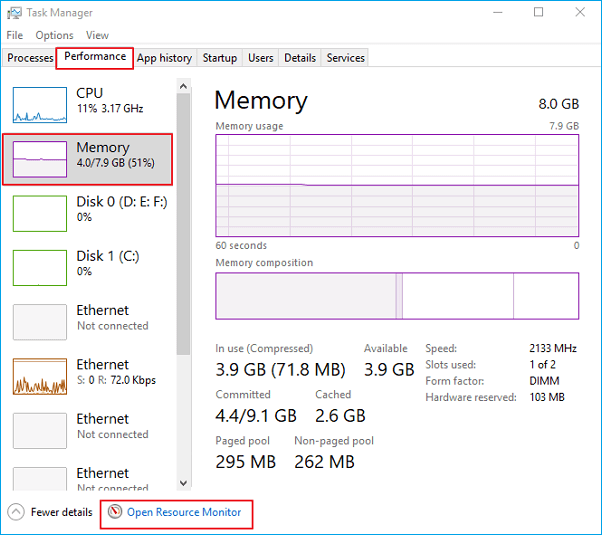
The total amount of RAM used by all processes can be determined by adding up the individual RAM usage of each process, and then comparing this total to the total available RAM on the system. This comparison can be visualized using a graph, which shows the percentage of used RAM relative to the total available RAM.
The minimum memory requirements for Windows 10 are 1 GB of RAM for the 32-bit version and 2 GB of RAM for the 64-bit version. Additionally, a 16 GB hard drive is recommended for the 32-bit version and a 20 GB hard drive is recommended for the 64-bit version.
- Windows 10 (32-This program can run on a PC with 1 GB of RAM, but it works more efficiently with 2 GB. Adding more memory, such as 3 GB or more, will further improve its performance.
- Windows 10 (64-This program can run on a PC with 2 GB of RAM, but its performance is improved with 4 GB. Adding more memory, such as 6 GB or more, will provide even better performance.
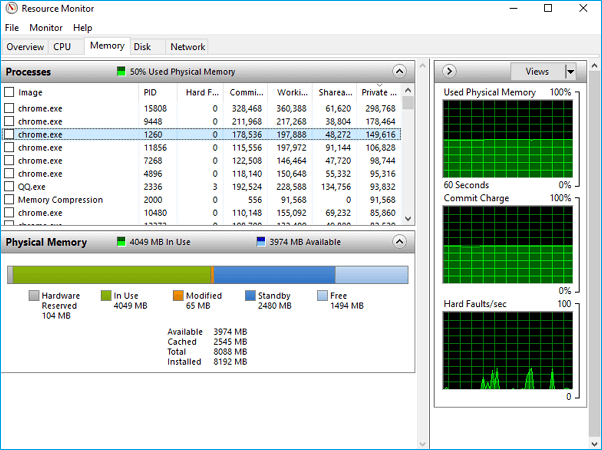
To free up memory space, you can open Resource Monitor, right-click the process consuming excessive memory, and select "End process" to terminate it.
Method 3. Free Up Space and Increase C Drive to Speed Up Lenovo Laptop
If your Lenovo laptop's hard drive or system drive is almost full, it will likely slow down. You can check for low disk space and improve performance by freeing up space on your drive or increasing the capacity of the C drive.
How to check for low disk space and clean up the disk drive
To check for low disk space:
- Select the Start button, then select Settings, then System, and finally Storage.
- Under Storage, your drives will be listed, showing the amount of free space and total size for each drive.
If your hard drive is cluttered with useless junk files, temporary files, large files, or third-party applications, cleaning it up can be a daunting task. Manually checking and deleting files and programs can be time-intensive, but there's a better way. You can use a disk cleanup tool or a system maintenance software to automatically delete temporary files, clear up space, and remove unwanted programs, making it easier to free up space on your hard drive.
Qiling Partition Master, a partition software, offers quicker and easier solutions to effectively address the Lenovo laptop running slow issue.
How to increase C drive to speed up Lenovo laptop Windows 11/10
Qiling Partition Master is an ultimate partition manager that enables you to resize/move partitions, wipe data, clone, merge, create, format, and delete a partition. It also features an advanced disk/partition conversion function to convert FAT to NTFS, MBR disk to GPT, or GPT disk to MBR. This tool can be used to increase the C drive on your Lenovo laptop, improving its performance.
Option 1. Extend System C drive with unallocated space
- 1. Right-click on the System C: drive and select "Resize/Move".
- 2. Drag the system partition end into the unallocated space so to add it to the C: drive. And click "Proceed" to execute the operations and extend the C drive.
Option 2. Extend System C drive without unallocated space
- 1. Click a big partition with enough free space on the system disk, select "Resize/Move".
- 2. Drag the big partition end to itself for the unallocated space so to add it to the C: drive. And click "Proceed" to execute.
- 3. You need to select the system drive at the "Allocate Space From" section and choose "Resize/Move".
- 4. To extend the C drive, drag the end of System C drive into the unallocated space and click "Proceed" to save the changes. This will extend the C drive into the unallocated space.
Upgrading to a Solid State Drive (SSD) can significantly improve boot times on Windows computers, including HP PCs. If you're fed up with waiting too long to boot up, consider investing in an SSD. You can even use a hard drive duplicator software to upgrade your existing HDD to an SSD without having to reinstall Windows, making the process even more convenient.
Method 4. Disable Unnecessary Startup Programs
You can disable programs that start automatically when your PC turns on, so they don't run in the background.
Many programs are designed to start automatically when Windows boots up, which can increase start-up time. This is often done by software manufacturers to allow frequently used programs to open quickly, but can be a problem for programs that are rarely used.
- To access the Startup apps settings, select the Start button, and then select "Settings" > "Apps" > "Startup".
- To prevent a program from starting automatically, go to Startup Apps, find the program you want to stop, and set it to Off.
Method 5. Make Sure Your Lenovo Is Free of Malware
A virus, malware, or malicious software can cause a Lenovo laptop to slow down. To handle this, run antimalware and antivirus software, and keep it up to date to prevent viruses and malicious software.
You can scan your PC for viruses or other malicious software using Windows Security (formerly Windows Defender Security Center) or other well-known antivirus software like Avast, AVG, Avira, Kaspersky, etc.
Method 6. Upgrade Hardware
Upgrading hardware is the most effective way to solve this problem and achieve a real performance boost.
Upgrade RAM
If your Lenovo laptop runs slowly, especially when doing design work like photo editing or video making, consider adding more RAM to speed it up and reduce freezes or hangs.
Upgrade to SSD
Replacing a traditional HDD with a new SSD on your Lenovo can significantly improve performance and fix the running slow issue, with SSD access speeds being nearly 100 times faster than HDD. To migrate the OS from HDD to SSD, you can use Qiling Partition Master Professional and follow step-by-step guides to upgrade your Lenovo to SSD.
Steps to migrate OS to HDD/SSD:
- Run Qiling Partition Master, select Migrate OS from the top menu.
- Select the SSD or HDD as the destination disk and click Next.
- Be aware that the data and partitions on the target disk will be erased. Make sure to back up any important data beforehand, or do so immediately. This will prevent any potential loss of information.
- Then click Continue.
- Preview the layout of your target disk. Then click Proceed to start migrating your OS to a new disk.
Note: When migrating your OS to an SSD or HDD, be aware that if the target disk doesn't have enough unallocated space, the process will delete existing partitions and data on the disk, potentially erasing important files. To avoid this, back up any crucial data to an external drive beforehand.
Method 7. Disable Windows 11/10 Automatic Update
Don't ignore the truth that each Windows 10 update often causes problems, despite trying all recommended solutions. It's necessary to consider a permanent close for Windows 10 automatic update.
To avoid the automatic Windows 10 update, you can disable it by going to Settings > Update & Security > Windows Update, then clicking on the "Advanced options" link and toggling off the "Update" switch. You can also disable it by going to the Group Policy Editor, navigating to Computer Configuration > Administrative Templates > Windows Components > Windows Update, and enabling the "Configure automatic updates" policy with the "Disabled" option. Additionally, you can also disable it by running the command "wuauserv" in the Command Prompt with administrative privileges.
If your Lenovo laptop is still running slow after trying all the solutions above, you can also reach out to Lenovo's customer support team for assistance. They can provide personalized guidance and help you troubleshoot the issue.
To Sum Up
If your Lenovo laptop is running slow in Windows 10, the seven approaches outlined in this article may help resolve the issue. Whether you have a Lenovo IdeaPad 330, 330s, 320(s), or s145, these methods can be tried to improve performance. If you encounter any difficulties or need further assistance, our technical support team is available to help via live chat or email.
Lenovo Laptop Slow FAQs
1. Why is my laptop so slow?
Here are some possible reasons that cause Lenovo laptop slow:
- The dust inside your laptop.
- Hard drive's performance reduction.
- Low disk space.
- Antivirus software may cause your Lenovo laptop running slow.
- Windows 10 update may also cause your PC to run slow.
2. How do I speed up my Lenovo laptop Windows 10?
How to speed up Lenovo laptop Windows 10:
- Disable startup apps
- Disable background apps
- Uninstall non-essential third-party apps
- Clean up hard drive space
- Run defragmentation tool
- Enable ReadyBoost
- Upgrade hardware
- Run antivirus software
3. How can I improve the performance of my Lenovo laptop?
Tips to improve PC performance in Windows 10:
- To ensure you have the latest updates for Windows and device drivers, follow these steps:
- Restart your PC and open only the apps you need
- Use ReadyBoost to help improve performance
- Check for low disk space and free up disk space
- Stop OneDrive syncing
- Disable unnecessary startup programs
- Check for and remove viruses and malware
- Restore your PC from a system restore point
4. How do I clear the memory on my Lenovo laptop?
To clear the RAM on your Lenovo laptop, you'll need to open the back cover and locate the RAM modules, which can be a complex process. If you're not familiar with computers, it's recommended to seek the help of a computer professional or take your laptop to the after-sales center for cleaning. This will ensure the process is done correctly and safely.
Related Articles
- 6 Tips to Fix Recovery Drive Full in Windows 10/8/7
- Tips for Windows 11 Android Apps & How to Run Android Apps on Windows 11
- [Solved] My Games Take Forever to Load PC
- What Is exFat Format: Everything You Need to Know
- C Drive Full, D Drive Empty – How to Fix
If your C drive is almost full and your D drive is empty, you can allocate free space from the D drive to extend the space on your C drive. By following the steps outlined in this article, you can learn how to do this and free up valuable space on your C drive. - Can't Delete Files from SD Card? Try 2024 Best Solution
In This guide, you will find solutions to can't delete files from sd card problem. Discover helpful techniques and tips to resolve this issue effectively on Windows.
Products
Articles & Tutorials
- Data Recovery
- Data Backup
- File Recovery
- File Backup
- System Backup and Restore
- Disk and Partition Clone
- Technical articles
- Mobile articles
- Disk Master Help
- Windows Data Recovery Tutorials
- Windows Secure Delete Tutorials
- Windows Partition Management Tutorials
- Windows File Backup and Restore Tutorials
- Windows System Backup and Restore Tutorials
- Windows Disk Backup and Restore Tutorials
- Windows Clone Tutorials