5 Best OS Cloning Software Recommend and Free Download
In this article, you'll learn:
- Top 5 Best OS Cloning Software Free Download 2024
- What Is OS Cloning Software
- OS cloning software allows you to create an exact copy of your operating system, applications, and settings, effectively cloning your entire computer environment. This can be useful for creating a backup of your system, testing new software without affecting your main setup, or even creating a duplicate machine for a colleague or friend.
Key Takeaways of OS Cloning Software 2024:
- 1. OS cloning software can be either free or paid, depending on the software manufacturer.
- 2. Using reliable OS cloning software can save you a lot of time and effort when cloning the operating system and upgrading it to a new disk, making the process much more efficient.
This page lists and recommends the top 5 best OS cloning software for OS cloning and system migration on Windows 11/10/8.1/7 and Windows Vista/XP computers.
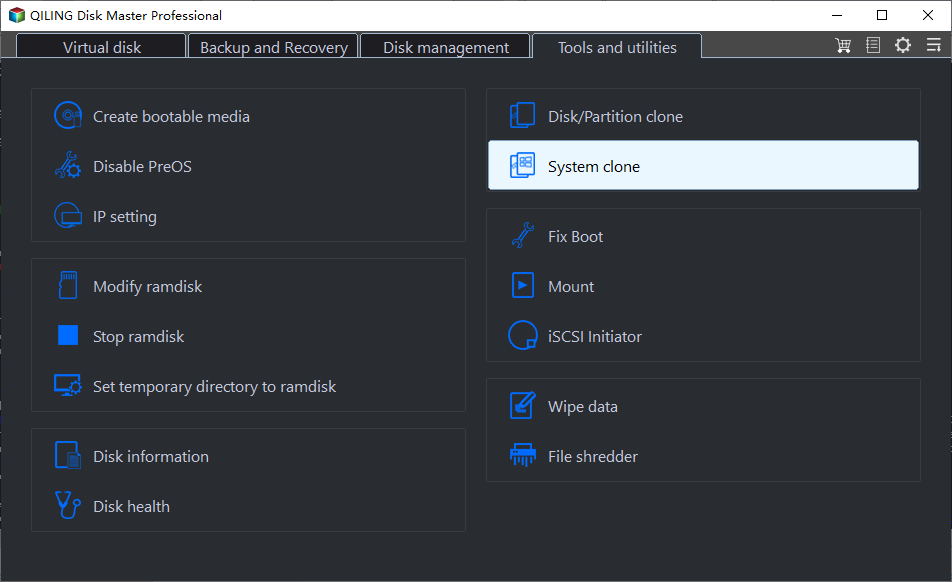
So how do I get a reliable system clone software free download? In the next part, we'll collect the top 5 best OS cloning software, and you can take a deep view of all the features of each software and pick the one that suits your needs the most for help.
Top 5 Best OS Cloning Software Free Download 2024
When testing someone to assist you in cloning your PC's operating system, consider the following checklist: Can they explain the cloning process in detail? Do they have experience with cloning operating systems?
| Price | $0 or with a reasonable price, not too expensive. |
| Supported OS | Windows 11/10/8.1/8/7 or compatible with your current operating systems. |
| Safe and Secure | The operating system is fully protected, with no damage to existing systems, programs, or saved data on the OS disk. |
| Easy to Use | The cloning process is simple and easy to follow, making it a straightforward task for users. |
| Efficient to Clone OS | Cloning and upgrading the OS to a new disk can be a time-consuming and energy-intensive process, but using a cloning software can save a significant amount of time and effort. This is because the software can quickly and accurately copy the entire OS and its settings to the new disk, eliminating the need for manual setup and configuration. |
When the OS cloning software you're testing meets all the features listed, consider it ready to clone and upgrade your OS disk immediately.
Here are the top 5 best OS cloning software that you can use:
- #1. Qiling Disk Master
- #2. Qiling Disk Master
- #3. Acronis Cyber Protect Home Office
- #4. Hasleo Disk Clone
- #5. Clonezilla
When it comes to OS cloning on Windows computers, the choice between Clonezilla and Qiling Disk Master depends on your specific needs. Clonezilla is a free and open-source tool that offers a simple and efficient way to clone a Windows installation, with features like partition resizing and compression.
| Comparison | Price | Reason to Use It |
|---|---|---|
| Qiling Disk Master |
|
|
| Qiling Disk Master |
|
|
| Acronis Cyber Protect Home Office |
|
|
| Hasleo Disk Clone |
|
|
| Clonezilla |
|
|
If you know someone who needs to migrate their operating system, consider sharing this list of top 5 best OS cloning software to help them. These tools can make the process of cloning an OS easier and more efficient, allowing them to transfer their operating system to a new device or restore their current setup.
Both Qiling Disk Master and Qiling Disk Master have free versions that allow users to clone disks, making it a tough choice between the two.
- For flexible OS cloning, you can take Qiling Disk Master for help.
- For an all-in-one system clone solution, take Qiling Disk Master.
- For 100% free and open-source cloning software, try Clonezilla.
Qiling Editors' Choice:
To migrate the operating system or clone the OS to a new disk is insufficient, we recommend utilizing Qiling Disk Master. This tool not only facilitates the cloning or migration of the OS to a new disk or computer but also enhances the performance of both the old and new computer's disks through its disk management features.
#1. Qiling Disk Master
Flexible OS Cloning Software
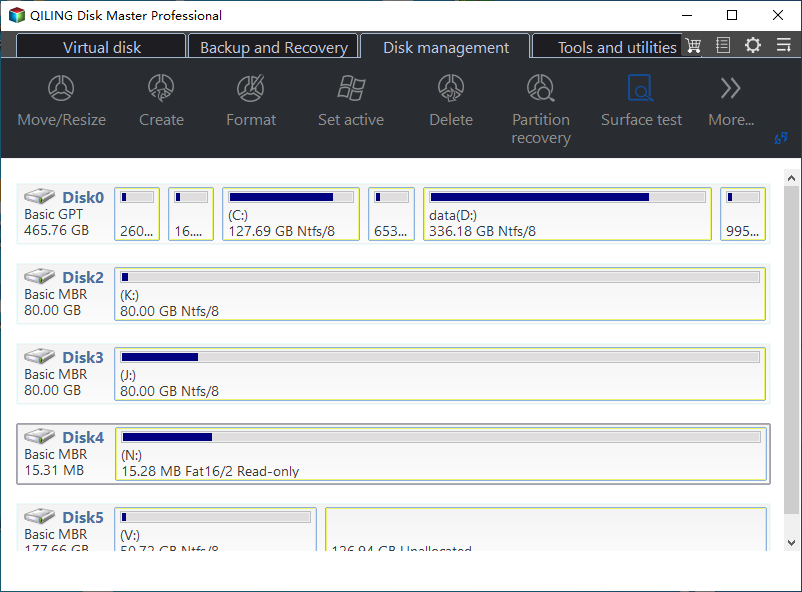
Qiling Disk Master is a reliable partition manager software that offers system and partition clone features, allowing normal Windows users to clone and upgrade the OS disk in simple steps, and also reallocate and fully use disk space on a PC.
Software Download:
Pros & Cons:
| Pros | Cons |
|---|---|
|
|
Guide to Clone OS with Qiling Disk Master:
Step 1. Launch Qiling Disk Master, go to the Tools tab, select Clone OS Disk and click Next.
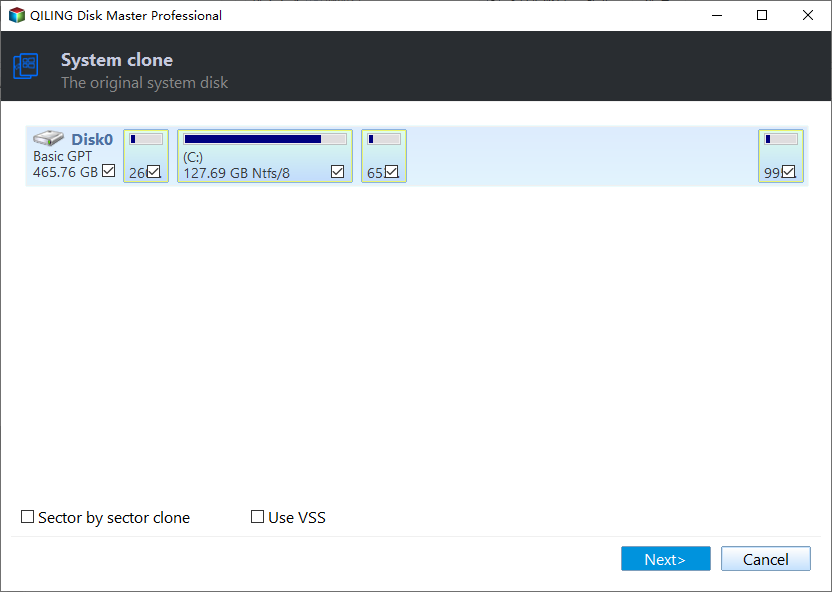
Step 2. Select the target new drive where you want to clone the OS to, and click "Next".

Click "Yes" to confirm that you want to continue the OS disk cloning process.

Step 3. The process of cloning an OS involves creating an exact replica of the operating system, including all installed software, settings, and data, onto a new disk or partition. This can be done using various cloning software or built-in tools, depending on the operating system being used.

Step 4. When the process completes, you'll see a confirming message, asking if you want to start up your computer from the cloned target disk.
- Reboot Now To "boot from USB" means to reboot your PC and configure the computer to boot its operating system directly from a USB drive, rather than from its internal hard drive. This allows you to run an operating system from a USB drive, which can be useful for troubleshooting, testing, or running a different operating system on a PC.
- Done means you want to make the changes later.
#Clone System#System Cloning Software#OS Migration#Windows
#2. Qiling Disk Master
Reliable System Clone Software
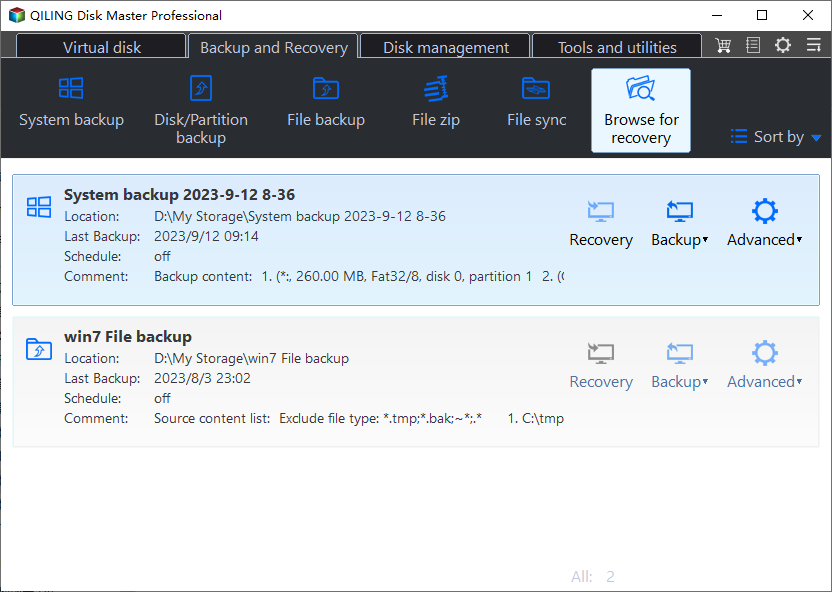
Qiling Disk Master is a file backup software for Windows that allows users to create a full backup of their computer's content with just a few clicks. It also offers a Clone System feature, making it easy for Windows beginners to clone their operating system to a new disk.
Software Download:
Pros & Cons:
| Pros | Cons |
|---|---|
|
|
Guide to Clone OS with Qiling Disk Master:
Step 1. To access system clone and other utilities, click on the "Tools" option on the main page.
Step 2. Qiling Disk Master will automatically select the boot and system partition, choose the target disk and click "Next".
System clone will completely erase all data on the target disk and cannot convert between MBR and GPT disk formats. Ensure the source and target disks have the same partition style.
Step 3. If the target disk is a SSD, choose the "optimize for SSD" option in the advanced settings.
Step 4. Click "Proceed" to start cloning.
#3. Acronis Cyber Protect Home Office
Reliable OS and Computer Backup Software
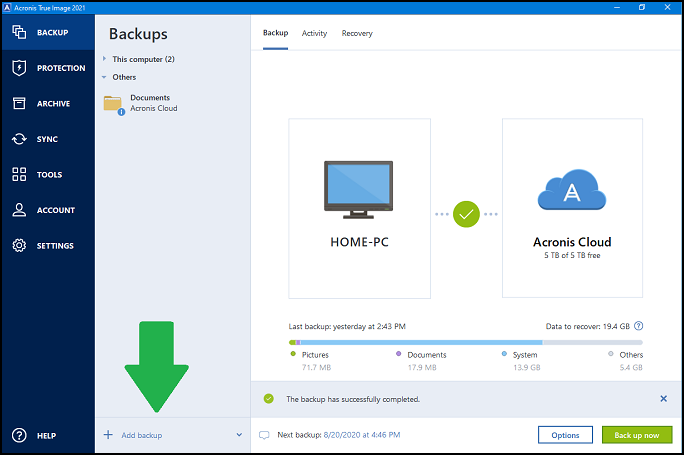
Acronis Cyber Protect Home Office, formerly known as Acronis True Image, has evolved from a basic file backup tool for Windows computers to a comprehensive computer security solution. It now offers a range of features, including backing up, protecting, archiving, and syncing computer content.
Software Download:
Open this link in your browser, and you'll get it: https://www.acronis.com/en-us/products/true-image/.
Pros & Cons:
| Pros | Cons |
|---|---|
|
|
Guide to Clone OS with Acronis Cyber Protect Home Office:
Step 1. Launch Acronis Cyber Protect Home Office and click "Backup".
Step 2. Select the operating system disk that contains the system you want to back up, which is usually the disk labeled "My Disk".
Step 3. To back up the OS disk, select the target disk you want to use for the backup, and then follow the on-screen instructions to complete the process.
Step 4. Click "Recovery" and select the backup image to restore.
Step 5. To restore a disk image with system backup, select the new disk as the destination and follow the on-screen instructions to complete the restore process.
Follow the onscreen guidelines to finish the process.
#Clone OS#System Disk Cloning Software#Windows
#4. Hasleo Disk Clone
Old-School Disk Cloning Software for Cloning the OS
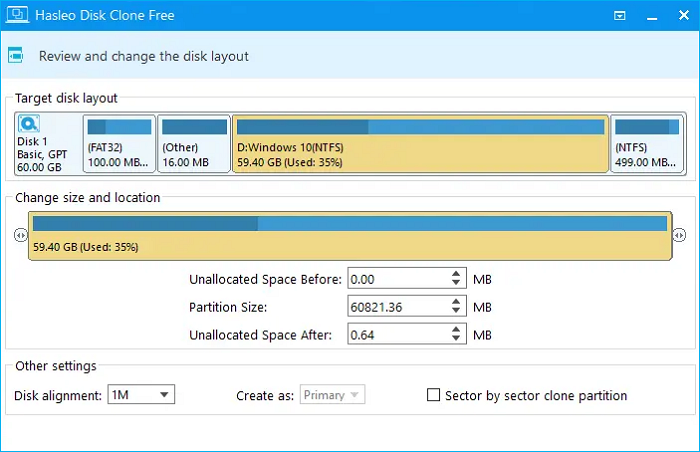
Hasleo Disk Clone is a tool that allows Windows users to clone and upgrade their OS disk to a new one, but it only offers disk and partition cloning features, lacking other functionalities.
Software Download:
https://www.easyuefi.com/disk-clone/disk-clone-home.html
Pros & Cons:
| Pros | Cons |
|---|---|
|
|
Guide to Clone OS Disk with Hasleo Disk Clone:
Step 1. Connect a new disk to the PC, then launch Hasleo Disk Clone to begin the cloning process.
Step 2. Click "Disk Clone"
Step 3. Select the source OS disk and the target disk, then click "Next".
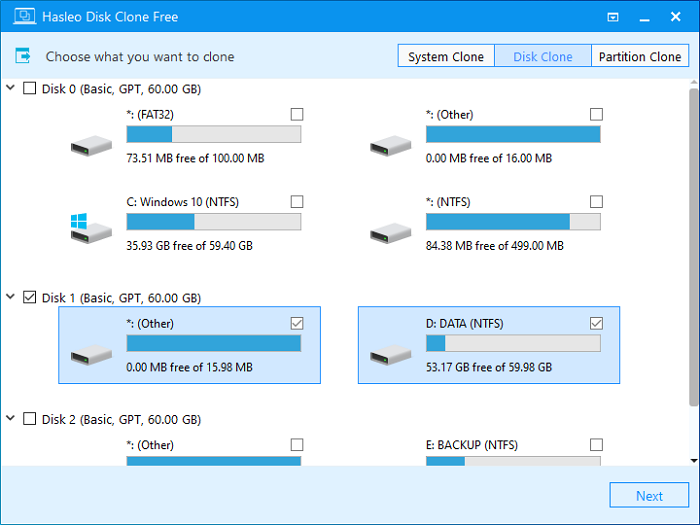
Step 4. Click "Yes" and "Proceed" to start the cloning.
#Clone OS#Clone System Disk#Windows
#5. Clonezilla
Open Source & Free Disk Cloning Software
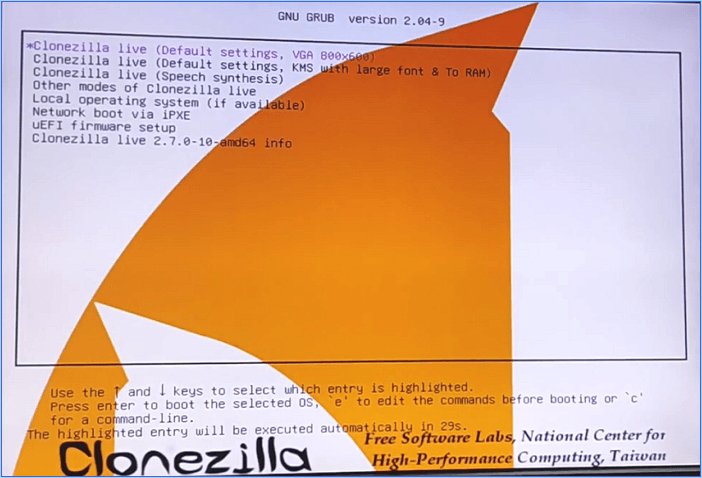
Clonezilla is an open-There are free disk cloning software options available that allow users to execute OS disk cloning operations on their computers. These software tools enable users to clone their operating system onto a new hard drive or solid-state drive, effectively creating an exact replica of their existing OS setup. This can be particularly useful for upgrading to a faster storage device or replacing a failing hard drive.
Software Download:https://clonezilla.org/downloads.php
Pros & Cons:
| Pros | Cons |
|---|---|
|
|
Guide to Clone OS with Clonezilla:
Step 1. Connect the new disk to PC, install and launch Clonezilla.
Step 2. To create an exact copy of the source disk, including the operating system and data partitions, choose "Beginner Mode" on Clonezilla and select that option.
Step 3. You can choose to clone the entire disk, and then set exact parameters.
Step 4. To reboot or shut down your computer once the cloning process is complete, you can set a timer or schedule the shutdown to occur at a specific time. This ensures that the cloning process is allowed to finish without any interruptions.
Wait patiently to let Clonezilla complete the disk cloning process.
#Clone OS to New Disk#System Disk Cloning#Windows
Bonus Tip: Make Cloned OS Bootable on New Disk
Ensure that your system can boot up normally after cloning on the new disk by following the tutorial to make OS bootable on the new disk.
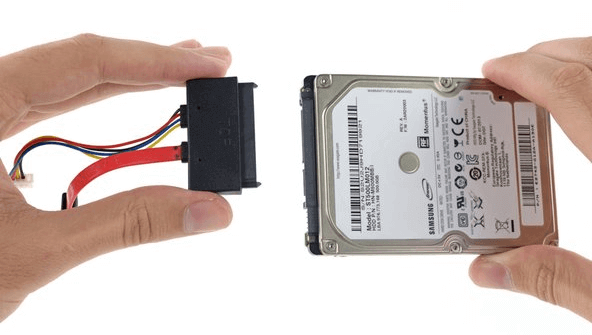
- To install and connect the new disk with the cloned OS, first, you need to ensure the new disk is properly connected to the computer. This may involve physically attaching the disk to the computer's storage system, such as a SATA port, or using a USB connection.
- To reboot the PC into BIOS settings, go to the boot menu, and set the new disk as the boot drive, simply follow these steps: Reboot the PC, enter the BIOS settings, navigate to the boot menu, select the new disk as the boot drive, and save the changes. This will allow the PC to boot from the new disk instead of the old one.
- Save the changes and restart the PC.

If you need a more detailed guide, you can find help on this page. It provides step-by-step instructions and tips to assist you in completing your task.

How to Boot from SSD after Cloning
Follow this step-by-step guide, and you'll learn why your computer won't boot from cloned SSD and get a complete guide on how to boot from SSD after cloning Windows 10/8/7 on your own.
What Is OS Cloning Software
OS cloning software is a system clone tool designed for Windows users to create a copy of their operating system for backup or OS disk upgrade purposes. It can be either free or paid and serves the purpose of cloning systems on Windows computers.
Here's a brief summary: The OS cloning software works by creating an exact copy of the original operating system, including all installed applications, settings, and data, onto a new device or hard drive. This is done by reading the original OS's configuration files, registry, and other system files, and then writing them to the target device in a way that's identical to the original. The software then boots the new device with the cloned OS, allowing it to function exactly as the original, with all programs, settings, and data intact.
- Phrase 1: The OS disk is scanned to identify the OS partition and data partition. This process involves detecting the operating system and its related files, as well as any data storage partitions on the disk.
- Phrase 2: Process the order of cloning the operating system on the target PC.
- Phrase 3: Detect the target new disk drive and create an exact same copy of the OS from the source disk to a new disk drive.
#OS Cloning Software#Clone Windows#Windows Cloning
Benefits of Using OS Cloning Software:
OS cloning software has become increasingly popular and important to ordinary users due to its numerous benefits and advantages. This software allows users to create exact copies of their operating system, which can be useful for various purposes such as creating a backup, testing new software, or deploying identical systems across multiple devices. With OS cloning software, users can quickly and easily create a duplicate of their current system, including all installed applications, settings, and files, which can save time and effort compared to manually reinstalling and configuring everything from scratch.
- Time-saving
- Simple and easy to use
- The operating system and data on the device will remain unchanged and secure, with no risk of damage or corruption.
- The cloning process is efficient in transferring the operating system to a new disk or computer, allowing for a seamless upgrade without the need for manual setup. This makes it a convenient option for those looking to upgrade their OS to a new disk or computer.
What Can OS Cloning Software Do for You, and When Do You Need It
In this part, we'll mainly answer two questions for you:
1. What can OS cloning software do for you?
OS cloning software can perform a variety of operations, including creating a duplicate of an existing operating system, which can be useful for testing or troubleshooting purposes, as well as cloning a system for deployment on multiple machines, such as in a business setting. Additionally, some OS cloning software can also help with migrating an operating system to a new computer, which can be especially helpful when upgrading to a new device.
- Clone OS and system-related files, and settings to a new drive.
- You can migrate your OS from an HDD to an SSD or M.2/NVMe SSD without reinstalling the OS by using a cloning software like Qiling Disk Master. These tools can create a sector-by-sector copy of your existing OS on the HDD and transfer it to the new SSD, preserving your installed applications, settings, and data.
- Upgrading the OS disk on old operating systems, such as Windows 8/7/Vista/XP, involves replacing the existing operating system with a newer version, typically by installing a fresh copy of the updated OS on a new or upgraded disk. This process can be complex and may require specific hardware and software requirements to be met, such as a compatible processor, RAM, and disk space.
- The service provides a system clone feature, allowing users to duplicate their operating system and clone it to multiple computers.
2. When Do You Need OS Cloning Software?
Here is a situation where you can apply a reliable or free system clone software to clone your OS:
- Operating system gets slow
- System disk gets out of space, with little free space left
- Computer disk gets full, no more free space
- An outdated operating system no longer receives security updates or technical support, making it vulnerable to cyber threats and limiting its functionality.
- The operating system (OS) disk is too old or too slow to boot up, which can cause problems with system performance and stability. This can be due to a variety of factors, such as outdated hardware, insufficient storage capacity, or corrupted system files.
Final Verdict
This page features 5 top OS cloning software options for Windows users, including both free and paid tools, that can help clone and migrate the operating system to a new disk with ease.
Among the 5 software, Windows beginners are more suitable to take Qiling Disk Master or Qiling Disk Master for OS cloning, as they are more user-friendly and easier to use.
For a flexible OS cloning operation, consider using Qiling Disk Master, which offers features such as Migrate OS to HDD/SSD, Clone Entire OS Disk, and Copy Partition, making it a powerful tool for managing and cloning operating systems.
FAQs About OS Cloning Software
Here are some other popular topics that you might be interested in, with answers and information available:
1. Does Windows 10 have cloning software?
Windows 10 has a built-in backup tool called system backup and restore, which creates a system restore point and secures the OS from disasters, but it does not have cloning software.
2. Is there free cloning software?
Searching online for "free cloning software" yields multiple options that can clone disks, partitions, and even operating systems. Qiling Disk Master Free, in particular, offers features like copying data disks and cloning partitions, making it easy to clone anything on a Windows computer with just a few clicks.
3. How do I clone an OS disk?
- To perform the task, install a new disk to the computer and then launch Qiling Disk Master.
- Go to Disk Clone, select "Clone an entire OS disk" to clone the entire operating system disk.
- Select the target new disk, and click "Proceed".
- Wait for the cloning process to complete.
4. Can you clone your OS?
To clone a Windows operating system, you'll need reliable OS cloning software, as recommended on this page, since Windows itself doesn't have an OS cloning program.
You'll need to turn to third-party OS cloning software like Qiling Disk Master for help, as recommended above.
Related Articles
- Why Is Windows Server Slow and Tips to Speed Up Windows Server in 2024
- [Fixed] FAT32 Format Option Not Available in Windows
- Format EXT4 on Windows 10,8,7 with Best EXT4 Format Freeware
- How to Merge C Drive with Unallocated Space Directly in Windows 10 or 11?
You can merge the C drive with unallocated space directly on your hard drive to extend the C drive using Qiling Disk Master. - Quick Fixed: Extend Volume Is Disabled in Windows 11, 10, 8, 7 for C Drive
If you're encountering the issue of Extend Volume being disabled in Windows 11, 10, 8, 7, particularly for the C drive, you can resolve it using a reliable partition manager. - How to Extend Volume with Disk Management in Windows?
This post shows how to extend volume in Windows Disk Management and solutions for extend volume greyed out.
Products
Articles & Tutorials
- Data Recovery
- Data Backup
- File Recovery
- File Backup
- System Backup and Restore
- Disk and Partition Clone
- Technical articles
- Mobile articles
- Disk Master Help
- Windows Data Recovery Tutorials
- Windows Secure Delete Tutorials
- Windows Partition Management Tutorials
- Windows File Backup and Restore Tutorials
- Windows System Backup and Restore Tutorials
- Windows Disk Backup and Restore Tutorials
- Windows Clone Tutorials