How to Repair and Restore Unallocated Space on a USB/SD Card
| Workable Solutions | Step-by-step Troubleshooting |
|---|---|
| Method 1. Create a New Partition Directly | Step 1: Connect or insert the USB/SD card to the computer; Step 2: Go to "This PC", right-click it and choose...Full steps |
| To restore the partition from the unallocated space using Partition Master, follow these steps: | Step 1: Connect the external storage device to your computer for lost partition recovery. To begin with...Full steps |
The provided text is applicable to various types of removable storage devices, including USB drives, SD cards, pen drives, and other similar devices.
Problem: USB/SD Card Stops Working, Showing As Unallocated
Many users have encountered the frustrating issue of a used storage device, such as a hard disk, USB, SD card, or pen drive, suddenly showing as "Unallocated" in Disk Management and missing under File Explorer, making it impossible to access data or save new data on it.
What Is Unallocated Space on a USB/SD Card
Unallocated space on a storage device indicates that the area hasn't been formatted and partitioned, making it inaccessible for data storage. This means you can't access it under computer drives or write data to it. To utilize unallocated space, you can either create a new partition using the space or add it to an existing partition.
When Will You See Unallocated Space
The space on a disk that is not assigned to a partition by Windows is referred to as "unallocated space". This can include newly initialized disks or leftover space, as well as existing partitions that have been removed or become unallocated after certain operations.
Why Does a USB/SD Card Become Unallocated Suddenly
A USB drive's partition may become unallocated due to accidental deletion or a virus attack, such as deleting the partition by mistake or a malicious program causing the USB to become unallocated.
In cases where data loss coincides with a partition's change to unallocated space, it's possible to repair the unallocated USB or SD card and retrieve files with ease.
How to Fix and Repair an Unallocated USB/SD Card
Depending on whether you need to perform data recovery, there are different solutions available.
Method 1. Create a New Partition Directly
If the USB is brand new or you have no intention to perform data recovery, you can create a new partition using the allocated space directly to make the space usable.
To create a partition using unallocated space on a USB/SD card, you can use a tool like the built-in Disk Management tool in Windows or a third-party software like Qiling Partition Master. First, connect the USB/SD card to your computer and open the Disk Management tool.
Step 1. Connect or insert the USB/SD card to the computer.
Step 2. To access Disk Management, go to "This PC", right-click on it, and select "Manage". From the Manage window, click on "Disk Management".
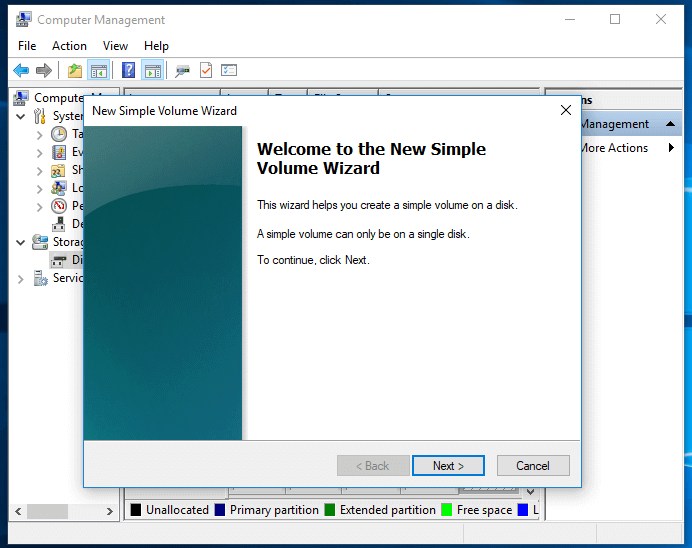
Step 3. Right-click the unallocated space and choose "New Simple Volume".
Step 4. Follow the wizard to finish the remaining process.
Method 2. Restore the Partition from the Unallocated USB
If a used USB or SD card containing valuable files becomes unallocated unexpectedly, it's essential to perform data recovery to salvage the precious data.
To recover both files and partition on a USB, use a partition tool like Qiling Partition Master, which can restore both data and partition from unallocated space, saving you the step of manually creating a volume.
To repair the unallocated space on the USB/SD card:
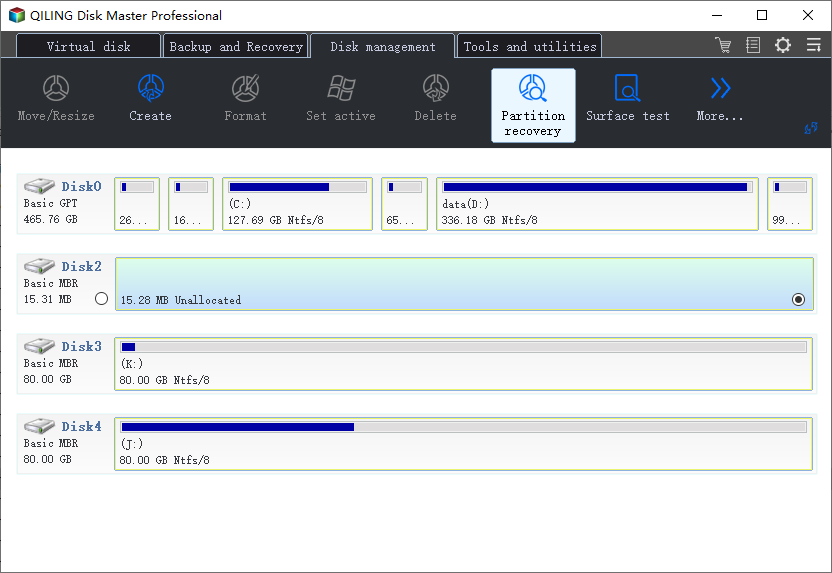
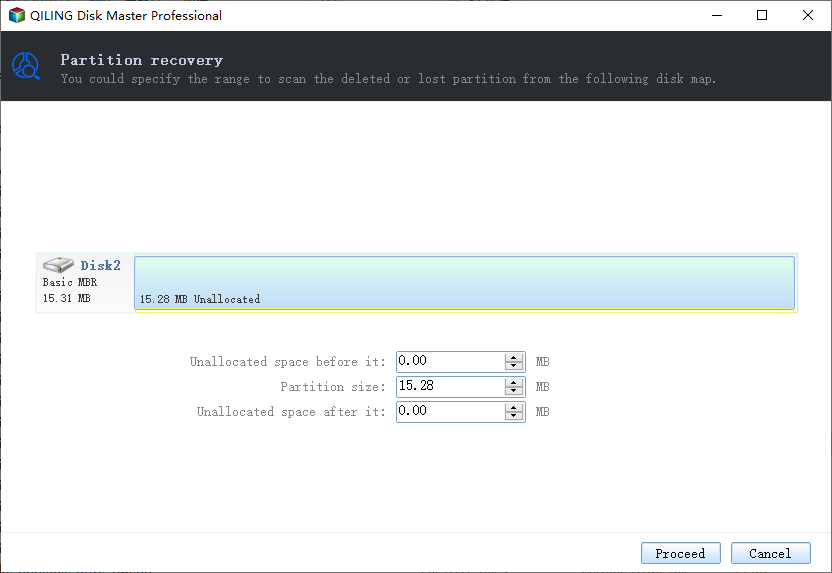
Step 1. To recover a lost partition, connect the external storage device to your computer, then click "Partition Recovery" on the top menu. Choose the target disk and click "Proceed" to begin the recovery process.
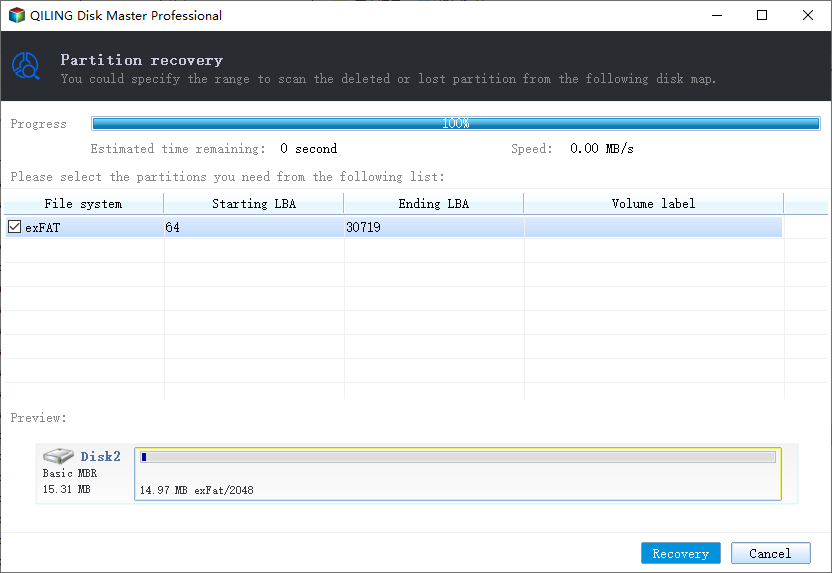
Step 2. Qiling Partition Master scans and displays all existing and lost partitions on the selected disk. It allows you to select a partition marked as "Lost" in the "Status" tab and proceed with the recovery process.
Double-click on a partition will allow you to preview the content.
Step 3. Click "Recover" as along as all the lost data has been found.
Step 4. The software will now process the final recovery. After this process, your lost partition should reappear in the drive.
Knowledge Base: Unallocated Space VS Free Space
Both unallocated space and free space in Disk Management are unusable spaces. When a logical partition is shrunk, it creates free space, while shrinking a primary partition results in unallocated space. This suggests that both terms are essentially interchangeable and refer to the same type of unusable space.
Free space can also refer to the unused space in an existing partition, disk, or external storage device, making it usable unlike the chunk marked as free space in Disk Management.
The Bottom Line
To fix an unallocated USB/SD card/pen drive, you can create a new volume, but first consider whether you need to recover data from the unallocated space. If so, use software like Qiling Partition Master to restore your partition and data or Deep Data Recovery to recover only data from the unallocated removable disk.
Related Articles
- Windows 11/10 Media Creation Tool: How to Download and How to Use (a Complete Guide)
- How to Manage Partitions with Disk Partition CMD in Windows 11/10?
- Use SD Card Repair Tool to Fix Corrupted SD Card
- How to Fix New Simple Volume Greyed Out Error in Windows Disk Management
- Partition Magic Server 2003 Free Download for Windows Server 2003 [How-To Guide]
This page offers a reliable and official download of Partition Magic Server 2003 software for Windows Server users, providing access to disk partitioning and resizing volume capabilities. - Download Partition Magic Server 2008 (R2) to Manage Server 2008 Disk Partition Safely
This page offers a reliable and effective Partition Magic Server 2008 software that enables safe management of disk partitions on Windows Server 2008 and Server 2008 R2.
Products
Articles & Tutorials
- Data Recovery
- Data Backup
- File Recovery
- File Backup
- System Backup and Restore
- Disk and Partition Clone
- Technical articles
- Mobile articles
- Disk Master Help
- Windows Data Recovery Tutorials
- Windows Secure Delete Tutorials
- Windows Partition Management Tutorials
- Windows File Backup and Restore Tutorials
- Windows System Backup and Restore Tutorials
- Windows Disk Backup and Restore Tutorials
- Windows Clone Tutorials