Portable Partition Manager Download Free | With Guide
- 🔽Portable Partition Manager Download
- 🔎What Can Qiling Portable Partition Manager Do
- 🛞How to Download and Use Qiling Partition Manager
Some Windows users prefer to keep their PCs minimal and may only install software that they frequently use, avoiding clutter and potential conflicts with other programs.
Most users don't need to manage partitions often, only when making changes, like extending the C partition, which is uncertain in terms of frequency. This is why a portable partition manager was designed.
Get a powerful portable manager with a user-friendly interface and compatibility, as described in this article from Qiling.
🔽Portable Partition Manager Download
Qiling Disk Master offers a portable partition software that can be stored on a USB drive, allowing users to manage multiple computers without installing it on each PC, saving disk space and making disk management easier.
Support: External Hard Drive, USB, SD Card, etc.
🔎What Can Qiling Portable Partition Manager Do
However, what can Qiling Partition Manager Portable As a powerful partition manager, it offers full features to manage your disk, providing a comprehensive solution for partition-related tasks.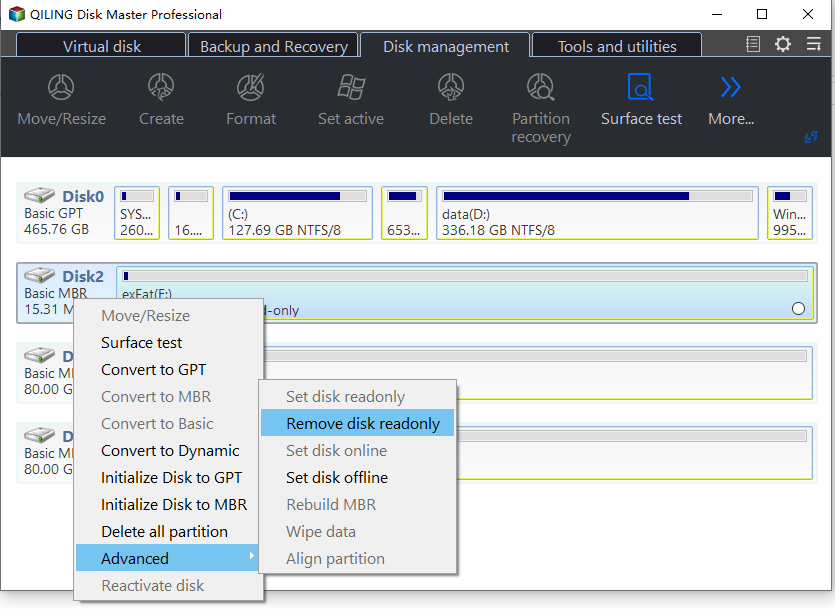
- A partition management system that enables basic operations such as extending, shrinking, moving, formatting, deleting, creating, resizing, and cloning partitions.
- The software provides advanced features, including converting NTFS to FAT32, logical to primary, dynamic to basic, GPT to MBR, or vice versa.
- A disk/partition repair tool can perform various functions to fix issues with disk partitions, including repairing bad sectors, rebuilding the Master Boot Record (MBR), recovering lost or deleted partitions, and more.
- Provides functions to create bootable media and repair computer systems, including resetting PC passwords, creating password reset USB, performing boot repairs, and reinstalling Windows.
- This software has great compatibility and can run on Windows 11, Windows 10, Windows 8.1, Windows 7, Windows XP, and Windows Vista, both 32-bit and 64-bit versions.
Share this tool with others and let them know about its existence. You can do this by clicking the buttons below. This will help spread the word and make more users aware of its availability.
Here is the main interface of this portable partition manager software:
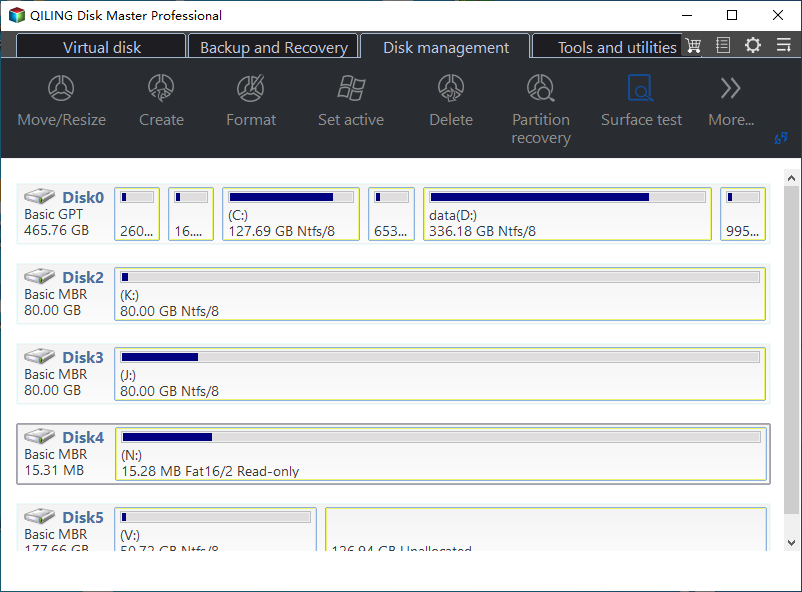
We've created a portable package for your convenience. This package lets you deal with disk and partition issues from anywhere, whether at home or work, and can even be used on multiple computers to help friends in need. Click the button to download the Portable Partition Manager!
🛞How to Download and Use Qiling Partition Manager Portable
Qiling Partition Manager Portable offers the same functions as Qiling Disk Master Free, making disk management easier and more convenient. Its features include everything you get in the Free version, allowing you to easily manage your disk.
Step 1. Download Qiling Portable Partition Manager to your USB drive, then unzip the zip package.
Step 2. To manage disks and partitions on Windows, simply connect a USB flash drive to the computer and use a portable disk manager without needing to install it.
To manage your partition, simply plug the USB into any Windows PC, and you can access the Qiling Partition Manager Portable. This tool allows you to perform various tasks, including resizing, creating, deleting, and formatting partitions, as well as converting between different file systems. You can also use it to clone a partition, back up data, and more. With its user-friendly interface, you can easily manage your partitions without any technical expertise.
Conclusion: Best Portable Partition Manager Download
Portable Partition Manager allows users to manage partitions on Windows computers without installing any software, saving disk space and keeping the computer organized.
The Qiling portable partition manager is a powerful tool for managing partitions on multiple computers at once, making it a popular choice among users. Its capabilities allow for efficient management of partitions across various devices without the need to install a separate partition manager on each one.
Partition Manager Portable Download FAQs
There are many partition management software available, but they often require installation on the computer. However, if you're looking for a portable solution, you might be interested in learning more about Portable Partition Manager for Windows PCs. Keep reading if you need further information.
1. What can Qiling portable partition magic do?
The portable version of the Partition Wizard has the same functionality as the free edition, but it does not interrupt the installation process. The features available in the free version are also present in the portable version.
2. How do you download Qiling Portable Partition Manager for free?
Follow the instructions to download the Portable Partition Manager from Qiling:
To manage your partitions, download Qiling Portable Partition Manager from the Qiling Official Website or the button in this article, and unzip the package after downloading, then set the USB as the destination. When you need to manage your partitions, insert the USB into your PC.
3. What should be taken into account when choosing a portable partition manager?
Choosing the right portable partition management software can be a daunting task, but considering factors such as ease of use, functionality, and compatibility with various operating systems can help narrow down the options.
- Brand: Is it from a reliable brand
- Compatibility: Is it compatible with different Windows versions
- Functionality: The functions are complete, and basic disk management operations can be completed, but advanced disk management operations may not be fully supported.
- Security: The concern is whether the new AI model contains any viruses or malicious code that could potentially threaten computer security. This is a crucial aspect to consider, as the integration of AI models into various systems and networks can have significant implications for cybersecurity.
Related Articles
- Logical vs Primary | What's the Difference and Which Is Better
- SD Card Shows Read Only? See How to Fix It (4 Solutions)
- How to Fix SD Card Write Protected But Not Locked [100% Working]
- Diskpart: Resize NTFS/FAT Boot Partition in Windows 7,8,10
Here, you can learn how to resize partition using DiskPart, no matter you want to shrink or extend partition size in Windows 7, 8, 10. - [Explained]: Is It Safe to Delete Temp Files on Windows 10?
Deleting temp files in Windows 10 is generally safe, and you can do so without risks. You can find more information and learn how to delete temp files from the provided post. - A Powerful PC Junk Cleaner for Windows 10 And 11
How to make the computer run faster? An excellent PC junk cleaner for Windows 10 can help you, which can remove all kinds of junk files to free up more space and improve computer performance.
Products
Articles & Tutorials
- Data Recovery
- Data Backup
- File Recovery
- File Backup
- System Backup and Restore
- Disk and Partition Clone
- Technical articles
- Mobile articles
- Disk Master Help
- Windows Data Recovery Tutorials
- Windows Secure Delete Tutorials
- Windows Partition Management Tutorials
- Windows File Backup and Restore Tutorials
- Windows System Backup and Restore Tutorials
- Windows Disk Backup and Restore Tutorials
- Windows Clone Tutorials