Solved: Can't Remove Windows.old Folder in Windows 11/10
| Workable Solutions | Step-by-step Troubleshooting |
|---|---|
| 1. Use Disk Cleanup | Step 1. Press Windows + E, click This PC...Full steps |
| 2. Temporary File Settings | Step 1. Open Settings by typing settings in the Search, then click on it...Full steps |
| 3. Storage Sense Settings | Step 1. Open Settings by right-clicking the Windows icon and select "Settings"...Full steps |
Something You Need to Know About Windows.old Folder
The Windows.old folder is a backup of your previous Windows installation, created when you upgraded to a newer version of Windows. It contains a copy of your old Windows files, registry, and settings, and is used by the Windows installation process to restore your system to its previous state if needed.
What Is Windows.old?
Windows.old folder is created by the Windows operating system when you upgrade from one version of Windows to another, and it contains a copy of the previous Windows installation, allowing you to revert back to the original version if needed. This feature has been present since Windows Vista.
The Windows.old folder holds all the files and data from the previous Windows installation, including system files, user account settings, user profiles, and user folder files.
Windows Update can be used to restore Windows to its previous version if you don't like the new version, and you can also access the Windows.old folder to retrieve specific files that weren't properly transferred to the new installation.
Where is the Windows.old Folder?
The Windows.old folder is typically saved on the C: drive under the Windows folder after a Windows system upgrade, and can be deleted to free up space. The folder contains a snapshot of the previous Windows installation, and can be accessed by going to the C: drive, navigating to the Windows folder, and then finding the Windows.old folder. If you're looking to delete it, you can simply right-click on the folder and select "Delete" to remove it.
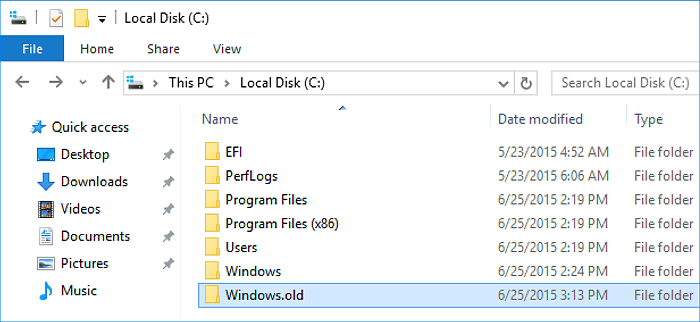
The Windows upgrade consumes a huge amount of space, taking up nearly the same size as the C: drive, which is why many people notice their C drive getting full quickly after the update.
Is It Safe to Delete Windows.old Folder?
Deleting the Windows.old folder is safe and can free up disk space if you've upgraded to a new Windows system and all your files are intact on the new OS.
Why Can't I Remove Windows.old Folder?
Users on the Microsoft Windows forum and other tech forums are experiencing issues trying to remove the Windows.old folder, with Windows reporting that the file is not found or the target is not a valid file or directory.
The Windows.old folder can't be deleted directly from the C: drive because it's a system folder that contains a snapshot of your previous Windows installation, and deleting it could potentially cause issues with your current Windows installation. Additionally, the folder is typically located on the system drive, which is usually the C: drive, and deleting system files from this drive can cause system instability or even a system crash. Therefore, it's recommended to delete the Windows.
1. The Windows.old folder has been removed by Windows OS
Windows Operating System automatically deletes the Windows.old folder after upgrading to save disk space.
- On Windows 10, the Windows.old folder is automatically deleted 10 days after a Windows upgrade.
- On Windows 8.1/8, the Windows.old folder is automatically deleted 28 days after a Windows upgrade, as opposed to Windows 10 where it remains until manually deleted.
- On Windows 7 and older OS, Windows.old will be removed automatically in 30 days after OS update.
2. Delete Windows.old needs administrator permission
The Windows.old folder is accessible for viewing saved files, but requires administrator permission to make changes, preventing direct deletion from the C: drive without proper authorization.
How to Delete Windows.old Folder - 3 Methods
If you're experiencing issues with deleting the Windows.old folder, - this guide can help. There are three effective methods to resolve this issue without losing any data.
Before You Start - Preparations
#1. Create Backup of Windows.old Folder
Before taking the steps below to delete the Windows.old folder, you can create a backup of the Windows.old in case that you may want to perform a system restore or restore a single file from the folder.
You can either copy Windows.old folder to an external hard drive or to back Windows.old folder with Qiling free backup software in only three simple steps as listed below:
- Launch Qiling Backup Free, then choose" File Backup".
- Identify the critical files, data, or systems that need to be backed up, and then choose a suitable backup destination, such as an external hard drive, cloud storage, or tape drive.
- Click "Proceed" to start the backup process.
#2. Gain Administrator Permission from System
To successfully delete the Windows.old folder, it's crucial to ensure that you're logging in to Windows OS as an administrator. This will grant you the necessary permissions to delete the folder.
If you have multiple user accounts on your computer, switch to logging in with your administrator account to access and manage all user accounts, including their settings and files, from a single interface. This allows you to oversee and control all user activities, making it easier to maintain system security and organization.
Step 1. To access the Start menu in Windows, click the Windows icon in the bottom left corner of the screen, and then click on your username at the top of the menu that appears.
Step 2. Select Administrator on the list, click to switch to it.
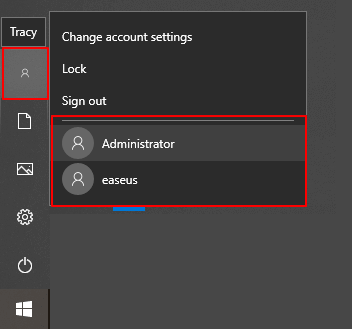
Step 3. Sign in with the password of your administrator account.
Method 1. Delete Windows.old Folder in Windows 11/10 Using Use Disk Cleanup
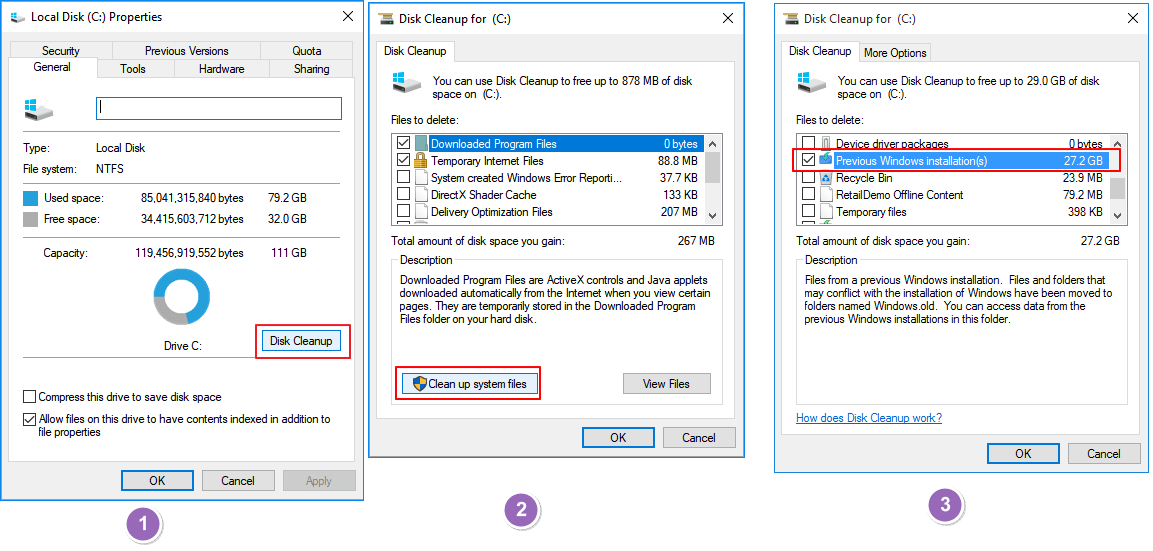
The Windows.old folder can't be deleted by simply hitting the delete key. Instead, use the Disk Cleanup tool in Windows to remove this folder from your PC.
- Press Windows + E, click This PC.
- Right-click the drive with Windows installation and click Properties.
- Click Disk Cleanup and select Clean up the system.
- Select the Previous Windows Installation(s) option to delete Windows.old folder.
- You can also choose to delete other installation files, such as Windows upgrade log files and Temporary Windows installation files, etc.
- Please confirm the deletion of the selected files by clicking OK and selecting Delete Files on the pop-up dialog.
- Click Yes.
Method 2. Delete Windows.old Folder in Windows 10 Using Temporary File Settings
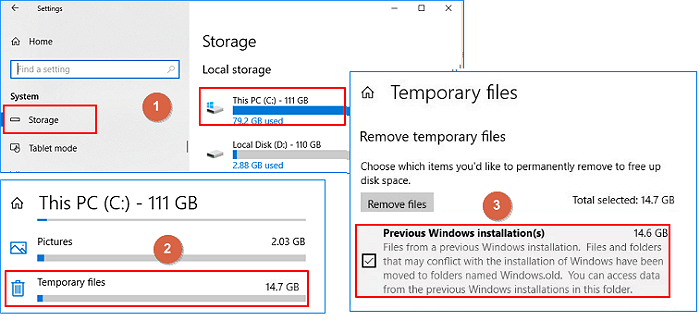
To remove the Windows.old folder on your PC, you can use Windows Temporary File Settings. To do this, go to the Settings app, then click on System, and select Storage. Under "Temporary Files," toggle the switch to "On" to allow Windows to automatically remove temporary files, including the Windows.
Step 1. To open Settings, type "settings" in the Search bar and click on the Settings icon that appears in the search results.
Step 2. To clear temporary files, select System > Storage > This PC, scroll down the list, and choose Temporary files.
Step 3. Under Remove temporary files, check Previous Windows Installation, then choose to "Remove files".
The Windows.old folder will be automatically deleted in Windows 10 after a certain period of time, typically 10 to 60 days, depending on the system configuration. This folder contains a copy of the previous Windows installation, which is created during an in-place upgrade or a clean installation. After the specified time has passed, Windows will automatically remove the Windows.
Method 3. Delete Windows.old Folder in Windows 10 Using Storage Sense Settings
You can also use Windows 10 Storage Sense settings to remove the Windows.old folder on your PC. To delete it, follow these steps: follow the steps below.
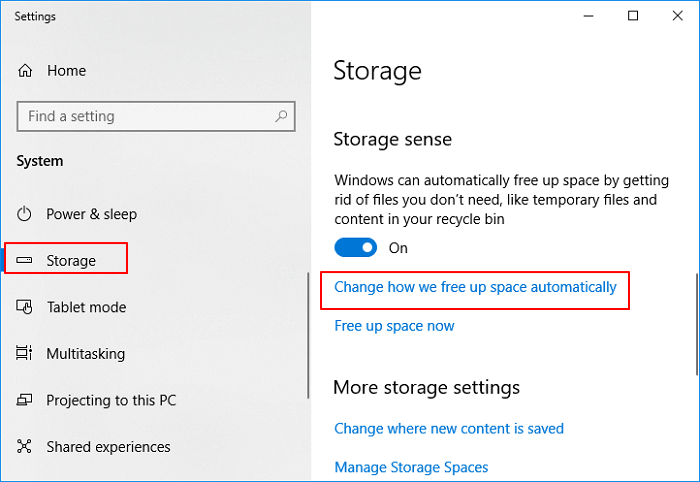
Step 1. Open Settings by right-clicking the Windows icon and select "Settings".
Step 2. To free up space on your computer, go to System, click on Storage, and then click on "Change how we free up space automatically" under Storage Sense.
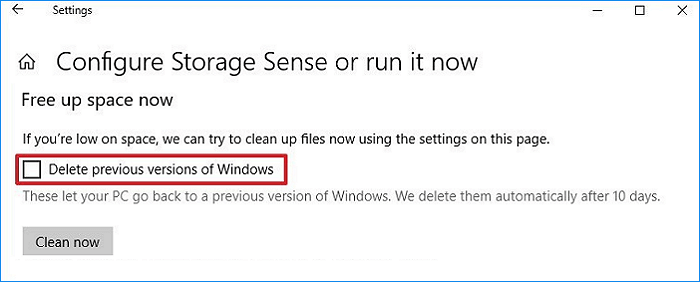
Step 3.Check the box that says "Delete the previous version of Windows" and click "Clean now".
To remove the Windows.old folder, follow these steps: Go to the Start menu and type "File Explorer" in the search bar. Open the File Explorer and navigate to the drive where Windows is installed (usually C:).
Here is a quick tutorial that has solved the 'can't delete Windows.old' error in Windows 10. Scroll down to check the steps to resolve this issue.#complete solutions# with detailed guidelines.
Video source: YouTube; Created by Sele Training.
2 Bonus Tips: Extend System Drive After Deleting Windows.old
Besides deleting the Windows.old folder, you can also try other methods to extend system C drive space. If this is what you want, try the following 2 quick tips to gain space and extend your C drive immediately:
#1. Extend C Drive using Free Partition Manager Software
Qiling software provides a free partition manager that can efficiently extend the system C drive using its Resize/Move feature.
Here are the steps:
Step 1: Free up unallocated space for C drive.
If there is no unallocated space on the system disk, click on a partition next to the C: drive and select "Resize/Move".
To resize the partition, drag the left panel of the partition to the right to shrink it and leave unallocated space behind the system C: drive. Then, click on the "Proceed" button.
Step 2: Increase C drive space.
1. Click on C: drive and select "Resize/Move".

2. To add space to the C: drive, you need to drag the system partition end into the unallocated space, effectively expanding the C: drive's capacity. This will allow you to utilize the newly available space for storing files, programs, or other data.

Step 3: Keep all changes to extend C: drive
Click the "Proceed" to keep all changes so to extend the system C: drive.
Conclusion and Windows.old FAQS
The Windows.old folder contains a backup of your Windows installation before a major update, allowing you to restore your system if needed. You can access and explore the contents of this folder, but it's generally not recommended to modify its files. The default location of the Windows.old folder is the root directory of your system drive, typically C:\Windows.
To delete a folder on Windows, you can use the built-in "Delete" option in File Explorer, or use the "Shift + Delete" shortcut to bypass the Recycle Bin. Alternatively, you can use the Command Prompt or PowerShell to delete a folder and its contents. These methods can also be applied to older Windows operating systems. If you're having concerns about deleting a folder, such as how to delete a folder that won't delete, or how to delete a folder that's in use, you can check the answers to these questions for help.
1. How do I manually delete Windows.old?
You need to log in to your computer as an administrator in order to use the provided methods.
You can manually delete the Windows.old folder using Windows Temporary file settings, Windows disk cleanup, or Windows Storage Sense settings. Alternatively, refer to the detailed steps listed in Method 1, Method 2, and Method 3 for a more detailed guide.
2. How do I restore system from Windows.old?
To restore your system from the Windows.old folder, go to Settings > Update & security > Recovery, then click "Get started" under "Go back to previous version".
This option is only available for a short period of time, specifically 10 days or 1 month, after you upgrade.
3. How do I restore files from Windows.old?
You can recover the Windows.old folder in three ways: manually, automatically, or by using Qiling file recovery software. To manually or automatically recover it, you can follow specific steps. Alternatively, you can use Qiling file recovery software to restore files from the Windows.old folder in just three easy steps.
For a detailed guide on how to restore the Windows.old folder, you can refer to the Windows.old Restore guide.
4. Will deleting Windows.old cause problems?
Deleting the Windows.old folder or files on your computer is generally safe and won't cause any harm to your PC.
If the Windows update failed to keep all your files or you lost files after the update, you can try to recover the lost files from your previous Windows version by rolling back to the previous version of Windows.
Related Articles
- How to Convert a Dynamic Disk to Basic Windows Server
- Windows 11 End of Support Date Confirmed and What to Do With That [2022 Guide]
- Full Guide to Format 4K Sector Hard Drive Partitions in Windows 11/10
- What Is Windows File System: Definition & Comparison & Conversion
- Partition Manager Tutorials
You can find all you needed solutions to manage hard drive space in Windows. Qiling Partition Master is reliable partition manager that help you to resize and manage disk space. - Partition Manager Tutorials
You can find all you needed solutions to manage hard drive space in Windows. Qiling Partition Master is reliable partition manager that help you to resize and manage disk space.
Products
Articles & Tutorials
- Data Recovery
- Data Backup
- File Recovery
- File Backup
- System Backup and Restore
- Disk and Partition Clone
- Technical articles
- Mobile articles
- Disk Master Help
- Windows Data Recovery Tutorials
- Windows Secure Delete Tutorials
- Windows Partition Management Tutorials
- Windows File Backup and Restore Tutorials
- Windows System Backup and Restore Tutorials
- Windows Disk Backup and Restore Tutorials
- Windows Clone Tutorials