Guide to Clone SSD to NVMe SSD (with Pictures🏞️)
The desire for a computer to run as fast as possible is universal, whether you're a gamer, coder, or editor. SSDs have been a significant step forward in achieving this goal, offering speeds that far surpass those of traditional HDDs. Among SSDs, NVMe models have gained immense popularity due to their status as the fastest consumer-grade options available.
If you have a spare NVMe drive, you can clone your Windows OS from your existing SSD to the new NVMe drive for improved computer performance using disk cloning software. This article will guide you through the process of cloning Windows from SSD to NVMe.
Best Tool to Clone Windows from SSD to NVMe Recommend
To clone Windows from an SSD to an NVMe drive, you'll need a Windows cloning tool, as there is no in-built disk cloning software in Windows that can do this for free. A suitable option is Qiling Disk Master, a comprehensive toolbox that allows you to easily clone a SATA SSD or one drive to another, including a system drive, without any complex processes or issues.
Cloning Windows from an SSD to an NVMe drive is a simple and fast process using Qiling Disk Master. This tool allows you to download and use it for free to clone your Windows operating system.
Key Features
- 4K Alignment: Even the fastest NVMe SSDs can accumulate junk data, leading to degraded computer performance. However, with Qiling Disk Master, you can run 4K Alignment on NVMe SSDs, restoring their speed by allowing them to adopt the smallest 4K sector to store data.
- Cluster Size Adjustment: With Qiling Disk Master, you can change the cluster size of your NVMe drive without needing to format it, allowing you to adopt the cluster size of your choice without affecting the existing data on the drive.
- Wipe Partition: After moving to a new NVMe SSD, you can securely wipe the old SSD using Qiling Disk Master, which will permanently erase all data to prevent unauthorized access.
- Clone Partitions: Qiling Disk Master allows you to clone one partition to another in a few simple steps, making the process extremely fast and data-loss-free, with the added benefit of cloning Windows from SSD to NVMe for free.
Guide to Clone Windows from SSD to NVMe SSD in Simple Clicks
Cloning Windows from an SSD to an NVMe SSD is a simple and quick process using Qiling Disk Master. Once installed and with the new NVMe SSD attached to your system, you're ready to clone Windows. Follow the guides to clone Windows from SSD to NVMe SSD in simple steps.
1. Clone Windows from SSD to NVMe SSD
To clone Windows from an SSD to an NVMe drive, follow these steps:
Step 1. Launch Qiling Disk Master, go to the Tools tab, select System Clone, click Next, and continue with the cloning process.
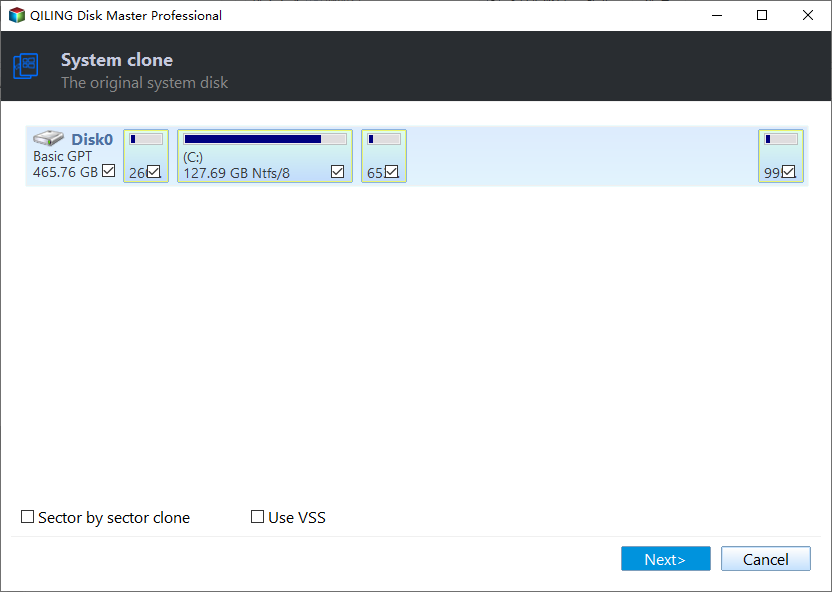
Step 2. Select the target new drive where you want to clone the OS to, and click "Next".

Click "Yes" to confirm that you want to continue the OS disk cloning process.

Step 3. The disk layout will be viewed, and a "Proceed" button will be clicked to initiate the OS cloning process.

Step 4. When the process completes, you'll see a confirming message asking if you want to start up your computer from the clone target disk.
- Reboot Now You can "reinstall" your operating system by booting from a new installation media, such as a CD or USB drive, and then configuring the computer to boot from the new disk immediately. This is often referred to as a "clean install" or "fresh install".
- Done means you want to make the changes later.
Tip: If you want to clone your SSD to an NVMe drive for free, you can clone the partition instead of the whole drive. Once the cloning is done, repeat the process to ensure all SSD partitions are successfully cloned. This way, you can have a free option to transfer your data to an NVMe drive.
2. Migrate OS from SSD to NVMe
To copy the Windows OS from an SSD to an NVMe SSD on the same computer, ensure the NVMe
Moving your Windows OS to a faster drive, such as an NVMe, can significantly improve your computer's performance and responsiveness. By following the steps to migrate your OS from an SSD to an NVMe, you can enjoy a faster boot time and a more seamless user experience.
Steps to migrate OS to HDD/SSD:
- Run Qiling Disk Master, and select "Clone" from the left menu.
- Check "Migrate OS" and click "Next".
- Select the SSD or HDD as the destination disk and click "Next".
- Be aware that the target disk's data and partitions will be completely erased. Ensure you have backed up any critical data beforehand, and do it immediately if you haven't already.
- Then click "Yes".
- The process involves previewing the layout of the target disk, followed by clicking the "Start" button to initiate the migration of the operating system to the new disk.
- After running the installation, click "Reboot Now" or "Done" to see if you want to reboot the computer from the new disk right away.
"Reboot Now" means to apply the changes immediately, whereas "Done" means you'll need to restart the computer manually later.
Note: When migrating your operating system to a new SSD or HDD, be aware that the process will erase and delete any existing partitions and data on the target disk if there's not enough unallocated space available. This means that if you have important data stored on the target disk, it's essential to back it up to an external hard drive before proceeding.
3. Make NVMe Bootable
After cloning Windows from an SSD to an NVMe SSD, you need to set the new drive as the boot drive to reboot your computer using the Windows OS on the new drive. To do this, access your computer's BIOS settings, which may involve pressing a key like F2, F12, or Del, and navigate to the boot settings to select the NVMe drive as the primary boot device. Once set, your computer will reboot using the cloned Windows OS on the NVMe SSD.
Step 1: After cloning the Windows OS, reboot your computer and access the BIOS settings by pressing the specific key required for your computer model, which can be F10, F12, F1, F2, DEL, or Esc.
Step 2: To access the BIOS settings, use the arrow keys on your keyboard to navigate to the "Boot" option. Within the "Boot" menu, locate the "Boot Device Priority" option, which may be labeled differently depending on your BIOS version. This setting allows you to prioritize the order in which your computer boots from different devices, such as the hard drive, CD/DVD drive, or USB drive.
Step 3: To give your new NVMe drive the highest boot priority, use the "+" or "-" keys to move it to the top of the list, then press "F10" to save and exit the BIOS interface and restart your system.

If you found this tutorial helpful, please share it with others who might need it.
Is It Worth Cloning Windows from SSD to NVMe?
Upgrading to an NVMe SSD from a standard SSD can significantly improve performance, with speeds up to 20 times faster, reaching 4000 MB/s compared to 400 MB/s, due to the use of the latest PCIe interface instead of SATA and SAS.
If your computer has an NVMe SSD, you should clone Windows from the original SSD to the NVMe SSD. This will significantly boost your system's performance and provide several benefits.
Benefits of Moving from SSD to NVMe
| ⏱Quicker Boot: | Cloning the Windows operating system to an NVMe drive will significantly reduce your system's boot time, as NVMe drives are much faster than traditional SATA SSDs. By transferring the Windows files to the NVMe drive, your computer will be able to quickly load up the operating system, making it a worthwhile upgrade. |
| 🎮Better Gaming: | Upgrading from an SSD to an NVMe will significantly improve gaming performance by reducing lag and glitches, and significantly shortening game load times. |
| 💻Improve Computer Performance: | An NVMe drive is much faster and has low latency, making your computer performance top-notch, allowing for faster action execution due to its high read and write speed. |
| 🎈Longer Battery Life: | Upgrading to an NVMe SSD can increase a laptop's battery life due to its power efficiency and sturdiness compared to standard SSDs. |
Final Verdict
Moving your Windows OS to a new NVMe drive is the recommended choice, but it requires a trusted and reliable cloning tool. Qiling Disk Master is an excellent tool that allows you to clone Windows from an SSD to an NVMe drive quickly, or use the Clone Partition feature to clone an SSD to an NVMe drive for free, making it ideal for cloning Windows to a new computer or migrating OS within the same computer.
If you're having trouble following these instructions, don't worry - help is just a click away. You can access dedicated support through the resource linked below.
Qiling experts are available 24/7 to provide one-on-one manual services, helping to resolve system or disk cloning startup issues. They offer free evaluation services and use their expertise to diagnose and resolve disk cloning or system disk boot problems.
- 1. Target disk becomes unbootable or SSD won't boot after clone.
- 2. The target disk is unable to boot after performing customized partition operations. This issue can occur when the partition table or boot sector is modified in a way that prevents the system from loading the operating system.
- 3. To seamlessly clone OS disk to new drive and boot PC without any issues.
FAQs about Clone Windows from SSD to NVMe
Cloning Windows from an SSD to an NVMe SSD can be a confusing process, but here are some answers to frequently asked questions to help clarify things. What is the difference between an SSD and an NVMe SSD? How do I clone Windows from an SSD to an NVMe SSD?
1. Why does Clone SSD to NVMe Not boot?
The newly cloned Windows OS on an NVMe SSD may not boot due to its low booting priority. To resolve this, change the boot order in the BIOS settings to assign the NVMe drive the highest priority, typically found in the "Boot" settings.
2. How do you transfer OS from SSD to M.2?
You can easily transfer an OS from an SSD to an M2 drive using Qiling Disk Master, a simple and effective OS cloning tool. This tool allows you to clone a system from one drive to another, as long as the destination device is equal to or larger than the source drive.
3. Can you transfer OS from SSD to NVMe?
Transferring an operating system from a Solid-State Drive (SSD) to a NVMe drive is possible, and a third-party tool like Qiling Disk Master can facilitate this process. This tool is reliable, secure, and offers a quick and straightforward cloning process, making it a viable option for users who need to transfer their OS. The tool is also available for free download.
Related Articles
- How Can I Run Steam Deck SD Card Speed Test Efficiently [Step-by-Step Guide]
- How to Securely Erase or Wipe SSD in Windows 11/10
- How to Restore USB Drive Back to Full Capacity [100% Working]
- How to Resize USB Flash Drive Partition with Magic Partition Software
- Create D Drive from C Drive in 2 Simple Ways
To create a D drive from your C drive, you can either use the built-in Disk Management tool in Windows or download a third-party software. Both methods are relatively easy to follow and can be completed in a few simple steps. - How to Create Partition from Unallocated Space in Windows 10
To create a partition from unallocated space in Windows 10, you have three methods to choose from. You can use the built-in Disk Management tool to create a partition, or use third-party software like EaseUS Partition Master or MiniTool Partition Wizard.
Products
Articles & Tutorials
- Data Recovery
- Data Backup
- File Recovery
- File Backup
- System Backup and Restore
- Disk and Partition Clone
- Technical articles
- Mobile articles
- Disk Master Help
- Windows Data Recovery Tutorials
- Windows Secure Delete Tutorials
- Windows Partition Management Tutorials
- Windows File Backup and Restore Tutorials
- Windows System Backup and Restore Tutorials
- Windows Disk Backup and Restore Tutorials
- Windows Clone Tutorials