How to Increase Hard Drive Speed on Windows 10 [Step-by-Step Guide]
To increase hard drive speed on Windows 10, consider upgrading to a faster storage drive, such as an SSD (Solid State Drive), which can significantly improve boot times and overall system performance. Additionally, disabling unnecessary startup programs, enabling Windows Search indexing, and regularly cleaning up temporary files can also help optimize hard drive speed. Furthermore, checking for disk errors and running a disk cleanup tool can also help maintain a healthy and fast hard drive.
The wait is finally over, as we present effective ways to resolve the issue via this post, getting into the details without wasting any more time.
Why My Hard Drive Gets Slower
Here are a few causes that can affect the hard drive's performance as it ages: mechanical wear and tear, fragmentation of data, and firmware issues. Mechanical wear and tear occurs when the hard drive's moving parts, such as the heads and motors, deteriorate over time, leading to slower access times and increased error rates. Fragmentation occurs when files are broken into smaller pieces and scattered across the hard drive, making it harder for the drive to read and write data efficiently. Firmware issues can also cause performance slowdowns, as they can lead to miscommunication between the hard drive and the computer, resulting in slower data transfer rates and increased errors.
- Temporary files
- Low disk space
- Bad sector on the hard drive
- Multiple background application
- Physical issues with mechanical parts
The hard drive is often the culprit behind slow PC boot times, with factors such as disk fragmentation, disk errors, and outdated drivers contributing to the issue. Running an HDD benchmark test can provide precise data on the hard drive speed, giving users a better understanding of the problem. Fortunately, there are ways to improve hard drive speed, and we'll be sharing ten methods to help Windows users get their PC up and running quickly.
Ten Ways to Increase Hard Drive Speed on Windows 10
To increase the hard drive speed on Windows 10, follow these ten effective ways below.
Way 1. Partition Disk
Dividing your hard drive storage into multiple parts, known as Disk Partition, helps the PC access data quickly and keeps data well-organized. Qiling Disk Master is a leading software that offers advanced features and a user-friendly interface.
Key Features of Qiling Disk Master
Apart from disk partition, the software also offers a tool called DiskMark for testing hard drive speed, which can be downloaded from the discovery section.
- Extend/shrink partitions
- Split/merge partitions on SSD/USB
- Move unallocated space to the C drive
- 1-Click-tool to test SSD read/write speed
- Speed up hard drive via extending partition or disk partitioning
Qiling Disk Master allows users to extend partitions on their hard drives, making it easier to manage storage space. By doing so, users can free up space on their hard drive and make more room for files, programs, or other data.
Way 2. Extend Partition to Get More Space
Low disk space is a major contributor to slow hard drive performance, but extending the partition can easily resolve this issue. Qiling Disk Master's advanced partition functionality allows users to extend the partition, providing more space to their PC and enhancing overall performance. By following a few simple steps, users can utilize this feature to breathe new life into their hard drive.
Step 1. Locate the Target Partition.
To resize a partition, go to Partition Manager, locate the target partition, and select the "Resize/Move" option.

Step 2. Extend the Target Partition.
To add unallocated space to your current partition, drag the partition panel to the right or left, incorporating the unallocated space into your current partition.

Extra Option: Get Space from Another Drive
If there's not enough unallocated space on your disk, right-click on a big partition with enough free space, select "Resize/Move" to free up space.
To extend a partition in Windows, select the target partition at the "Allocate Space To" column.
Step 3. Execute Operations to Extend Partition.
Drag the dots of the target partition into the unallocated space.
Then Click the "Proceed" button to keep all the changes.
Way 3. Enable Write Caching
To increase hard drive speed, enable Windows' write caching feature, which collects write commands in physical memory and RAM before sending them to the hard drive. However, be aware that this feature can cause data loss or corruption, so it's recommended to take a data backup before enabling it. Follow these steps to proceed.
Step 1. To open the Device Manager, click the Windows button, search for Device Manager, and press enter.
Step 2. In the Device Manager window, expand the Disk drives section, then double-click on the drive that needs write caching enabled.
Step 3. To enable write caching on the device, go to the Policies tab and check the box next to Enable write caching on the device, then click OK.
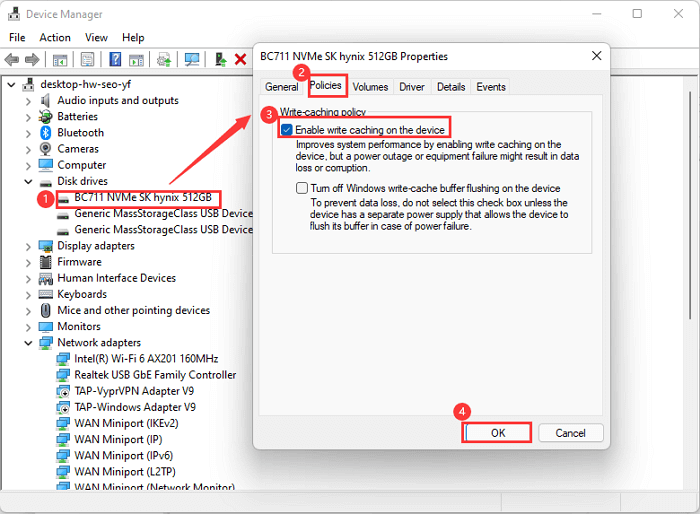
Perform the same steps on all storage devices your PC is associated with and observe the outcome.
Way 4. Optimise Drives
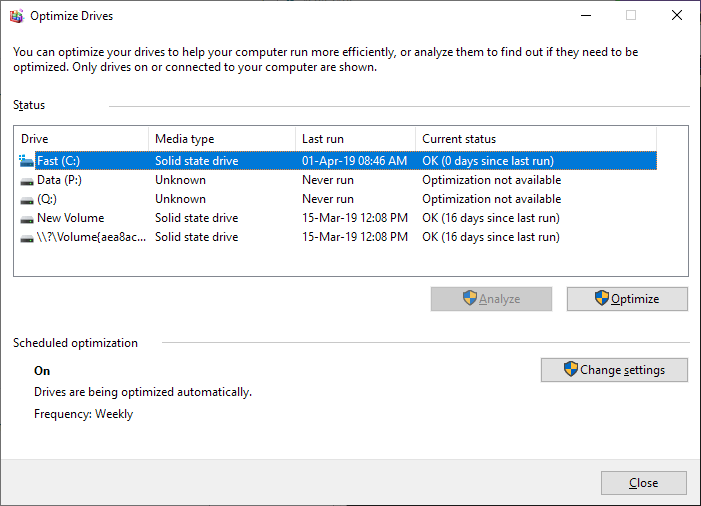
Drives optimization can be another effective way to increase the hard drive speed on Windows 10. Follow the steps given below to perform the drive optimization process successfully.
Step 1. To access the Run dialog box, click the Windows main menu button and select the Run option from the list.
Step 2. To open the Command Prompt, go to the Start menu, type "cmd" in the search bar, and press Enter. This will open a new window where you can type commands to interact with your computer.
Step 3. Once the Command Prompt window opens, type dfrgui and press Enter, which will then open the Optimize Drives window.
Step 4. Select the drive you want to optimize and click the Optimize option.
Way 5. Run CHKDSK Command
If your hard drive is performing poorly, then the chkdsk:/f/r command can help you find out the hard drive's bad sectors. It also allows you to recover those bad sectors; as a result, you can improve the speed of your hard drive. Follow the below steps to run the chkdsk command properly.
Step 1. To access the Run dialog box, click on the Windows main menu and select "Run" from the list.
Step 2. To open the Run window, press the Windows key + R. In the Run window, type "cmd" and press Enter to open Command Prompt.
Step 3. Type `chkdsk E: /f /r /x` and hit Enter. The command will scan the drive E for errors, fix them, and then check the drive for bad sectors and recover readable information, and then exit. The `/f` option tells the command to fix errors, the `/r` option tells the command to locate bad sectors and recover readable information, and the `/x` option tells the command to eXtreme mode, meaning it will not prompt the user for input.
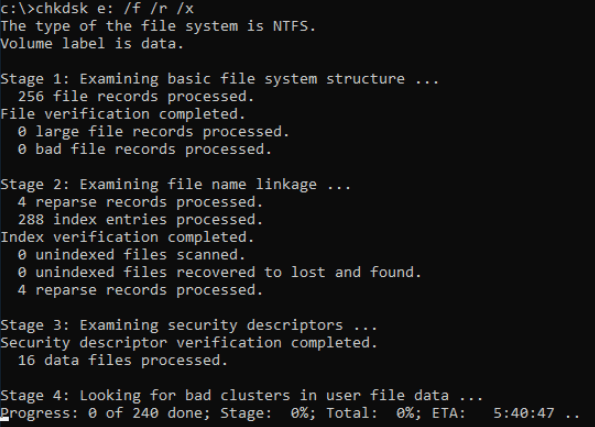
The command /f and /r in the chkdsk command stand for fixing any errors found on disk and locating bad sectors and recovering data from them, respectively.
Way 6. Remove Unwanted Files and Application
Removing unwanted files and applications can significantly increase the hard drive speed. If you want your hard drive to perform better, we recommend you perform a proper system check and delete all duplicate files and unnecessary applications. Follow the given steps to uninstall an unused application.
Step 1. To access the Programs option in the Control Panel, follow these steps: Click the Windows key on your keyboard to open the Start menu, then search for the Control Panel. Once the Control Panel window appears, click on the Programs option. This will open a new window where you can manage your installed programs, including uninstalling or changing settings.
Step 2. To uninstall a program, click on the "Uninstall a program" option under the "Programs and Features" section.
Step 3. To remove an application from the list, select the app you want to uninstall, right-click on it, and choose the uninstall option.
Way 7. Run Disk Cleanup
The Windows Disk Cleanup feature can boost your hard drive's performance by removing temporary files, which can help enhance your HDD's performance. To run Disk Cleanup, follow these steps.
Step 1. To access the Run dialog, right-click on the Windows main menu and select 'Run' from the list.
Step 2. Type cleanmgr and press Enter.
Step 3. Select the drive you want for Cleanup and click OK.
Step 4. Select the files you want to delete from the list under Files to delete and click on the OK button.

Step 5. Wait for the complete process of Deletion of files.
Way 8. Disable Virtual Memory/Paging File
Disabling virtual memory/Paging file can improve hard drive performance, especially on slow hard drives with low disk space, by following these steps: Disable the virtual memory, go to System Properties, then Advanced System Settings, then Settings under Performance, and uncheck the box next to "Virtual memory". Then, disable the Paging file, go to System Properties, then Advanced System Settings, then Settings under Performance, and uncheck the box next to "Virtual memory", and then click on "Change" and uncheck the box next to "Let Windows manage the size of the page file".
Step 1. Left-click the Windows main menu and search for Settings options.
Step 2. To access the Advanced system settings, go to System > About from the left side panel, and then click on Advanced system settings.
Step 3. To adjust performance settings, click on the Advanced tab and select the Performance section, then click on Settings.
Step 4. To adjust virtual memory settings, click on the Advanced tab in the Performance Options window, then click on the Change button under the Virtual Memory section.
Step 5. In the Performance Options window, under the "System" tab, uncheck the box next to "Automatically manage paging file size for all drives". Then, select the "No paging file" option and click "OK" to save the changes.
Step 6. Select Apply, then press the OK button.
Way 9. Delete Temporary Files
Deleting temporary files from your PC can improve your hard drive speed remarkably. To enhance your HDD performance, we recommend deleting temporary files frequently. To do this, follow these steps:
Step 1. Right-click the Windows button and select "Run" from the list.
Step 2. On the Run window, type "temp" and press Enter to navigate to the temporary files location.
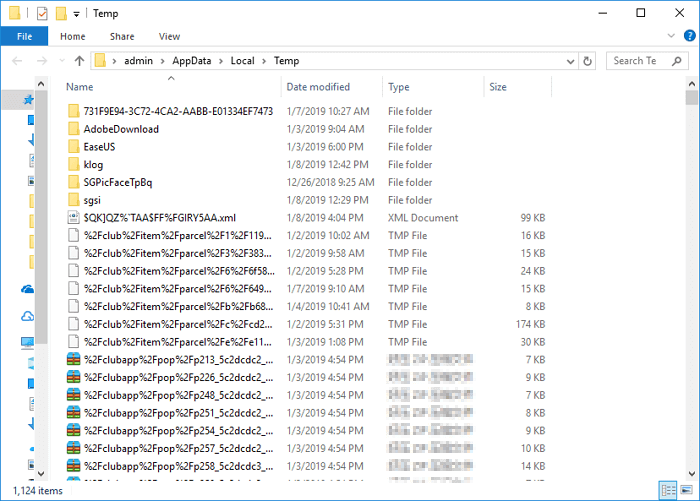
Step 3. To delete temporary files, select them all by pressing Ctrl + A, then press Shift + Delete to permanently delete them.
Step 4. If a file cannot be deleted because it is currently in use, skip that file in the deletion process.
Step 5. Open the Run window by following the previously mentioned steps, type %temp%, and press Enter.
Step 6. Delete all the files inside it permanently.
Way 10. Upgrade to SSD
Upgrading to an SSD (Solid State Drive) is recommended as it can significantly improve your PC's bootup time and overall disk speed, with read and write speeds being around 500 to 600 Mbps faster than traditional hard drives.
Conclusion
To speed up your hard drive on Windows 10, try these 10 effective ways: disable startup programs, enable hibernation, run the System File Checker, update Windows, check for disk errors, use the Disk Cleanup tool, disable unnecessary services, enable compression, check for malware, and consider upgrading to an SSD. Experiment with these methods to see which one works best for you. If you have any questions, feel free to ask in the comments.
By the way, you may also like:
Increase Hard Drive Speed on Windows 10 FAQs
Here are answers to frequently asked questions:
1. How Do I fix a slow hard drive in Windows 10?
Fixing a slow hard drive can be achieved by taking a few simple steps. First, uninstall any unwanted programs that may be consuming space and resources on your hard drive.
2. Why is my HDD very slow?
A slow HDD (hard disk drive) can be caused by various issues, including hardware failure, damaged disk, logic errors, or bad sectors, or even insufficient power to the HDD portal.
3. How do I make my hard drive run like SSD?
To make your hard drive run like an SSD, consider the following methods:
- Delete temporary files
- Enable write caching
- Drive optimization
- Disable virtual paging files
Related Articles
- How to Solve OneDrive Sync Pending Error in Every Possible Way
- Repairing Disk Errors This Might Take an Hour - How to Fix?
- How to Fix Windows 10 DVD Drives Not Working? [2024 Guide]
- How to Mount a Disk on Mac [Step-by-Step Tutorial in 2024]
- Windows 10 Internet Explorer Has Stopped Working
This guide is useful for Windows 10 Internet Explorer users who experience frequent errors, such as the browser not opening, not responding, or stopping working, and are looking for a solution to resolve these issues. - Internet Explorer History, Statistics & Facts
Explore the complete history of Internet Explorer (1995-2022), from its market dominance to end of life. Key statistics, version history, logo evolution, and the browser's lasting impact on the web.
Products
Articles & Tutorials
- Data Recovery
- Data Backup
- File Recovery
- File Backup
- System Backup and Restore
- Disk and Partition Clone
- Technical articles
- Mobile articles
- Disk Master Help
- Windows Data Recovery Tutorials
- Windows Secure Delete Tutorials
- Windows Partition Management Tutorials
- Windows File Backup and Restore Tutorials
- Windows System Backup and Restore Tutorials
- Windows Disk Backup and Restore Tutorials
- Windows Clone Tutorials