What Is HP Default Admin Password & How to Reset It
Setting a password for your HP laptop is essential to prevent unauthorized access to your files. If you've never created a password on your device, you may still be using the default password. Fortunately, resetting the admin password on an HP laptop is a relatively straightforward process, and Qiling provides a detailed solution on how to do so, including information on the default admin password.
What Is Default Admin Password on HP Laptop
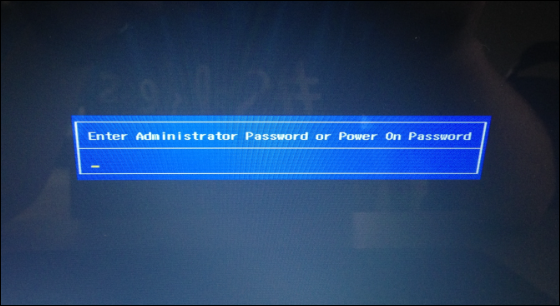
The default password for a device is a pre-configured password, often simple, like "123" or "password," but can also be "admin" or even empty if no password was set during installation.
To access the administrator account on an HP laptop with an older version of Windows, you can try using the default administrator password, which is often blank or "password", by pressing the Enter key or typing it in the password field. If this doesn't work, the password may have been changed, and you'll need to reset the HP administrator password.
Read Also:

Defaultuser0 Password? Fix It Now! [5 Efficient Ways]
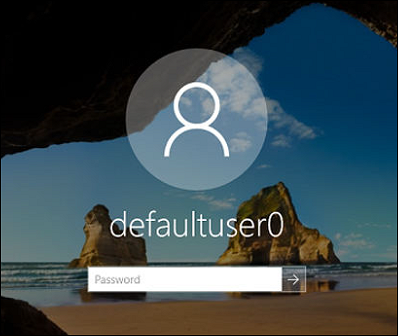
If defaultuser0 appears on your computer screen, don't worry! This article offers three solutions to address the defaultuser0 password issue affecting HP, Lenovo, and Dell users.
Next, we will continue to introduce three ways to reset the default admin password on HP laptop. If you think it's helpful, click the buttons and share it with others in need.
How to Reset HP Default Admin Password
If you've set the HP default administrator password but can't remember it, don't worry - there are three effective programs that can help you reset the forgotten password on your HP laptop.
Reset HP Admin Password via Password Reset Tool
Qiling Disk Master Professional offers a password reset feature that allows users to create a bootable hard disk to enter the system and erase the Windows password on any Windows PC, making it easy to crack the HP Admin password.
To bypass the HP laptop default administrator password, follow a simple process with detailed instructions. This involves accessing the laptop's settings, navigating to the user account settings, and then modifying the administrator account to remove the password requirement.
Step 1. Connect a USB drive or external drive to a functioning computer, then open Qiling Disk Master (RE) and click "Create Bootable Media" to proceed.

Step 2. Select Qiling Boot Toolkits and other components you need.
Step 3. Select your movable device and click "Proceed" to create an image on your USB drive or external drive.

Step 4. Connect a bootable drive to a faulty computer, reboot it by pressing F2/Del to enter the BIOS, set the WinPE bootable drive as the boot disk, and exit by pressing F10.
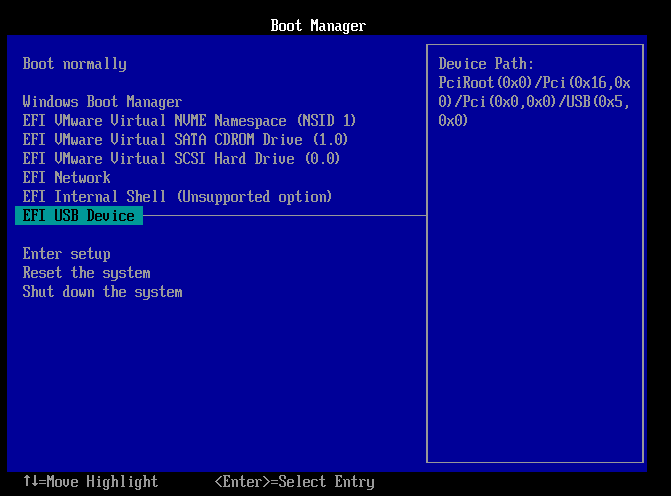
Step 5. The computer will enter WinPE desktop, where you can find and launch Password Reset.

Step 6. To reset Windows, first select the version of Windows you're using from the dropdown menu. Then, choose the account you want to reset from the list of available accounts.

Step 7. Wait patiently and you will receive a message that the password has been changed successfully. Click OK to complete the password reset process.

Video Tutorial on Retting HP Password
Here in this video, we included 2 methods provided on this page, and you can follow to learn the details in resetting the HP admin password.
You May Also Like:
Reset HP Admin Password via CMD
To reset the administrator password using the command prompt, you can follow these steps:
If you can log on to your HP laptop normally and enter Windows:
Step 1. To access the Command Prompt in Windows, you can search for it in the search bar or find it in the Start menu, then right-click on it and select "Run as administrator". This will open the Command Prompt with elevated privileges, allowing you to perform administrative tasks and run commands that require higher permissions.
Step 2. To display all user accounts on your HP laptop, you can type "net user" in the Command Prompt. This shows you a list of all user accounts currently on your system, including the administrator account.
Step 3. To reset a user's password, you can use the command "net user username new_password" in Command Prompt, replacing "username" with the actual username and "new_password" with the desired new password. This will update the user's password to the new one specified.
If you've forgotten your HP laptop password and can't access your Windows system, you can try to reset it by entering the Windows Recovery Environment. This can be done by restarting your laptop and pressing the F11 key (or F2, F12, or Del, depending on your laptop model) as soon as the HP logo appears.
Step 1. Press and hold the Shift key during the boot process, and then reboot.
Step 2. To access the command prompt, navigate to the "Troubleshoot" menu and select the "Command Prompt" option.
Step 3. Move the utilman.exe file to the root directory of the system disk by running the command: "move E:\windows\system32\utilman.exe E:\".
Step 4. Continue to copy the cmd.exe file to the destination path: "copy E:\windows\system32\cmd.exe E:\windows\system32\utilman.exe".
Step 5. Type "wpeutil restart" and press enter.
Step 6. Type net user username new_password to reset the HP password.
If you've forgotten your HP administrator password, don't worry - there are other solutions to unlock your HP laptop. You can use HP Recovery Manager, a password reset disk, or the hidden administrator account, among other methods. Click on the link below for specific solutions to get your laptop up and running again.
How to Unlock HP Laptop Without Password
If you've forgotten your HP laptop password, don't worry - we've can help. This article will guide you through the process of unlocking your laptop without needing to enter the password.
How to Change HP Default Admin Password
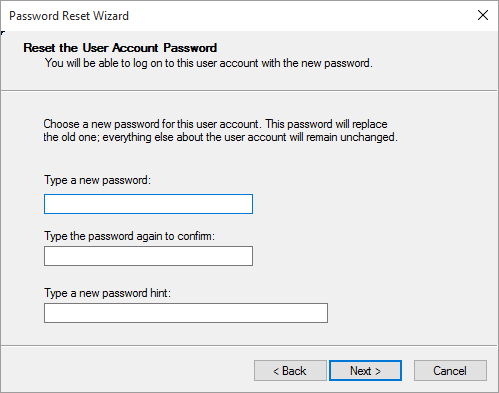
To change the default admin password on your HP laptop, you can follow these steps. Since we already know the default admin password, you can simply log in with it and then navigate to the settings or control panel to change the password to something new and secure. This will ensure that your laptop is protected with a strong and unique password.
Step 1. Restart your HP laptop and open "Computer Settings".
Step 2. Press Esc to enter the boot menu and press F10.
Step 3. To set a BIOS administrator password, navigate to the Security section, select Set BIOS Administrator Password, enter the new password, and press Enter.
Note: You can set the HP administrator password to any combination of numbers, letters, and special characters.
Conclusion
The default administrator password for HP laptops is usually blank or "password," but using a simple password can lead to security risks. Microsoft has since abolished default passwords. For older Windows XP systems, you can change the HP laptop password. If you forget the password, you can reset the administrator password using Qiling Disk Master.
FAQs About HP Default Admin Password
Do you know what HP's default admin password is and how to reset it? If you have further questions related to today's topic, check the answers:
1. What is the default admin password for Windows 10?
Microsoft Windows does not have a default password or administrator default password, but you can reset your password using a password disk with Qiling Disk Master or by running an online reset with a Microsoft account on Windows 8, 10, or 11.
2. What is the administrator password for the HP laptop BIOS?
The BIOS administrator password for HP laptops varies depending on the model. However, there are some default passwords for certain HP models, which are listed below.
- HP Elitebook: PASS123.
- HP Pavilion: admin.
- HP Spectre: 12345678.
- HP Envy: 123456.
- Elite x2: password.
3. How do I unlock my laptop administrator password?
If you've forgotten your password, you can use a Windows password reset disk and a Windows installation disk to unlock your laptop. Alternatively, you can use a third-party tool like Qiling Disk Master to reset or remove your forgotten password.
Related Articles
- How to Enable/Disable UEFI Mode? Your Complete Guide
- How to Free Up Disk Space on Windows 8 [100% Works]
- How to Create EXT2/EXT3 Based Linux Partition from Windows
- Quick Fix: WDF_Violation Blue Screen Error
If you're experiencing a WDF_Violation blue screen error on your Windows computer, we've can help. In this article, we'll share 5 methods to help you resolve the BSOD issue and get your computer running smoothly again. - WD External Hard Drive Won't Format? How to Fix?
If you're experiencing formatting issues with your WD external hard drive, this article provides practical solutions to resolve the WD External Hard Drive Won't Format error.
Products
Articles & Tutorials
- Data Recovery
- Data Backup
- File Recovery
- File Backup
- System Backup and Restore
- Disk and Partition Clone
- Technical articles
- Mobile articles
- Disk Master Help
- Windows Data Recovery Tutorials
- Windows Secure Delete Tutorials
- Windows Partition Management Tutorials
- Windows File Backup and Restore Tutorials
- Windows System Backup and Restore Tutorials
- Windows Disk Backup and Restore Tutorials
- Windows Clone Tutorials