Quick Fix: WDF_Violation Blue Screen Error
The Windows Driver Framework (WDF) is designed to simplify the process of writing Windows drivers by providing a pre-written code base for common driver functions. However, if you're experiencing the WDF_VIOLATION blue screen error on your PC, it's likely due to an issue with a framework-based driver, indicating an error in the common code provided by WDF.
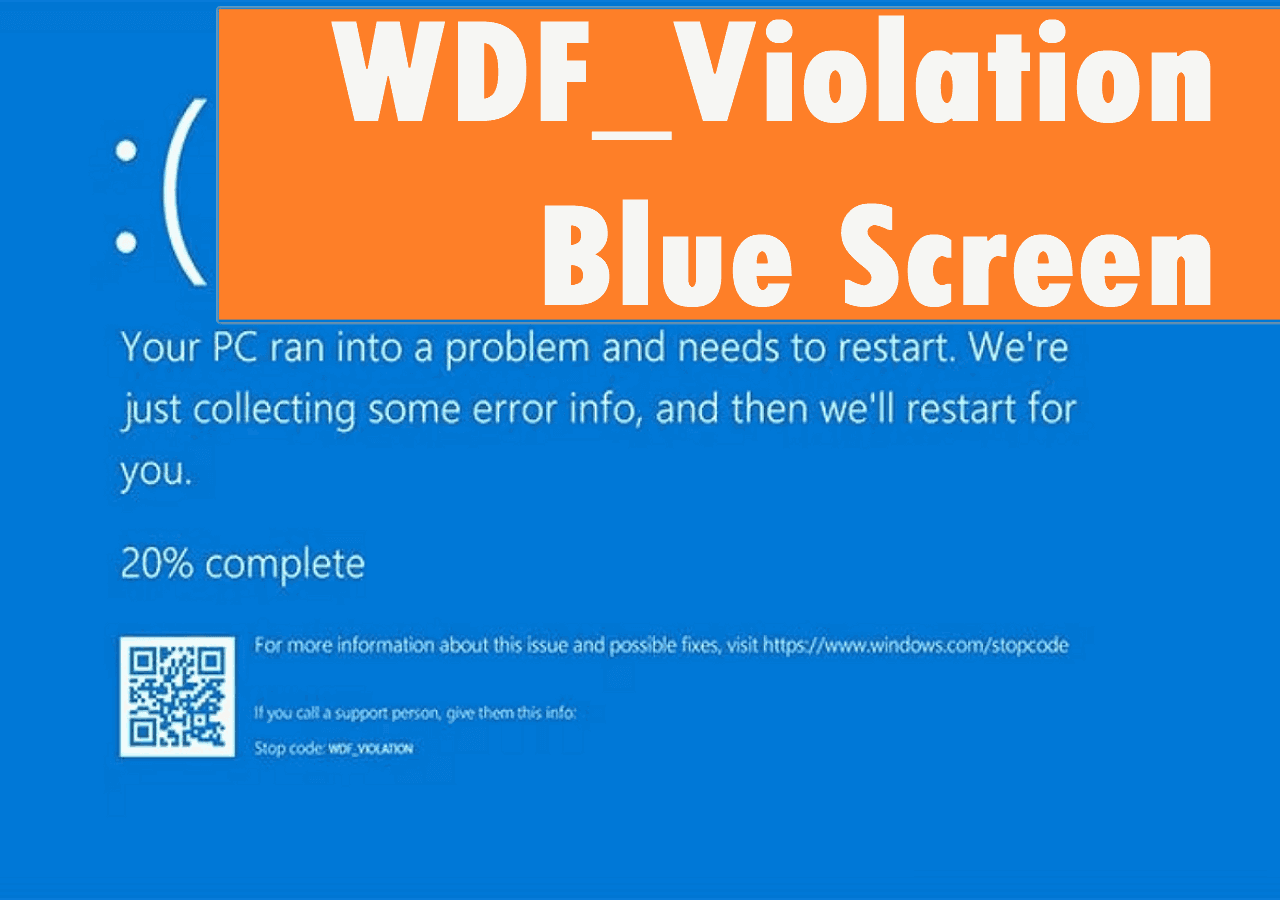
The WDF_Violation blue screen error is typically caused by outdated drivers, system file errors, or a corrupt keyboard driver. To resolve this issue, we can refer to the article from Qiling for further assistance.
5 Ways to Resolve WDF_Violation Blue Screen Error
A blue screen with the error message "WDF_Violation" can be frustrating, especially when you need to access your data urgently. Fortunately, there are 5 solutions to resolve this issue quickly and safely, which we'll outline below.
| Workable Solutions | Step-by-step Troubleshooting |
|---|---|
| Solution 1. Update Device Drivers | One of the typical causes of WDF_Violation error is the corruption of specific drivers. If a driver...Full steps |
| Solution 2. Repair System Files | The WDF_Violation error could also result from system file inconsistencies or other issues like missing...Full steps |
| Solution 3. Remove HP Keyboard Driver | Since the WDF_VIOLATION issue results from keyboard drivers on most HP computers, you can try...Full steps |
| Solution 4. Reconfigure HpqKbFiltr.sys | For HP computers, there's a specific sys file named HpqKbFiltr.sys might be the culprit. You can...Full steps |
| Solution 5. Reset the PC | The last choice that you have is to reset your PC if all other methods fail. Resetting the PC will take...Full steps |
Solution 1. Update Device Drivers
The WDF_Violation error is often caused by corrupted drivers, particularly outdated display or video drivers that may be incompatible with your system. To fix this issue, updating the drivers to the latest version is recommended.
Step 1. Search and open Device Manager in the taskbar's search box.
Step 2. Right-click on the target device and hit "Update Driver."
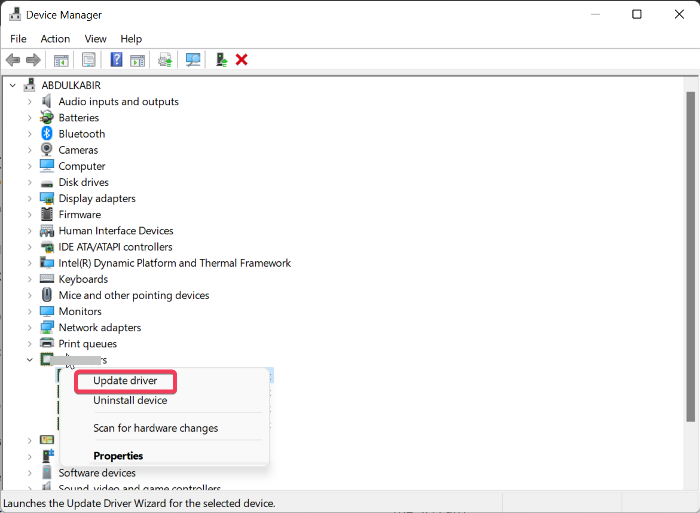
Step 3. In the next interface, click on "Search automatically for drivers."
Step 4. For certain devices, you may need to visit the manufacturer's official website to download and update drivers.
If updating device drivers manually is too time-consuming, you can use a driver update tool like Driver Easy to make the process easier. This tool can help you update your drivers with minimal effort, making it a convenient alternative to manually searching for and installing updates.
Driver Easy is a software tool that scans your computer for outdated drivers and provides a list of available updates. To use it, simply download the software, install it, and let it scan your system.
Driver Easy is a powerful and free driver update tool that can be used to update drivers on your computer. If you're new to using it, this article provides the necessary information and guide to get you started. For more details, you can read on.
Solution 2. Repair System Files
The WDF_Violation error could also result from system file inconsistencies or other issues like missing, corrupt, or damaged system files, which can be difficult for users to locate and repair, requiring a professional third-party tool.
Qiling Disk Master Professional is a top-rated disk manager that offers a Boot Repair feature with advanced algorithms to detect and repair corrupted system files.
Step 1. Connect a working USB drive/external drive to a computer, open Qiling Disk Master (RE), and click "Create Bootable Media" to create a bootable media.
Step 2. Select Qiling Boot Toolkits and other components you need, then click "Next."

Step 3. Select your movable device (USB drive or external drive) and click "Go" to create an image on it.

Step 4. Confirm the warning message and then wait for the creation process to complete.
Step 5. Connect a bootable drive to the faulty computer, reboot it by pressing and holding "F2"/"Del" to enter the BIOS, set the bootable drive as the boot disk, and exit the BIOS by pressing "F10".
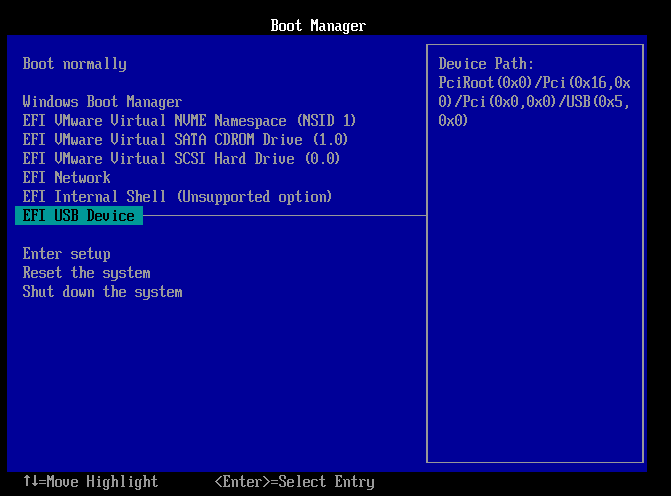
Step 6. After the computer enters WinPE desktop, you can open BootRepair and view the BSOD records and details in the Blue Screen tab.

Step 7. Select the system you want to repair in the Boot Repair tab and click "Proceed".

Step 8. The system will be successfully repaired. Click "Finish" to complete the boot repair process.
Related article:
Considering that the WDF_VIOLATION error usually occurs on HP computers, solutions 3 and 4 are specifically for HP users. The other solutions can be applied to various computer systems.
Solution 3. Remove HP Keyboard Driver
To fix the WDF_VIOLATION issue on HP computers, you can try removing the HP keyboard driver via Command Prompt. This may resolve the error.
Step 1. Reboot your PC 3 times to access the Windows RE.
Step 2. Go to "Troubleshoot" > "Advanced options" > "Command Prompt."
Step 3. Input the following command lines according to your Windows version and hit "Enter."
32-bit Windows version:
dism /Image:C\ /Remove-Driver /Driver: C:\Windows\System32\DriverStore\FileRepository\hpqkbfiltr.inf_x86_f1527018cecbb8c2\HpqKbFiltr.inf
64-bit Windows version:
dism /Image:C:\ /Remove-Driver /Driver:c:\Windows\System32\driverstore\FileRepository\hpqkbfiltr.inf_amd64_714aca0508a80e9a\HpqKbFiltr.inf
Step 4. Exit and restart your computer.
Solution 4. Reconfigure HpqKbFiltr.sys
If you're experiencing issues with your HP computer, a misconfigured driver file like HpqKbFiltr.sys might be the cause. You can try using command lines to correct the driver file's configuration and resolve the problem.
Step 1. Reboot your PC 3 times to access the Windows RE.
Step 2. Go to "Troubleshoot" > "Advanced options" > "Command Prompt."
Step 3. Input the following command lines according to your Windows version and hit "Enter."
- c:
- cd Windows
- cd system32
- cd drivers
- ren HpqKbFiltr.sys HpqKbFiltr.sys.bak
Step 4. Exit and restart your computer.
Solution 5. Reset the PC
If all other methods fail, you can try resetting your PC to its original state, which can help repair most system errors by reverting all configuration to its default settings.
Step 1. Reboot your PC 3 times to access the Windows RE.
Step 2. Go to "Troubleshoot" > "Reset this PC."
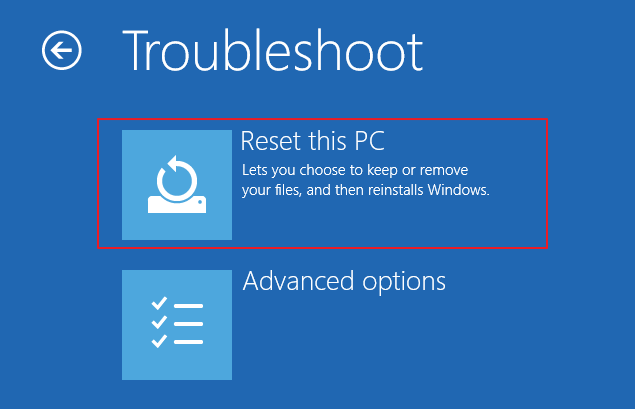
Step 3. Select "keep my files" and follow the wizard's instructions to reset your PC.
Step 4. Restart your computer, and the BSOD should be gone now.
If you're encountering the "Unable to Reset Your PC" error, you can try booting your computer in Safe Mode and then attempting the reset process again. This can help resolve any issues that might be preventing the reset.
The error "Unable to Reset Your PC. A Required Drive Partition Is Missing" occurs when Windows is unable to find a necessary partition on the hard drive to complete the reset process. This can be due to various reasons such as disk errors, corrupted system files, or incorrect partition configurations.
If Windows displays a 'Unable to reset your PC' warning, don't panic. Follow these steps with Qiling to resolve the issue quickly and safely, without losing any data. By following these practical solutions, you can easily overcome this problem and get your PC up and running smoothly again. Learn more >> Unable to Reset Your PC. A Required Drive Partition Is Missing
This article provides a step-by-step guide on how to handle a situation where someone has left their belongings behind. It highlights the importance of being considerate and respectful when dealing with the owner's property, and offers practical tips on how to contact the owner and return their belongings.
Conclusion
To resolve the WDF_Violation BSOD issue, consider updating device drivers, running a System File Checker, or checking for corrupted system files. If these methods don't work, you can try resetting your PC or using Qiling Disk Master to repair the system automatically. If none of these solutions resolve the problem, it's recommended to seek professional assistance from your computer manufacturer.
FAQs on WDF_Violation Blue Screen
Here are a few related questions and answers for you to refer to if you still have some doubts about the WDF_Violation blue screen issue.
1. What does WDF_VIOLATION mean?
A blue screen with the message "WDF_VIOLATION" on a Windows computer typically indicates a flaw in a framework-based driver, often associated with HP computers, and may be caused by outdated drivers, corrupted system files, or system misconfiguration.
2. How to fix WDF_VIOLATION in Windows 10?
You can run the System File Checker (SFC) command in Safe Mode to fix WDF_VIOLATION.
- Access the Windows RE and enter Safe Mode.
- Run the Command Prompt as admin.
- Input sfc /scannow and hit "Enter."
3. Will replacing hard drive fix blue screen?
If other methods have failed, the hard drive may be too old or damaged, leading to a BSOD. Replacing the hard drive is likely to resolve the issue if it's a hardware problem.
Related Articles
- Solved: Can't Create Windows 10 Password Reset Disk
- Boot Device Not Found Hp Laptop? How to Fix?
- Full Guide: Check SSD Health in Windows 8 [Free & Efficient]
- How to Format Write-Protected USB with Virus, Help
How to format a hard drive write-protected by virus? This short article provides a detailed guide on this issue. Dive into it and find the answer you want. - How to Delete NTFS Partition [Three Ways in 2026]
To delete an NTFS partition and free up unallocated space, there are three ways to do so on Windows 11/10/8/7. - Delete Partition with Windows Partition Delete Tool & Free Partition Manager
To delete partition(s) on an internal/external hard drive, USB flash drive, or SD card, you can use either the Windows 11/10/8/7 partition delete tool or a free partition manager like Qiling.
Products
Articles & Tutorials
- Data Recovery
- Data Backup
- File Recovery
- File Backup
- System Backup and Restore
- Disk and Partition Clone
- Technical articles
- Mobile articles
- Disk Master Help
- Windows Data Recovery Tutorials
- Windows Secure Delete Tutorials
- Windows Partition Management Tutorials
- Windows File Backup and Restore Tutorials
- Windows System Backup and Restore Tutorials
- Windows Disk Backup and Restore Tutorials
- Windows Clone Tutorials