How to Create EXT2/EXT3 Based Linux Partition from Windows
To resolve the issue, you can either format the partition to EXT2 or EXT3, or create a new EXT2 or EXT3 Linux partition on a Windows disk, USB drive, or memory card.
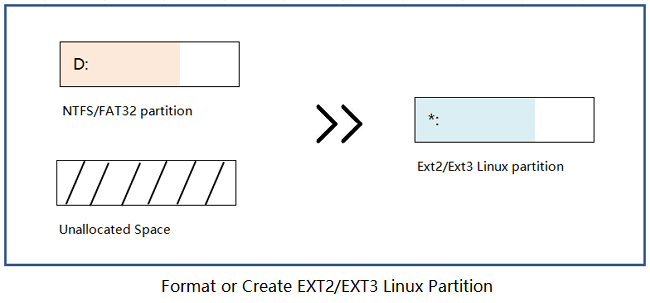
How to Create EXT2/EXT3 Partitions in Windows
Although Windows has taken over the market, Linux is still held onto by many due to work or personal interest, with its user base refusing to fade away.
To make a Linux OS recognize an internal hard drive or external removable drive, or to create a dual-boot partition for Linux on a Windows computer, the drive needs to have an EXT2/EXT3 file system and a Linux Swap file system.
While some Linux developers may use a live CD to create Linux partitions from Windows, this is a complex process that's not suitable for average users. Instead, a simpler approach is needed.
A third-party Linux partition manager can help you create an EXT2/EXT3 file system partition.
Preparations
Before creating an EXT2 or EXT3 partition, ensure your system is running a compatible kernel version and that you have the necessary tools installed, such as the `mkfs` command. You should also have a clear understanding of the partition layout you want to create, including the size and location of the partition.
#1. Download Linux Partition Manager Software
There are many free partition software options, like Paragon Partition Manager, that offer features like "Format Partition" or "Create Partition", but they often don't support Linux-based file systems like EXT 2, EXT3, etc.
Qiling Partition Master, a powerful partition manager software, supports all Linux-based file systems, including EXT2, EXT3, and Swap. It allows you to format hard drives and create partitions in EXT2 and EXT3 file systems.
#2. Back Up Partition Data
Before formatting a Windows partition to EXT2 or EXT3 for Linux, make sure to back up any valuable files on the partition to a secure location like an external hard drive. This will prevent data loss in case something goes wrong during the formatting process.
If the data is less than 20GB, copying and pasting will be the fastest way to back it up. However, if your files exceed 30GB or you need to back up an entire partition, using professional file backup software is recommended.
Method 1. Format Partition to EXT2/EXT3 Format
Applies to: Format existing partition to EXT2/EXT3 on Windows 10/8/7.
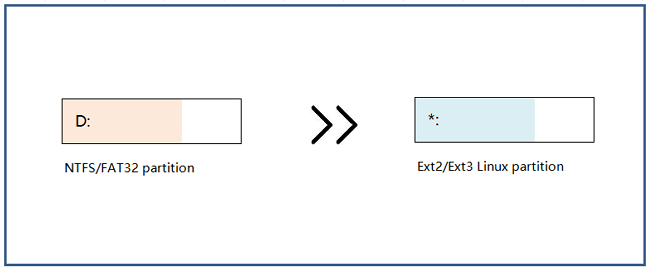
Formatting a drive into the Linux file system, specifically EXT2 or EXT3, is a relatively easier process compared to creating a new one. On Windows, the most recommended tool for this task is the EXT2/EXT3 format tool, which simplifies the process and makes it more convenient.
Qiling Partition Master is a tool that can format FAT32/NTFS hard drives, USB flash drives, and memory cards to EXT2/EXT3, unlike Windows Disk Management which doesn't support all Linux file systems. Follow the guide below to use Qiling Partition Master.
Step 1.Launch Qiling Partition Master, click the partition you intend to format and select "Format" from the options.
Step 2. In the new window, enter the partition label, select the desired file system, choose the cluster size, and click "Proceed".
Step 3. The partition will be reformatted to FAT32/EXT2/EXT3/EXT4, and then you will see a warning window. Click "OK" on it to proceed with the formatting process.
Method 2. Create EXT2/EXT3 Linux Partitions in Windows
You can create an EXT2/EXT3 based Linux partition from unlimited space on Windows 10/8/7 by using a tool that supports EXT file system creation and management. This allows you to have a Linux partition on your Windows system, giving you the flexibility to run Linux applications and access Linux files from within Windows.
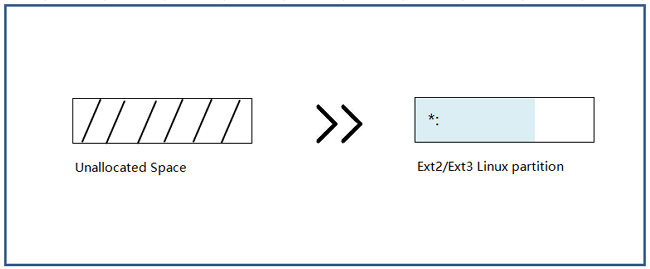
You can also try creating an EXT2 or EXT3 Linux partition on Windows 10/8/7, but since Windows Disk Management doesn't support Linux file systems, you'll need to use professional partition manager software like Qiling Partition Master for assistance.
To create a Linux-based partition using Qiling partition manager, follow these steps: If you have unallocated free space on your computer or external storage device, you can create a Linux partition using Qiling. During the partition creating process, be sure to set the file system as EXT2 or EXT3. This will allow you to install and run Linux on your device.
Step 1.Launch Qiling Partition Master. On the Tools and utilities page, click on the unallocated space on your hard drive or external storage device, then select "Create".
Step 2.To create a new partition, adjust the partition size, file system (selecting the appropriate file system based on your needs), and label as desired, then click "Proceed" to finalize the partition creation.
- Notice:
- Windows OS cannot recognize the Linux file system partition that was created.
- The EXT2/EXT3 partition will not be visible in File Explorer and will appear as RAW in Disk Management.
- If the Windows operating system warns you to format the Linux drive, you can safely ignore the format warning. This is a common issue that occurs when Windows tries to access a Linux drive, which it doesn't understand.
After creating the Linux EXT2/EXT3 partition on your Windows computer or external hard drive, USB, SD card, you can use it to install Linux OS, run Linux based applications, or store Linux based data.
Further Readings
Qiling Partition Master is a free partition manager that can help Windows users create or format a Linux EXT2/EXT3 partition, regardless of their skill level. This tool provides two practical ways to achieve this: one is to create or format a Linux EXT2/EXT3 partition directly, and the other is to convert an existing partition to EXT2/EXT3 format.
Here are the answers to your questions about EXT2/EXT3:
1. How do I format EXT2/EXT3 partition to NTFS?
You can remove the EXT2 or EXT3 file system from your partition or storage device by formatting it to NTFS or other file systems using two methods.
Way 1. Format EXT2/EXT3 partition in Disk Management:
To access a Linux-based EXT2/EXT3 partition on a Windows system, open Disk Management, locate the RAW partition, right-click it, and select Format Volume to reset the file system to NTFS or FAT32.
Way 2. Format EXT2/EXT3 partition using Qiling Partition Master:
To format a partition in Qiling Partition Master, right-click on the EXT2 or EXT3 partition, select Format, reset a drive letter, and choose the file system (NTFS or FAT32, etc.) for the partition. Then, click OK and execute the operation.
2. Which is better EXT2 or EXT3?
Here is a brief comparison of EXT2 and EXT3:
- The EXT2 file system, introduced in 1993, lacks a journaling feature and supports file sizes up to 16GB, with a maximum capacity of 2TB.
- EXT3 is a file system introduced in 2001 that allows journaling, supporting file sizes up to 16GB to 2TB per individual file.
EXT3 is a more modern file system than EXT2, offering improved performance through its journaling capabilities.
3. How do I partition Linux?
On a Windows computer, both Windows File Explorer and Disk Management cannot recognize a Linux based partition with EXT2 or EXT3 file system, making it difficult to partition a Linux drive on Windows 10/8/7.
Partition manager software, such as Qiling Partition Master, can support ext2 and ext3 file systems under Windows, allowing for tasks like creating, formatting, deleting, wiping, and recovering lost ext2/ext3 partitions. For more information, refer to the Linux Partition Manager guide.
Related Articles
- Delete or Format? How to Clear An SD Card on Windows
- How to Disable Low Disk Space Warning in Windows 11/10
- (FULL FIX 2022) We Couldn't Create a New Partition or Locate an Existing One
- Diskpart: Format Drive to NTFS in Windows 11, 10, 8, 7
Need to use DiskPart to format hard drive to NTFS in Windows 11/10/8/7 computer? Here comes the detailed guide. - Can't Skip Disk Check on Startup Windows 11 | What Should I Do?
If you're experiencing issues with skipping disk check on startup in Windows 11, you can follow a guide to disable automatic disk checking. The guide provides a step-by-step solution to help you skip disk checking in Windows 11 and resolve any related problems. - How to Change BIOS Mode from Legacy to UEFI Windows 10/11
If you're running Legacy BIOS, you may need to convert Legacy BIOS to UEFI to take advantage of its new feature. This process is relatively simple, but it will require you to boot into your BIOS and change a few settings. If you're ready to make the switch, here's what you need to do.
Products
Articles & Tutorials
- Data Recovery
- Data Backup
- File Recovery
- File Backup
- System Backup and Restore
- Disk and Partition Clone
- Technical articles
- Mobile articles
- Disk Master Help
- Windows Data Recovery Tutorials
- Windows Secure Delete Tutorials
- Windows Partition Management Tutorials
- Windows File Backup and Restore Tutorials
- Windows System Backup and Restore Tutorials
- Windows Disk Backup and Restore Tutorials
- Windows Clone Tutorials