Windows Install Stuck on Windows Logo: 100% Working Fixes
Installing or updating Windows on your computer can be frustrating, especially when it gets stuck on the Windows logo. This common issue can cause anxiety, but there's no need to worry - this article is here to help you resolve the problem.
This article will guide you through established tactics to tackle the issue of disk partitioning errors or damaged sectors on your hard drive, exploring underlying factors such as incorrect partitioning or physical disk damage, and providing comprehensive solutions to address your concerns.
How to Fix Windows Install Stuck on Windows Logo Error
Resolving the Windows install stuck on Windows logo issue requires a structured approach. To help, we'll walk through a series of effective solutions that have worked for many users. The top five fixes below.
Fix 1: Perform a Hard Reset
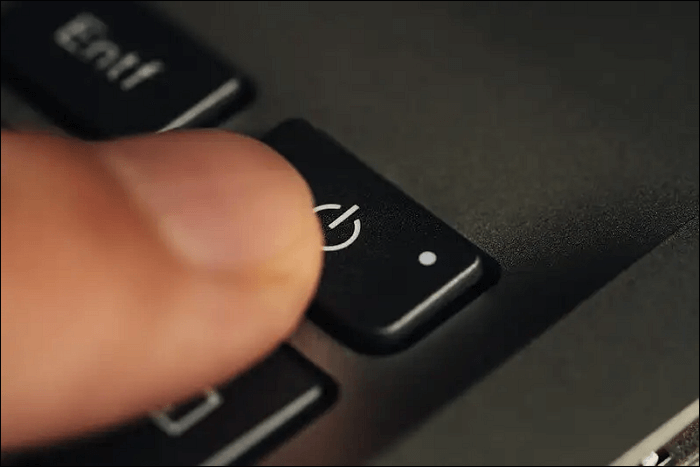
To fix the Windows install stuck on the Windows logo, start by disconnecting all external devices such as USB drives, keyboards, and printers. Then, initiate a complete computer hard reset. This can be done by pressing the power button on your computer for a few seconds until it shuts down completely. Next, wait for a few seconds and then press the power button again to turn it back on. This process can resolve the issue in many cases.
Instructions: To restart your computer, press the Power button firmly for 10-30 seconds, then wait briefly before restarting.
🚩See Also: Windows 10 Stuck on Welcome Screen
Fix 2: Locate and Repair Bad Sectors
Bad sectors on your computer can cause significant issues, such as a stuck Windows installation on the logo screen. To resolve this, we'll explore a more advanced solution that involves identifying and repairing bad sectors on your hard drive.
Qiling Disk Master is a reliable and user-friendly software that can help deal with Windows installation issues. It offers a "Disk Surface Test" feature to scan hard drives for problematic sectors, which can be useful in identifying and resolving disk-related problems that may be causing the Windows logo to get stuck during installation.
Follow these steps to run the Disk Surface Test to locate and repair bad sectors:
Step 1. Open Qiling Disk Master, right-click the disk you want to check, and click "Surface Test" to run a surface test on the disk.
Step 2. The operation will be performed immediately, marking all bad sectors as red.
Qiling Disk Master can run a disk surface test and check file system errors on various storage devices, including SD cards, external hard drives, SSDs, and HDDs. This tool is a must-have for anyone looking to maintain the health of their storage devices.
Fix 3: Change BIOS to UEFI
Resolving the Windows install stuck on the Windows logo can be achieved by changing your BIOS mode to UEFI. This method helps overcome compatibility issues that might be causing the Windows installation to halt. To do that, follow the instructions below.
To resolve the issue, restart your PC and press F2 or other boot menu keys when prompted to enter the BIOS menu. From there, navigate to Boot Maintenance Manager, choose Advanced Boot Options, click on Boot Mode, and select UEFI as the desired mode. This should resolve the issue.
The reason is UEFI mode, which is most prevalent in modern computers, is better suited to GPT-formatted disks, making it the preferred choice for modern operating systems.
Fix 4: Use a Newer and Faster USB
The Windows install might be stuck on the Windows logo due to the USB being used, which may not meet the required data transfer speed and reliability for the modern installation process, especially if it's an older and slower USB.
Upgrading to a faster USB can expedite the Windows installation process by avoiding hiccups, making it complete smoothly even when stuck on the Windows logo.
Share these fixes to help more Surface users facing Windows install stuck on Windows logo error.
Fix 5: Download Windows ISO File Again
If the Windows installation is still stuck on the Windows logo, it's likely due to a damaged or problematic Windows ISO file. To resolve this, you can simply download the file again using the same download link or location where you initially obtained it. This will ensure that you have a fresh and functional copy of the Windows ISO file, which should resolve the installation issue and allow the process to proceed smoothly.
Step 1: To download Microsoft software, go to Microsoft's official website and navigate to the "Software Download" section, then select the Windows version you want to download, such as Windows 11.
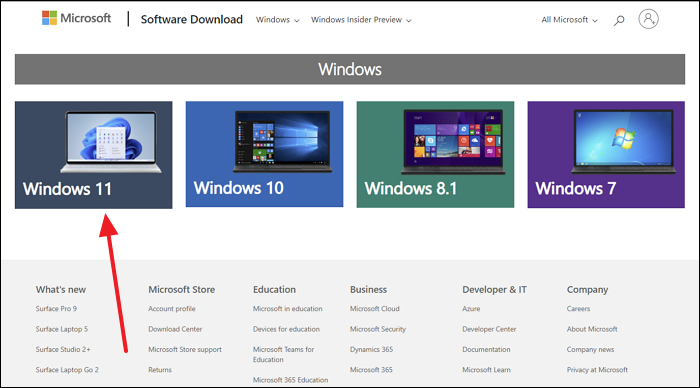
If you encounter any errors during the process, you can click on the link provided to get more detailed information about resolving the issue.
Step 2: Scroll down to the "Download Windows 11 Disk Image (ISO) for x64 devices" section, select the Windows 11 ISO file, and click "Download Now" to start the process.
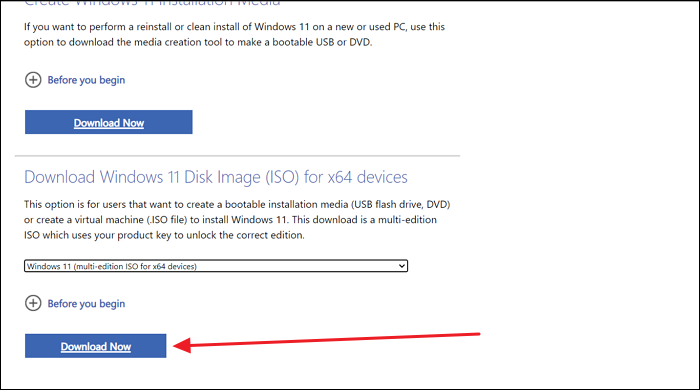
After downloading the Windows iOS file, the next step is to create a bootable USB drive. To do this, follow the step-by-step guide in the Qiling Disk Master tutorial, which is linked here: Burn Windows 10 ISO to USB.
Read Also:

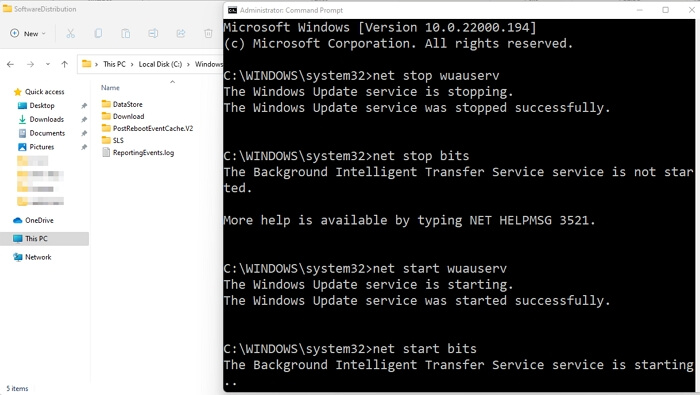
To fix a Windows 11 update that gets stuck at 100%, try restarting the update process, checking for any conflicting programs, or running a System File Checker (SFC) scan to identify and replace corrupted system files. If the issue persists, consider using the Windows Update Troubleshooter, resetting Windows Update, or performing a clean boot to isolate the problem.
If you're experiencing issues with the Windows 11 update getting stuck at 100% during the upgrade process, this guide can help. You'll find efficient and quick solutions to fix the Windows 11 stuck at 100% error, helping you complete the upgrade process smoothly.
You May Also Like:
If you think the above-If provided solutions are too complex to follow and are out of your expectations, you can refer to an easier 1-on-1 remote assistance. Qiling Disk Master offers customized services to help resolve the Windows installation stuck error.
Qiling experts are available 24/7 to provide one-on-one manual services and help resolve various Windows configuration issues. They offer free evaluation services, diagnose and resolve Windows update errors, installation, and daily OS issues using their extensive experience.
- 1. To fix Windows update errors, such as update failure, unable to upgrade Windows, etc., try the following: Run the Windows Update Troubleshooter, disable and re-enable the Windows Update service, reset the Windows Update components, clear the Windows Update cache, and run a System File Checker (SFC) scan to scan for corrupted system files.
- 2. To download and install the latest Windows operating system on your PC successfully, follow these steps: Ensure your PC meets the minimum system requirements for the latest Windows version. Then, go to the official Microsoft website, click on the "Download Windows" button, and select the correct language, edition, and architecture (64-bit or 32-bit) for your PC.
- 3. To resolve daily Windows system errors, ensure that all drivers are up-to-date by running the Windows Update tool or using a third-party driver update software. This can help fix issues related to hardware compatibility. Additionally, check for and resolve any permission-related problems by running the System File Checker (SFC) tool, which scans and replaces corrupted system files.
Why Is Windows Installation Stuck on Windows Logo
The Windows installation process can be a frustrating experience when it gets stuck at the Windows logo, especially when setting up a new computer or performing a clean install. This issue can be caused by various underlying reasons, including problems with the installation media, corrupted system files, issues with the boot order, or conflicts with other hardware components.
- Hardware Incompatibility: Hardware incompatibility can cause installation delays when the Windows logo appears, often due to mismatched computer components like motherboards, graphics cards, or storage devices.
- Corrupted Installation Media: The success of a Windows installation can be heavily influenced by the quality of the installation media, such as a USB drive. If the media contains errors or is corrupted, the installation process may stall or fail.
- Insufficient System Resources: A Windows installation may fail due to inadequate system resources, such as insufficient RAM or disk space, if the computer doesn't meet the minimum requirements for the version being installed.
- BIOS/UEFI Settings: The BIOS/UEFI settings on your computer are crucial for a successful Windows installation. If these settings are not properly configured, the installation can become stuck at the Windows logo, preventing further progress.
- Disk Errors: A faulty hard drive or SSD can also cause Windows installation failure, due to issues such as bad sectors, disk corruption, or other disk-related problems that can cause the installation to stall.
Share these causes of the Windows installation stuck error with more users facing the same issue.
Conclusion
Navigating the frustrating issue of a Windows install stuck on the Windows logo can be a hurdle, but with the right knowledge and tools, it's easily overcome. From basic hard resets to more advanced techniques like BIOS/UEFI settings, we've explored a range of solutions to help you overcome this issue and successfully install or upgrade your operating system.
Using trusted tools like Qiling Disk Master can help you overcome the challenge of a stalled Windows installation. This tool can assist with various tasks, such as repairing bad sectors and converting MBR to GPT, which can resolve the issue. By following the outlined methods and utilizing Qiling Disk Master, you can successfully complete the Windows installation.
You May Also Like:
Windows Installation Stuck on Windows Logo FAQs
The Windows install process may get stuck on the Windows logo due to various reasons such as corrupted installation media, incompatible hardware, or incorrect BIOS settings. To resolve the issue, users can try using the Windows Installation Media Creation Tool to create a new installation media, check the system's BIOS settings for compatibility, and run the System File Checker (SFC) and DISM tools to scan and repair corrupted system files. Additionally, users can also try booting in Safe Mode, running the Windows Recovery Environment, or using a third-party bootable USB drive to troubleshoot and resolve the issue.
1. Why is my Windows 10 installation stuck on the Windows logo screen?
If Windows 10 installation gets stuck on the Windows logo screen, it could be due to hardware incompatibility, corrupted installation media, software conflicts, disk errors, or other factors.
2. How do I fix Windows 10 stuck when getting ready to install?
Use the following steps to fix Windows stuck when getting ready to install:
Step 1: To start, download the Windows Media Creation tool and use it to create a Windows installation media on a USB drive. Then, boot your computer with the USB and navigate to the "Repair Your Computer" screen.
Step 2: To fix the issue of Windows 10 getting stuck when getting ready to install, go to the "Troubleshoot" section, click on "Advanced Options," and then select "System Restore" from the options provided. Follow the on-screen wizard to complete the system restore process and resolve the issue.
3. How do I boot Windows that keeps hanging at the Microsoft logo?
To troubleshoot Windows that keeps hanging at the Microsoft logo, you can boot your computer into safe mode. In safe mode, Windows loads only the essential drivers and services, allowing you to identify and potentially fix the issue.
Step 1: To access the Automatic Repair screen, you can shut down your computer multiple times, and on each attempt, it will briefly display the Automatic Repair screen. Once you see this, click on "Advanced Options" and select "Troubleshoot" to proceed.
Step 2: Access "Startup Settings" and click "Restart." Once your computer reboots, press F4 to boot into Safe Mode.
Related Articles
- What Is exFAT Format: Everything You Need to Know
- Top 5 Best SD Card Benchmark Software Recommend 2024
- Windows 11 VS Windows 10 Gaming: Is Windows 11 Better for Gaming
- How to Fix Boot Manager Failed to Find OS Loader [100% Working]
Fix the 'Boot Manager Failed to Find OS Loader' error with expert-backed steps. Check Safe Mode, malware, BIOS boot order, boot manager repair, and system updates. - How to Download Windows 11 23H2 Update from Microsoft✅
Recently, Microsoft released the Windows 11 23H2 version, and many users wonder if they can get this update. This post contains a full guide on how to download Windows 11 23H2 Update. - Solved: Ender 3 Not Reading SD Card [Quick Fixes]
If your Ender 3 is having trouble reading an SD card, there are quick and effective solutions to get you back up and running.
Products
Articles & Tutorials
- Data Recovery
- Data Backup
- File Recovery
- File Backup
- System Backup and Restore
- Disk and Partition Clone
- Technical articles
- Mobile articles
- Disk Master Help
- Windows Data Recovery Tutorials
- Windows Secure Delete Tutorials
- Windows Partition Management Tutorials
- Windows File Backup and Restore Tutorials
- Windows System Backup and Restore Tutorials
- Windows Disk Backup and Restore Tutorials
- Windows Clone Tutorials