How to Fix Boot Manager Failed to Find OS Loader
Boot manager failed to find the OS loader The error typically occurs when the system struggles to locate the operating system loader during the boot process. This issue can arise from various causes, including a corrupted boot partition, accidental deletion of the bootloader, improper hard disk removal, or damage to the system disk. Understanding the background and potential causes behind this error is essential to resolving the issue.
When you encounter the "boot manager failed to find OS loader" error, you may see various detailed error messages, such as "bootmgr is missing" or "bootmgr.efi is missing", indicating that the boot manager is unable to locate the operating system loader.
- Root cause found:
- Boot manager failed to find OS Loader.
- Repair action: File repair
- Result: Failed. Error Code = 0x490
- Time taken = 5522ms
- Repair action: Boot configuration data store repair
- Result: Failed. Error code = 0x490
- Time taken = 156ms
If you're encountering an error message, follow this step-by-step guide to resolve the issue. Qiling will guide you thoroughly through the process. Once you've completed the guide, if you find it helpful, don't forget to share it with others.
One- Click Fix Boot Manager Failed to Find OS Loader
Manually resolving the boot manager issue can be time-consuming and challenging for non-technical people. However, Qiling Disk Master Professional offers a one-click fix, making it easier to tackle disk-related issues, including the boot manager failed to find OS loader error, with its specialized boot repair functions.
Follow the steps below to resolve the issue seamlessly:
Step 1. After connecting the external drive/USB to your computer, start Qiling Disk Master and navigate to "Tools and utilities." From there, click on "Create bootable media" to proceed with the process.

Step 2. To proceed, insert a USB drive or CD/DVD and click "Proceed". Alternatively, you can burn the Windows ISO file to the storage media.

Step 3. Connect a bootable drive to a new computer, reboot it by pressing F2/Del, enter the BIOS, set the drive as the boot disk, and exit with F10.
Step 4. Boot the computer again and enter the WinPE interface. From there, open Qiling Disk Master and click on "Fix Boot" under the "Tools" option.

Step 5: Select the system you want to repair and click "Proceed".

Step 6. Wait a moment, and you will receive an alert that the system has been successfully repaired.
Qiling Disk Master is a portable partition manager software that also handles various partition and disk-related issues.
How to Fix Boot Manager Failed to Find OS Loader?
To fix the boot manager failed to find the OS loader, you can try booting in safe mode, checking the boot order in BIOS settings, and running a boot repair tool. Additionally, you can try reinstalling the boot manager, checking for corrupted system files, and using a live CD to access the system.
We will provide step-by-step fix the boot manager error, follow these steps: First, restart your computer and enter the BIOS settings by pressing the designated key (usually F2, F12, or Del). Next, save the changes and exit the BIOS settings. Then, insert the Windows installation media (USB or CD/DVD) and boot from it.
Fix 1. Rebuild MBR or BCD
A damaged MBR or BCD can cause the boot manager to fail, but rebuilding these components with Qiling Disk Master Professional can fix the issue. Its specialized functions streamline the process of rebuilding MBR and resolving BCD-related problems.
Follow the steps:
Step 1. Create a WinPE bootable disk
- Launch Qiling Disk Master, click "Bootable Media" on the toolbar, and select "Create bootable media".
- Click "Next" to finish the process.
Step 2. Boot Qiling Disk Master Bootable USB
- Connect the bootable USB or CD/DVD to your PC.
- To enter the BIOS screen, press F2 or Del when restarting the computer. From there, set your computer to boot from "Removable Devices" or "CD-ROM Drive". Once set, Qiling Disk Master will run automatically.
Step 3. Rebuild MBR
- Click "Toolkit" and choose "Rebuild MBR".

- To proceed with the process, select the disk you want to modify and choose the type of Master Boot Record (MBR) you want to install. Click on "Proceed" to continue.

- The message indicates that the Master Boot Record (MBR) has been successfully rebuilt on the specified disk, in this case, Disk X. This means that the disk's boot sector has been restored to a valid and functional state, allowing the system to properly load the operating system and other essential software from that disk.
MBR Error 1 on Windows? Reason & Fixes
If you've encountered MBR error 1, don't worry - it's a common issue that can prevent Windows from booting. Fortunately, there are effective solutions to fix this problem. This article provides three ways to help you resolve MBR error 1 and get your Windows system up and running again.
Fix 2. Run SFC
To run the System File Checker (SFC) in Windows, you need a Windows installation disk or bootable media. This tool will scan your system for any corrupted, invalid, or deleted system files.
After creating a Windows installation disk, follow the steps:
Step 1. Connect the Windows installation disk/bootable media to your computer.
Step 2. To install Windows, restart your computer and boot from the installation disk.
Step 3. Choose your language and keyboard, then go to the "Repair your computer" option, select "Troubleshoot", then "Advanced options", and finally "Command Prompt".

Step 4. In the Command Prompt, type the command:
sfc /scannow /offbootdir=C:\ /offwindir=C:\Windows
(C) If you installed Windows to a different partition, you'll need to change the letter to the relevant one instead of C.
After performing all of these steps, restart your PC and check whether the error of the boot manager failed to find the OS is fixed or persists.
Further Reading: SFC scannow There Is A System Repair Pending
Fix 3. Run CHKDSK to Repair Bad Sectors
Bad sectors on the hard drive caused a boot manager error, unable to find the OS loader. To fix this, run CHKDSK, which requires a Windows installation media.
Follow the steps:
Step 1. Boot your PC from the installation disk.
Step 2. After selecting the keyboard and language, go to Repair your computer, then Troubleshoot, followed by Advanced options, and finally Command Prompt.
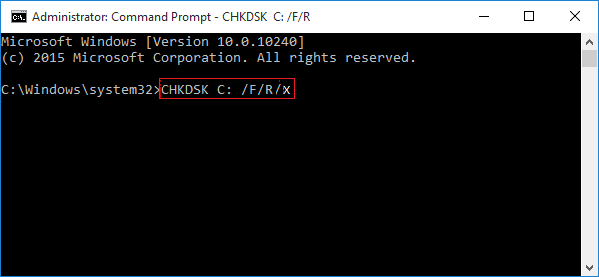
Step 3. To run the chkdsk command on the system partition, navigate to the Command Prompt, type `chkdsk C: /f /r`, replacing `C` with the correct drive letter if it's not the system partition, and press Enter. This will initiate a check on the partition for errors and attempt to repair them. The `/f` option forces a check of the volume and the `/r` option will attempt to recover any readable information from the bad sectors. This command is typically used for troubleshooting and maintenance purposes.
Step 4. To see if the problem has been fixed, restart the computer.
Conclusion
The boot manager failed to find the OS loader issue can be frustrating, but it can be resolved with various solutions provided, allowing users to troubleshoot and fix the problem on their own.
Qiling Disk Master offers a one-click solution with useful features to quickly resolve various issues for a seamless computing experience, making it the easiest and most reliable solution for different tasks and issues or errors.
FAQs About Boot Manager Failed to Find OS Loader
If you're still unsure about the boot manager failed to find OS loader, you may find the answers in these FAQs or require additional assistance.
1. How do I fix the missing OS loader in Windows 7?
Here are the brief steps to fix the missing OS loader on Windows 7 using SFC:
- Boot your PC from the installation disk.
- Choose Repair your computer -To access the Command Prompt in Windows, follow these steps: Start by choosing your keyboard layout and language. Then, go to Troubleshoot and select Advanced options.
- In the Command Prompt, type `sfc /scannow /offbootdir=C:\ /offwindir=C:\Windows`. If you selected a different system partition, change the letter (C) accordingly. This will start the System File Checker (SFC) tool to scan and replace corrupted system files. The `/offbootdir` and `/offwindir` parameters specify the locations of the boot and Windows directories, respectively.
2. What is OS loading?
When you turn on your computer, the OS loading process begins, which involves loading essential files and drivers to run your system. This startup process ultimately leads to the display of your desktop environment.
3. How do you fix the Windows boot manager failure to start?
A Windows boot manager failed to start error can be caused by several factors, including missing or corrupted boot files, hardware issues, or problems with the boot configuration data. To resolve the issue, you can try various solutions, such as troubleshooting the boot files, checking for hardware problems, or adjusting the boot configuration data.
- Run Startup Repair: Windows has a built-in tool called Startup Repair that tries to fix system file and boot configuration problems.
- Rebuild the MBR or BCD: To resolve the "Boot Manager Failed to Find OS Loader" error, you can use tools like Qiling Disk Master to rebuild the Master Boot Record (MBR) or Boot Configuration Data (BCD), which may help fix the issue.
- Check for hardware issues: Faulty hardware components such as hard drives or RAM can cause boot problems. Running diagnostic tests or checking for physical damage to your hardware may resolve the issue.
- Restore your system: If other options fail, you can restore your system to a previous point when your computer works correctly.
Related Articles
- How to Format SD Card for Trail Camera [2024 Newest Solution]
- How to Format Hard Drive in Windows 7? [Detailed Tips]
- Fixed: Windows Could Not Format A Partition on Disk 0 (Error Code 0x80070057)
- [Fixed] Dell Recovery Partition Missing on Windows
If you're experiencing a missing Dell recovery partition, it could be due to accidental deletion or not being assigned a drive letter. To recover it, you can follow a tutorial that guides you through the process, helping you restore the partition and regain access to your system's recovery tools. - How to Reset Windows Password When Locked Out🔥
Don't be panic, this post will assist you in solving the complicated problem of being locked out of your Windows account due to a forgotten password. - Tutorial: How to Resize External Hard Drive on Windows 10/11
If you're looking for a comprehensive guide on how to resize external hard drives, we've can help! Our guide will walk you through the entire process, from preparation to execution, to help you resize your external hard drive with ease.
Products
Articles & Tutorials
- Data Recovery
- Data Backup
- File Recovery
- File Backup
- System Backup and Restore
- Disk and Partition Clone
- Technical articles
- Mobile articles
- Disk Master Help
- Windows Data Recovery Tutorials
- Windows Secure Delete Tutorials
- Windows Partition Management Tutorials
- Windows File Backup and Restore Tutorials
- Windows System Backup and Restore Tutorials
- Windows Disk Backup and Restore Tutorials
- Windows Clone Tutorials