How to Reset Windows Password When Locked Out🔥
Forgetting or misplacing your Windows password can be frustrating, but it's a common issue with a relatively simple solution. You can reset your password using the built-in password reset feature, and if that doesn't work, you can use a password reset disk or seek help from a professional. It's also a good idea to set up a password recovery option, such as a PIN or a security question, to avoid being locked out in the future.
If you're locked out of your Windows computer, our comprehensive guide will walk you through various methods to reset your Windows password, from simple to advanced approaches, providing detailed, systematic guidance and valuable insights to help you regain access to your system using a Windows password unlocker.
How to Reset Windows Password When Locked Out - 7 Ways
Before the step-To reset your Windows password when locked out, start by gathering the necessary tools and resources. Ensure you have a Windows installation media (CD, DVD, or USB) for your version of Windows, and a computer with a working internet connection. Next, insert the media and restart your computer.
- A Windows PC: To reset your Windows password, you'll need to access another device, such as a computer, to perform the necessary actions. This is because Windows doesn't allow password resets on the device itself due to security concerns.
- Internet Connection: To troubleshoot your issue, ensure your secondary device is connected, as some methods may require online resources or downloads.
- Access to an Administrator Account: If you have another account with administrator privileges on your locked Windows device, it can be beneficial during the password reset, as it allows you to access the system and reset the password without needing to access the locked account.
- Password Reset Disk (If Available): If you've previously created a password reset disk, it can be a valuable asset to recover your Windows password. However, for those without a reset disk, alternative methods such as using a Windows installation media, booting from a USB drive with a password recovery tool, or using a third-party password recovery software can be used to recover or reset the password.
Here are the top 7 ways to reset your Windows password when locked out:
- Way 1. Windows Password Reset Expert
- Way 2. Answer Security Questions
- Way 3. Restore the Windows System to the Original
- Way 4. Use Password Reset Disk
- Way 5. Change the Microsoft Account Online
- Way 6. Boot in Safe Mode
- Way 7. Reinstall the Windows OS
Read Also:

4 Tips to Reset Windows 7 Password without Disk
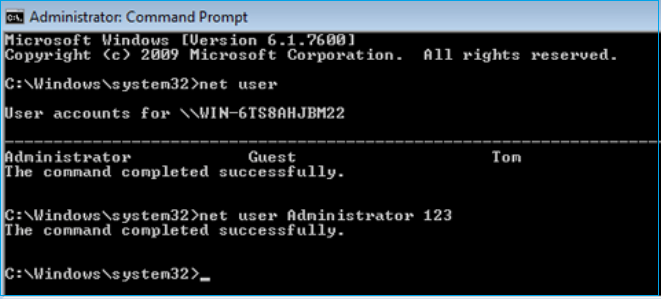
If you've forgotten your Windows 7 password, there are four feasible options to reset it without a disk. You can use a professional password tool, or one of three Windows built-in tools: the built-in Administrator account, the Windows 7 installation media, or the Command Prompt with a bootable USB drive.
Way 1. Windows Password Reset Expert
Qiling Disk Master Professional is a tool that provides a solution for resetting a Windows password when locked out, and is primarily known for its partition management capabilities, including creating a bootable disk.
This bootable disk allows you to bypass the login screen and access your system, making it easy to reset a forgotten Windows password by booting your computer with it.
Follow these steps to reset your Windows password with Qiling Disk Master:
Step 1. Insert the target USB disk into the computer and download Qiling Disk Master. Run the software and navigate to "Tools" > "Create bootable media" to initiate the process.

Step 2. After selecting the correct USB flash drive or external mobile hard disk, click "Proceed" again. Then, wait patiently for the password reset process to complete. Once the password reset USB flash drive is created, click "Finish" to complete the process.

Step 3. Insert the password reset USB into the locked PC, restart, and change the boot drive to boot from USB. The system will then automatically boot from the USB.

Step 4. After restarting your computer, find Qiling Disk Master again, go to the "Password Reset" section, and select the account you want to reset. Click on "Reset & Unlock" to proceed.

Step 5. When you receive this prompt, click "Confirm" to continue. Your password will be erased.

Notable Features of Qiling Disk Master
- It provides an interface to manage and optimize disk partitions, making it easy to use.
- Bypass admin password Windows 10.
- You can create a clone of your Windows installation to keep your system and data safe by using a tool like Qiling Backup. This will create an exact copy of your current Windows installation, including all installed programs, settings, and data.
- Partition recovery is the process of restoring partitions and files that have been lost or deleted due to a Windows update or accidental deletion. This can be a frustrating experience, but with the right tools and techniques, it is possible to recover lost data and get back up and running.
We highly recommend giving Qiling Disk Master a try when faced with a locked-out Windows situation, as its simplicity, versatility, and effectiveness in resetting Windows passwords make it a valuable tool in your digital toolkit.
Way 2. Answer Security Questions
Security Question is a feature in Windows that allows you to reset your password by answering security questions. To use it, follow these steps:
Step 1: Access the "Reset password" option after inputting an incorrect password.
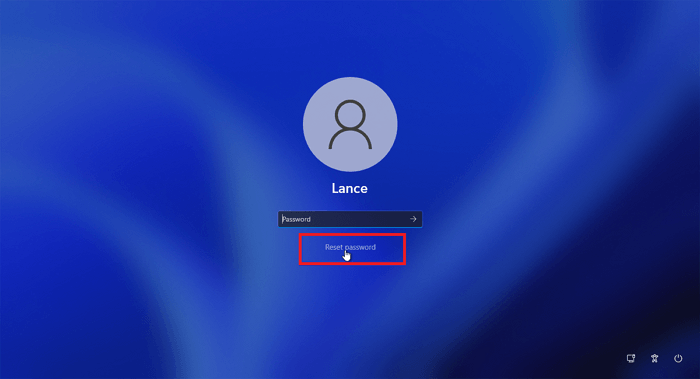
Step 2: Answer the security questions listed and click "Submit."
Way 3. Restore the Windows System to the Original
To regain entry to your computer if you're locked out, you can restore your Windows system to its original configuration, but this will erase your password and all data, so it's a last resort. To do this, follow the steps:
Step 1. To access the Windows Recovery Environment, hold the "Shift" key while selecting the "Restart" option on the Windows login screen, then choose "Troubleshoot" from the "Choose an Option" screen.
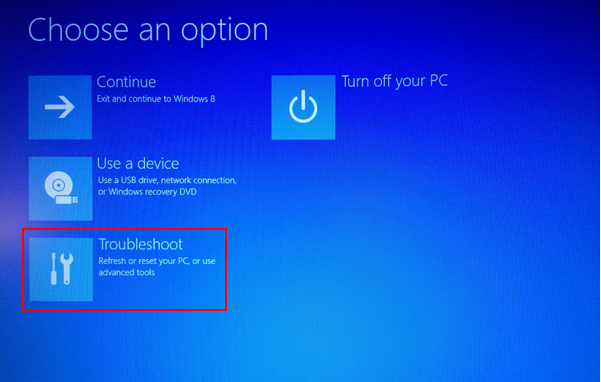
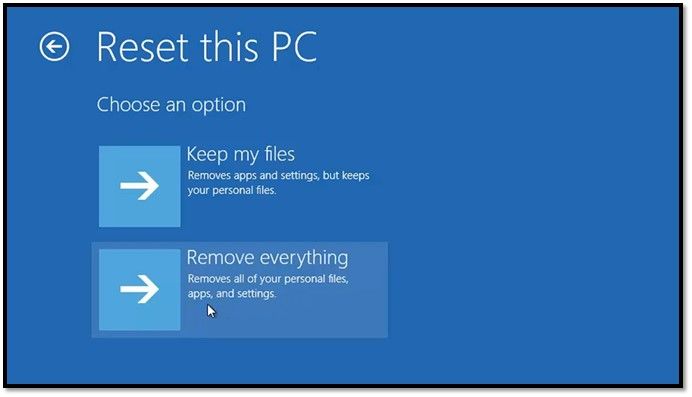
Step 2. After clicking "Reset this PC," select "Remove Everything" and then "Fully clean the drive." Choose the Windows reinstall method to start the Windows factory reset process, which will take time to complete.
How to Unlock Computer Without Password | 2026 Top Ways
Learn how to unlock your Windows 10/11 computer or laptop without a password using our simple guide. With just a few easy methods and steps, you can regain access to your PC hassle-free.
Way 4. Use Password Reset Disk
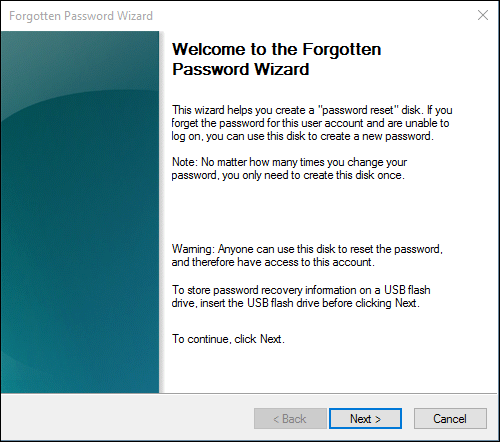
Generating a password reset disk for your Windows account can be a lifesaver if you ever get locked out. By creating a password reset disk beforehand, you can easily regain entry to your computer, minimizing data-related risks. To reset your Windows password using a password reset disk, you must have created one previously. If you have, follow the steps to regain access to your computer. However, please note that this method only works if you have created a password reset disk beforehand.
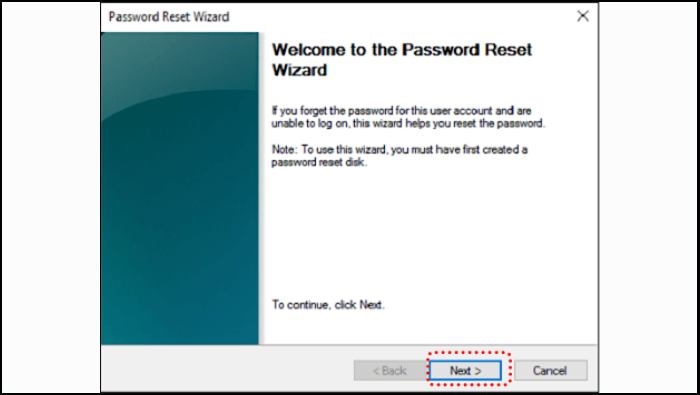
Step 1. Reboot your computer, connect the USB with the created password, and click "Reset Password" on the login screen.
Step 2. To reset your password, click "Next," select the drive containing the password reset disk, and click "Next." Then, set a new password, add a hint, and click "Next" to proceed. Finally, click "Finish" to complete the password reset process.
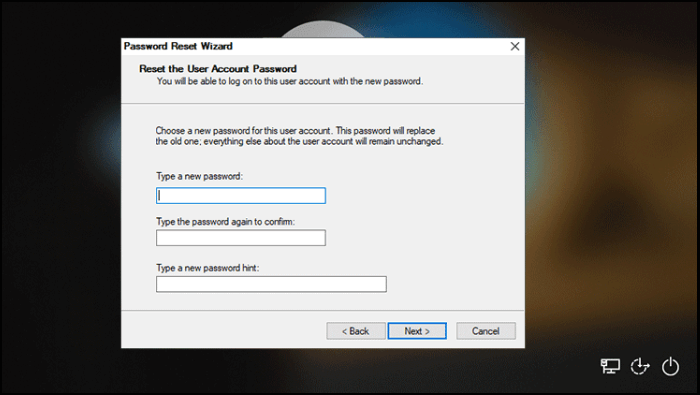
To create a password reset disk in Windows, follow these steps: Insert a blank CD, DVD, or USB drive into your computer. Go to User Accounts in Control Panel, click on Create a password reset disk, and follow the prompts to complete the process.
Way 5. Change the Microsoft Account Online
If you've lost your Microsoft account password, you can reset it using the official recovery procedure, which is especially helpful if you've linked your Windows account to your Microsoft account. To modify your password, you can follow the steps to reset your Microsoft account password online.
Step 1. To reset your Microsoft Account password, go to the login website, click "Forgot password," and then enter the recovery email or number you had set up, or your associated phone number, to get a code.
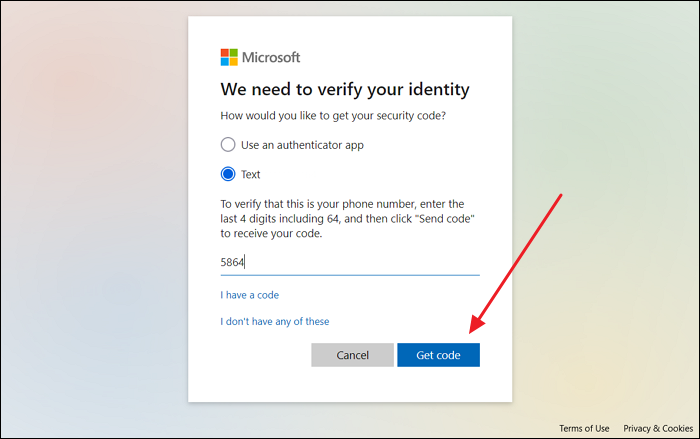
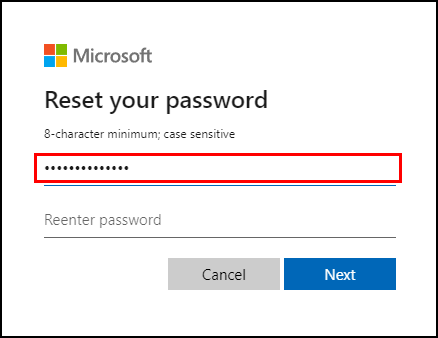
Step 2. Enter the code you received, then set up a new password in the "Reset Your Password" window to access your computer.
You May Also Like:
Way 6. Boot in Safe Mode
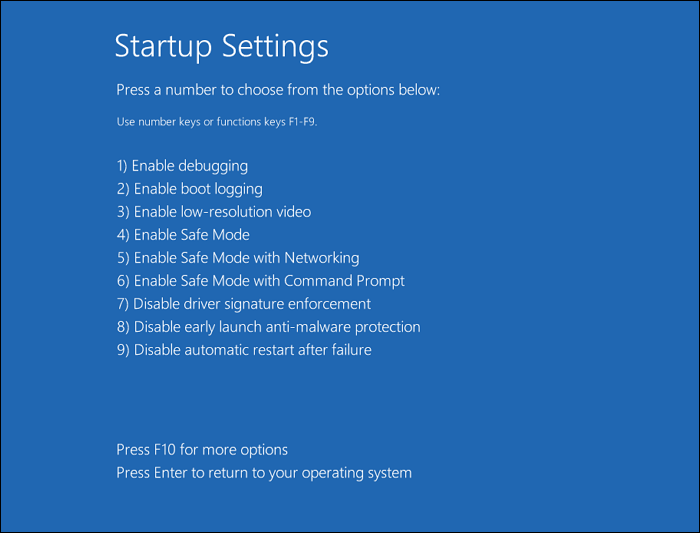
To boot your Windows computer in Safe Mode and potentially regain access to your system if you're locked out, follow these steps. First, restart your computer. Next, press the F8 key repeatedly as your computer boots up. This will bring up the Advanced Boot Options menu.
Step 1. In the Windows Recovery Environment, click "Troubleshoot," then "Advanced Options," and finally "Startup Settings."
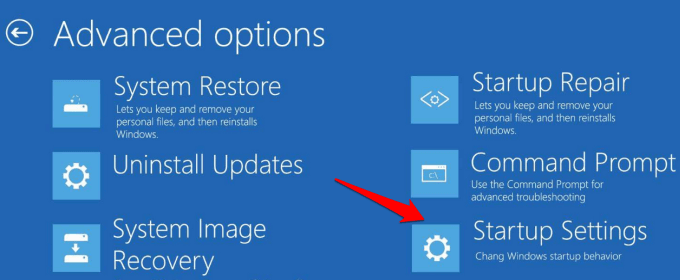
Step 2. To reset a Windows password, restart your computer and press the F4 or F5 key to boot into Safe Mode. Once in Safe Mode, access the "User Accounts" through the "Control Panel" and reset the password of the targeted account.
Password Reset Disk Windows 7: How to Create and Use
To create a password reset disk for Windows 7, insert a blank CD or DVD into your computer's CD/DVD drive, go to the User Accounts window, click on the "Create a password reset disk" link, and follow the prompts to create the disk. To use it, insert the disk, go to the User Accounts window, click on the "Reset password" link, and follow the prompts to reset the password. The password reset disk can be used to reset the password for the local administrator account, but it will not work for other user accounts. The password reset disk can also be used to reset the password for the local administrator account if the password is forgotten, but it will not work if the password is changed or if the account is locked out. The password reset disk is a one-time use disk and cannot be reused.
Way 7. Reinstall the Windows OS
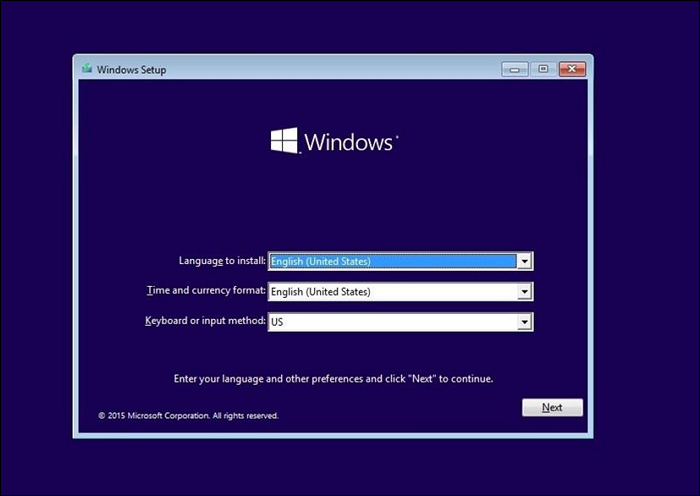
Reinstalling Windows is a last resort when all other options have been exhausted, essentially wiping the system clean and performing a fresh installation. This approach removes the password and erases all data, applications, and configurations, making it a drastic measure that should only be considered when all other avenues have been explored.
Instructions:
- To create a Windows 10 installation media, use Microsoft's Media Creation Tool to create a bootable installation disc. This tool allows you to create a USB drive or CD/DVD with the necessary files to install Windows 10.
- To perform a clean installation of Windows 10 on your existing Windows disk, you will need to format the disk. This process will erase all data on the disk, so make sure to back up any important files before proceeding.
- To complete the installation and set up a new user account with a secure password, install the operating system and any necessary software, then create a new user account by going to the control panel or system settings and following the prompts. Set a strong password by using a combination of uppercase and lowercase letters, numbers, and special characters, making sure it's at least 12 characters long and not easily guessable.
If your iPhone is not turning on, try charging it for at least 30 minutes to see if it's just a dead battery. If that doesn't work, try a hard reset by pressing and holding the Sleep/Wake button and the Volume Down button at the same time for 10 seconds.
You can also refer to the step-by-step guide video below to reset your Windows password:
Bonus Tip: How to Change the Windows Password
Changing your Windows password regularly helps protect your system and data. After learning how to reset a locked Windows password, you can also update your password from within Windows by following the steps below.
Step 1: To access the sign-in options on a Windows computer, click the "Start" button from the left corner, then select "Settings" from the menu, followed by "Accounts" and finally "Sign-in Options."
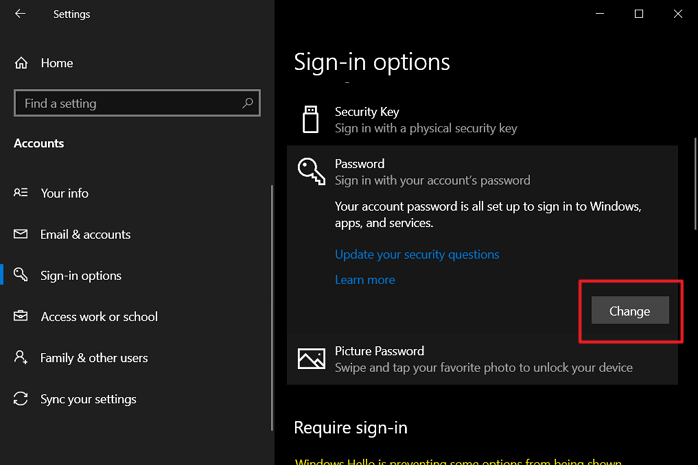
Step 2: To change your Windows account password, find the "Password" option and click "Change" under it. Then, follow the on-screen instructions to update your account password.
How to Remove Password in Windows 10 Without Login
Removing passwords in Windows 10 without logging in can be achieved through various methods. There are four ways to accomplish this, which can be found in an article that provides step-by-step instructions.
Conclusion
To reset your Windows password when locked out, consider creating a password reset disk or changing your Microsoft account password online for a user-friendly solution. Alternatively, you can use the Command Prompt or restore the Windows system to its original state for more advanced techniques. These methods can help you regain access to your account and get back to work.
Qiling Disk Master is a standout solution that offers simplicity, versatility, and effectiveness. This robust software excels in partition management and also provides the convenience of creating a bootable disk for Windows password reset. Its user-friendly interface, compatibility with various Windows versions, and additional features for system management tasks make it an indispensable asset for your digital toolbox.
FAQs About How to Reset Windows Password When Locked Out
If you're locked out of your Windows account and need to reset your password, here's what you can do:
1. Can you unlock a laptop when you forget the Windows password?
You can regain access to your locked laptop using various methods, such as a password reset disk, the Command Prompt, or third-party software like Qiling Disk Master. Each approach offers a different solution to unlock your laptop.
2. How do I bypass or reset the Windows 10 password?
Use the following steps to reset the Windows 10 password using a password reset disk:
Step 1. Connect your password reset USB/disk to the computer, then click "Reset Password" on the login screen.
Step 2. To reset your password, you'll follow the on-screen instructions in the Password Reset Wizard to create a new one, then use it to log back in.
3. How do I skip the login screen in Windows 10?
You can't bypass the login password screen in Windows 10. If you're having trouble logging in, you can try restarting your computer in Safe Mode or using the built-in Administrator account.
Step 1. To open the User Accounts window, press the "Windows + R" keys to open the Run dialog box, type netplwiz, and press Enter.
Step 2. Uncheck the box that says users must write a username and password to use this computer, then click OK and enter your password to confirm.
Related Articles
- Why Does Computer Keep Crashing? 10 Instant Ways to Fix Computer Keeps Crashing
- How to Repair MBR on Windows Server (Two Quick Ways)
- Can I Delete Dynamic Volume on GPT or MBR Disk? Your Guide Here [2024 Tutorial]
- Can Windows 11 Run MBR? Your Guide to Install Windows 11 on MBR in 2024
Windows 11 can run on MBR partitions, but it requires a specific installation process. To install Windows 11 on an MBR partition, you'll need to use the “Legacy BIOS” or “Compatibility Support Module (CSM)” option in your UEFI firmware settings. - How to Remove Hard Drive from Computer [Full Guide]
To remove a hard drive from a computer, start by taking out the side panel from the computer case, then follow the removal steps carefully. - Remove Virus That Slows Down the Computer On Your Own [2022 New]
Your computer's sudden slowdown is likely due to a virus or malware infection. To remove the virus and get your PC running smoothly again, follow this ultimate guide.
Products
Articles & Tutorials
- Data Recovery
- Data Backup
- File Recovery
- File Backup
- System Backup and Restore
- Disk and Partition Clone
- Technical articles
- Mobile articles
- Disk Master Help
- Windows Data Recovery Tutorials
- Windows Secure Delete Tutorials
- Windows Partition Management Tutorials
- Windows File Backup and Restore Tutorials
- Windows System Backup and Restore Tutorials
- Windows Disk Backup and Restore Tutorials
- Windows Clone Tutorials