Can I Delete Dynamic Volume on GPT or MBR Disk? Your Guide Here [2024 Tutorial]
GPT (GUID Partition Table) (GUID Partition Table) and MBR (Master Boot Record) (Master Boot Record) are two different partitioning schemes used to store partitioning information on a drive. While they share some similarities, each has its own distinct characteristics and is used in different contexts.
GPT, or Globally Unique Identifier Partition Table, is a partition style that utilizes the Unified Extensible Firmware Interface (UEFI). It is supported in Windows Server 2003 with SP1 and later.
The Master Boot Record (MBR) is a type of partition style used in all x86-based and x64-based computers running Windows. It contains a standard BIOS partition table that describes where the partitions are located on the disk.
Key Takeaways of Delete Dynamic Disk on GPT/MBR Disk:
To avoid data loss, back up your disk first, as the "clean" command will erase everything on the disk if you don't.
- To prevent data loss when deleting a dynamic disk on your GPT/MBR Disk, the first step is to back up all the volumes on the disk. This ensures that your important files and data are safely stored elsewhere, and can be restored if anything goes wrong during the deletion process.
- You can back up your system or partition using the System Backup or Partition Backup feature, which allows you to save it to a local disk, external hard drive, or network location.
- Bare metal backup is also supported for Windows Dynamic Disks and GPT Partitions. This allows booting from the Bare Metal media and selecting Utilities > Advanced > Backup Entire Disk, with disk restoration done separately through the restore menu for every disk.
Can I Delete Dynamic Volume on GPT or MBR Disk
If you delete the MBR/GPT partition, the computer will not be able to access the hard drive, making the Reboot window unavailable. However, you can create a bootable disk to access the currently unbootable operating system.
Reasons to Delete Dynamic Volume on GPT/MBR Disk:
Some users may want to delete the dynamic volume on their MBR disk due to certain limitations and shortcomings associated with it, such as limited partitioning capabilities, slower performance, and potential compatibility issues with certain operating systems.
- GPT does not support OS boot on old Windows systems such as Windows 7 or XP.
- To free up space on the dynamic disk.
- When installing Windows, many users choose to remove the disk partition style, which can be a convenient option.
- To resolve insufficient disk space or resize the disk partition, you can consider deleting unnecessary files and freeing up space, or using a disk resizing tool to expand the partition size. Alternatively, you can also consider adding an external storage device to increase the overall storage capacity. If you're using a cloud service, you may be able to increase your storage quota or upgrade to a higher-tier plan.
- To reset the file system or clear the partition.
- To convert dynamic disk to primary disk.
To delete dynamic volumes on a GPT or MBR disk, refer to the respective tutorials below, which provide helpful guidance for different purposes.
Delete Dynamic Volume on GPT/MBR Disk for More Space
If you want to delete one or all existing volumes to free up more space or use the entire dynamic disk space, you can try these methods for assistance.
Guide 1. Delete Dynamic Volume Using Free Partition Manager Software
Qiling Disk Master Free is a reliable free partition manager software that allows users to delete existing dynamic volumes on GPT or Dynamic volume for free, making it easy to delete or remove a disk partition or all partitions simultaneously.
To delete your dynamic volume with ease, follow these simple steps. First, ensure you have the correct volume name and ID.
Step 1. Launch Qiling Disk Master, and click "Partition Manager".
To avoid losing important data, it's crucial to back up all essential files and information before deleting any partition on your disk. This ensures that your data remains safe even if something goes wrong during the deletion process.
Step 2. Select to delete partition or delete all partitions on hard drive.
- Delete single partition: To delete a partition, right-click on it and select "Delete".
- Delete all partitions: To delete all partitions on a hard drive, right-click the drive and select "Delete All".
Step 3. Click "Yes" to confirm the deletion.
Guide 2. Delete Dynamic Volume on GPT or MBR Disk with Disk Management
Here are the methods available for this purpose that will be helpful for you.
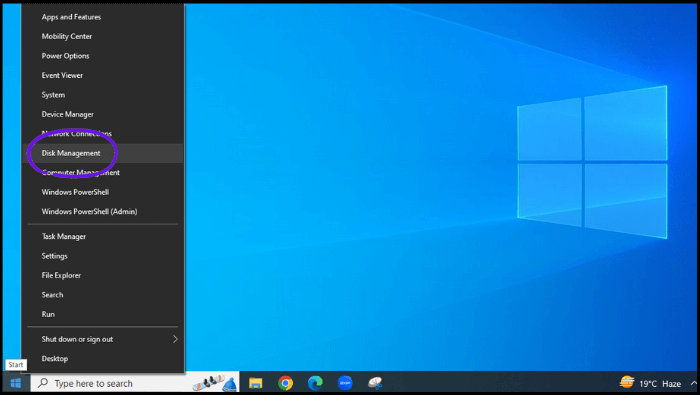
Step 1. Right-click on the "Windows Start" icon from the left corner and select "Disk Management".
Step 2. To remove a partition, right-click on the desired partition and select "Delete Volume" from the context menu.

Step 3. If you have backed up your data, click "Yes" to continue. This will allow you to proceed with the process.
To delete all the partitions, you can repeat the process to delete other existing partitions on your disk.
Guide 3. Delete Dynamic Volume on GPT or MBR Disk Using DiskPart
Diskpart commands can be intimidating for beginners, with a single typo potentially leading to severe data loss. To avoid this, it's essential to back up your files using the diskpart command before making any significant changes.
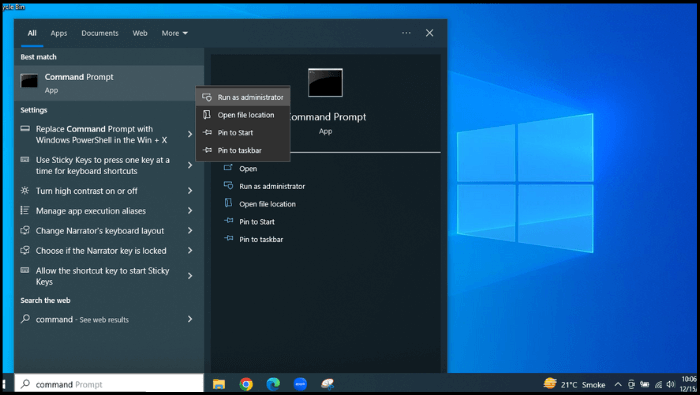
Step 1. To open the Command Prompt as an administrator, first type "Command Prompt" in the search box of the taskbar, then right-click on the "Command Prompt" when it appears, and finally click "Run as administrator" from the drop-down menu.
Step 2. Type "diskpart", and hit Enter. Click "Yes" to open "Diskpart".
Step 3. Type "list disk" and press the Enter key.
You will see a list of all available hard drives and USB drives on the computer, listed in the same order as in Disk Management, and you can also open Disk Management to easily identify the correct hard disk.
Step 4. Type "Select disk 2" and press Enter key.
You can replace the number 2 with the disk number on your computer's GPT/MBR disk. Make sure you have selected the correct disk from which you are deleting the partitions.
Step 5. Type the "list partition" and press Enter key:
As you have selected a hard disk in step 4, here the list volume of all partitions on this disk appeared.
Step 6. Type "drop partition" with the corresponding partition number you want to delete and press Enter key.
Step 7. Type "delete partition/Volume" and press Enter key.

Now the specified partition is deleted.
Step 8. In the Last Type, "Exit" to close the Diskpart Window.
Delete Dynamic Volumes on GPT or MBR Disk to Convert Dynamic Disk to Basic
To delete dynamic volumes on a GPT or MBR disk, follow the guidance below to convert a dynamic disk to a basic disk.
Guide 1. Convert Dynamic to Basic Without Losing Any Data
Qiling Disk Master offers a lossless solution to convert dynamic disk to basic disk on GPT and MBR without data loss, allowing for secure and efficient conversion of dynamic disks to basic disks.
You can get your need satisfied within these steps:
Step 1. To start, install and open Qiling Disk Master, then navigate to the Disk Converter feature.
Step 2. Select the disk conversion mode that suits your need:
- Convert Basic to Dynamic: change a Basic disk to Dynamic.
- Convert Dynamic to Basic: change a Dynamic disk to Basic.
Step 3. Select the target disk - Basic or Dynamic, confirm you've selected the correct disk and click "Convert" to start the disk conversion process.
0:00 - Converting a disk from Basic to Dynamic and vice versa involves specific steps. To convert a Basic disk to a Dynamic disk, the process takes approximately 0:18.
Guide 2. Delete All Dynamic Volumes on GPT/MBR and Switch to Basic Disk Using Disk Management
Step 1. To convert a dynamic disk to a basic disk, first, back up all volumes on the disk you want to convert.
Step 2. To convert a dynamic disk to a basic disk, open Disk Management, right-click each volume you want to convert, and select Delete Volume. This will remove the volume, allowing you to convert the dynamic disk to a basic disk.
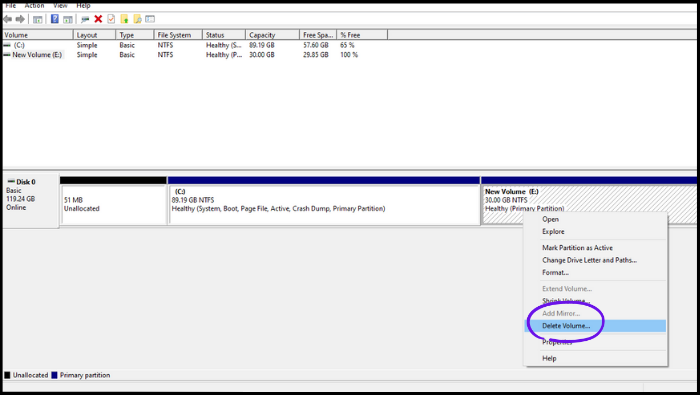
Step 3. Select Yes to confirm the deletion.
Step 4. When all volumes on the selected disk have been deleted, right-click the disk and click on Convert to Basic Disk, which will automatically turn the disk into a Basic disk.
Guide 3. Delete Dynamic Volume on GPT/MBR and Convert to Basic Using DiskPart
Step 1. To convert a Dynamic disk to a Basic disk, first, back up all the volumes on the disk you want to convert using Diskpart, ensuring all data is safely stored before proceeding.
Step 2. Open the "Command prompt" and type "Diskpart".
Step 3. To convert a disk to basic, type `list disk` at the Diskpart prompt, and remember the disk number you want to convert.
Step 4. Type select disk with the Disk number and click Enter.
Step 5. Type detail disk and click Enter.
Step 6. Select volume 1, then delete volume 1. Select volume 2, then delete volume 2.
Step 7. To convert a disk to a basic disk type, select the disk with the number you want to convert.
Step 8. Type convert basic.
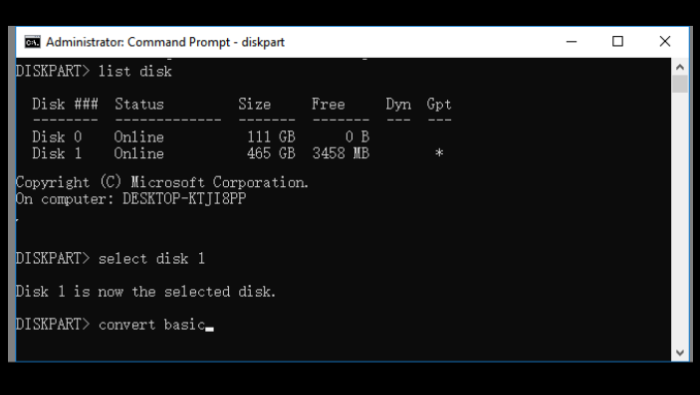
You can use the clean command in Diskpart to delete all existing volumes on the dynamic disk. This makes it easier to convert a dynamic disk to a basic disk with the help of Diskpart.
Final Verdict
Deleting a dynamic volume on a GPT or MBR disk is a relatively simple process, but it's essential to backup your files first to avoid severe data loss. To ensure you're deleting the correct drive, double-check your selection before proceeding. Qiling Disk Master is a convenient solution that can easily delete dynamic volumes on both GPT and MBR disks, allowing you to instantly free up disk space for your needs.
FAQs on Deleting Dynamic Volume on GPT/MBR Disk
Here are the answers to some frequently asked questions about deleting a dynamic volume on a GPT or MBR disk:
1. How to delete dynamic volume using cmd?
You want to delete a partition in Windows using the Command Prompt. Here's how: Open the Command Prompt, type "Diskpart", press Enter, select the disk where the partition you want to delete is located by typing "select disk" followed by the disk number, press Enter, list the partitions on that disk by typing "list partition", press Enter, select the partition you want to delete by typing "select partition" followed by the partition number, press Enter, delete the partition by typing "delete volume", press Enter, and finally exit the Diskpart utility by typing "exit".
2. Can GPT disk be dynamic?
GPT disks can be dynamic because dynamic disks can use the GPT partition style on systems that support them.
3. Which disk is better, dynamic or basic?
Dynamic disks offer more flexibility than basic disks by allowing for the creation of dynamic volumes, which can be resized, moved, or deleted without affecting the operating system. This flexibility is beneficial for users who need to manage their disk space more efficiently. However, basic disks are still suitable for simple storage needs and are generally easier to manage.
4. Can you convert a dynamic disk to a basic disk without losing data?
To convert a dynamic disk to a basic disk, you need to delete all the volumes and data on the dynamic disk, as it cannot be converted with partitions on it.
Related Articles
- Hard Drive Partition Not Responding in Windows 10/8/7
- 4 Ways to Fix PNY 128 GB Flash Drive Write Protected
- Full Guides: Initialize a Hard Drive on Windows 10/11
- Does Deleting a Partition Erase All the Data? | Solid Way to Recover
- How to Delete FAT32 Partition [Step-by-Step Guide]
Deleting a FAT32 partition is sometimes necessary, and there are three ways to do it. First, you can use built-in disk management tools, such as Disk Management in Windows or Disk Utility in macOS, to delete the partition. - Diskpart Delete Server Partition: Get Solutions to Delete Recovery Partition
How do I use Diskpart to delete the partition? How to delete recovery partition in Windows server? We've set a series of methods to help you delete partitions quickly.
Products
Articles & Tutorials
- Data Recovery
- Data Backup
- File Recovery
- File Backup
- System Backup and Restore
- Disk and Partition Clone
- Technical articles
- Mobile articles
- Disk Master Help
- Windows Data Recovery Tutorials
- Windows Secure Delete Tutorials
- Windows Partition Management Tutorials
- Windows File Backup and Restore Tutorials
- Windows System Backup and Restore Tutorials
- Windows Disk Backup and Restore Tutorials
- Windows Clone Tutorials