How to Format EFI Partition in Windows 11/10? [Your Guide Here 2024]
When installing Windows on a GPT drive, Windows creates four essential partitions, including EFI, which stores primary hard drive data and is crucial for Windows functionality. Formatting the EFI partition can render Windows unbootable, but there may be situations where formatting it is necessary on Windows 10/11.
In this article, you'll learn:
- What is EFI Partition?
- What Is the EFI Partition Used for?
- What Happens If I Format EFI Partition?
- When Can I Format EFI Partition?
- How Do I Format EFI Partition in Windows 11/10?
Before digging deep, let's briefly learn what EFI Partition is.
What is EFI Partition?
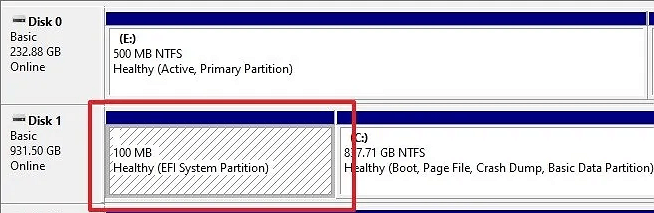
Windows creates an EFI partition when installing Windows 11 on a GPT drive, which stores complex data for smooth system functions. This partition is around 100MB in size and cannot be viewed or modified through File Explorer. Deleting or formatting the EFI partition can make the system unbootable, and Windows prevents any modifications to ensure system stability.
To get more details about EFI partition, you can follow this guide: Do I Need EFI System Partition.
What Is the EFI Partition Used for?
The EFI partition contains the primary folders, including Boot and System Volume Information, which hold vital Windows information like system utilities, device drivers, data files, and boot loaders.
When Windows loads on your system, it uses Boot Manager Code and Boot manager database to extract information, so it's crucial to keep the EFI partition unchanged.
Another use of EFI is to store crucial data like drivers and utilities, which the OEM can use to refresh or reset the PC, even if you try to reinstall it.
If you delete or format the EFI partition, your Windows won't be able to boot, as it's a crucial component that acts as a protective shield for your operating system.
What Happens If I Format EFI Partition?

If the EFI partition is accidentally deleted, it can cause Windows to become unbootable, and you may face difficulties in formatting the partition to install a new operating system. This is because the EFI partition contains essential data that Windows relies on to boot properly. Formatting the partition without the EFI would result in a corrupted system, making it difficult to install a new OS.
- Your Windows become unbootable
- Your system gets a boot failure error
- You cannot use system functionalities
- The system will take longer than usual to power on due to a prolonged boot time. This could be caused by a variety of factors, including software or hardware issues.
- After formatting the EFI, your system becomes unprotected and unlocked
When Can I Format EFI Partition?
If you're reinstalling Windows and get an error message about the EFI partition being formatted as NTFS, Windows will instruct you to format it as FAT32 and restart the installation. You can do this without affecting the boot process and allow Windows to complete the reinstallation.
If the EFI partition becomes RAW on Windows, you can format it to fix the issue. This can occur due to internal errors that cause the partition to become corrupted. Formatting the EFI partition can resolve the problem.
To resolve the issue, you'll need to repair the EFI partition, which is a crucial step in ensuring Windows functions properly. This process involves formatting the EFI partition, which will allow Windows to operate as usual.
How Do I Format EFI Partition in Windows 11/10?
In an unfortunate situation, you may need to reformat the EFI partition to preserve Windows functionality and ensure the system runs smoothly without losing any data. This could involve converting the partition from NTFS to FAT32, for instance.
If you're experiencing issues with reinstalling Windows, you can follow this guide to resolve the problem.
Guide 1: Format EFI Partition Using Qiling Disk Master
If you're using Windows 10/11, you can use third-party software like Qiling Disk Master Professional to format the ESP partition without losing any data. This tool ensures a safe and reliable formatting process, and also allows you to back up the ESP file beforehand.
Using a partition Master software, you can easily convert an NTFS EFI partition to FAT32. Simply install the software, start the process, and within three clicks, the conversion is complete. This software is compatible with all versions of Windows, including the latest and older versions.
Step 1. Run Qiling Disk Master, right-click the hard drive partition you intend to format and choose "Format" to format it.

Step 2. In a new window, set the partition label, file system (NTFS/FAT32/EXT2/EXT3/EXT4/exFAT), and cluster size for the partition to be formatted.
Step 3. Proceed with formatting the partition on your hard drive.
Step 4. Then you will see a warning window, click "Yes" in it to continue.
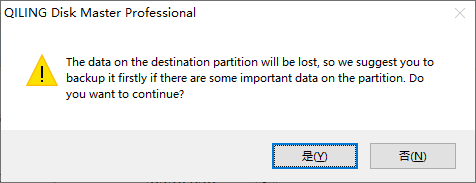
Qiling Disk Master not only formats EFI partitions but also enables users to perform additional operations on them, such as executing various actions on the partition.
The tool is a powerful partition manager that can resolve any partition issue and provide 100% satisfactory results. It allows users to resize or move partitions, extend the system partition, and create, delete, or merge partitions, making it easy to manage and organize partitions with just a few clicks.
Guide 2: Format EFI Partition Using Diskpart
To fix the EFI partition NTFS issue quickly, use Diskpart, a command-line utility. This method is complex, so ensure you know how to use it before starting. If you're unfamiliar, you can learn the process first. Once ready, open Command Prompt as Administrator, type "diskpart", and press Enter. Then, type "list disk" and press Enter to display a list of disks.
Step 1: Run the Diskpart in the Command prompt Window
Step 2: Enter the list disk and press the Enter button.
Step 3: To select the correct disk in the Diskpart command, check which disk contains the EFI partition and enter the corresponding number. For example, if the EFI partition is on disk 2, enter "select disk 2". Replace 2 with the actual disk number where the EFI partition is located.
Step 4: Once you select the disk, enter the below commands:
- list volume
- select volume 2 (replace 2 with the efi partition number)
- format fs=fat32 quick
Step 5: To exit the application, tap on the 'Exit' option, press the Enter key, and close the window.
Conclusion
The EFI Partition is essential for a smooth Windows system, but in some situations, you may need to format it. When prompted by Windows during a reinstallation, you'll need to delete the EFI Partition. Fortunately, with a reliable tool like Qiling Disk Master, you can easily resolve partition-related issues with just a few clicks.
Related Articles
- How to Find Large Files on Windows 10 | Quick Guide💡
- Everything to Learn About SD Card Copier Software
- How to Remove Write Protection From SD Card Windows 7 [Fixed]
This article will show you how to remove write protection from sd card Windows 7 by providing solutions with detailed steps attached. - I Need Help: How to View the User Password in Windows 10
Are you struggling to recall a forgotten Windows 10 user password and want to know how to view the user password in Windows 10? This post provides you the 2023 newest and most comprehensive answer. - 3 Ways| How to Fix Disk Management Format Option Greyed Out in Windows 11/10/8/7
If the format volume option is greyed out in Disk Management on Windows 11/10, 8.1, 8, 7. You can try running the built-in Check Disk utility, checking the disk for errors, and then try to format the disk. - [SD Card Unavailable] Fix SD Card Wont Mount on Android & PC
Mounting and unmounting an SD card refers to the process of attaching and detaching it from a digital device, such as an Android phone or camera. However, if your micro SD card fails to mount, you may encounter issues. This can happen on both Windows PCs and Android smartphones.
Products
Articles & Tutorials
- Data Recovery
- Data Backup
- File Recovery
- File Backup
- System Backup and Restore
- Disk and Partition Clone
- Technical articles
- Mobile articles
- Disk Master Help
- Windows Data Recovery Tutorials
- Windows Secure Delete Tutorials
- Windows Partition Management Tutorials
- Windows File Backup and Restore Tutorials
- Windows System Backup and Restore Tutorials
- Windows Disk Backup and Restore Tutorials
- Windows Clone Tutorials