How to Check and Optimize SSD Performance in Windows 11
| Workable Solutions | Step-by-step Troubleshooting |
|---|---|
| #1. Fix File System Errors in SSD | Step 1. Firstly, Press "Win" and search "Command Prompt"; Step 2. After that, click "Run as Administrator"...Full steps |
| #2. Extend System SSD C Drive | Option 1. Extend System C drive with unallocated space; Option 2. Extend System C drive without unallocated space...Full steps |
| #3. 4K Alignment SSD | Step 1. Select the SSD disk that you want to align, right-click it and choose "4K Alignment"; Step 2. Go to find task...Full steps |
| #4. Remove Malware and Virus | While using the internet, it is easy to get Malware and Virus into your computer, and it is one of the biggest reasons...Full steps |
| To transfer big folders and files to a second disk, start by connecting the second disk to your computer via an external hard drive enclosure or USB connection. Next, navigate to the folder containing the files you want to transfer and select all the files using the Ctrl+A shortcut or by manually selecting them. Right-click on the selected files and choose the "Copy" option. | Step 1. Open Qiling Disk Master on your computer. Click "Large File Cleanup", then click "Start" button to go on...Full steps |
Can I Check and Optimize SSD Performance in Windows 11? Yes, Sure
Windows 11's fancy animations and visuals can make for a great user experience, but if your SSD isn't set up correctly, it can start to lag, slowing down your PC to the point where even simple tasks become difficult. Fortunately, checking and optimizing SSD performance can help resolve this issue.
Why Is Windows 11 with Pre-Installed SSD So Laggy?
Several reasons contribute to the pre-installed window lagging issue, and if your system with a pre-installed SSD is lagging, you can check and optimize SSD performance in Windows 11 to get the best end-user experience.
1. C Drive Full
Installing Windows on the C drive and using it for storage can lead to system slowdowns. It's recommended to keep Windows on a separate drive and use other drives for storing data, as storing all data in one place can cause the system to slow down. This approach ensures a smoother and more efficient user experience.
2. SSD Sectors
You need to make sure that your SSD Sectors are properly aligned. Go to Components>Storage>Disks and make it divisible by 4096.
3. Virus Or Malware Infection
With the rise of pirated software, viruses and malware have become increasingly common. To stay safe, it's essential to use good antivirus software. Viruses can cause a system to slow down instantly, making it crucial to take preventative measures to protect your device.
4. Running Too Many Programs
Computers are made for multi-Running multiple programs in the background can slow down your computer, so it's best to only run the software you need and close them afterwards to maintain a smooth performance.
Does Windows 11 Slow Down SSD?
Many Windows 11 users experienced a significant slowdown with their SSDs, but Microsoft has since addressed the issue through updates. The operating system's design and visuals were initially not optimized for SSDs, leading to lagging issues. However, with the latest updates, Microsoft has aimed to create a seamless and better experience for users, effectively resolving the problem.
How Do I Check My SSD Speed in Windows 11?
To check and optimize SSD performance on Windows 11, you can use free tools like ATTO Disk Benchmark, which provides a precise idea of your SSD's performance. While no tool is entirely accurate, ATTO Disk Benchmark is a top option that checks your SSD's speed, performs Hard Drive performance tests, and more.
If your SSD drive is not performing well, it's likely time to optimize it. To get the most out of your Windows 11 experience, follow our guide to optimize your SSD speed and maximize its output.
Tips to Optimize SSD Performance in Windows 11
Now that we've identified the SSD lagging issue, let's optimize your SSD performance in Windows 11. Follow these 5 steps: follow the steps below. By following this tutorial, you'll be able to get the most out of your SSD and enjoy improved performance in Windows 11.
- 1. Fix File System Errors
- 2. Extend system SSD C drive
- 3. 4K alignment SSD
- 4. Remove Malware and Virus
- 5. Transfer Big Folders and Files to a Second Disk
#1. Fix File System Errors in SSD
To fix file system errors on an SSD, follow these steps: First, restart your computer in Safe Mode to isolate the problem. Then, run the built-in Check Disk utility (chkdsk) to scan and repair any disk errors.
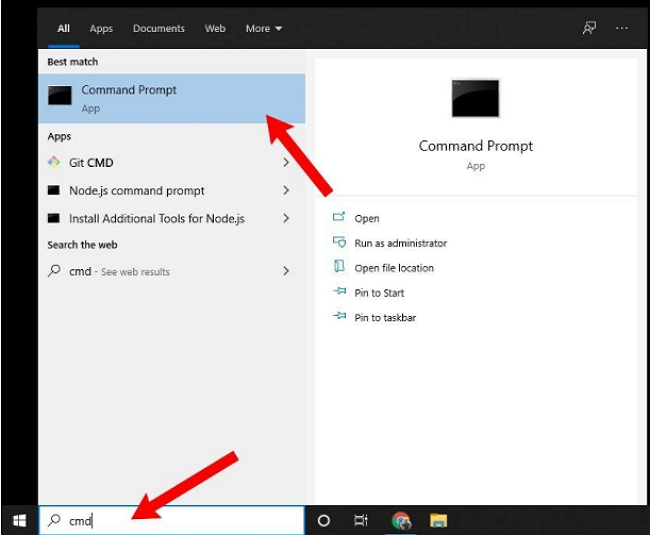
Step 1. Firstly, Press "Win" and search "Command Prompt".
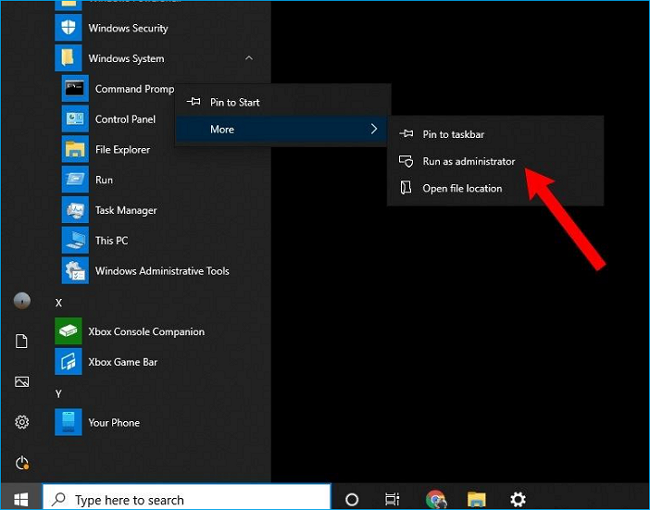
Step 2. After that, click "Run as Administrator".
Step 3. After that, write "chkdsk C: /f /r /x" and press Enter.
To fix the corrupted drive, replace "C" with the drive letter of your corrupted SSD in the command prompt and follow the instructions. Once the process is completed, exit the command prompt.
#2. Extend System SSD C Drive
To extend your System's SSD C Drive, it's essential to use a tool like Qiling Partition Master, which is free and ensures no data loss during the process. This is crucial as extending the drive size can lead to data loss for many users. Additionally, Qiling Partition Master can also prevent OS booting issues, making it a must-have tool for optimizing SSD performance on Windows 11.
Option 1. Extend System C drive with unallocated space
- 1. Click on the System C: drive and select "Resize/Move".
- 2. Drag the system partition end into the unallocated space so to add it to the C: drive.
- 3. Click "Proceed" to execute the operations and extend the C drive.
Option 2. Extend System C drive without unallocated space
- 1. Click a big partition with enough free space on the system disk, select "Resize/Move".
- 2. To free up space, drag the end of the big partition to the left to shrink it and make room for the unallocated space. Then, click "Proceed" to confirm the changes.
- 3. Select the system drive at the disk management page, and select "Resize/Move".
- 4. The end of System C drive is dragged into the unallocated space, and then "Proceed" is clicked to save the changes and extend the C drive.
After extending the C Drive, it's still a good idea to use other drives for storing heavy software and files. Keeping your desktop clean with minimal shortcuts will also help, allowing you to maximize your system's output and keep it running fast and efficiently.
#3. 4K Alignment SSD
4K alignment is crucial for optimal SSD performance, as misalignment can lead to slower access times and reduced read/write speeds.
To optimize your SSD for better performance, use Qiling Partition Master, which offers features like Adjust Cluster and 4K Alignment to boost performance with just a few clicks, and can also allocate space in C drive and make partitions for overall better system performance.
Step 1. Select the SSD disk that you want to align, click it and choose "4K Alignment".
Step 2. The SSD drive partitions are all 4K aligned, ensuring that all sectors on the drive are properly aligned.
#4. Remove Malware and Virus
Using the internet can expose your computer to malware and viruses, which can significantly slow down your SSD, regardless of the operating system. To prevent this, installing a free antivirus software is a good starting point, and keeping it updated can provide an additional layer of protection against various types of viruses and malware.
Among all, a few effective Antiviruses are listed below.
- 1. Avast
- 2. AVG
- 3. Norton 360
- 4. McAfee Antivirus Plus
#5. Transfer Big Folders and Files to a Second Disk
To get the best experience, keep the C Drive's storage as empty as possible, as filling it with large folders and files can affect your SSD and system's performance, regardless of whether you're using Windows 11 or a previous version.
Keep your C Drive minimal with just Windows and a few shortcuts on the desktop, or transfer files to another disk to free up space.
To transfer files from one drive to another, it's recommended to use Qiling Disk Master, which allows for easy and risk-free file transfer.
Step 1. To use Open Qiling Disk Master's Large File Cleanup feature, simply launch the software on your computer, click on "Large File Cleanup", and then click the "Start" button to initiate the process. This feature allows you to transfer files from one drive to another or move data from one disk to another.
Step 2. Choose the hard drive or disk you want to scan for files.
Step 3. After the scan is complete, files larger than 20M will be listed. From this list, select the target files to transfer and choose the desired target location. Once the files to be transferred have been chosen, click the "Move" button to proceed.
Step 4. Confirm the transfer operation again and click the "Move" button to initiate the process. Once the file transfer is complete, you will have enough free space on the source drive/disk.
Conclusion
Windows 11 is not optimized for SSDs, but tweaks can improve performance, and using Qiling Partition Master can help in several steps while keeping data secure.
Related Articles
- Can You Convert Basic to Dynamic in Windows 11? Yes, Here Is The Guide
- Running [Bootrec /fixboot] Returned Error 'Access is denied' - FIX 2022
- 3 Best Windows 11 Disk Format Tool/Utility Free Download
- How to Move Partition in Windows 11/10/8/7? [New]
- How to Remove Write Protection From SD Card Windows 7 [Fixed]
This article explains how to remove write protection from sd card Windows 7 by providing solutions with detailed steps attached. - I Need Help: How to View the User Password in Windows 10
Are you struggling to recall a forgotten Windows 10 user password and want to know how to view the user password in Windows 10? This post provides the 2023 latest and most comprehensive answer.
Products
Articles & Tutorials
- Data Recovery
- Data Backup
- File Recovery
- File Backup
- System Backup and Restore
- Disk and Partition Clone
- Technical articles
- Mobile articles
- Disk Master Help
- Windows Data Recovery Tutorials
- Windows Secure Delete Tutorials
- Windows Partition Management Tutorials
- Windows File Backup and Restore Tutorials
- Windows System Backup and Restore Tutorials
- Windows Disk Backup and Restore Tutorials
- Windows Clone Tutorials