How to Check If Disk Is Healthy on Windows [Step-by-Step Guide]
| Workable Solutions | Step-by-step Troubleshooting |
|---|---|
| Way 1. Check Disk Health via Qiling Disk Master | Step 1: Open Qiling Disk Master on your PC...Full steps |
| Way 2. Check Disk Health via CMD | Step 1: Press the Windows + R keys to open the Run...Full steps |
| Way 3. Check Disk Health via CHKDSK Command | Step 1: Press the Windows icon and type cmd...Full steps |
| Way 4. Check Disk Health via Defrag and Optimize Drives | Step 1: Press the Windows key and type disk defrag...Full steps |
| Way 5. Check Disk Health via BIOS | Step 1: Restart your computer and press any function key from F2...Full steps |
The hard disk, the heart of your computer, stores everything. Before replacing it, back up data to another disk to protect it. Regularly checking the hard disk's health is essential for its long life.
To check if your disk is healthy, you can use built-in Windows features or third-party software. This guide will walk you through five effective ways to inspect and troubleshoot your hard drive, covering common problems you may encounter with your PC. You can choose the method that suits your preference, whether it's using Windows' built-in tools or third-party software.
How to Check If Disk Is Healthy on Windows - 5 Ways
Here are five practical ways to check your hard disk's health status:
Way 1. Check Disk Health via Qiling Disk Master
Way 2. Check Disk Health via CMD (WMIC Command)
Way 3. Check Disk Health via CHKDSK Command
Way 4. Check Disk Health via Defrag and Optimize Drives
Way 5. Check Disk Health via BIOS
Now, let's begin with the first way. It is also the easiest one.
Way 1. Check Disk Health via Qiling Disk Master
Qiling Disk Master is a top-listed tool that effortlessly checks a disk's health, providing more detailed information than just a simple disk status. This easy-to-use and lightweight tool includes advanced disk health features, delivering accurate information on various aspects such as health status, spin-up time, read/write speed, temperature, and more.
To check the health of your disk, download Qiling Disk Master and follow the provided steps. This will help you assess the condition of your disk and identify any potential issues.
Step 1. Launch Qiling Disk Master and click the blue arrow to activate the "Disk Health" feature under the "Tools and utilities" tab page.

Step 2. Select the target disk and click the "Refresh" button to view its health condition.

This tool allows you to efficiently check and manage your disk partitions, providing a convenient way to monitor and maintain your disk health.
Way 2. Check Disk Health via CMD (WMIC Command)
WMIC (Windows Management Instrumentation Command) is a built-in feature of Windows that offers a command-line interface. It enables you to run various operations, including checking the health of your hard disk.
It utilizes the Self-The S. M. A. R. T. feature can be used to analyze the health of a hard disk. After running the process, it provides easy-to-understand results, such as "OK" or "Pred Fail", among others. To check a hard disk using WMIC, follow these steps.
Step 1: Press the Windows key + R to open the Run dialog box.
Step 2: Type cmd and Hit Enter to open the Windows Command Prompt.
Step 3: In the command prompt, type the following command and hit Enter.
wmic
Step 4: It will create a WMI interface. Now, type or paste the following command and press Enter.
diskdrive get status
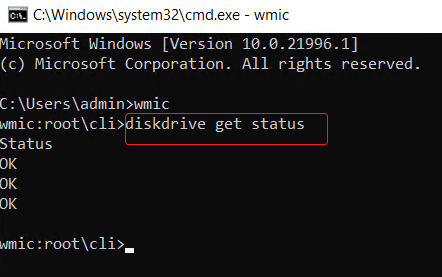
After the process is finished, you'll see the status of your hard disk. If it shows "Pred Fail", it means there's an issue, so back up your data to a USB or external drive and get technical help ASAP.
Way 3. Check Disk Health via CHKDSK Command
The CHKDSK command is a built-in Windows tool that scans and fixes hard disk errors, checks the health of the hard disk, and ensures the file system's integrity, allowing users to fix bad sectors and possible errors.
Step 1: Press the Windows icon and type cmd.
Step 2: Click Run as administrator under Command Prompt.
Step 3: To run a basic scan, open the Command Prompt as an administrator, then type `chkdsk` and press Enter. This will initiate a basic check on the system's file system integrity.
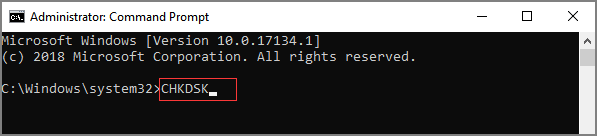
Step 4: If the basic scan cannot find the error, you will need to try the chkdsk /f command to attempt to fix any errors.
The command will take a longer time than a regular chkdsk command, so be patient.
To repair bad sectors on your disk and recover any readable data, you can use the command `chkdsk /f /r` in the Command Prompt. This command will scan the disk for any bad sectors, repair them if possible, and recover any readable data that was on those sectors.
Way 4. Check Disk Health via Defrag and Optimize Drives
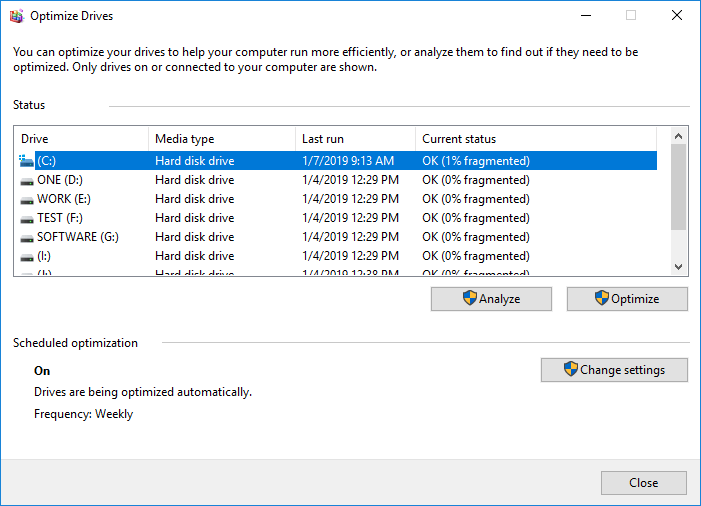
To give a quick health check on your Windows PC, use the built-in feature called "Defrag and Optimize Drives" to check the health of your hard drives. This feature will scan your drives and provide a report on their health, including any issues that may be affecting performance.
Step 1: Press the Windows key and type disk defrag.
Step 2: Select the Defragment and Optimize Drives option from the results.
Step 3: Choose your hard disk and click Optimize. It will run a scan for fragmented files and optimize the disk health.
Way 5. Check Disk Health via BIOS
To check the disk health using the Basic Input/Output System (BIOS) settings, go through the following steps:
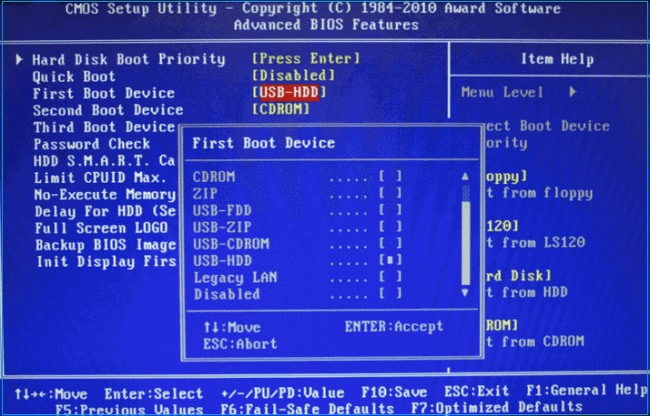
Step 1: Restart your computer and press any function key from F2 to F12, depending on the accessibility of your system, to access the BIOS. The specific key may vary depending on your computer or laptop model.
- Notice:
- To access the BIOS, you can search the Internet using the model number or name of your computer. This will provide you with specific instructions on which key to press to enter the BIOS settings.
Step 2: The menu key, also known as the boot menu key, is a key on your keyboard that allows you to access the boot menu of your computer. To find your menu key, you can search online for "your hard drive maker + boot option" to find the specific key for your computer. For example, if you have a Western Digital hard drive, you might search for "Western Digital boot option".
Step 3: To check the health of your HDD, go to your boot menu and select the Diagnostic option.
Step 4: If you're using MSI, go to Settings > Advanced > NVME self-test.
If you're looking for a more efficient way to check your computer's disk health, we recommend using Qiling Disk Master, which provides in-depth and accurate details of your computer disks, in contrast to the time-consuming process of Windows' built-in utilities.
Conclusion
To check a hard disk's health, you can use Qiling Disk Master, which provides a detailed status and fixes errors on your disk partition. Additionally, it's essential to keep a backup in case of unexpected failures. If you notice any signs of hard disk failure, consider using one of these methods to ensure your data's safety. Please share your experience in the comments and let us know which method best suits your needs.
You may also like:
How to Check If Disk Is Healthy FAQs
To check disk health, you can use the built-in command-line tool called `df` and `fsck` on Linux and macOS systems. The `df` command displays disk space usage information, while the `fsck` command checks and repairs file system errors. You can also use the `SMART` data to monitor disk health on Linux and macOS systems.
1. How do you know if your disk is bad?
There are several signs to look out for to determine if your hard disk is in a bad health situation. These include sudden shutdowns or freezes, unusual noises or vibrations, slow performance or lag, file system errors or corruption, and difficulty booting up or accessing data.
- Stuck spindle motor
- Unexpected slowdowns
- Frequent error messages
- The system crashes repeatedly
- Strange sounds or overheating
- Corrupted data, files, and folders
2. How can I make my disk healthy?
Computer disks can last for a long time if used and maintained correctly, requiring appropriate airflow to prevent overheating and regular cleaning to keep performance stable.
3. How to check hard disk health in CMD?
Follow these steps to check hard disk health via CMD and check SSD health on Windows 10 via cmd:
Step 1: Press Windows + R keys, type cmd, and press Enter.
Step 2: Run the built-in command prompt tool called chkdsk to scan and fix disk errors. To do this, open the command prompt and type 'chkdsk' and press Enter. The tool will then scan the disk for errors and attempt to fix them.
A healthy disk status does not rule out file-system or individual file errors; see the healthy-disk-with-file-errors guide for the next checks.
Related Articles
- Best Free System Clone Software for Windows 10 Recommend
- How to Tell If a Hard Drive Is Corrupted (with Pictures)
- How to Format WD My Passport Windows 10 [4 Easy Ways]
- How to Repair MBR in Windows 11? Here Is Your Guide
- How to Fix Boot Manager Failed to Find OS Loader [100% Working]
Resolve the 'Boot Manager Failed to Find OS Loader' problem with ease by following expert-backed solutions. Start by booting in safe mode, checking for malware, and verifying the boot order in the BIOS settings. - How to Boot Raspberry Pi From USB [Step-by-Step]
To modify the Raspberry Pi bootloader to boot from a USB storage medium, follow these steps. First, ensure that the USB drive is formatted with a compatible file system such as FAT32. Next, create a bootable USB drive using a tool like Etcher or dd.
Products
Articles & Tutorials
- Data Recovery
- Data Backup
- File Recovery
- File Backup
- System Backup and Restore
- Disk and Partition Clone
- Technical articles
- Mobile articles
- Disk Master Help
- Windows Data Recovery Tutorials
- Windows Secure Delete Tutorials
- Windows Partition Management Tutorials
- Windows File Backup and Restore Tutorials
- Windows System Backup and Restore Tutorials
- Windows Disk Backup and Restore Tutorials
- Windows Clone Tutorials