Disk Health Says Healthy but Files Still Show Errors
A green health indicator does not prove every file is intact. S.M.A.R.T. attributes reflect what the drive and controller report; file-system metadata, RAM, cables, application crashes, and a single damaged file can produce errors while the drive still reports healthy.
Protect the data before stressing the disk
Step 1. Record the exact error, file path, and time. Note whether multiple files fail, whether the drive disconnects, and whether the problem occurs in one application or across Windows.
Step 2. Copy or image irreplaceable data to a separate physical drive. If read errors are increasing, avoid repeated full-surface tests and consider professional recovery.
Step 3. Verify one suspect file against a known-good copy, cloud version, or checksum if available. A mismatch isolates content corruption; it does not by itself identify the failing component.
Use Windows checks in the right order
Review Event Viewer for disk, storage-controller, and file-system warnings around the error time. Check cables, enclosure power, and USB ports if the affected disk is external. For an NTFS volume that stays online, chkdsk X: /scan can identify file-system issues without immediately scheduling an offline repair; replace X with the verified volume letter. Do not run repair switches against an unstable disk before securing data.
If errors occur on several drives or after a memory upgrade, test RAM and the application path too. Reinstalling a program will not repair physically damaged sectors, and replacing the drive will not fix an unrelated memory fault.
Read Qiling health data and use a surface test cautiously
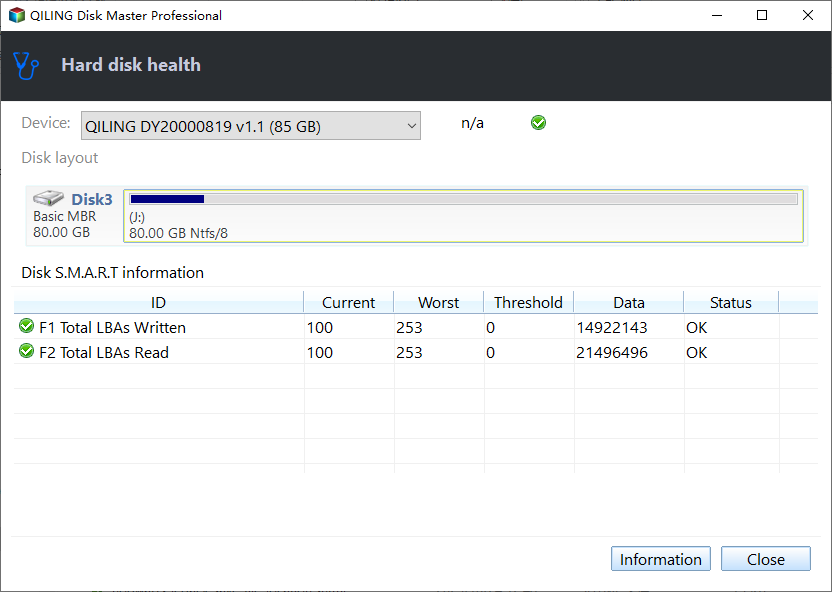
Qiling Disk Master Pro's Disk health view displays available S.M.A.R.T. information. Confirm the selected model and review warnings; a lack of warnings is only one data point.
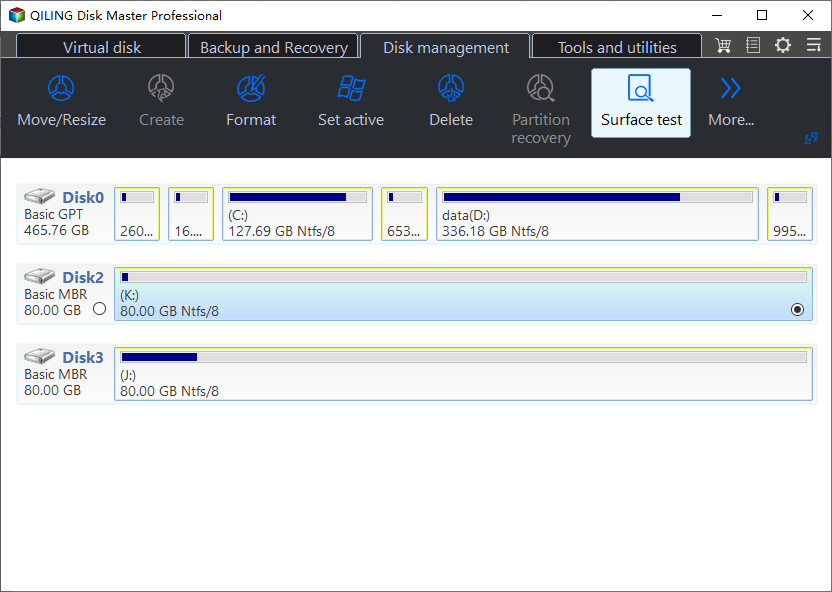
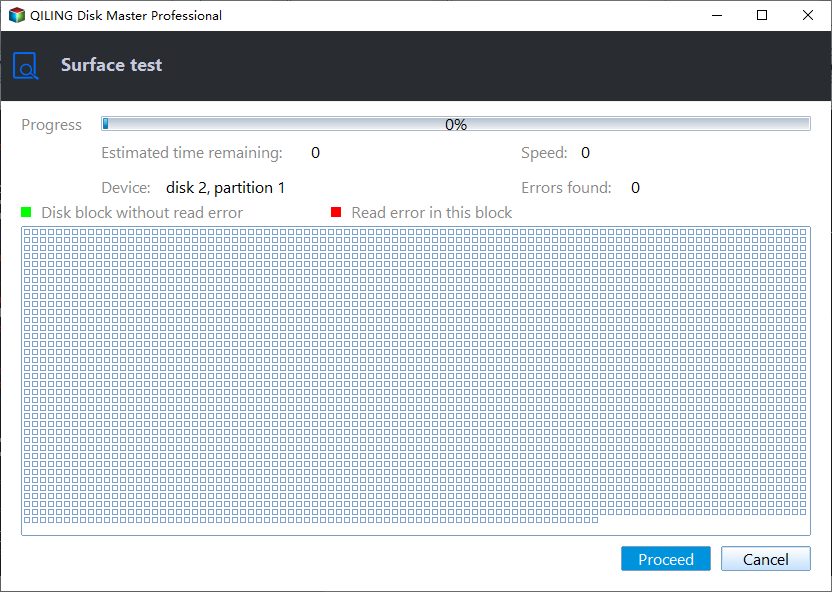
The Disk management > Surface test view checks for read errors on selected disk areas. Use it only after a verified backup and when the drive is stable enough for a read-intensive test. Select the correct physical disk or partition by model and capacity, inspect the test target, and click Proceed. If errors appear or the disk disconnects, stop relying on it.
Decide what to fix
Replace a disk with repeated I/O errors or unstable connectivity after ruling out the cable and enclosure. Restore an individual corrupt file from a verified backup if the disk and memory pass checks. If only one program fails, repair that program after protecting data. Keep monitoring rather than treating one green icon as a warranty of file integrity.
Related Articles
- Check Disk Health
Understand what SMART indicators report. - Verify a Backup
Confirm intact copies before repair.
Products
Articles & Tutorials
- Data Recovery
- Data Backup
- File Recovery
- File Backup
- System Backup and Restore
- Disk and Partition Clone
- Technical articles
- Mobile articles
- Disk Master Help
- Windows Data Recovery Tutorials
- Windows Secure Delete Tutorials
- Windows Partition Management Tutorials
- Windows File Backup and Restore Tutorials
- Windows System Backup and Restore Tutorials
- Windows Disk Backup and Restore Tutorials
- Windows Clone Tutorials