How to Format M.2 SSD in Windows 10 [Detailed Instruction]
If you're looking to improve your M.2 SSD's performance or switch to a more recent file system like exFAT for your Windows 10 PC, there are several methods you can try. Formatting your M.2 SSD is a viable option, and you can do it using various methods, which will be demonstrated in the article. Whether you're looking to optimize your SSD's performance or simply want to switch to a more modern file system, this article will guide you through the process.
How to Format an M.2 SSD in Windows 10 - 3 Ways
Formatting an M.2 SSD in Windows 10 can be done in three easy to complete ways. These methods include using the built-in Disk Management tool, the Command Prompt, or the File Explorer, all of which can be used to quickly format your M.2 SSD.
| ⏱️Duration | About 5 Minutes |
| 💻Goal | Format an M.2 SSD in Windows 10 |
| 🧰Preparation | Computer, an M.2 SSD, Qiling Disk Master |
| 🛠️Methods |
✔️[Easy] Qiling Disk Master ✔️[Medium] Disk Management ✔️[Complex] CMD/BIOS |
Way 1. Format M.2 SSD in Windows 10 with Qiling Disk Master
If you need to change the file system on your drive, try using Qiling Disk Master, an all-featured partition management software that allows you to format your M.2 SSD from NTFS to FAT32 or exFAT efficiently and successfully. Its powerful "Partition Manager" feature makes it easy to format your SSD in just 4 steps.
To format an M.2 SSD in Windows 10 using Qiling Disk Master, follow these quick steps: Download and install Qiling Disk Master, then launch the program and select the M.2 SSD from the list of available disks.
Step 1. Launch Qiling Disk Master, right-click the partition on your external hard drive/USB/SD card which you want to format and choose the "Format" option.

Step 2. Assign a new partition label, file system (NTFS, FAT32, EXT2, EXT3, EXT4, exFAT), and cluster size to the selected partition.

Step 3. To start formatting your external hard drive, USB, or SD card, click the "Proceed" button. This will initiate the formatting process, which will erase all data on the device and prepare it for new data to be written.

Step 4. In the Warning window, click "Yes" to continue.
The Qiling Disk Master is a powerful tool that offers a range of disk management capabilities beyond just formatting SSDs. It enables users to perform various operations, including formatting SSDs, creating, deleting, and resizing partitions, as well as backing up and restoring disk data. The software also supports the conversion of disk formats, such as converting MBR to GPT or vice versa, and provides a feature to clone disks, making it a versatile tool for disk management.
- Fix M.2 SSD not showing up in Windows 11 problem.
- Test M.2 SSD speed on Windows
- Install Windows 10 on M.2 SSD
- This software, M.2 Temperature Monitor, is a tool that allows users to check the temperature of their M.2 SSD.
- Easily check M.2 SSD performance.
Way 2. Using Disk Management to Format an M.2 SSD in Windows 10
Here is how to use the Disk Management utility to format your M.2 SSD:
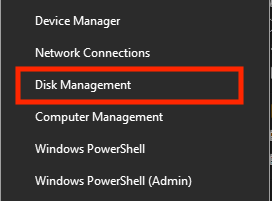
Step 1. Right-click on the "Start" option and select "Disk Management."
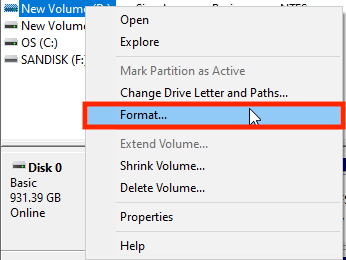
Step 2. Select the SSD you want to format, right-click on it and choose "Format".
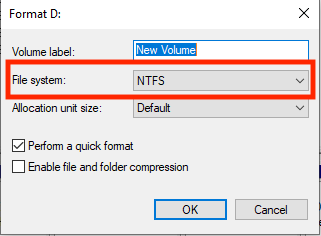
Step 3. To format your M.2 SSD, select the file system you want to use from the "File system" dropdown menu.
Step 4. Click on "OK."
Step 5. A pop-up box will open. Click on "OK."
If the format option in Disk Management is greyed out, you can try the following methods to resolve the issue:
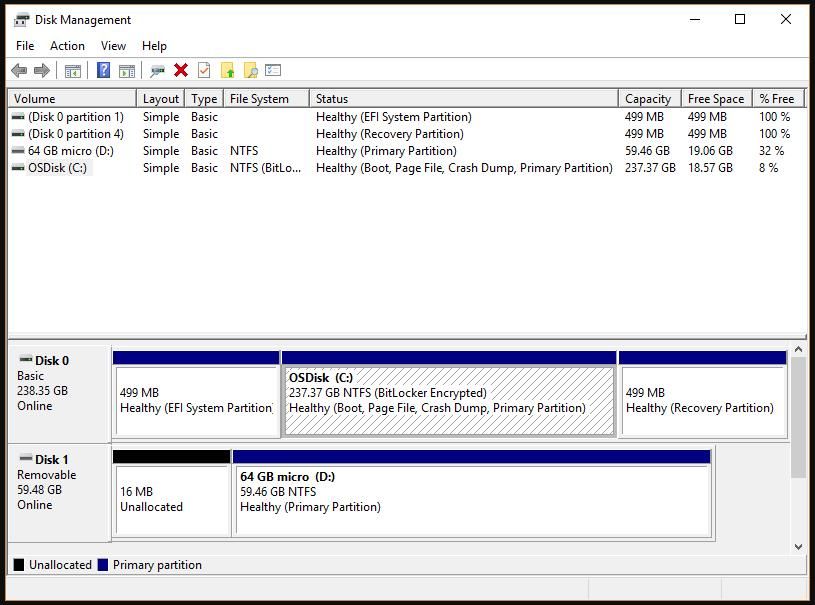
To fix the disk management format option greyed out in Windows, try running the Command Prompt as an administrator, then type "diskpart" and press Enter. Next, type "list disk" and press Enter, followed by "select disk" and the number of the disk you want to format.
If you're experiencing issues with the format option being greyed out in Disk Management on your Windows PC, don't worry, there are a few solutions to try. Firstly, you can try to disable the write protection on the disk by checking the disk's properties in the Device Manager.
Way 3. Run CMD/BIOS to Format M.2 SSD in Windows 10
To format your M.2 SSD using the command prompt, you can open the command prompt from the BIOS window and use the command "format" followed by the drive letter of your M.2 SSD. This will erase all data on the drive and make it functional again.
Here's how to do that:
Step 1. Boot your computer from the Windows 10 installation media in the BIOS, then click "Next" in the setup window.
Step 2. Choose the "Repair your computer" and "Troubleshoot" options.
Step 3. To access the Command Prompt, open a new window and select "Command Prompt" from the list of options. In the Command Prompt window, you can type commands directly to interact with the system.
- diskpart
- list volume
- select volume P (replace P with the number of your SSD drive you want to format.)
- format fs=ntfs quick label=test To format a hard drive with the NTFS file system, you can use the built-in formatting tool in Windows. First, open the File Explorer and right-click on the drive you want to format. Select "Format" from the context menu.
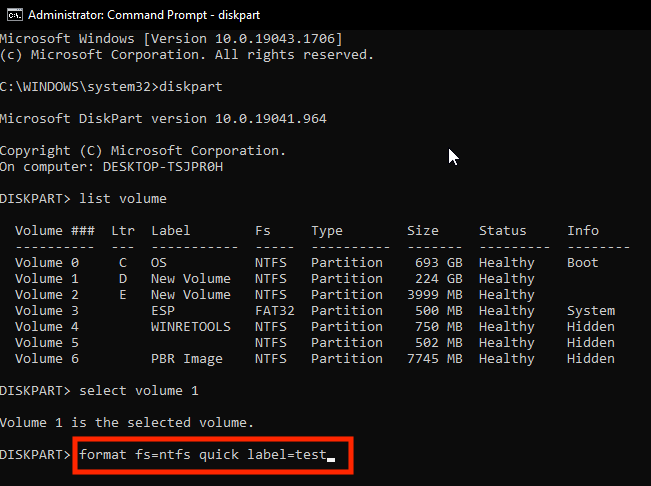
Step 4. Lastly, type and enter exit to quit this program.
For more solution to format hard drive from BISO, click the link below:
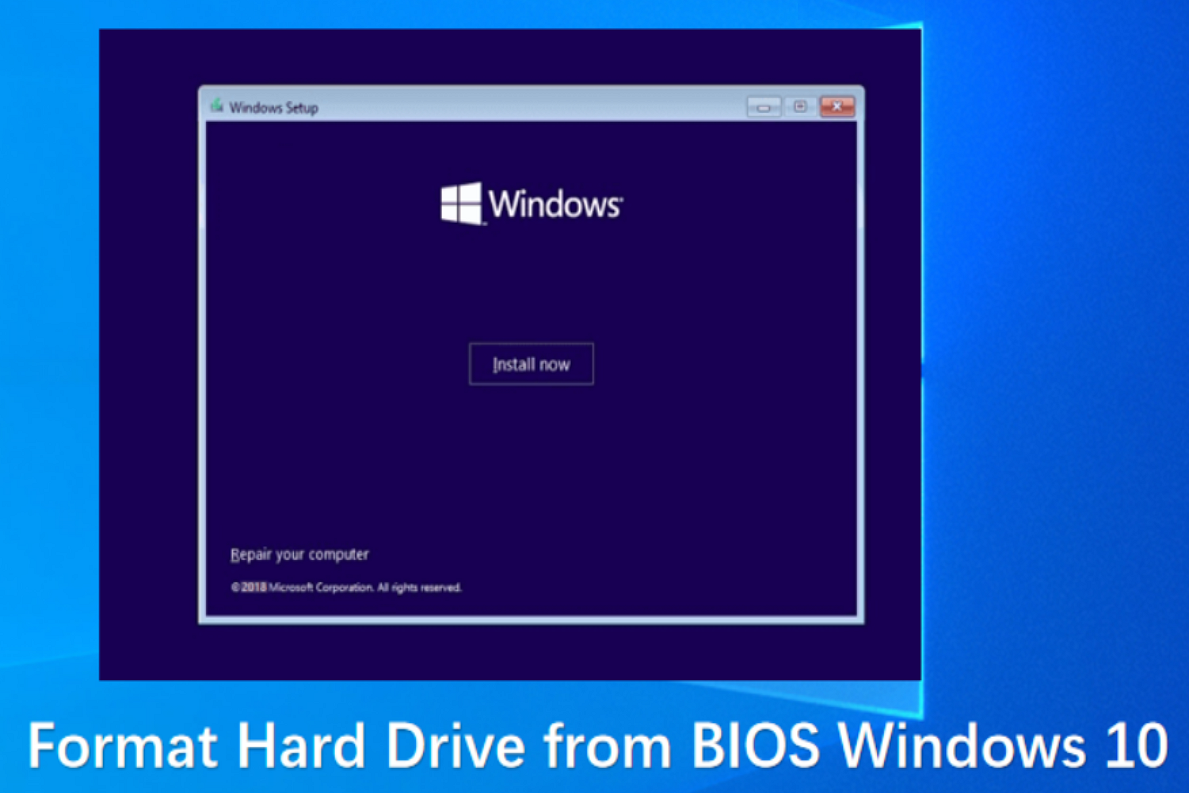
How to Format Hard Drive from BIOS Windows 10
This guide offers three comprehensive guides on formatting hard drives from BIOS in Windows 10, covering formatting via Qiling Disk Master, Command Prompt, and formatting during Windows installation.
this guide includes three effective ways how to format an M.2 SSD, which you can share on your social media to help more users in such trouble:
When Should I Format M.2 SSD in Windows 10
There are several reasons why formatting your M.2 SSD is a good idea. This can help improve your computer's performance, as it can help to remove any unnecessary files or programs that may be taking up space on your drive. Additionally, formatting your M.
- Fixing performance or any other issues: Formatting an SSD can improve its performance by clearing temporary files and reducing disk fragmentation.
- Changing the file system: If you want to change the file system on your M.2 SSD, it's best to format it. This will allow you to switch to a different file system, which can have its own set of advantages and disadvantages.
- Reusing a used M.2 SSD: If you bought a used M.2 SSD, it's a good idea to format it before using it. This will remove any existing data, including potential viruses or malware, making it safe to use in your computer. Formatting the SSD essentially gives you a clean slate, allowing you to start fresh and avoid any potential security risks.
Conclusion
If you're experiencing issues with your M.2 SSD, such as slow performance, or if you're buying or selling one, formatting is often necessary. However, if you just want to change the file system, you can use Qiling Disk Master to do so without formatting, preserving your files and time. If you do need to format your SSD, you can use Disk Management or the command prompt, but these options are less advanced and user-friendly compared to Qiling Disk Master.
FAQs About How to Format an M.2 SSD in Windows 10
Formatting an M.2 SSD on Windows 10 can be a bit tricky, but it's a straightforward process. To format an M.2 SSD, go to the Disk Management tool in Windows, select the M.
1. Should I format M.2 SSD before installing Windows 10?
Formatting your M.2 SSD before installing Windows is recommended as it improves performance and allows you to choose the file system beforehand, avoiding the need for a second reformat and Windows installation if you want to change the file system.
2. How can I format M.2 drive to NTFS?
You can use Qiling Disk Master to format your M.2 drive to NTFS, or alternatively, use Disk Management or the command prompt to do so. To format your SSD, select NTFS as the file system instead of a different one, as previously demonstrated in our solutions.
3. How to format a new SSD from the BIOS Windows 10?
Here's how to format a new SSD from the BIOS:
Step 1. To start the Windows 10 installation, use the installation media in the BIOS settings of your computer. Once in the setup window, select the "Next" option to proceed.
Step 2. Locate "Repair your computer" to Choose "Troubleshoot."
Step 3. In the following menu, select "Command Prompt." Type and enter the following commands one by one:
- list disk
- select disk X (replace X with the disk number you want to format.)
- clean
- create partition primary
- format fs=ntfs quick
- assign
The SSD has been reformatted to NTFS, which is a file system commonly used on Windows systems. This means that any data previously stored on the SSD has been erased, and it's now ready to be used as a new drive.
Related Articles
- Windows 11 MBR to GPT Convert Tool [Free&Paid]
- How to Apply Windows 10 Boot Repair [6 Promoted Ways]🔥
- [Solved] Diskpart Delete Partition Override Not Working
- How to Wipe All Data from PC (Windows 7/8/10/Vista/XP)
- Free Partition Manager on Windows Server 2008
How to find a free partition manager/magic on Windows Server 2008? We will introduce some free partition managers to quickly extend or move partition for space management. - Download Free Toshiba Format Tool and Format Toshiba Device with Ease
Download free Toshiba format tool here to format Toshiba laptops, USB flash drives, memory sd cards, internal and external hard drives.
Products
Articles & Tutorials
- Data Recovery
- Data Backup
- File Recovery
- File Backup
- System Backup and Restore
- Disk and Partition Clone
- Technical articles
- Mobile articles
- Disk Master Help
- Windows Data Recovery Tutorials
- Windows Secure Delete Tutorials
- Windows Partition Management Tutorials
- Windows File Backup and Restore Tutorials
- Windows System Backup and Restore Tutorials
- Windows Disk Backup and Restore Tutorials
- Windows Clone Tutorials