Download Free Toshiba Format Tool and Format Toshiba Device with Ease
You can use a third-party tool like Qiling Partition Master or MiniTool Partition Wizard to format your 32GB Toshiba USB drive to NTFS in Windows 10. These tools are easy to use and can help you format the drive without any issues. Simply download and install the software, select the USB drive, and choose NTFS as the file system. Then, follow the on-screen instructions to complete the formatting process. This should resolve the issue you're experiencing with the Windows 10 disk management program.
Toshiba produced a range of storage devices beyond USB flash drives, such as external hard drives and solid state drives, to cater to various user needs.
- Laptops: Toshiba Satellite, Toshiba Chromebook, Toshiba Radius, etc.
- Toshiba memory SD/SDHC/SDXC cards are available with a capacity range from 2GB to 256GB.
- Toshiba internal and external hard drives have a maximum capacity of up to 16TB.
When experiencing file system errors, device access issues, or hard drive/USB full but not showing issues on your Toshiba device, formatting is often the most effective solution to get your device working again.
What's the Best Toshiba Format Tool
Some of you may want to know what is the best Toshiba format tool. The best Toshiba formatting utility can fully support all Toshiba products, including the Satellite, Portégé, and Tecra series. Three formatting tools are available, and the best one can be determined by comparing their features, which can be found in the following information.
| Qiling Partition Master | Windows Disk Management | Windows File Explorer |
|---|---|---|
|
|
|
Qiling free partition manager is recommended as the best Toshiba formatting tool, according to the chart.
It's user-Get ready to breathe a sigh of relief, Toshiba users! Our software is here to help you format your SD card, hard drive, or USB drive with ease, and it's fully compatible with Windows 10. Say goodbye to formatting woes and hello to a seamless experience. With our tool, you can format your Toshiba storage device to NTFS or FAT32, giving you the flexibility you need to store and manage your files with confidence.
- Tip
- Formatting the storage device will completely erase all saved data on it, so make sure to back up any essential contents before proceeding.
How to Format Toshiba Devices with Qiling Partition Master
Applies to: Format all types of Toshiba storage devices to NTFS/FAT32/exFAT/EXT2/EXT3, fix "Windows was unable to complete the format" issue on storage devices.
Qiling Partition Master is a powerful disk and partition management program compatible with all Windows OS. You can format a device with it in simple steps.
Step 1. Select the USB drive to format.
To format a USB drive, connect it to your computer and download Qiling partition software. Once launched, right-click the USB drive you want to format and select "Format" from the menu.
Step 2. Set the drive letter and file system on USB.
Assign a new partition label, file system (NTFS, FAT32, EXT2, EXT3, EXT4, exFAT), and cluster size to the selected partition, then click "Proceed".
Step 3. Check "OK" to confirm formatting USB.
Click "OK" if you see the Warning window. If you have important data on it, back up the data in advance.
In addition to formatting Toshiba devices, Qiling Partition Master Free Edition can also be used to resolve various disk management issues, such as low disk space errors, incorrect hard drive capacities, and sudden hard drive slowdowns, on Toshiba and other storage devices.
Format Toshiba Device with Disk Management
This tool allows you to format Toshiba hard drives, external hard drives, or USB/SD cards to NTFS, exFAT, or FAT32 file systems, making them compatible with a wide range of devices.
If you're an experienced user, you can use Disk Management to format your Toshiba hard drive to the desired file system. To do this, go to Computer/This PC, right-click on the Toshiba hard drive, and select "Format" from the context menu. Then, select the file system you want to use, such as NTFS or FAT32, and choose the allocation unit size.
- Notice:
- Both Disk Management and File Explorer have limitations when it comes to formatting storage devices. They can only format internal hard drives to NTFS, external hard drives/USB/SD cards larger than 64GB to exFAT, and small storage devices (less than 32GB) to FAT32.
Step 1. Right-click "This PC" and choose "Manage".
Step 2. Go to "Disk Management".
Step 3. To format the Toshiba hard drive partition or external storage device, right-click on it and select the "Format" option from the context menu.
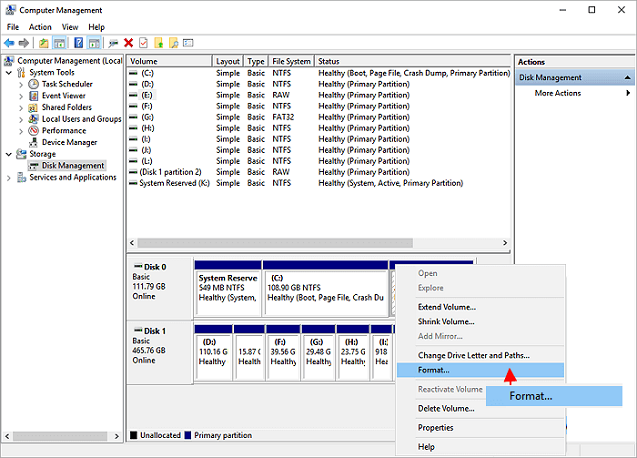
Step 4. Set a new volume label, choose the file system (NTFS or FAT32), and click "OK" to begin formatting the drive.
Format Toshiba Storage Device Using File Explorer
For beginners, Toshiba storage devices are best formatted to NTFS, FAT32, or exFAT, making it easy to use and access the data.
Another practical way to format Toshiba storage devices is to use File Explorer's built-in formatting feature, which is widely used among Windows beginners.
Here, we'll take formatting Toshiba USB as an example to show you the whole process:
Step 1. Connect your Toshiba USB to your PC.
Step 2. To access the USB drive, open Windows File Explorer by clicking on "This PC" or "My Computer" and navigate to the USB drive located within.
Step 3. Right-click on the USB drive and select "Format".
Step 4. Set the file system to "NTFS" or "FAT32" and click "OK".
Step 5. Then click "Start" to begin the formatting process.
Conclusion
This page provides three formatting tools with accompanying tutorials for Toshiba users to choose from and follow, allowing them to format their devices effectively.
Qiling Partition Master is the best tool for formatting Toshiba devices, offering free support for all user levels and resolving issues such as "Windows was unable to complete the format" and "Check and fix file system error", which cannot be fixed by Disk Management and File Explorer.
If you only need to format your device to FAT32, or NTFS, File Explorer is also a good choice.
Further Readings
Many people experience issues with Toshiba storage devices, including formatting problems, data recovery, and compatibility issues with their computer or device. These issues can be caused by various factors such as software glitches, hardware malfunctions, or user errors. Additionally, some users may encounter problems with Toshiba external hard drives, USB drives, or SD cards, such as data corruption, file system errors, or compatibility issues with their operating system or device.
If you have the same doubts or problems, follow and find answers here:
1. How do I fix Toshiba external hard drive not working or showing up?
If a Toshiba external hard drive is not working in Windows, it may not show up, be recognized, or show files. This can be due to various reasons such as driver issues, faulty connections, or corrupted file systems.
To resolve Toshiba external hard drive not detected, not showing up, or not working issues, try reconnecting the device, updating the drive driver, changing the drive letter, or swapping the connection cable. This can help resolve various problems such as the drive not showing up in This PC, not showing files, or being inaccessible.
If your Toshiba external hard drive is not showing up or working properly, you can try troubleshooting steps such as checking the power cord, restarting your computer, and updating your operating system. If the issue persists, you may need to reformat the drive or contact Toshiba support for further assistance. For a more detailed guide, you can refer to the article "Fix Toshiba External Hard Drive Not Working/Showing Up" for step-by-step instructions and solutions.
2. How do I recover formatted data from Toshiba SD card?
Toshiba SD card users often face data loss due to deletion, formatting, or misoperation, and in such cases, restoring the lost files from a backup is usually the first course of action.
If you don't have a backup of your data, you can use Deep Data Recovery software to easily recover data from your Toshiba SD card.
3. How do I fix Toshiba USB write protected error?
If you're experiencing issues with your Toshiba USB flash drive being write-protected, you can use a Toshiba flash drive repair toolkit to remove the protection and format the drive with ease.
#1. Qiling Tool M - Easiest ever method to remove write protection
Qiling Partition Master is considered the top 1 Toshiba USB format tool, offering a user-friendly interface and advanced features to manage Toshiba USB drives with ease.
For a detailed guide, follow the Toshiba USB Flash Drive Write Protected Remove Solution.
Related Articles
- Can I Upgrade Windows 8.1/8 to Windows 11? 2022 Step-By-Step Guide
- Format FAT32 Windows 11/10: How to Format HDD/External Hard Drive to FAT32
- M.2 VS SATA, What's The Differerence and How to Install [2022 Guide]
- How to Troubleshoot Critical Process Died Error in Windows 10/8/7 (10 Solutions)
- How to: Extend System Partition on Windows 10 [Safely and Quickly]
Learn how to extend system partition on Windows 10 easily and safely, thus you can fix Low Disk Space warning or app responding slow issue effectively. - Extend Volume Is Greyed Out in Windows 10 – Fix it Effectively
Extend Volume is greyed out and can't extend partition even with unallocated space? Refer to this post to get know why the issue occurs and how to fix it.
Products
Articles & Tutorials
- Data Recovery
- Data Backup
- File Recovery
- File Backup
- System Backup and Restore
- Disk and Partition Clone
- Technical articles
- Mobile articles
- Disk Master Help
- Windows Data Recovery Tutorials
- Windows Secure Delete Tutorials
- Windows Partition Management Tutorials
- Windows File Backup and Restore Tutorials
- Windows System Backup and Restore Tutorials
- Windows Disk Backup and Restore Tutorials
- Windows Clone Tutorials