How to Apply Windows 10 Boot Repair [6 Promoted Ways]🔥
Are you tired of dealing with boot issues on your Windows 10 computer? Whether it's the Blue Screen of Death or a won't boot error, these problems can be frustrating and time-consuming. You're not alone - many users have reported similar issues on the Microsoft forum, where they've shared their experiences and sought help from others.
If your Windows 10 computer won't boot, don't panic! Qiling can help with six effective ways to apply Windows 10 boot repair. From simple troubleshooting techniques to advanced system recovery options, we've can help. Whether you're experiencing startup problems or need to recover your system, this article will guide you through the process, providing invaluable solutions to get your computer up and running smoothly again.
This page can be applied to most Windows boot errors and startup problems, providing a solution for various issues that may occur when trying to start your computer. You can share this information with others via the social buttons below.
How to Perform Windows 10 Boot Repair - 6 Ways
This section provides six valuable solutions with a step-by-step guide to help you. Before taking action, you can get more basic information in the following table. However, if you'd like a brief summary, here's a concise version: This section offers practical solutions with a step-by-step guide to assist you.
| ⏱️Duration | 5-10 Minutes |
| 💻Goal | Fix Windows 10 won't boot |
| 👩💻Suitable User | For all users: beginners and experienced users |
| 🧰Preparation |
✔️Prepare a healthy computer and a USB. ✔️Download and launch Qiling Disk Master on a healthy computer. |
| 🛠️Methods |
Fix 1. Qiling Disk Master - Best Boot Repair Tool
Qiling Disk Master Professional is the best tool to repair Windows boot issues, including black/blue/white screen of death, with its user-friendly interface, enhanced data protection, and comprehensive features, making it ideal for repairing Windows boot problems without compromising data integrity.
To apply Windows 10 boot repair using Qiling Disk Master, refer to the simplified steps. These steps involve using the software to boot from a USB drive, selecting the correct drive and operating system, and then running the boot repair tool.
Step 1. After connecting the external drive/USB to your computer, launch Qiling Disk Master, navigate to the "Bootable Media" section, and click on "Create bootable media" to proceed.

Step 2. Insert a USB drive or CD/DVD and proceed with the installation. Alternatively, you can also burn the Windows ISO file to the storage media.

Step 3. To set up a new computer, connect a bootable drive created with WinPE to the computer, restart it by pressing and holding F2/Del to access the BIOS, select the bootable drive as the boot disk, and exit the BIOS settings by pressing F10.
Step 4. Boot the computer again and enter the WinPE interface. Then, open Qiling Disk Master, navigate to the "Tools and utilities" tab, and click "Fix Boot".

Step 5: Select the system you want to repair and click "Proceed".

Step 6. To repair the system, wait a moment and you will receive an alert that the system has been successfully repaired. Click "Finish" to complete the boot repair process.
Other Noble Functions of Qiling Disk Master
This tool allows you to perform various partition-related tasks beyond just formatting an SSD, including partitioning, resizing, and merging, as well as deleting and creating new partitions, all within a user-friendly interface.
- Solve the Default Boot Device Missing or Boot Failed error
- Fix UEFI Boot on Windows 11/10/8/7
- Fix Windows 10 startup repair not working
- Repair hard drive won't boot
Download Qiling Disk Master today to quickly restore your Windows 10 computer to its normal functioning state.
Fix 2. Change Boot Order in BIOS
If you have another available boot device that is already set in the BIOS settings, you can change the boot order and make the computer boot from it, allowing you to access the operating system and perform the necessary steps to install the new software.
Step 1. To access BIOS settings, simply restart your computer and press the F2, Del, F8, F10, or F12 key repeatedly until the BIOS settings menu appears.
Step 2. To adjust the boot order in the BIOS settings, go to the Boot tab and use the arrow keys to navigate to the desired position, then press Enter to select it. This will change the order in which the computer boots from different devices, such as the hard drive, CD/DVD drive, or USB drive.
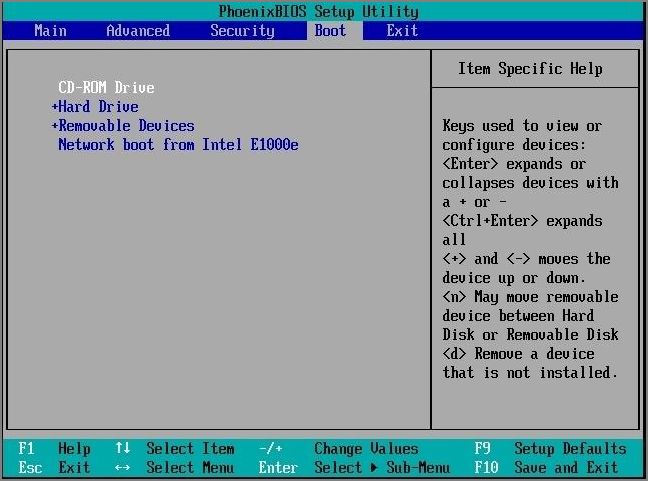
Step 3. Save the above settings and try to restart the computer.
Fix 3. Windows Startup Repair
There is a built-To repair boot errors on Windows 10, you can use the "Startup Repair" feature, a built-in tool that enables automatic repair of boot issues. To use it, follow these quick steps:
Step 1. Insert Windows 10 installation USB and reboot this computer.
Step 2. To set the installation USB as the first boot disk, refer to fix 2.
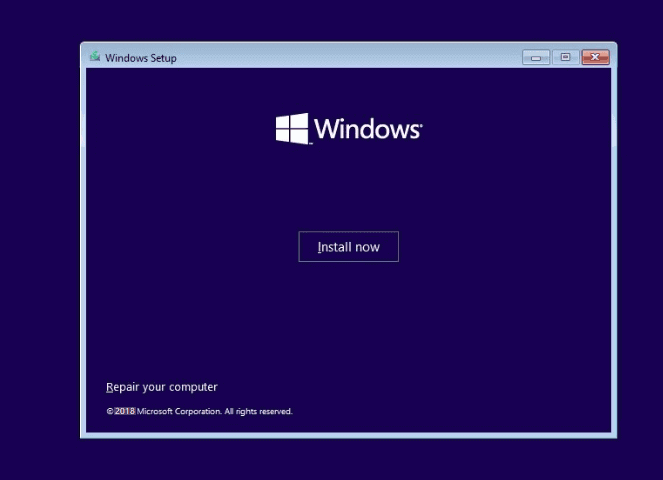
Step 3. You will enter the Windows Setup window and choose "Repair your computer" shortly.
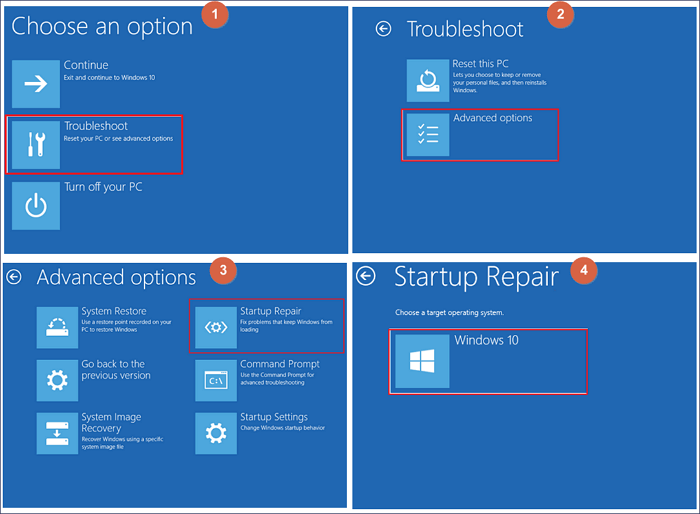
Step 4. To troubleshoot Windows 10, click on "Troubleshoot" to access the advanced options tab, then select "Startup Repair" and choose Windows 10 from the list.
Fix 4. Rebuild MBR via Bootable Media
To repair a corrupted MBR, you can use Qiling Disk Master's "Rebuild MBR" feature. First, download and install the software, then launch it and select the system disk you want to repair. Click on the "Rebuild MBR" button, confirm the operation, and wait for the process to complete. Once done, reboot your computer to test if the system boots normally. If the issue persists, you may need to restore the system to a previous state or seek further assistance from a professional.
Step 1. Create a WinPE bootable disk
- Launch Qiling Disk Master, click "Bootable Media" on the toolbar, and select "Create bootable media".
- Click "Next" to finish the process.
Step 2. Boot Qiling Disk Master Bootable USB
- Connect the bootable USB or CD/DVD to your PC.
- When you restart your computer, press F2 or Del to enter the BIOS screen. From there, set your computer to boot from a removable device or CD-ROM drive. Once set, Qiling Disk Master will automatically run.
Step 3. Rebuild MBR
- Right-To fix the issue, click on the head of the disk where the problem is occurring, select the type of MBR (Master Boot Record) you want to use, click on "Advanced" and choose the option to "Rebuild MBR".

- After that, you can see "MBR has been successfully rebuilt on Disk X". Then, click "Proceed".

Fix 5. Run CHKDSK to Repair the Corrupted Drive
CHKDSK commands is a built-Windows utility designed to scan and repair errors on your computer's hard drive, detecting and fixing issues with the file system and bad sectors.
Step 1. To configure keyboard input, language, and time settings during a Windows installation, insert the installation media, restart your computer, and follow the on-screen instructions. On the Windows Setup screen, click "Next" to proceed, then select "Language and Keyboard" and choose your preferred keyboard layout and language.
Step 2. Select the "Repair your computer" option, navigate to the C:\ drive where Windows is stored, and click "Next" to proceed.
Step 3. To recover your system, select the CMD option in the "System Recovery Options" box, type the command, and hit Enter.
- chkdsk C: /f (where "C:" is the letter of the boot device.)
Fix 6. Rebuild BCD File
The Boot Configuration Data (BCD) is a vital database that stores essential information about the installed operating system. If the BCD becomes corrupted or damaged, it can cause issues like being unable to boot into Windows, displaying error messages during startup, or indicating a missing operating system. Fortunately, rebuilding the BCD can resolve these problems and restore functionality to the system.
Step 1. To access the Run search box, press the "Windows + R" keys simultaneously, type cmd in the search box, and then press the "Enter" key.
Step 2. Enter the CMDs below and hit "Enter" for each one:
- Bcdedit /export C:\BCD_Backup
- ren c:\boot\bcd bcd.old
- Bootrec /rebuildbcd
Step 3. Type exit to quit the utility and restart your computer.
Conclusion
This post presents six solutions for various unbootable errors in Windows 10, with Qiling Disk Master being the preferred choice for Windows 10 boot repair due to its tested and proven "Boot Repair" function, which can also be used to rebuild MBR. If you're experiencing similar issues, installing this software can help eliminate startup problems in Windows 10.
FAQ of Windows 10 Boot Repair
If you're experiencing issues with your Windows 10 installation, and the solutions provided in the previous sections haven't resolved your problems, you can find additional information about Windows 10 boot repair in this FAQ section.
1. How to repair Windows 10 boot problems without reinstalling?
Corrupted or lost system files can cause Windows 10 to fail to boot, but running the system file checker using CMD can help repair the issue. To do this, users can follow a tutorial that explains how to run the system file checker and repair Windows 10. This process can help resolve the problem and get Windows 10 up and running again.
Step 1. Restart your computer from the Windows boot media.
Step 2. Navigate to the Windows Setup window and click "Next".
Step 3. To access the Command Prompt in Windows, select the "Repair your computer" option, then choose "Troubleshoot", followed by "Advanced options", and finally "Command Prompt".
Step 4. Type the CHKDSK commands below and hit "Enter" for each.
- sfc /scannow
- chkdsk /f /r /x C:
2. Can I fix Windows 10 failed to boot without a disk?
To resolve startup issues on Windows 10, press F11 during the boot process to access the Advanced Startup Options menu. From there, select "Troubleshoot" and then "Advanced Options," followed by choosing "Startup Repair." This will allow Windows 10 to automatically fix any startup problems.
3. How do I factory reset a Windows 10 computer?
To reset your computer, go to Start, then Settings, Update & Security, Recovery, Reset this PC, and Get Started. Select Keep My Files, choose Local or Cloud storage, and adjust your preferences. Finally, choose Restore preloaded apps.
Related Articles
- Steam Deck Speed Test, Everything You Should Know
- Why Does Computer Keep Crashing? 10 Instant Ways to Fix Computer Keeps Crashing
- How to Clone OS from HDD to SSD Windows 11/10 Easily
- 5 Ways to Hide Drives in Windows 10 | Check Your In-depth Tutorial
- Fixed: Boot Drive Not Showing Up in BIOS | 2024 Best Tips🔥
This guide provides solutions to the problem of a boot drive not showing up in BIOS, offering seven different methods to resolve the issue. To help you troubleshoot and fix the problem, you'll find detailed explanations and steps to take in this article. - How to Boot From NVMe [2024 Easy Tutorial]
Learn how to boot from an NVMe drive and use it as your primary boot drive with our easy-to-follow guide. We'll walk you through the clear steps to enhance and improve your system boot times, making it a great resource for anyone looking to upgrade their system's performance.
Products
Articles & Tutorials
- Data Recovery
- Data Backup
- File Recovery
- File Backup
- System Backup and Restore
- Disk and Partition Clone
- Technical articles
- Mobile articles
- Disk Master Help
- Windows Data Recovery Tutorials
- Windows Secure Delete Tutorials
- Windows Partition Management Tutorials
- Windows File Backup and Restore Tutorials
- Windows System Backup and Restore Tutorials
- Windows Disk Backup and Restore Tutorials
- Windows Clone Tutorials