What Is Format SD Card, Everything You Are Concerned About
Formatting an SD card is the process of erasing all data on the card and preparing it for reuse. You may need to format your SD card when it becomes full, you want to free up space, or when you're switching to a different camera or device. Formatting an SD card is a simple process that can be done using the device it's connected to, and it's usually done to make the card compatible with a new device or to clear out old data.
What Is Format SD Card?
Formatting an SD card is the process of preparing it for use in a device, such as a camera or smartphone. It involves erasing all the data on the card, including files, folders, and any other information. This is done by rewriting the card's file system, which is the way the card organizes and stores data. When you format an SD card, you are essentially giving it a clean slate, allowing you to start fresh and use it to store new files and data. The formatting process does not damage the card itself, but rather, it prepares it for new use.
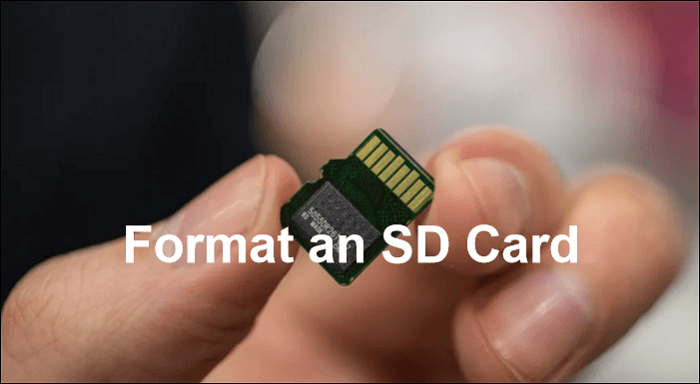
What Does It Mean to Format Your SD Card?
Formatting an SD card erases all files, including internal hidden ones, making it reusable. This is a good way to reset or clear an SD card.
Formatting an SD card is a crucial step to prepare it for use with a device, and its specific purposes include initializing the card's file system, erasing any existing data, and preparing the card for new files and data to be written to it, thereby making it ready for use with a device such as a camera, phone, or computer.
- Change the file system
- Fix corrupted SD card
- Erase data
Formatting an SD card does not necessarily delete all the data. The formatting process will erase the file system and any data that is stored in a way that is easily readable by the operating system, but it may not remove data that is stored in a way that is not easily readable, such as data that is stored in a compressed or encrypted format. Additionally, if the SD card has been previously used with a device that has a built-in data recovery feature, such as a smartphone or camera, it may still be possible to recover some or all of the deleted data.
Does Formatting an SD Card Delete Everything?
Formatting your SD card is like a reset, it refreshes the file system and deletes all data on the card. There are two types of formats: one that completely erases data and another that only reorganizes the file system, leaving data intact. However, the first type is the one that completely erases data.
Quick Format: The process involves a quick format and deletion of data on the SD card, but leaves a window for potential recovery of the data.
Full Format: The full format rewrites each sector of the drive, overwriting existing data and making it impossible to recover.
You should format an SD card when you want to erase all the data on it, or when it's not recognized by your device. This can be due to corruption, viruses, or other issues that prevent the card from being read. Formatting the card will remove all files and data, so make sure you back up any important information before doing so.
When Do You Need to Format an SD Card?
Formatting an SD card is necessary when you need to erase all data on it, which can be done using a device such as a computer or a camera. This process is typically required when you want to reuse the card or get rid of any unwanted data. The steps for formatting an SD card may vary depending on the device being used, but the general process usually involves accessing the card's settings, selecting the option to format, and confirming the action.
- SD card gets full without too many big files stored.
- You're going to start on a new project.
- The SD card has not been formatted in a while.
Formatting an SD card on your device is a relatively straightforward process. There are three ways to do it, which will be covered in the next part.
How to Format SD Card Windows 10 [3 Methods]
To format an SD card, you can use the built-in formatting tools or a third-party SD card formatting tool. One method is to use the built-in formatting tools, which can be accessed through the device's settings or file manager app. Another method is to use a third-party SD card formatting tool, which can be downloaded from the app store and used to format the SD card.
Method 1. Format an SD Card Using Free Formatting Software
Qiling Partition Master Free is a free SD card formatting tool that is compatible with various Windows operating systems, including Windows 11, 10, 8.1, 8, 7, Vista, and XP, making it a reliable option for formatting an SD card.
Now, let's see the specific steps to format an SD card using Qiling Partition Master.
Step 1. To format an SD card, locate the card and right-click on the partition you want to format, then select the "Format" option.
Step 2. Set a new partition label, file system, and cluster size to the selected partition, then click "Proceed" to finalize the changes.
Step 3. To start formatting your SD card, click "Yes" on the pop-up window that appears. This will initiate the formatting process, which will erase all data on the card.
Qiling Partition Master can help with formatting an SD card, as well as other tasks such as resizing partitions, moving partitions, and creating a bootable USB drive. It also has features for managing disk space, such as checking disk usage, deleting unnecessary files, and optimizing disk space. The software can also help with data recovery, including recovering deleted files and restoring partitions.
- Format USB to boot
- Bootable format disk
- Clone system and partitions
- Change drive letter or partition label
- Convert MBR to GPT without data loss
- Create, extend, shrink, resize, and delete partitions
If you need to manage partitions or format a storage device, Qiling Partition Master is a reliable tool to download and use.
Method 2. Format an SD Card Using Disk Management
Disk Management is a useful built-in tool in Windows that allows users to manage disks on their computer. It also enables formatting storage devices such as SD cards, memory cards, or pen drives. With Disk Management, users can easily format an SD card.
Step 1. Right click This PC > Management > Disk Management.
Step 2. Select the desired SD card from the list and click on the "Format" option.
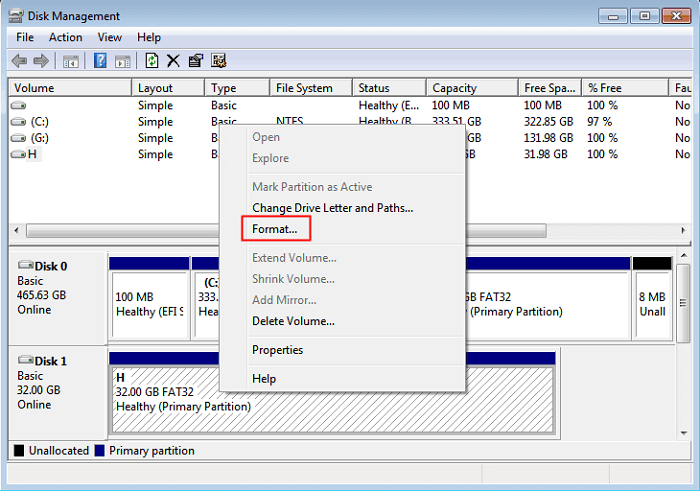
Step 3. On the format window, select the file system and allocation unit size.
If your SD card is not detected or not showing up, you can try formatting it or checking the connections. After formatting, you can use the SD card again. If the issue persists, checking the connections and ensuring the SD card is properly seated in the device may resolve the problem.

If your SD card is not showing up on your Windows 11/10 device, try these steps: First, ensure the card is properly inserted into the reader or slot. Next, restart your computer to refresh the system.
This post provides 9 approaches to troubleshoot and resolve the issue of an SD card not being detected or showing up on Windows 11/10.
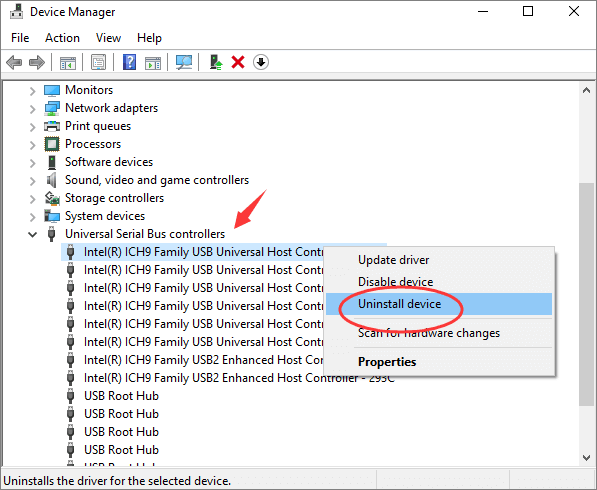
Then, you can format your SD card. Besides Disk Management, there is another tool to help. Let's continue.
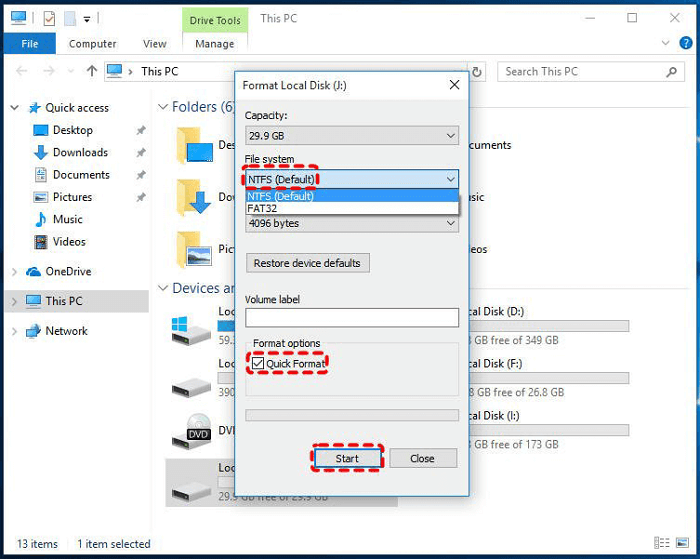
Method 3. Format an SD Card Using the Windows 10 File Explorer
Windows 10 File Explorer can also be used to format SD cards. To do this, simply insert the SD card into your computer, open File Explorer, right-click on the SD card, and select "Format" from the context menu. This will allow you to format the SD card, erasing any existing data and preparing it for use with your device.
Step 1. Connect the SD card to your Windows 10 computer using a card reader. This will allow you to access the SD card's contents and transfer files to and from the card.
Step 2. Double-click "This PC" on the desktop to open Windows File Explorer.
Step 3. Right-click your SD card and choose "Format" in the pop-up menu.
Step 4. Select the file system and format options. Then, click "Start".
Besides, the two links can help you if you have other questions, such as:
When you format an SD card, it essentially wipes all the data on it, including photos, videos, documents, and other files. The formatting process deletes all the file systems, partitions, and data structures on the card, effectively erasing everything. This means that if you have important files on the card, you'll lose them forever if you format it. However, formatting an SD card can be useful for preparing it for reuse or for transferring data from one device to another, as it allows you to start with a clean slate.
Bonus tip: What Happens When You Format an SD Card?
When you click the format option, you will erase the data on the SD card, wiping out the previously existing data and creating a new file system.
Formatting an SD card erases all data on it, making it inaccessible until you put new data on it. This process prepares the card to store new data.
Conclusion
Formatting an SD card can be a straightforward process, and while using Disk Management and Windows File Explorer can get the job done, there's a simpler and easier way to do it. Qiling Partition Master offers a more streamlined approach to formatting your SD card, making it a better choice for those looking for a hassle-free experience.
You can manage your storage devices and partitions well with its help. So download it and have a try.
FAQs About What Is Format SD Card
In this part, you can see three questions related to formatting SD cards. If you are interested, continue to read.
1. Should I format my SD card?
Formatting an SD card can free up space for new data and prevent corruption, but it's essential to back up your data first.
2. How to format an SD card on the Mac?
Follow these steps:
Step 1. Connect the SD card to Mac.
Step 2. Open "Disk Utility".
Step 3. Select your SD card.
Step 4. Click on the "Erase" button.
3. What does format SD card mean on Android?
Formatting an SD card on Android will delete all data stored on it, and the data will be irretrievable.
Related Articles
- [Fixed] There Is No exFAT Format Option in Windows 11/10/8.1/8/7
- How to Partition SD Card for Android
- How Do I Fix Windows 10 BSOD: Blue Screen of Death Error? Here Is The Guide
- How to Format BitLocker Partition in Windows 11
- Why Extend Volume Greyed Out and How to Fix Successfully?
If you're unable to extend a volume using the built-in Disk Management tool, you can use Qiling Disk Master to extend the partition when there's no contiguous unallocated space available. This alternative approach allows you to expand the volume even when the standard method is greyed out. - Cannot Convert Partition Between Primary and Logical
Situations that a partition cannot be converted to primary/logical.
Products
Articles & Tutorials
- Data Recovery
- Data Backup
- File Recovery
- File Backup
- System Backup and Restore
- Disk and Partition Clone
- Technical articles
- Mobile articles
- Disk Master Help
- Windows Data Recovery Tutorials
- Windows Secure Delete Tutorials
- Windows Partition Management Tutorials
- Windows File Backup and Restore Tutorials
- Windows System Backup and Restore Tutorials
- Windows Disk Backup and Restore Tutorials
- Windows Clone Tutorials