No EFI System Partitition Was Found? 4 Quick Fixes!
- Fix 1. Use Qiling Disk Master - Easy for Beginners
- Fix 2. Recover the Lost EFI System Partition
- Fix 3. Recreate an EFI System Partition
- Fix 4. Check BIOS Settings
This article from Qiling offers 4 fixes for the No EFI System Partition Was Found error on PC, while also explaining what the EFI system partition is and its importance. The article aims to provide helpful solutions to users experiencing this issue.
Overview of EFI System Partition
The EFI System Partition (ESP) is a crucial component of a computer's boot process, especially for systems that use the Unified Extensible Firmware Interface (UEFI). It serves as a bridge between the operating system and the firmware, allowing the system to boot and load the necessary files and drivers.
1. What Is EFI System Partition?
The ESP partition is a small partition on a data storage device that is essential for rebooting a system smoothly, but it can't be directly located in File Explorer as it doesn't have a designated drive letter. In systems using UEFI firmware, it's necessary to find and load the bootloader files for the operating system.
2. Is EFI System Partition Necessary?
The ESP (EFI System Partition) is a necessary partition on a system that contains diagnostic tools and recovery utilities to troubleshoot boot issues. If the ESP is missing, it can cause a "No EFI System Partition Was Found" error, which can lead to system boot problems. To resolve this issue, it is essential to have this partition on your system, and we will provide guidance on how to do so in this article. By sharing this information, others can also resolve this system boot error without hassle.
How To Fix the "No EFI System Partition Was Found" Error?
Once you're familiar with the cause of the "No EFI System Partition Was Found" error, you can try booting your PC using simple boot repair or adding new partitions. These fixes can help you boot your operating system, and going through them can also help prevent future complications.
Fix 1. Use Qiling Disk Master
Users who don't know about EFI system partitions can simply access their operating systems using boot repair tools, avoiding the struggle of creating new partitions. To do this, download Qiling Disk Master Professional to successfully boot up the system.
This third-party tool allows you to start Windows without any issues and creates a bootable media to resolve the "No EFI System Partition Was Found" error, also helping to fix black screen and system crash problems caused by a missing ESP.
Here is how:
Step 1. After connecting the external drive/USB to your computer, launch Qiling Disk Master and navigate to the "Tools" tab page, then click on "Create bootable media" to proceed.

Step 2. To create a bootable USB drive or CD/DVD, select a suitable storage media and click on the "Create" option. Alternatively, you can also burn the Windows ISO file onto the chosen media.

Step 3. Connect a bootable drive to a new computer, reboot by pressing F2/Del to enter the BIOS, set the bootable drive as the boot disk, and exit the BIOS by pressing F10.
Step 4. Boot the computer again, enter the WinPE interface, and open Qiling Disk Master. From there, click "Fix Boot" under the "Tools" option.

Step 5: Select the system you want to repair and click "Proceed".

Step 6. Wait a moment, and you will receive an alert that the system has been successfully repaired.
When the EFI system partition is missing, you may need a Windows boot repair tool to boot your PC normally. This tool can help you recover your computer's boot functionality and ensure it starts up properly.
Fix 2. Recover the Lost EFI System Partition
To resolve the "No EFI System Partition Was Found" issue, you can use the "Recover Partition" feature in Qiling Partition Manager to recover the lost ESP in your device. This tool can recover any lost partition, thus solving the problem.
Qiling Disk Master can recover the EFI partition even if it was lost due to a Windows crash or virus attack. Additionally, the tool allows users to check and identify corrupted files beforehand, preventing potential future complications.
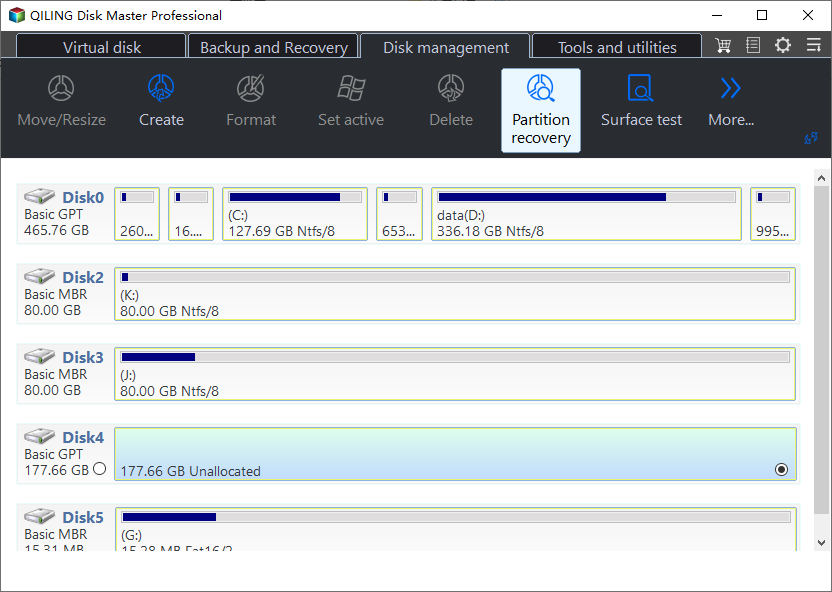
Step 1. Open Qiling Disk Master, click "Partition Recovery", select the target disk with your lost partition, and click "Proceed".
Step 2. Wait patiently to let the software execute the Quick Scan and Full Scan operations. It will mark your deleted partition as "lost" in the Status section. Select the lost partition and click "Recover".
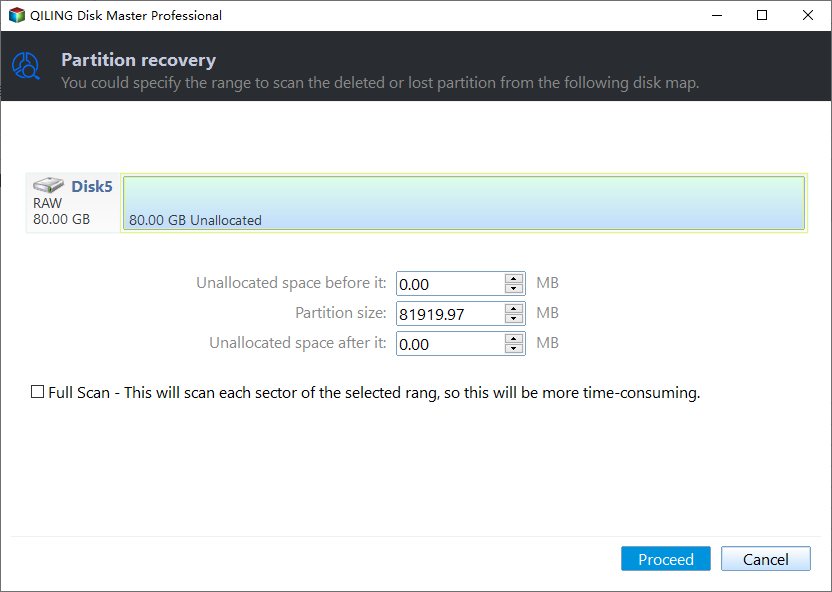
You can also double click on the partition you're looking for to preview its content.
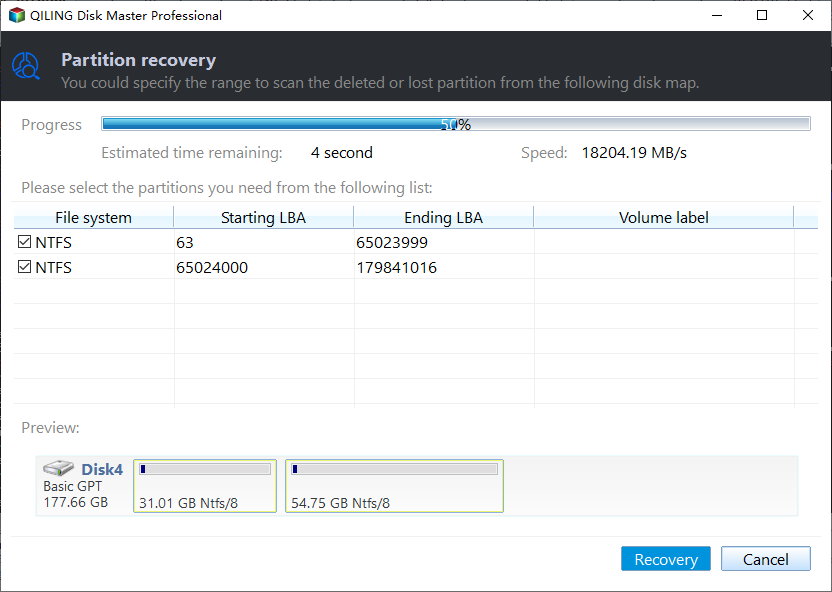
Step 3. Wait patiently and click "Finish" when the partition recovery process completes.
To recover data from an EFI system partition using Qiling Disk Master, first, download and install the software, then select the drive with the EFI system partition from the list of available drives. Next, choose the partition type as EFI System Partition and select the partition you want to recover data from.
Fix 3. Recreate an EFI System Partition
To resolve the "No EFI System Partition Was Found" issue, you can try recreating the EFI system partition using the built-in Windows tool, Disk Management, or the command line interface using the `bcdboot` and `diskpart` commands. Alternatively, you can use a third-party tool like Qiling Partition Master or MiniTool Partition Wizard to create a new ESP. If none of these methods work, you can try booting your system in Safe Mode and then run the `chkdsk` command to identify and fix any disk errors. If the issue persists, you may need to reinstall Windows or seek professional assistance.
Step 1. To start the process, boot your computer using the Windows installation media, then access the first screen. Next, tap the "Shift + F10" keys to open the Command Prompt utility tool on your system.
Step 2. To shrink a partition and free up unallocated space, follow these steps: once you access the application, type the command and hit Enter, then type the next command and hit Enter, and so on. The commands are: (insert commands here).
- "diskpart"
- "list disk"
- "select disk 1" (Replace 1 with the disk name where you want to add the ESP.)
- "list partition"
- "select partition 2" (Write the partition name you plan to shrink in place of 2.)
- "shrink desired=100"
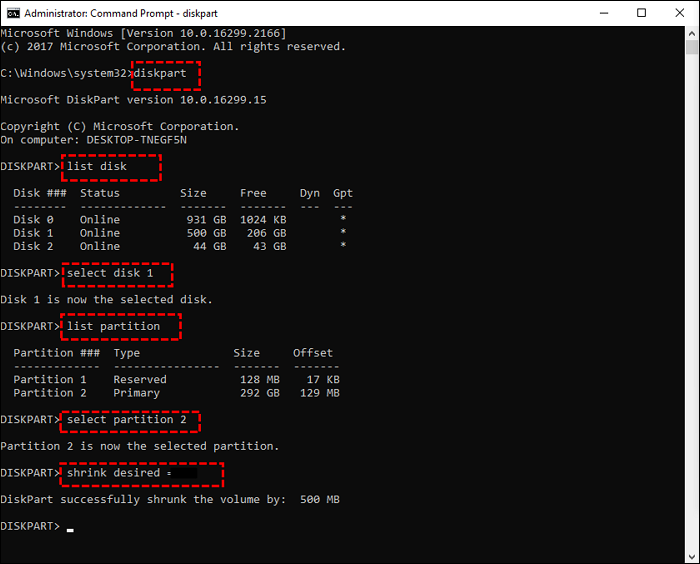
To free up 100MB of unallocated space, you can run the commands `parted /dev/sda resizepart 3 100%free` and `parted /dev/sda resizepart 2 100%free` followed by `parted /dev/sda resizepart 3 100%free` and `parted /dev/sda resizepart 2 100%free` again. This will remove the 100% free space from the swap partition and the root partition, allowing you to create an ESP (EFI System Partition) on the newly freed space.
Step 3. To create the EFI system partition with the unallocated space, you will need to write the commands below and hit the "Enter" key after each of them.
- "create partition efi size=100"
- "format quick fs=fat32"
- "assign letter=S" Users have the option to replace the letter "T" with other letters which are available for use.
- "exit"
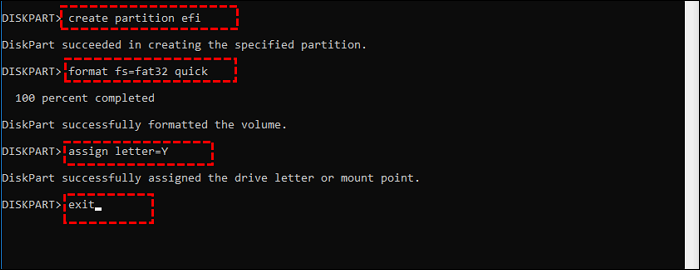
Step 4. To create the BCDBoot store, use the following commands to copy and paste the boot file from the Windows partition to the ESP, allowing you to boot the system. This will enable you to boot the system.
"bcdboot X:\windows /s S:"

(Here, you can replace X and S with the letters you have selected during the previous steps.)
To resolve the "No EFI System Partition Was Found" issue, restart your computer to see if the problem is resolved. If this method helps, consider sharing this article to assist others in successfully booting their operating systems.
Fix 4. Check BIOS Settings
To resolve the "No EFI System Partition Was Found" error, you can try accessing the BIOS settings when booting your PC. To do this, restart your computer and immediately press the key that opens the BIOS settings, which is usually F2, F12, or Del. Once in the BIOS settings, navigate to the "Boot" or "Advanced" tab and ensure that the UEFI mode is enabled. Save the changes and exit the BIOS settings.
Step 1. To access the BIOS settings, restart your computer and press the specific BIOS key (usually F2, F10, or Esc) while it's booting up, as the key may vary depending on your PC's model and brand.
Step 2. To resolve the issue, go to the "Boot Settings" window and select the "UEFI" option from the "BIOS Boot Mode" dialog box. This will solve the problem.
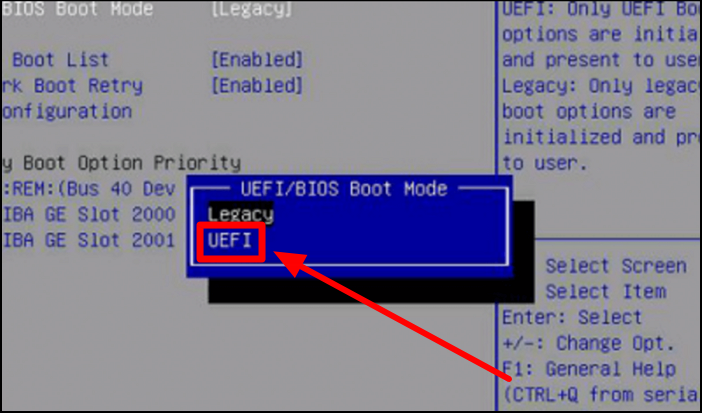
Step 3. To finalize the changes, press the "F10" and "Enter" keys in succession. This will confirm the updates and allow you to exit the BIOS Setup.
Conclusion
To fix the "No EFI System Partition Was Found" issue, you can try various methods, including using Qiling Disk Master, a third-party tool that offers boot repair and lost partition recovery features. This tool can help resolve ESP-related issues, and you can also try other methods mentioned in this article to boot your system normally without complications.
EFI System Partition Missing FAQs
Users can get all the information they need to solve this issue after reading the article. However, we will still discuss some common information related to this process through these commonly asked questions.
1. Why is the EFI system partition missing?
Your system may be missing the ESP due to accidental deletion of system partitions, corruption from sudden power outages in EFI partitions, or bad sectors in the partition.
2. What if there is no EFI partition?
When your computer can't find the ESP (EFI System Partition), it won't boot properly. The ESP is crucial for booting your PC because it holds UEFI boot loaders and drivers, which are necessary for the system to start up.
If you can't find the ESP partitions, it's suggested to recreate the ESP using the Command Prompt. Alternatively, you can use Qiling Disk Master to resolve the "No EFI System Partition Was Found" issue.
3. How to fix no EFI system partition found on Ubuntu?
If you're unable to boot your Ubuntu operating system, it may be due to a missing EFI system partition. Fortunately, this issue can be quickly resolved using the following steps.
- 1. To boot your system using the Ubuntu USB drive, start by booting your system from the USB drive. Then, select the "Ubuntu without Installing" option to proceed with the process.
- 2. To access the command prompt and run a command to mount the EFI partition, hit the "Shift + F10" keys.
- "sudo mount /dev/sda1 /mnt"
- 3. Access the EFI directory with the "cd /mnt/EFI" command, then rename the bootloader using the command prompt by entering "sudo mv grubx64.efi bootx64.efi".
Related Articles
- How to Clone Windows 11 to New Computer [Step-by-Step Guide]
- Diskpart Delete Server Partition: Get Solutions to Delete Recovery Partition
- How to Clone Hard Drive From Boot [Step-by-Step Guide]
- How to Remove Bad Sectors from Hard Disk Permanently
Don't know how to remove bad sector from hard disk permanently? Refer to this article to get the best solution of this problem on Windows 11, 10, 8, 7. - Solved: Unable to Format External Hard Drive in RAW
Do you feel frustrated because you are unable to format external hard drive in RAW? Read this article patiently and find effective solutions here. - How to Use Unallocated Space After Cloning to A Larger HDD/SSD?
If you've cloned your hard drive to a larger HDD or SSD, you might notice unallocated space left behind, this space can still be utilized, and this post will guide you through the process of making full use of it in Windows 11/10/8/7.
Products
Articles & Tutorials
- Data Recovery
- Data Backup
- File Recovery
- File Backup
- System Backup and Restore
- Disk and Partition Clone
- Technical articles
- Mobile articles
- Disk Master Help
- Windows Data Recovery Tutorials
- Windows Secure Delete Tutorials
- Windows Partition Management Tutorials
- Windows File Backup and Restore Tutorials
- Windows System Backup and Restore Tutorials
- Windows Disk Backup and Restore Tutorials
- Windows Clone Tutorials