How to Clone Windows 11 to New Computer [Step-by-Step Guide]
Planning to get a new computer but don't know how to migrate Windows 11 and data from your old one? This article will guide you in cloning your Windows 11, saving you time and effort by not having to reinstall the system, applications, and files.
Why Clone Windows 11 to New Computer
Cloning Windows 11 to a new computer allows you to transfer the operating system, system settings, programs, and data from your old computer to a new one, saving you time and effort, especially when you're upgrading to a new computer with a similar setup.
However, how can we safely clone Windows 11 to a new computer? First, you need to turn to a professional cloning tool, Qiling Disk Master Professional.
Clone Windows 11 to New Computer Safely and Efficiently - Qiling Disk Master
Qiling Disk Master is a reliable tool for cloning Windows 11/10/8 and Windows 7 operating systems. It features a "Clone Windows to new disk" function that enables users to easily migrate their Windows 11 installation to a new computer with minimal effort, making it a convenient solution for those looking to upgrade or transfer their operating system. The software is user-friendly, providing clear prompts to guide users through the cloning process, allowing them to complete the task efficiently. By downloading Qiling Disk Master, users can follow a straightforward guide to successfully clone their Windows 11 installation.
But before cloning, read the note to make the process smooth.
- Notice:
-
1. You want to transfer the hard drive from the old computer to the new one, so you can reuse the old computer's hard drive in the new one. This is a good way to reuse the old computer's hard drive and save money, but it may require some technical knowledge and caution to avoid data loss or other issues.
2. Make sure the hard disk meets the Windows 11 requirements.
3. After the cloning process is complete, reconnect the new disk to the target computer and promptly modify the BIOS settings. This will allow the system to be activated within the specified time limit.
To clone Windows 11 to a new PC using Qiling Disk Master, start by creating a bootable USB drive with the Qiling Disk Master software. Then, connect the USB drive to the new PC and boot from it.
Guide 1. Clone Windows 11 to New Computer
Step 1. Launch Qiling Disk Master, go to the Tools tab, select "System Clone" from there.
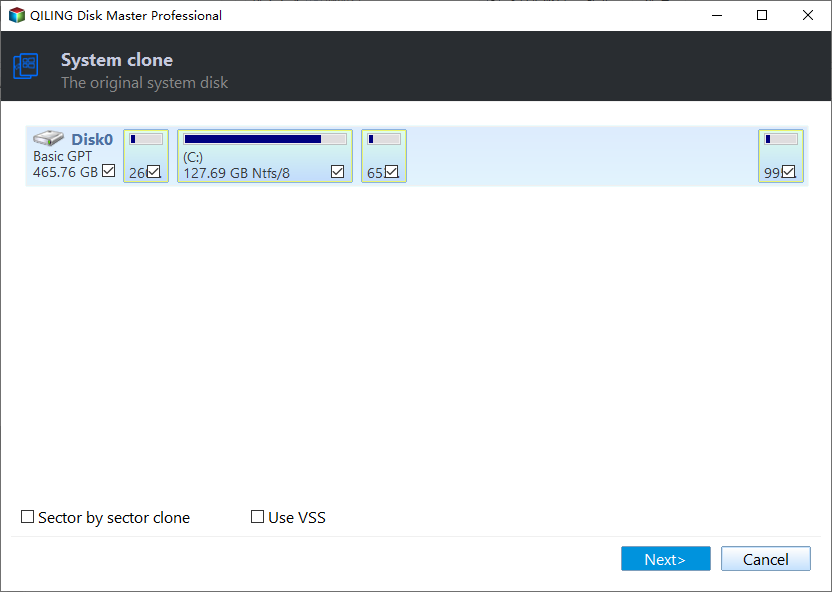
Step 2. Select the target new drive where you want to clone the OS to, and click "Next".

Click "Yes" to confirm that you want to continue the OS disk cloning process. This will finalize the cloning of the operating system to the target disk, replacing the existing contents of the target disk.

Step 3. To start the OS cloning process, view the disk layout and click "Proceed" to initiate the cloning.

Step 4. Once the cloning process is complete, you'll see a confirmation message asking if you want to start up your computer from the cloned target disk.
- Reboot Now To "reboot and reconfigure" your PC means to shut down and restart your computer, then set it up to boot from a new operating system (OS) on a different disk immediately after the restart. This process essentially allows you to switch from one OS to another without having to go through the initial setup process again.
- Done means you want to make the changes later.
If you're struggling, don't hesitate to seek help from professionals who can provide guidance and support.
Qiling experts provide one-on-one manual services 24/7 to help solve system or disk cloning startup issues, offering free evaluation and efficient diagnosis and resolution of disk cloning or system disk boot problems using their decades of experience.
- 1. Target disk becomes unbootable or SSD won't boot after clone.
- 2. The target disk is unable to boot after performing customized partition operations. This issue typically occurs when the boot partition or the boot sector is accidentally deleted, resized, or corrupted during the partitioning process.
- 3. To seamlessly clone OS disk to new drive and boot PC without any issues.
After completing the cloning process, you successfully cloned Windows 11 to the target disk using the system clone software.
To set your new hard drive as the boot drive, first, ensure the hard drive is properly installed in your computer. Next, enter your computer's BIOS settings by pressing the corresponding key (usually F2, F12, or Del) as your computer boots up. In the BIOS settings, navigate to the boot order section and set the new hard drive as the first boot option.
Guide 2. Set the Boot Drive
To set the target hard disk as the boot drive on your new computer, you'll need to enter the BIOS settings and select the target drive as the primary boot device. This process usually involves pressing a key (like F2, F12, or Del) as the computer boots up, then navigating to the boot order settings and selecting the target drive.
Step 1. To access the BIOS settings on your new computer, simply restart it and press the Del, F2, or F8 keys (depending on the manufacturer) as soon as it boots up. This will take you to the BIOS settings, where you can make any necessary adjustments.
Step 2. To set the target hard disk as the boot disk under Boot Priority, you should select the target hard disk as the primary boot device in the BIOS settings. This will ensure that the computer boots from the target hard disk instead of the original boot disk.
Step 3. Save your changes before exiting.

The system needs to be activated within a certain time limit.
Qiling Disk Master is a reliable and safe cloning tool that offers a range of features beyond cloning, including disk partitioning, formatting, and data recovery. Its user-friendly interface and robust functionality make it a popular choice among users.
Features of Qiling Disk Master:
- Clone SD card
- Migrate OS to SSD
- Clone C drive on Windows 10
- Clone Windows 10 to larger SSD
- Clone larger HDD to smaller SSD
Conclusion
Cloning Windows 11 to a new computer is a straightforward process that can be achieved with the right tool. By using a professional, safe, and effective cloning tool, you can easily transfer your Windows 11 system to another computer, making the process very easy. This approach is beneficial for various reasons, including the ability to preserve your existing settings, applications, and data, and to avoid the hassle of reinstalling and reconfiguring your system from scratch.
If you're struggling with cloning your system to a new computer or dealing with disk partition issues, consider downloading a tool to assist you in this process.
FAQs About How to Clone Windows 11 to New Computer
Other frequently asked questions about cloning Windows 11 to a new PC include: can I clone Windows 11 to a new PC using a USB drive, can I clone Windows 11 to a new PC using a network connection, and can I clone Windows 11 to a new PC using a third-party cloning software.
1. Can I make a copy of Windows 11?
To clone a Windows installation, you'll need to use a third-party tool, such as Qiling Disk Master, as Windows itself doesn't have a built-in cloning tool. This will allow you to create an exact copy of your existing Windows installation.
2. Can I clone Windows 11 to SSD?
SSDs are a good choice for storing Windows 11, as they are safe, quiet, and durable, making them a popular option among users.
3. Can I clone my operating system to a new PC?
To clone your OS to a new PC, you'll need to create a bootable clone of your current OS using a tool like Qiling Backup. This process involves creating a backup of your current OS, then restoring it to the new PC.
Step 1. Download Qiling Disk Master and open it.
Step 2. To clone a partition, select the partition you want to clone and click "Clone Partition" in the clone section, then click "Next" to proceed.
Step 3. Select the partition where your operating system is installed as the source partition and another one where you want to install the operating system as the target partition.
Step 4. Click Start and wait for the process to complete.
Related Articles
- How to Repair MBR in Windows 11? Here Is Your Guide
- How to Format External Hard Drive to NTFS (No Data Loss)
- Change GPT Disk to MBR Disk Without Formatting
- How Much Disk Space Does Windows 10 Take [Full Explanation]
- How to Copy Hidden Partition to Another Drive/USB with Success
this guide will provide information on hidden partitions and guide you through the process of cloning them to another drive or USB, including recommendations for the best software to assist with the task. - How to Copy NTFS Partition [2024 Detailed Guide]
Copying an NTFS partition is necessary when you need to transfer data from one hard drive to another, or when you're upgrading your computer and want to keep your files. To copy an NTFS partition, you can use the built-in Disk Management tool in Windows.
Products
Articles & Tutorials
- Data Recovery
- Data Backup
- File Recovery
- File Backup
- System Backup and Restore
- Disk and Partition Clone
- Technical articles
- Mobile articles
- Disk Master Help
- Windows Data Recovery Tutorials
- Windows Secure Delete Tutorials
- Windows Partition Management Tutorials
- Windows File Backup and Restore Tutorials
- Windows System Backup and Restore Tutorials
- Windows Disk Backup and Restore Tutorials
- Windows Clone Tutorials