Windows Update Something Went Wrong - How to Fix?
You're experiencing the "Windows update something went wrong" error message, indicating that something has stopped your update from installing successfully, possibly after a recent update attempt.
This article from Qiling explains the common causes of a specific error message in Windows 11 and provides six fixes to resolve the issue, allowing users to proceed with Windows updates and installations.
Why Windows 11 Update Something Went Wrong
The error message on Windows update reads: "Something went wrong. Try to reopen settings later." This indicates that the update process encountered an issue, and it's advising the user to restart the Settings application to see if that resolves the problem.
byu/IYToxic inWindowsHelp
Various reasons may lead to the Windows "update error something went wrong" message, including corrupted system files, outdated drivers, and issues with the Windows Update service itself, which can be caused by a range of factors such as incorrect registry entries, malware, or network connectivity problems.
- Corrupt system files: To ensure a successful Windows update, all system files must be in good working condition. If any system files are corrupted, it can hinder the update process, making it essential to resolve any file issues before proceeding with the update.
- Incorrect registry keys: The registry values are crucial for downloading and installing updates. If they are incorrectly modified, it can result in errors.
- Incorrect configuration of the Update Orchestrator Service: If the Update Orchestrator Service is disabled, you may encounter error messages when trying to update Windows.
- Third-party antivirus: Some third-party antivirus software may interfere with Windows 11 updates, so try uninstalling or disabling them temporarily to resolve the issue.
- Temporary files: If you have corrupted files under the software distribution folder, Windows updates may not happen successfully.
To fix a stalled Windows 11 update, address issues such as low disk space, outdated drivers, or conflicts with other software. This can be done by checking for and installing updates, running the System File Checker, and using the Windows Update Troubleshooter. Additionally, ensure sufficient disk space and consider reinstalling Windows 11 if the issue persists.
🚩Read More: Fixed: Windows Recovery Environment Servicing Failed. [Update KB5034441 Error]
Is this post helpful? Share it on your social media to help more people get out of this issue.
How to Fix Windows Update Something Went Wrong on Windows 11
Windows operating system updates are crucial for your PC's optimal functioning, and if you encounter issues during the update process, it's essential to address them promptly. To resolve the "Windows update something went wrong" problem, you can try six different approaches, including troubleshooting the issue, checking for corrupted system files, running the Windows Update Troubleshooter, resetting Windows Update components, disabling and re-enabling the Windows Update service, and performing a System Restore to a previous point when Windows updates were working properly.
- Fix 1. Run the Windows Update Troubleshooter
- Fix 2. Enable Update Orchestrator Service
- Fix 3. Run SFC Scan
- Fix 4. Edit the Registry Entry
- Fix 5. Reset Windows Update Files
- Fix 6. Reset Windows Settings
Fix 1. Run the Windows Update Troubleshooter
To fix a Windows update problem, run the Windows Update Troubleshooter, which scans for possible causes of errors and guides you on how to solve them.
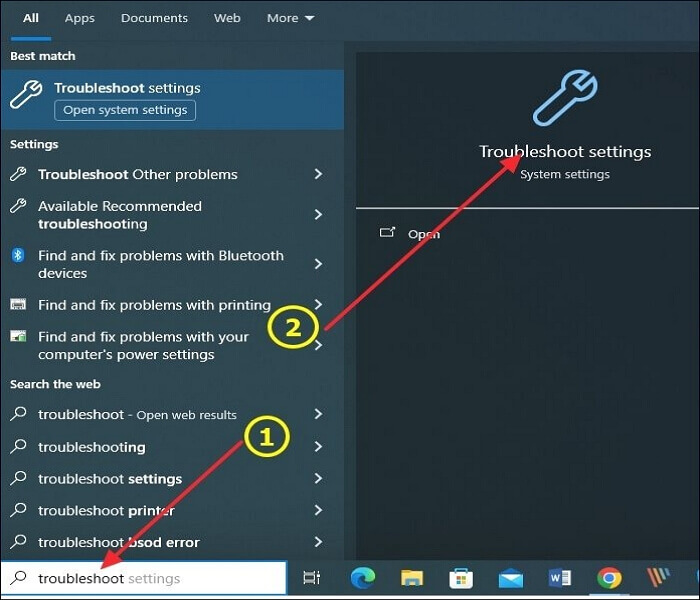
Step 1. To troubleshoot settings, navigate to the search bar and type "troubleshoot." Then, click on the option for "Troubleshoot settings."
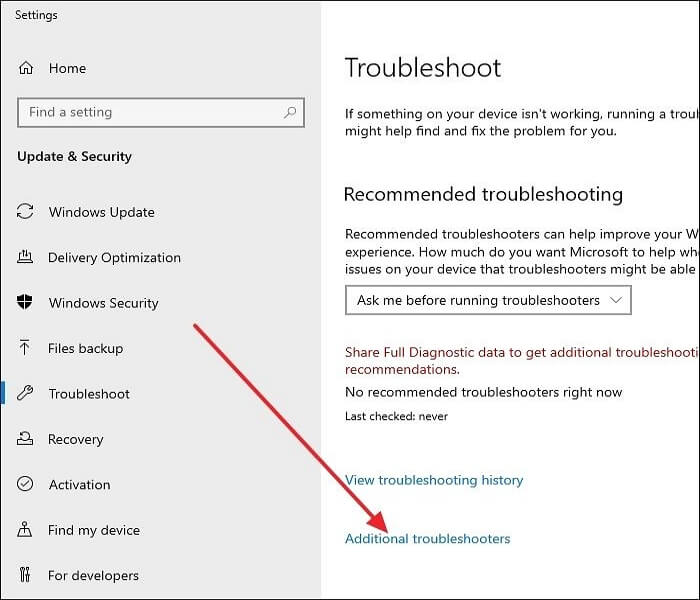
Step 2. Next, click on "Additional troubleshooter" then "Windows Update."
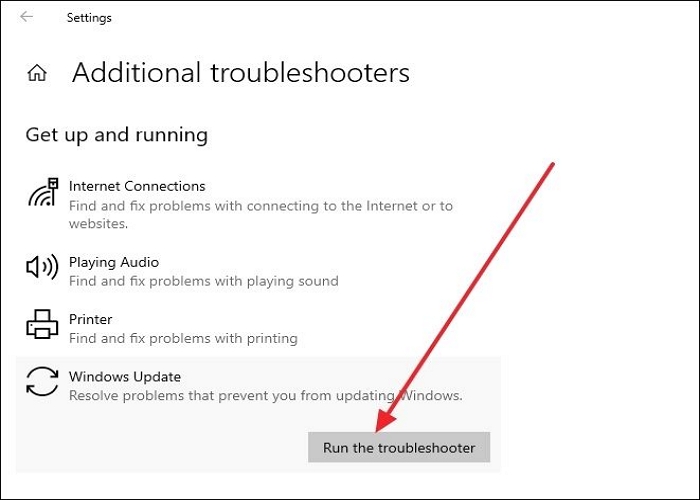
Step 3. To troubleshoot Windows Update issues, click on the "Run the troubleshooter" button under Windows Update. This will initiate the troubleshooting process to check for possible errors. If this method won't fix the problem, you can proceed to Fix 2.
Fix 2. Enable Update Orchestrator Service
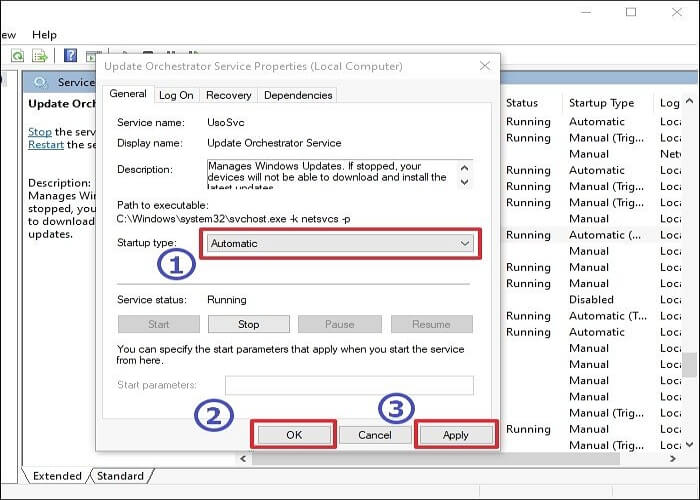
To enable the Update Orchestrator Service on your Windows 11 PC, follow these steps:
Step 1. Launch the Run command box, type services.msc, and click OK.

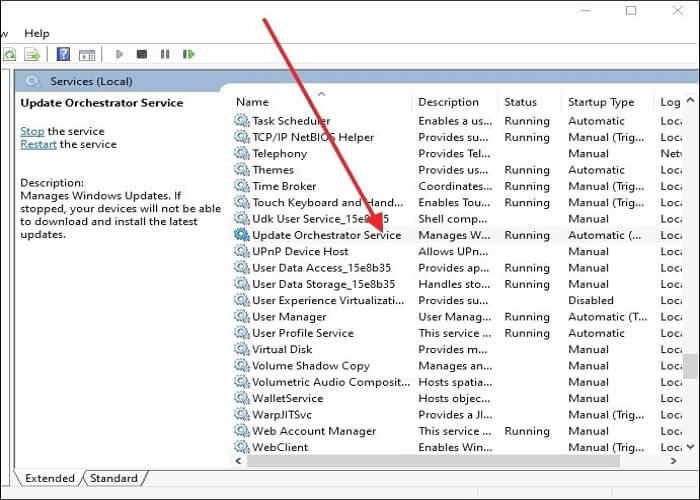
Step 2. To update the Orchestrator service, scroll down in the next window that appears and double-click on "Update Orchestrator Service."
Step 3. Click the dropdown next to "Startup type" and select the "Automatic" option.
Step 4. Click "OK," then "Apply," and restart your PC to see if the error is resolved.
Fix 3. Run SFC Scan
If you suspect that your update is not running correctly due to corrupted system files, running the SFC command can help. This command scans and possibly repairs the corrupted files on your computer. To do this, follow the steps below:
Step 1. Launch Command Prompt as an administrator.
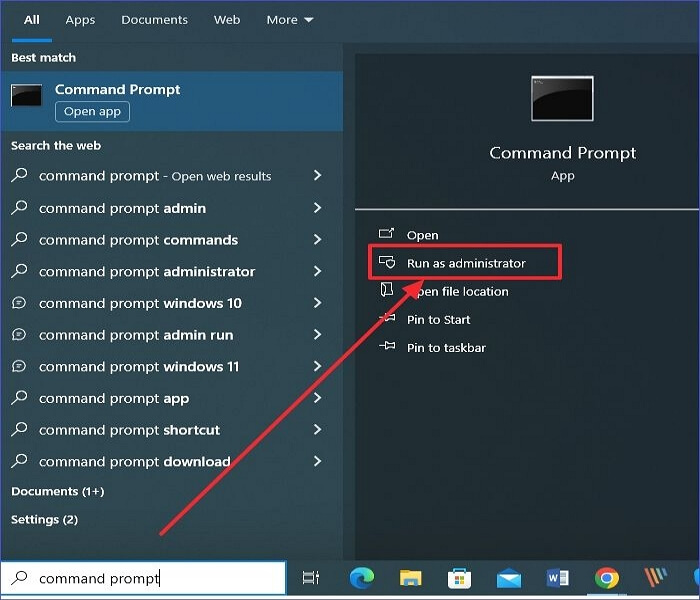
Step 2. You can then write the command below and press Enter:
sfc /scannow
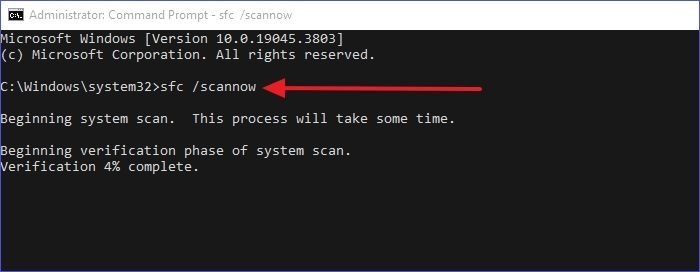
Step 3. Run the command "sfc /scannow" to scan and repair any corrupted system files. This will allow the Windows Update to run correctly. If any errors are found, the command will fix them and you can restart your system to check if the update is successful.
Fix 4. Edit the Registry Entry
If the Windows registry entry keys become altered or corrupted, you may encounter errors when trying to update Windows. To resolve this issue, you'll need to edit the registry entry keys, which can be done using the following steps.
Step 1. To open the Registry Editor, press Win + R to open the Run command box, type "regedit" and then press Enter.
Step 2. To access the Registry Editor, open the Start menu, type in "regedit," and press Enter. Then, navigate to HKEY_LOCAL_MACHINE\SYSTEM\CurrentControlSet\Services\UsoSvc, and double-click on the "Start" option in the right pane.

Step 3. Enter "2" in the Value Data section, then click OK.
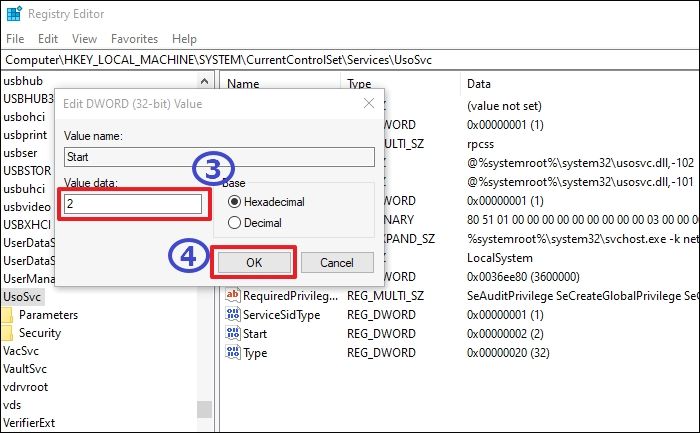
Step 4. Repeat Steps 2 & 3 above for these registry keys:
- HKEY_LOCAL_MACHINE\SYSTEM\CurrentControlSet\Services\WaaSMedicSvc
- HKEY_LOCAL_MACHINE\SYSTEM\CurrentControlSet\Services\wuauserv
Step 5. To fix the error, you can try restarting your computer and then check if the error persists. If it does, you may need to reinstall the software or contact the software provider for further assistance.
Fix 5. Reset Windows Update Files
If you're encountering the Windows error "something went wrong" possibly due to corrupted update files, try restarting your computer and then initiate the update process again. This can resolve the issue. If the problem persists, consider checking for any corrupted system files using the System File Checker (SFC) tool, which can be accessed by typing "sfc /scannow" in the Command Prompt. This tool can help identify and replace any corrupted system files, potentially resolving the issue.
Step 1. Launch Command Prompt as an administrator.
Step 2. To execute these commands, open the Command Prompt window and paste each command followed by the Enter key. The commands to be executed are: `cd C:\Users\username\Documents`, `cd C:\Users\username\Documents\My Folder`, `cd C:\Users\username\Documents\My Folder\My Subfolder`, `cd C:\Users\username\Documents`, `cd C:\Users\username\Documents\My Folder`, `cd C:\Users\username\Documents\My Folder\My Subfolder`, `cd C:\Users\username\Documents`, `cd C:\Users\username\Documents\My Folder`, `cd C:\Users\username\Documents\My Folder\My Subfolder`, and `cd C:\Users\username\Documents`.
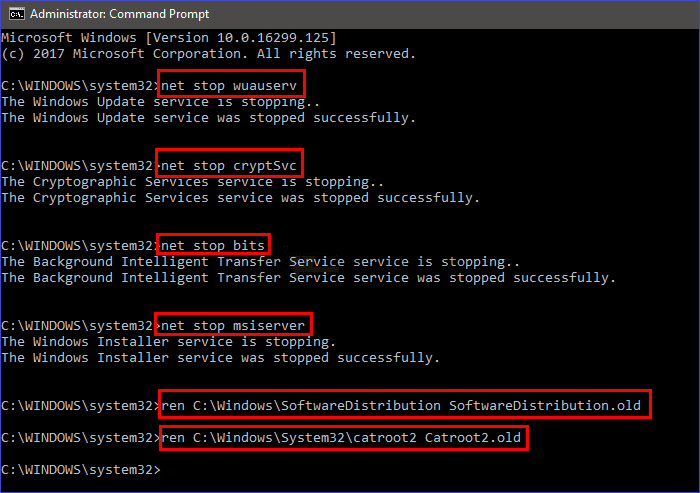
- net stop wuauserv
- net stop cryptSvc
- net stop bits
- net stop msiserver
- ren C:\Windows\SoftwareDistribution SoftwareDistribution.old
- ren C:\Windows\System32\catroot2 catroot2.old
- Notice:
- The commands stop various Windows services and rename two system folders: BITS, Cryptographic, MSI Installer, and Windows Update services are stopped, and the SoftwareDistribution and Catroot2 folders are renamed.
Step 3. Next, you can restart the four services using the following commands (ensure you press Enter after each of them):
- net start wuauserv
- net start cryptSvc
- net start bits
- net start msiserver
Step 4. To resolve the Windows Update error, exit Command Prompt, restart your computer, and then try running Windows Update again to see if the error has been resolved.
Fix 6. Reset Windows Settings
To fix the issue where the Settings app stops working properly during the Windows Update process, try resetting your settings. This can be done by following these steps:
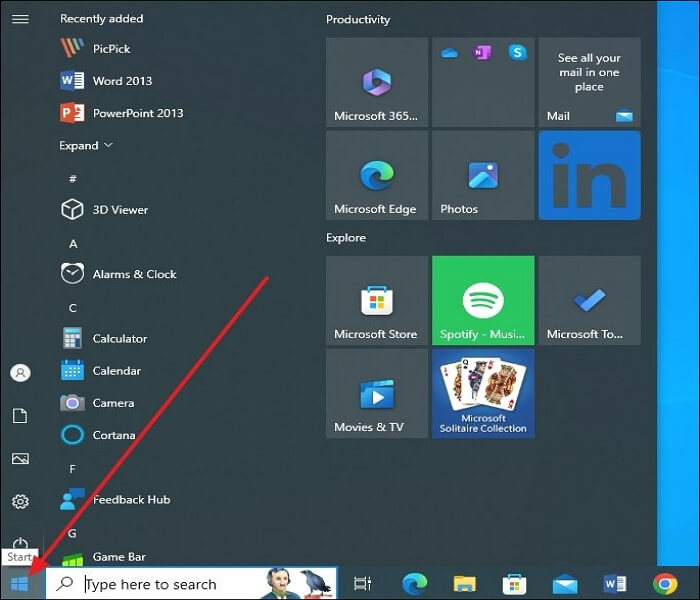
Step 1. To access the Start menu in Windows, click on the Windows icon located in the lower right corner of the screen. This will launch the Start menu, allowing you to navigate and interact with various features and applications.
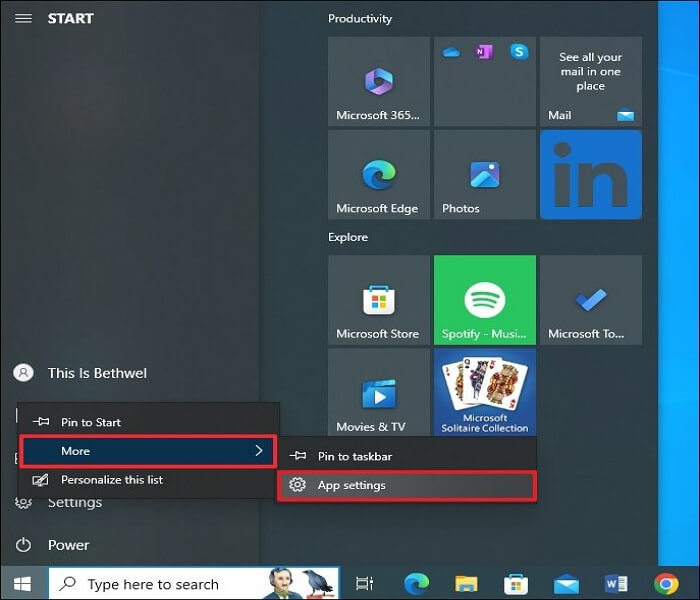
Step 2. Right-click on Settings and select "More," then click on "App Settings."
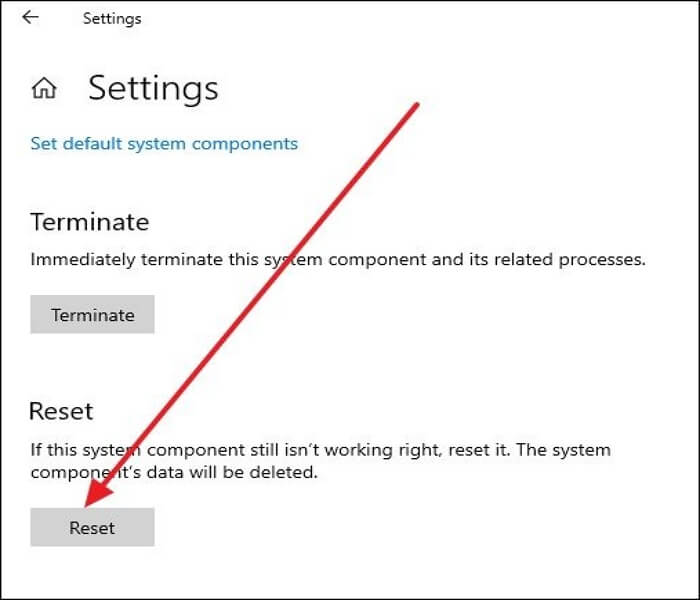
Step 3. To reset Windows Settings, navigate to the Settings app, click on "System," and then on "Troubleshoot." From there, select "Reset this PC" and confirm your selection to initiate the reset process. This will reset Windows to its default settings, potentially resolving issues with updates.
This post is helpful in providing a solution to a common issue. It can be shared on social media to help more people resolve the problem.
Pro Tip: How to Protect Your PC from Windows Update Errors
Windows Update errors can pose risks to your PC data and files, so it's essential to back up your data using a reliable tool like Qiling Disk Master, which allows you to access your files even when your PC encounters errors.
This software ensures the safety of your backup files by allowing you to save them to an external hard drive, the cloud, the network, or the NAS, and enables you to back up multiple hard drives, files, systems, computer apps, etc. It also allows for unlimited access to your backup data whenever needed.
The main features of this backup and restore tool include the following:
- Bootable backup and recovery and multi-path backup storage
- Install Windows OS on a new PC without an operating system
- Password-protected backups and Various backup options
- To clone a hard drive and image a hard disk without trouble, you can use specialized software such as Qiling Backup. These tools allow you to create an exact copy of your hard drive, including the operating system, programs, and data, onto a new hard drive or external storage device.
- Get 250GB of free cloud storage to safely back up your computer's files and data to the cloud, ensuring they're protected against hardware failure, theft, or loss.
To protect your computer from Windows Update errors, download and install a free version of Qiling Disk Master, which is easy to use and can help resolve issues with Windows Update.
Step 1. Launch Qiling Disk Master on your computer, and click the Backup and recovery tab page.

Step 2. To back up your Windows operating system, click on "System backup" to initiate the backup process.

Step 3. The Windows operating system information and all system related files and partitions will be automatically selected, so no manual selection is required at this step. Next, choose a location to save the system image backup by clicking the illustrated area.

Step 4. The backup location can be another local drive, external hard drive, network, cloud, or NAS, with external physical drives or cloud storage being recommended for preserving system backup files.

Step 5. Customization settings are available in the Options button, where you can enable an automatic backup schedule in daily, weekly, monthly, or upon an event, and make a differential and incremental backup. Clicking "Proceed" starts the Windows system backup process, and the completed task will be displayed on the left side in a card style.

To Sum Up
The "Windows update something went wrong" error message can occur due to various reasons, including corrupted system files, incorrect registry keys, disabled Windows update services, third-party antivirus interfering, or corrupted temporary files. To resolve these issues, follow the fixes discussed in this article.
To protect your data from Windows Update errors, consider using Qiling Disk Master, a reliable data backup and recovery tool that allows you to back up your files to different locations and access them anytime. This software can help ensure your important data is safe and secure.
FAQs on Windows Update Something Went Wrong
Frequently asked questions about "Windows update something went wrong" include: what does this error message mean, what are the common causes, how to troubleshoot and fix the issue, and what are the potential consequences if left unresolved.
1. Why Is Windows 11 Not Updating?
Windows 11 may fail to update due to corrupted system files, incorrect registry keys, disabled Update Orchestrator Service, interference from third-party antiviruses, or corrupted temporary files.
2. Why Is My Windows Update Not Installing?
A Windows update may fail to install due to corrupted files in the software distribution folder, which can be resolved by deleting these files and repeating the update process.
3. How Do I Force a Windows Update to Install?
To force a Windows update, run the Update Troubleshooter, which will check and fix any errors preventing your system from working correctly, allowing the update to install.
Step 1. To troubleshoot, navigate to the search bar and type 'troubleshoot', then click on the 'Troubleshoot settings' option.
Step 2. Next, click on Additional Troubleshooter, then Windows Update.
Step 3. To resolve Windows Update issues, click on the "Run the troubleshooter" button under Windows Update. This will initiate the troubleshooting process to check for errors, fix them, and then force the Windows Update to install.
4. How Do I Clear Windows Update Cache?
To clear the Windows Update cache via Command Prompt, follow these steps:
Step 1. Launch Command Prompt as an administrator.
Step 2. Next, type the following string of commands and press Enter after each of them:
- net stop wuauserv
- C:
- cd %Windir%\SoftwareDistribution
- del /f /s /q Download
Note: To delete all Windows cache files on your PC, you can use the following commands: `dir /s /b /a` to list all cache files, and then use the `del` command with the `/s` and `/f` options to delete them. Alternatively, you can use the `cleanmgr` command to open the Disk Cleanup tool and select the option to delete system files, which will also delete cache files. These commands will help you get rid of all the cache files on your computer.
Related Articles
- How to Install DirectPlay in Windows 11/10 [Full Guide]
- Hogwarts Legacy Save File Gone: How to Fix It
- Windows Update Reset (Fix It) Tool Download [Full Guide in 2024]
- How to Install Google Drive for Desktop on PC ☁️
- Different Ways to Fix Dragon Age Inquisition Crashing On Launch In Windows 10
Look for easy and effective ways to fix the Dragon Age Inquisition Crashing On Launch in Windows 10? This article can help you out with the 8 best solutions to kill the culprit and continue playing the game again. - How to Fix Error Code 2003F When Entering Recovery Mode on macOS 13/12/11
Many Mac users have encountered the error code 2003F when starting their Mac. If you're experiencing this issue, this post may help you find straightforward solutions to fix the Mac error.
Products
Articles & Tutorials
- Data Recovery
- Data Backup
- File Recovery
- File Backup
- System Backup and Restore
- Disk and Partition Clone
- Technical articles
- Mobile articles
- Disk Master Help
- Windows Data Recovery Tutorials
- Windows Secure Delete Tutorials
- Windows Partition Management Tutorials
- Windows File Backup and Restore Tutorials
- Windows System Backup and Restore Tutorials
- Windows Disk Backup and Restore Tutorials
- Windows Clone Tutorials