5 Best Ways to Fix Windows Update Error 0x80080005
| Workable Solutions | Step-by-step Troubleshooting |
|---|---|
| Run Window Update Troubleshooter | Select "Start > Settings > Windows Update". Go to "Troubleshoot...Full steps |
| Use Windows Update Assistant | Go to the Microsoft website and click "Update now". Download the latest version...Full steps |
| Run SFC Command | Go to the Start Menu and type the command prompt in the search bar...Full steps |
| Clear Windows Update Cache | Type services in Windows search, and click "Services" to open it...Full steps |
| Take Ownership of System Volume | Type Command Prompt in the search box. Choose Run as administrator to continue...Full steps |
Windows Update Error Code 0x80080005 [Overview]
0x80080005 is a Windows error code that typically occurs when there's a problem with the Windows Update service or a related component. It can be caused by a variety of factors, including corrupted system files, issues with the Windows Update database, or conflicts with other software. To resolve the issue, you can try restarting your computer, checking for corrupted system files using the System File Checker tool, or running the Windows Update Troubleshooter.
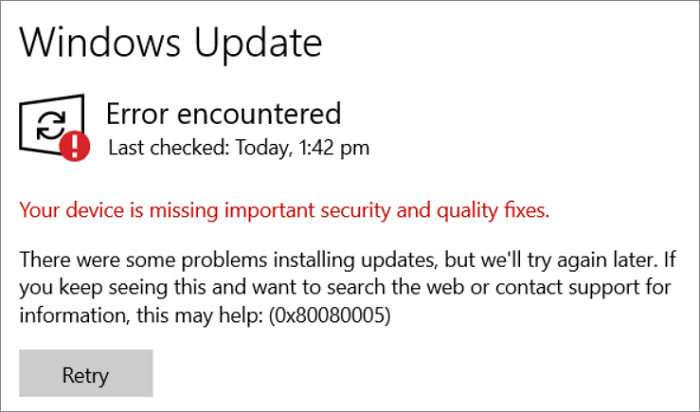
Windows update error code 0x80080005 occurs when Windows 10 fails to complete an update due to corruption of Windows files or misconfigured Windows update components, hindering automatic updates that are crucial for system security and performance.
- File permission issues
- Incorrect startup settings
- Incompatibilities with certain installed software
- Viruses or malware present on the machine
Regularly checking for new Windows updates is crucial for maintaining system stability and security. If you encounter issues with Windows updates, follow the solutions below to resolve Windows update error 0x80080005.
Read Also: Windows Update Error KB5034441, Blue Screen of Death Error 0x000000C5
5 Ways to Fix Windows Update Error 0x80080005
Many Windows users have encountered the 0x80080005 error code while trying to update their system, but the error message often doesn't provide clear information on the cause of the issue, leaving them frustrated and unsure of how to resolve the problem.
This article will guide you through fixing the Window Update Error 0x80080005 with clear and detailed steps, helping you resolve the issue and enjoy your PC experience without technical setbacks. Let's get started!
Before the step-by-step guide, watch this video to fix Windows update error 0x80080005
- 0:18 Run Windows Update Troubleshooter
- 1:17 Use Windows 10 Update Assistant
- 2:52 Clean Windows update cache
- 4:01 Take Ownership of the system volume
Method 1. Run Window Update Troubleshooter
The most effective way to fix Windows update error 0x80080005 is by using the Windows Update Troubleshooter. To do this, you can download the free Windows Update Troubleshooter and follow the steps below.
Step 1. Select "Start > Settings > Windows Update".
Step 2. Go to "Troubleshoot > Additional troubleshooters".
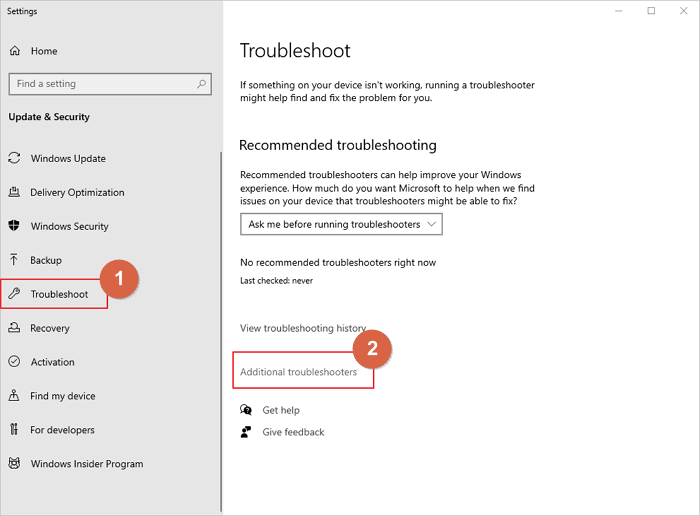
Step 3. To resolve the issue, go to the Settings app, select "Update & Security", then click on "Troubleshoot" and choose "Windows Update > Run the troubleshooter".
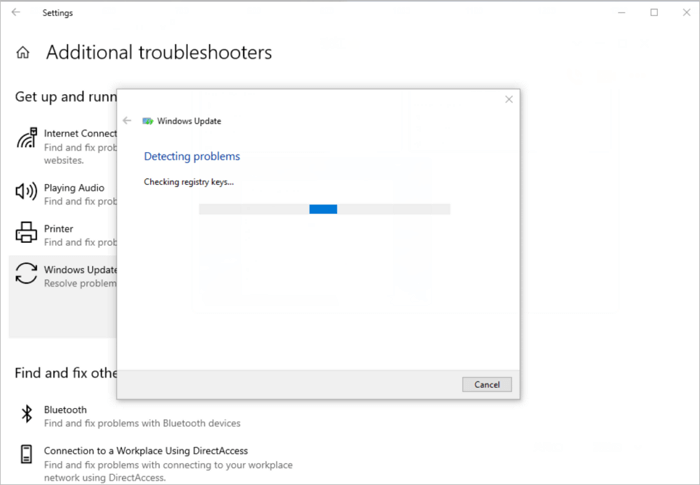
The troubleshooter will scan your computer for problems and fix them if there are any.
Method 2. Fix Error Code 0x80080005 with Windows Update Assistant
Windows Update Assistant is a tool that helps Windows users keep their computers up-to-date by installing the latest cumulative updates, as well as certain driver and software updates, for Windows 10. With this assistant, you can force update Windows 10 to the newest version using Windows Update Assistant. This tool is designed to ensure that Windows users have the latest updates for their computers.
The Windows Update Assistant allows users to fix errors from Windows 10, including error code 0x80080005, by solving any existing errors on their system, whether related to drivers or security updates.
Step 1. Go to the Microsoft website and click "Update now".
Step 2. To install Windows 10, download the latest version of the operating system and open the downloaded file to initiate the installation process.
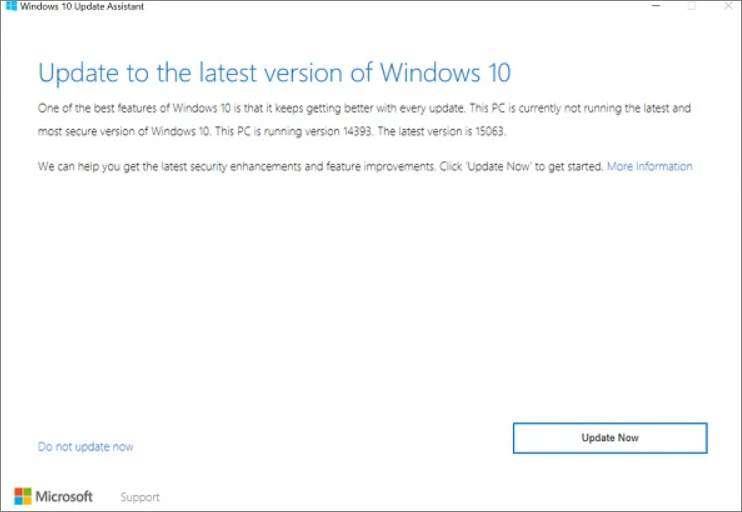
Step 3. The Windows 10 Update Assistant will pop up, and you'll need to follow the on-screen instructions to resolve the error code 0x80080005.
Method 3. Run SFC Command to Fix Error 0x80080005
If your system files are corrupted or damaged, you may encounter error code 0x80080005 when trying to update Windows 10. To resolve this issue, you can use the System File Checker (SFC) command, which can scan and replace any corrupted system files, helping to fix the error and allow the update to proceed.
Step 1. To open the Command Prompt, go to the Start Menu and type "cmd" in the search bar, then select the Command Prompt icon from the search results. Alternatively, you can press the Windows key + R to open the Run dialog box, type "cmd" in the text box, and press Enter.
Step 2. Right-click the app and select "Run as Administrator".
Step 3. Follow the commands below:
- DISM /Online /Cleanup-Image /RestoreHealth
- sfc /scannow
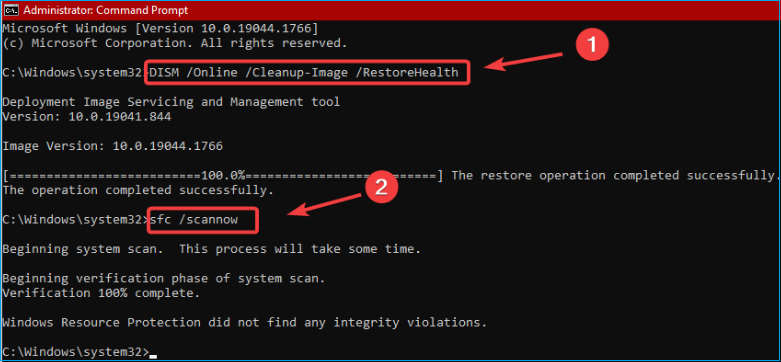
Once the running process is complete, close Command Prompt and check if the problem is resolved.
Method 4. Clear Windows Update Cache to Fix Error 0x80080005
Clearing the Windows update cache is a simple solution to resolve the Error code 0x80080005 on Windows computers. This can be done by most users in a few short steps, making it a quick and easy fix.
Step 1. To open the Services console in Windows, type "services.msc" in the Windows search bar, and click "Services" to open it.
Step 2. Right-click on Windows Update, and select "Stop".
Step 3. Close the service window, and press Windows + R keys to open the Run dialog. In the Run dialog, type "services.
Step 4. Type c:\windows\SoftwareDestribution and click "OK".
Step 5. To delete all existing files in the Download folder, navigate to the Download folder, select all the files by pressing Ctrl+A (Windows) or Command+A (Mac), and then press the Delete key to remove them. Alternatively, right-click (Windows) or control-click (Mac) on the folder, select "Empty Trash" or "Empty Folder" to delete all the files at once.
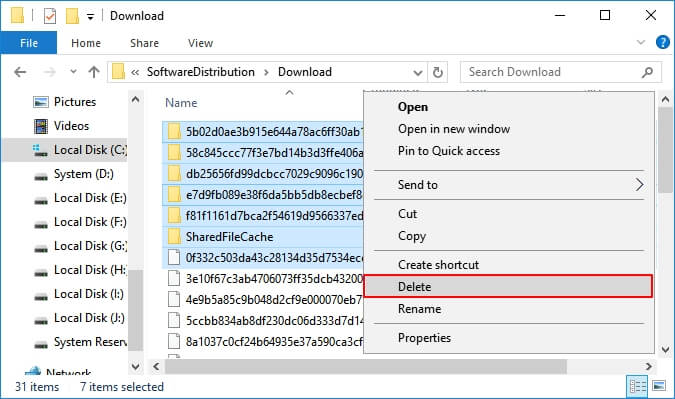
To clear out the Windows update cache, all files in this directory can be deleted, but be aware that this will also remove valid cached data, so it's recommended to do this only when encountering error code 0x80070002 or similar issues with updates and installations.
Method 5. Take Ownership of the System Volume Information Directory
To resolve the error code 0x80080005, you need to take ownership of the system volume information directory, which is usually caused by a lack of permission to access or modify certain files in that directory.
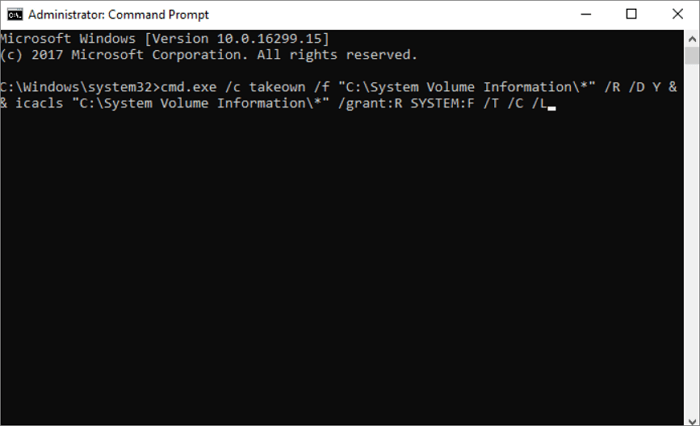
Step 1. Type "cmd" in the search box. Choose "Run as administrator" to continue.
Step 2. You can type commands like this: "What is the capital of France?" or "What is the weather like in Paris?
cmd.exe /c takeown /f "C:System Volume Information*" /R /D Y && icacls "C:System Volume Information*" /grant:R SYSTEM:F /T /C /L
Bonus Tip: Recover Lost Data After Windows 10 Update
If you lost data after a Windows 10 update, don't worry, you can recover lost files with data recovery software like Deep Data Recovery, which helps restore lost photos, documents, videos, and other files from any device with a few clicks.
Download this Windows 10 data recovery software to restore data from your computer or laptop.
Deep Data Recovery
- Recover lost or deleted files, documents, photos, audio, music, and emails with ease, restoring access to valuable digital content and memories.
- Unfortunately, it's not possible to restore data from a formatted hard drive, emptied recycle bin, memory card, flash drive, digital camera, and camcorder. Once data is deleted or a device is formatted, it's usually gone for good.
- Data recovery services can help recover lost data due to sudden deletion, formatting, hard drive corruption, virus attacks, and system crashes. This support is essential under various situations, such as accidental file deletion, system crashes, and hard drive failures, where data loss can be devastating.
Conclusion
Whenever you encounter Windows 10 update code 0x80080005, try the solutions above to fix this error. Once resolved, you can run Qiling data recovery software to recover deleted files from any drive.
Windows Update Error 0x80080005 FAQs
Read the questions and answers below to get additional help.
1. How do I fix Windows update error 0x80080005?
Solutions to fix Windows Windows update error 0x80080005:
- Run Window Update Troubleshooter
- Try Windows Update Assistant
- Run SFC Command
- Clear Windows Update Cache
- Take Ownership of the System Volume Information Directory
2. How can I fix Windows 10 installation has failed?
Follow the steps to fix Windows 10 installation has failed:
- Check the System Requirements
- Rebuild BCD
- Run Windows 10 Clean Boot
- Repair Corrupted System Files
- Run Windows Update Troubleshooter
3. How do I force the update to 20H2?
To install Windows 10 20H2 manually on a device running version 2004, follow these steps: Open the Settings app, click on Update & Security, and then click on Windows Update. If an update is available, click on the "Check for updates" button.
- Open Settings on Windows 10
- Click on Update & Security
- Click on Windows Update
- Click the Check for updates button (if applicable)
- Click the Download and Install now button
- Then, follow the on-screen operations
Related Articles
- There Was an Error Connecting to the Apple ID Server on MacBook [Fixed👍]
- How to Factory Reset Lenovo Laptop without Novo Button [2024 Full Guide]
If your Lenovo laptop needs a refresh or you want to erase all data, resetting it is a good option. This post will guide you through the process of factory resetting your Lenovo laptop without using the Novo button, in three simple ways. - How to Factory Reset Lenovo Laptop Without Password [with 4 Practical Ways]
Factory resetting a Lenovo laptop without a password can be done in four practical ways, but be aware that this process will completely eliminate all files and folders, returning the PC to its original configuration. - How to Factory Reset Nintendo Switch | Detailed Steps with Video
If you want to factory reset your Nintendo Switch, it's a relatively simple process that requires following a few steps. - Detailed Guides to Fix FIFA 23 Career Mode Not Saving
As the last series of FIFA football simulation games, FIFA 23 still shows its unique charm, but the problems exposed in the previous series still exist - FIFA 23 career mode not saving. - 6 Ways to Fix Blue Screen Error APC Index Mismatch in Windows 10 [Full Guide]
Seeing the BSoD on your Windows 10? Typically, the BSoD or Blue Screen of Death occurs due to faulty hardware, incorrect configurations, or incompatible drivers. Here are some of the best ways to rectify this issue related to problems like incompatible updates, drivers, and more.
Products
Articles & Tutorials
- Data Recovery
- Data Backup
- File Recovery
- File Backup
- System Backup and Restore
- Disk and Partition Clone
- Technical articles
- Mobile articles
- Disk Master Help
- Windows Data Recovery Tutorials
- Windows Secure Delete Tutorials
- Windows Partition Management Tutorials
- Windows File Backup and Restore Tutorials
- Windows System Backup and Restore Tutorials
- Windows Disk Backup and Restore Tutorials
- Windows Clone Tutorials