[Detailed Guides] How to Backup WeChat in 5 Ways
You can directly learn the method you want to try through the distributed quick navigation below.
- Backup WeChat on PC
- Backup WeChat Data on iOS and Android
- Backup WeChat History to New Phone
- Backup WeChat to iCloud/iTunes
- Backup WeChat to Google Drive
WeChat, the world's largest independent mobile application, serves as a primary channel for people to communicate with friends and family, while also offering a platform for various functions such as trading and working.

WeChat plays a significant role in people's lives, making it crucial to protect its data security. However, our WeChat accounts are often not in a secure state, and to prevent the loss of important information, it is essential to back up WeChat regularly.
Learn how to back up WeChat with the 5 solutions provided in this article. A detailed guide is available to help you quickly learn the backup operations and ensure your WeChat data is safely stored.
Backup WeChat on PC
To back up WeChat histories on your computer, download WeChat for Windows or Mac, and follow the steps below.
Step 1. Launch WeChat for Windows/Mac and hit the More> Migrate&Backup options
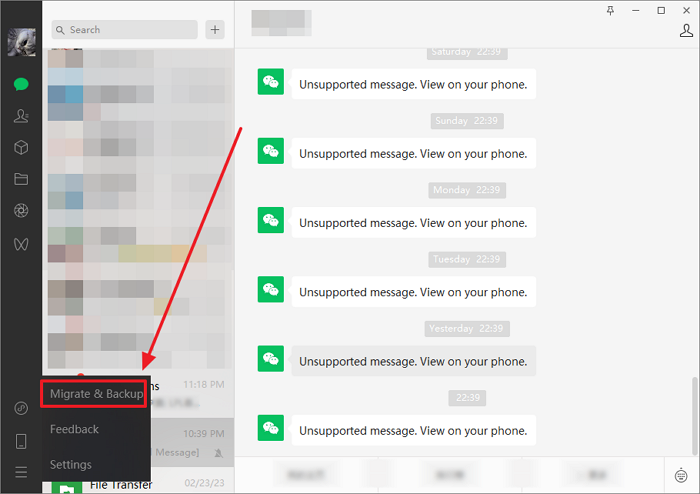
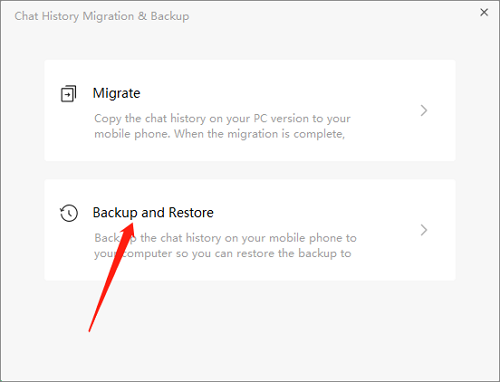
Step 2. Then a window will pop up, select the "Backup and Restore" option.
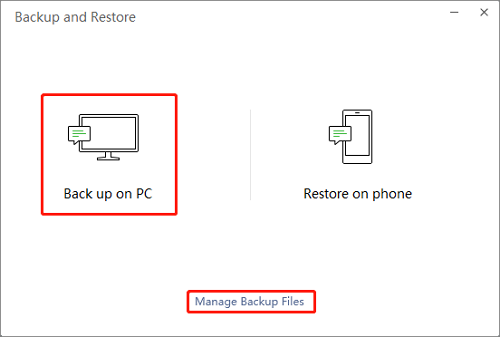
Step 3. To back up on a PC, hit the "Back up on PC" option, which allows you to change the backup directory by clicking the "Manage Backup Files" button, or your files will be stored in the default path.
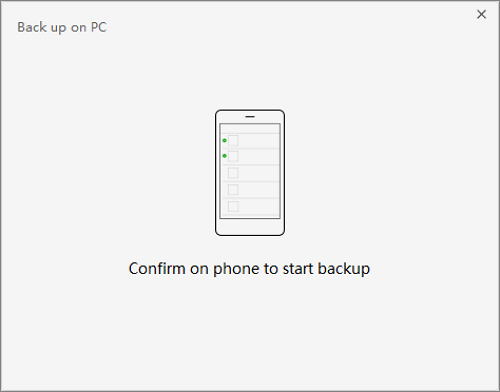
Step 4. I've started the backup. You'll receive a notification when it's complete.
If you don't change the backup directory, you can find your backup file in the Windows File Explorer.
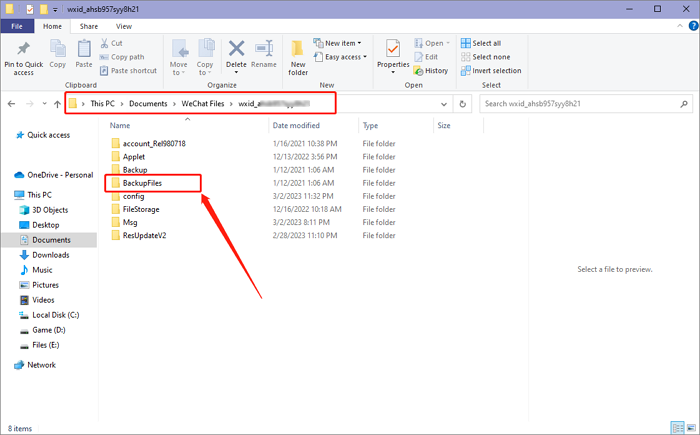
For Mac users, you can open Finder and find your backups on the "Backup" folder, which is usually located on the external drive or disk where you've set up Time Machine to save your backups.
Pro Tip: The Best Solution to Ensure WeChat Data Security
Storing important data only on a computer can lead to data loss if the computer hardware fails or is compromised by a virus, making it essential to save data in multiple, secure locations.
To ensure maximum data security protection, consider using professional backup software and saving important chat history in the cloud space. Qiling Disk Master Pro is a suitable option for this purpose.
Qiling Disk Master Pro is an offline backup software for Windows and Mac. Whether it's files, system, app data, or disk, it can provide you with a comprehensive automatic backup solution.
For WeChat users, Qiling Disk Master Pro offers several benefits, including the benefits below.
- 250GB of free cloud storage is provided to help you store backups of your important files, photos, and videos, keeping them safe and accessible from anywhere. This free space is a generous offer to support your digital life, allowing you to store copies of your cherished memories, work documents, and other valuable data, giving you peace of mind and flexibility to access them whenever needed.
- Help you create a scheduled backup plan
- After each chat record update, it can quickly create a new copy for you. This feature allows you to maintain a record of all previous conversations, making it easy to refer back to previous chats and conversations.
- Provides full backup, incremental backup and differential backup modes
Backup WeChat Data on iOS and Android
If you're a US or EU WeChat user, you can export your personal data, which includes backing up WeChat data.
Step 1. Open the WeChat app on your iPhone/Android phone.
Step 2. Navigate to Me> Settings> Account Security> More Settings.
Step 3. You can see the Export Personal data at the bottom of the page.
- Tip
- If you're a user in another region, you can't see this option. This method is only suitable for users in European and American countries.
Step 4. To begin the export process, click on the option to verify your email, then select the data type you wish to back up, and finally click Next to initiate the export process.
- Tip
- This method only backs up the file data of WeChat, not your chat history. If you want to back up important chat records, you can download the WeChat PC version or use another method to back up your WeChat history to a new phone.
Backup WeChat History to New Phone
If you want to change your mobile phone, you can transfer your chat records to the new mobile phone through WeChat's migration function.
Step 1. Open the WeChat app on your iPhone/Android phone.
Step 2. Navigate to Me> Settings> Chats
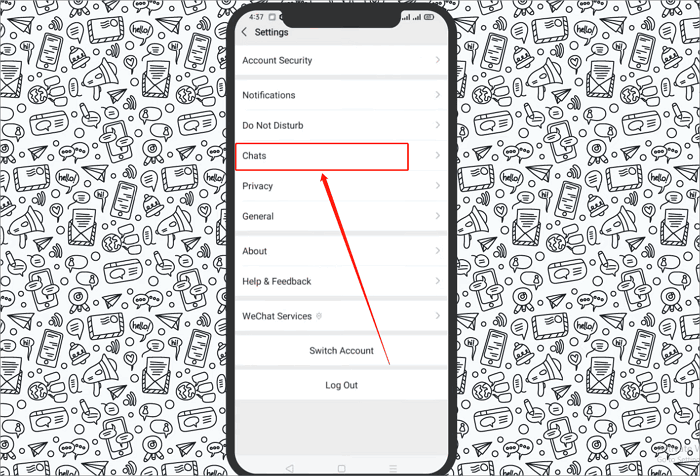
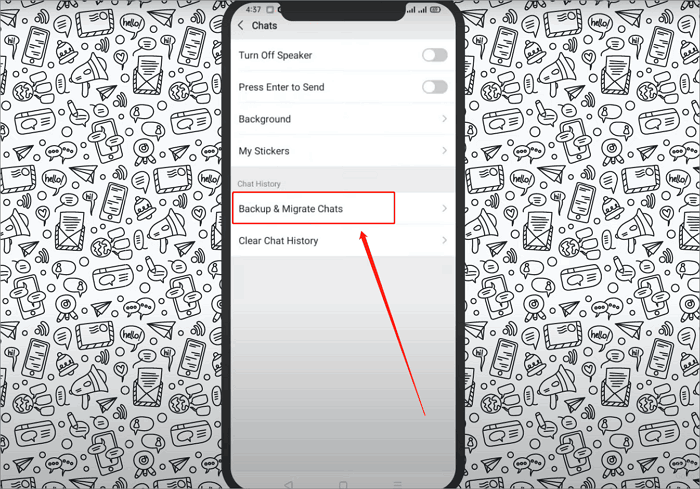
Step 3. To transfer chat history from your old phone to a new one, go to the Backup & Migrate Chats section, then select Migrate Chats to Another Device, and choose the chat history you want to back up to the new phone.
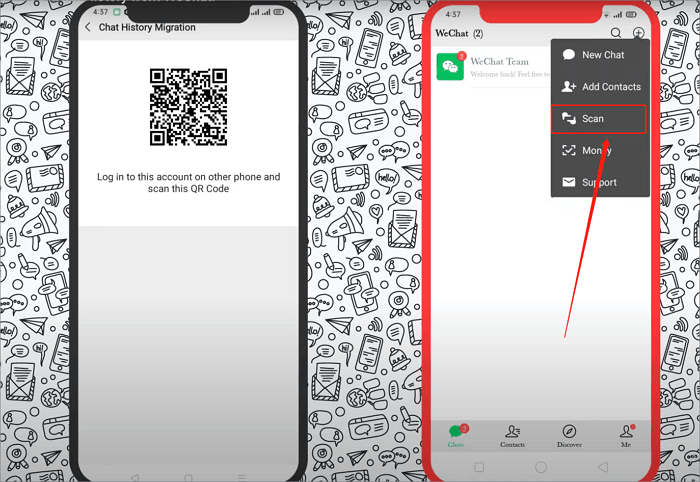
Step 4. Then you should log in on your new phone and scan the QR. Now wait for the process to end, and your WeChat history will be stored on your new phone.
Backup WeChat to iCloud/iTunes
For iOS users, you can use iCloud to back up your WeChat data, as any photos or files stored in WeChat on your iPhone will be synchronized to your iCloud space.
You can sync your WeChat chat history through iTunes, but not directly through iCloud.
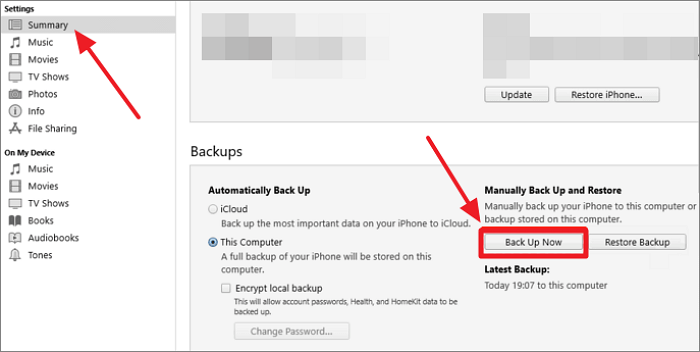
To back up your WeChat history on your iPhone, connect your iPhone to your computer, go to the Summary tab, and select "Back up now". This will allow you to back up your WeChat data on your PC.
Backup WeChat to Google Drive
If you want to back up the WeChat chat history or data stored on your PC to Google Drive, you can follow the steps below.
Step 1. Navigate to your Google Drive
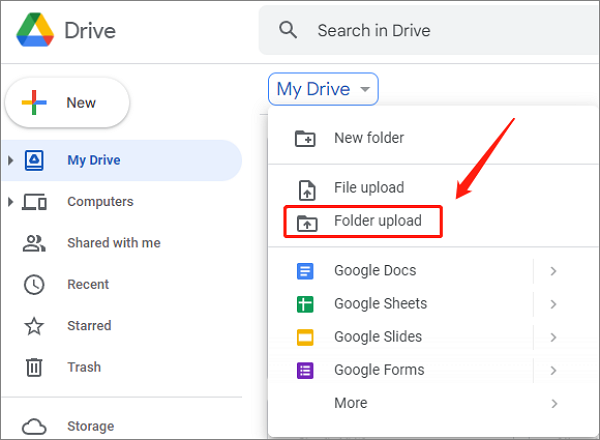
Step 2. To upload the WeChat backup file, go to the My Drive option and select Folder Upload, then choose the WeChat backup file on your computer.
Step 3. To restore a folder from a backup, you'll need to wait for the backup process to complete. Once the process is finished, you can access and restore the folder on any device that has been backed up.
Conclusion
To backup WeChat, you can refer to the 5 solutions provided in this post, which can help you back up your chat histories or other file data. If your WeChat data is crucial, it's recommended to use professional backup software like Qiling Disk Master Pro for higher security.
FAQs
1. How do I backup my WeChat history to my new phone?
To back up your WeChat history to your new phone, first, download and install WeChat on your new phone. Then, log in to WeChat with the same account on your new phone.
Step 1. Open the WeChat app.
Step 2. Navigate to Me> Settings> Chats> Backup & Migrate Chats> Migrate Chats to
Step 3. Choose the history you want to back up to the new phone.
Step 4. Then you should log in on your new phone and scan the QR and wait for the process to end.
2. Does WeChat have auto Backup?
WeChat does not have an automatic backup feature. To back up your WeChat data, you can download the Windows or Mac version and use the Migrate&Backup function to achieve this.
Related Articles
- What Laptop Hard Drive Size Should I Use [2024 Explanation]
- User Profile Service Failed the Logon (Causes & Solutions)
- Five Ways to Fix "Path Not Found C:Boot" Error in Windows
Do you know why the path not found C:\boot error happens? this guide will help you figure out the reasons and provide you with several ways to fix this issue. - PowerShell Check If File Exists | 4 Examples
Do you want to check if a file exists using PowerShell? Then this post explains how to use PowerShell to check if a file exists. You can use this command inside a batch file or a script or in your program, and figure out if the path exists or not. - How to Find Chrome Account and Password
If you are thinking how to find a chrome account and password, then this article is for you. We will discuss about two different ways through which we can find a chrome account and password. - [Easy to Follow] How to Find CorelDRAW Serial Number?
If you're looking for a CorelDraw serial number, we can help you find it easily. We'll guide you through the simple steps to obtain the serial number, so you can access the full features of CorelDraw. For more information, please read on!
Products
Articles & Tutorials
- Data Recovery
- Data Backup
- File Recovery
- File Backup
- System Backup and Restore
- Disk and Partition Clone
- Technical articles
- Mobile articles
- Disk Master Help
- Windows Data Recovery Tutorials
- Windows Secure Delete Tutorials
- Windows Partition Management Tutorials
- Windows File Backup and Restore Tutorials
- Windows System Backup and Restore Tutorials
- Windows Disk Backup and Restore Tutorials
- Windows Clone Tutorials