User Profile Service Failed the Logon (Causes & Solutions)
If your Windows system won't boot up, it's often not due to a computer virus, but rather a corrupt or permission-lacking default user profile logon. To fix this issue, you can follow the steps outlined in this article to resolve the problem and get your system up and running again.
What Is User Profile Service & Why It Fails to login
The User Profile service is a directory that stores user information such as social tagging, allowing users to share and distribute profiles across sites, and provides a command center for administrators to customize user profile login settings and synchronize profiles across multiple devices.
6 Ways to Fix User Profile Service Failed the Logon Error
To resolve the "User Profile Service failed the logon" issue, ensure the user profile directory is intact and accessible. If it's corrupted or experiencing disk write errors, try booting in Safe Mode, System Restore, or running the System File Checker (SFC) to repair corrupted system files. Additionally, check for disk errors using the built-in Check Disk (chkdsk) utility and ensure the disk is not full. If none of these methods work, consider reinstalling Windows or seeking professional help.
- Method 1. Repair User Profile Using Command Prompt
- Method 2. Fix User Profile Service Failed via Registry Editor
- Method 3. Reset Windows PC to Fix User Profile Service Failed Error
- Method 4. Transfer NTUSER.Dat File to Default Username Folder
- Method 5. Create a New User Account
- Method 6. Disable the Customer Experience Program
Method 1. Repair User Profile Using Command Prompt
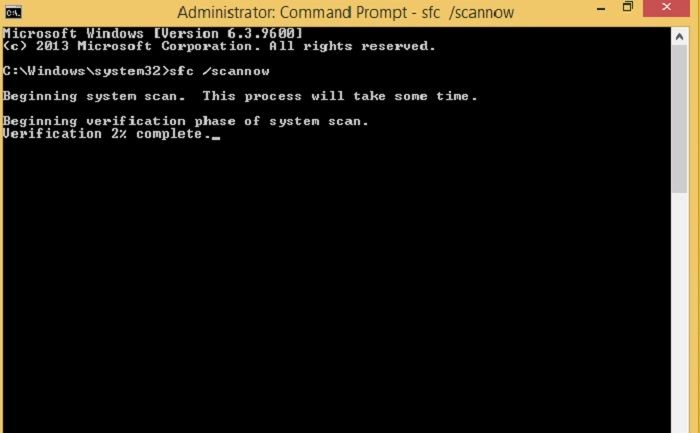
The Command Prompt method is a way to fix the user profile service login error. However, it's essential to approach the command prompt with caution, as it's a control center for administrative changes. If you're not experienced, it's recommended to follow a trusted guide to avoid making unintended changes. To fix the error using the Command Prompt, you can follow specific steps, but it's crucial to exercise care when working with this feature.
Step 1. Launch Command Prompt
To quickly locate your command prompt, search for it in the search area, and right-click on it to select "Run as administrator."
Step 2. Scan
You should type "sfc /scannow" in the Command Prompt with a space between "sfc" and "/". Then, hit the Enter key. This will initiate the System File Checker scan.
Step 3. Restart
You can now restart your system to apply the fix.
If your profile error is preventing you from logging in to your desktop, try restarting your computer in safe mode and selecting Command Prompt from there. This should allow you to troubleshoot and resolve the issue.
Method 2. Fix User Profile Service Failed via Registry Editor
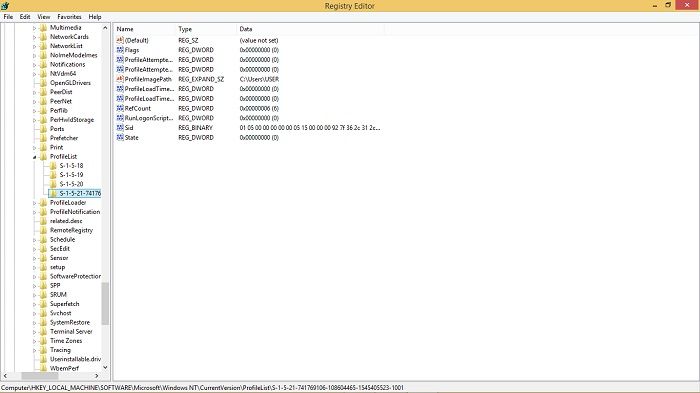
If the Command prompt fix doesn't work or you're not comfortable using the command prompt, you can try using the Windows Registry to fix user profile login failures.
Step 1. Search Registry Editor
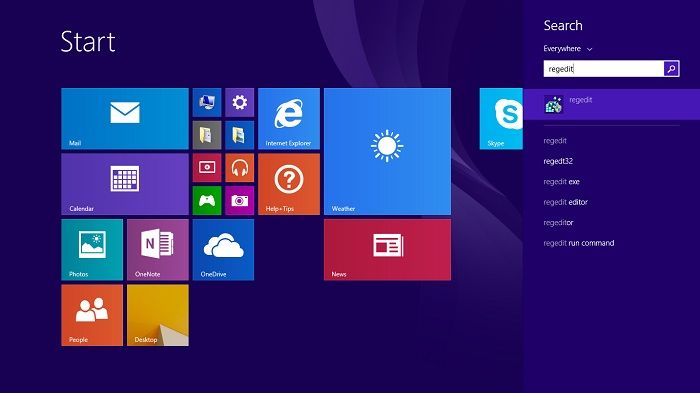
Click on start and type in Regedit. Launch the application.
Step 2. Go to Profilelist
Follow the sequence below to get to the profilelist.
The registry key HKEY_LOCAL_MACHINE > Software > Microsoft > Windows NT > CurrentVersion > ProfileList contains a list of all user profiles on the system, including the default profile. Each profile is represented by a subkey with a unique name, and contains information such as the profile's path, type (e.
You will see a series of S-1-5 folders, which will generally have the same number as the profiles you have on your computer. These folders will be used to organize your documents, pictures, videos, and other files.
Step 3. Locate the corrupted profile
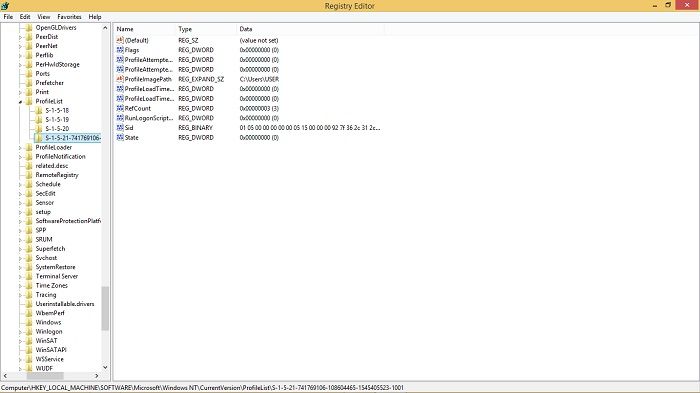
To identify which profile each S-1-5 corresponds to, simply click on the "ProfileImagePath" field. This will display a popup box showing the profile name, making it easier to differentiate between the various profiles.
Step 4. Change Value Data
To fix the issue, locate the profile in question, change the "RefCount" value data to zero, and also update the "State" value data to zero. Then, restart your computer to apply the changes.
Method 3. Reset Windows PC to Fix User Profile Service Failed Error
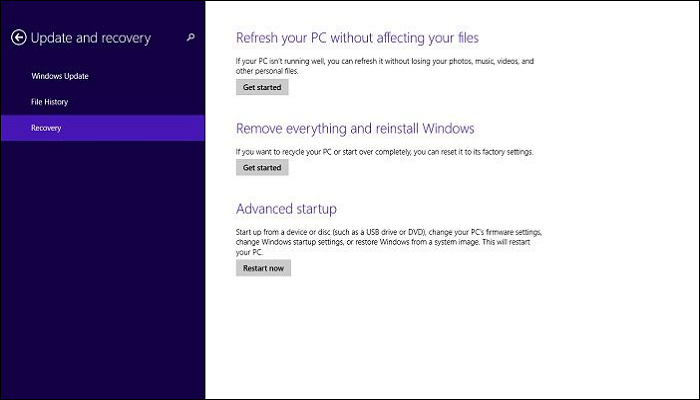
If the methods above don't work, resetting Windows can be a surefire way to get your computer up and running again. To reset Windows, you can follow these steps:
Step 1. Open PC settings or boot up in safe mode
To access the recovery settings, go to PC settings under Updates and security and click on Recovery. Alternatively, you can force your system to boot in safe mode by restarting it a few times, and then select Reset this PC.
Step 2. Reset options
If the issue persists, you may need to reset your PC settings to see if that resolves the problem. However, if that doesn't work, you may have to take a more drastic measure and format your entire system.
Step 3. Reset
To complete the reset of your PC, follow the series of prompts provided, which will ask for information such as your password and the version of Windows you are using. This will guide you through the process of resetting your PC.
Method 4. Transfer NTUSER.Dat File to Default Username Folder
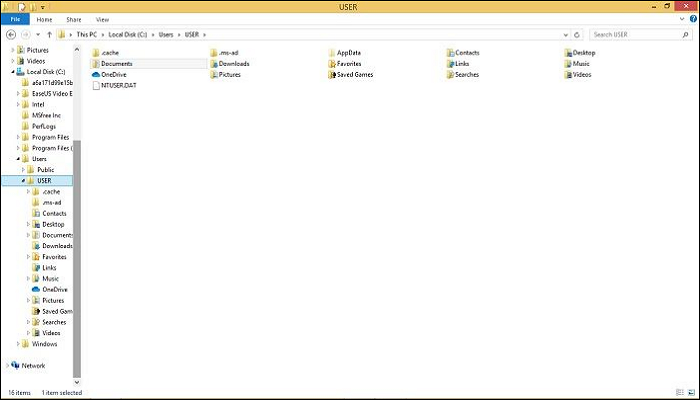
To resolve the issue of a profile user service login error, Windows automatically creates an NTUSER.DAT file for each new profile created. Deleting this file is equivalent to deleting the entire profile. To fix the issue, you can try reinstalling the problematic service, checking for corrupted files, or using the System File Checker (SFC) tool to scan and replace any corrupted system files. Additionally, you can try resetting the user profile to its default state or creating a new profile to see if the issue persists.
Step 1. Log in
To recover your NTUSER.DAT file, log in to your system with the profile you want to recover. If you're unable to log in, try logging in from another profile, as long as it's not the one you're trying to recover. This will allow you to access the necessary files.
Step 2. Copy NTUSER.DAT
To resolve the login error, copy the NTUSER.DAT file from the profile with the correct login to the profile with the login error, by going to Local disk (C:)>User, selecting the correct profile, copying the .DAT file, and pasting it to the profile with the login issue.
Step 3. Sign out/Restart
After pasting the .DAT file, you can now log out of the account you are currently on and sign in to the old account again.
Note: If you can't find the .DAT file, you need to check the 'Hidden item' box under View.
Method 5. Create a New User Account
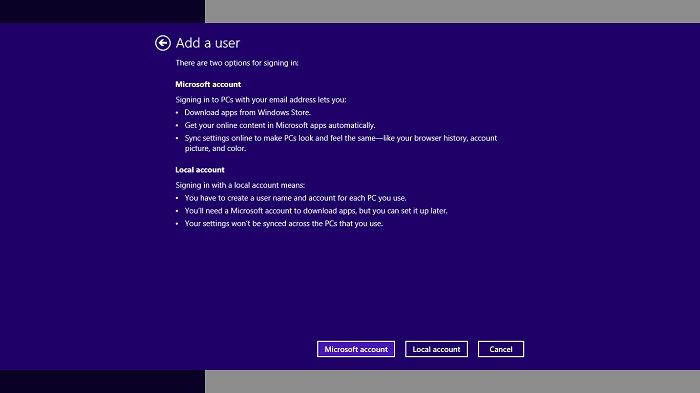
Creating a new user account is a simpler way to resolve the user profile failed logon error, as it doesn't require deleting the existing profile, and you won't lose all your work on the system. Only the customized settings made on the corrupted profile will be lost. The process becomes more straightforward after deciding whether to create a Microsoft or local account.
Step 1. Open PC settings
Click on the start menu and search PC Settings.
Step 2. Accounts and Users
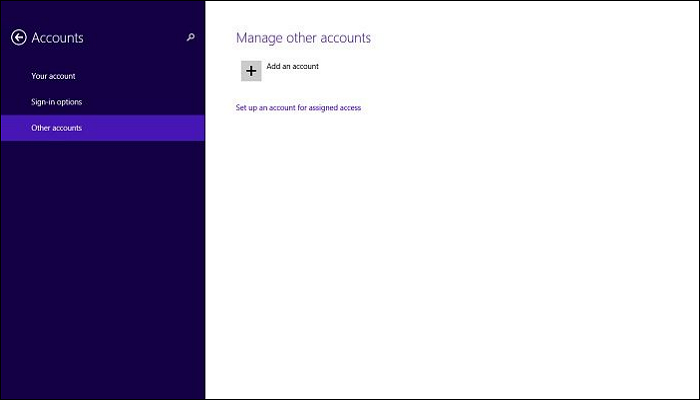
In Windows 10 and later, go to Settings > Accounts and click on "Family" or "Other users" to add a new account. In Windows 8, go to Settings > Your account and click on "Other accounts" to add a new account. Then, click on "Add account" and follow the prompts to create a new account.
Step 3. Restore files (optional)
To transfer files from your old profile to your new one, go to Local disk (C:) > USERS > old profile name, copy all files, and then paste them into Local disk (C:) > USERS > new profile name.
Note: Make sure you have a backup of user profile files before starting the process
Method 6. Disable the Customer Experience Program
Windows sometimes collects usage info from your computer. Disabling the Customer Experience Program might help fix profile service login errors, although the exact impact is unclear.
Step 1. Open Local Group Policy Editor
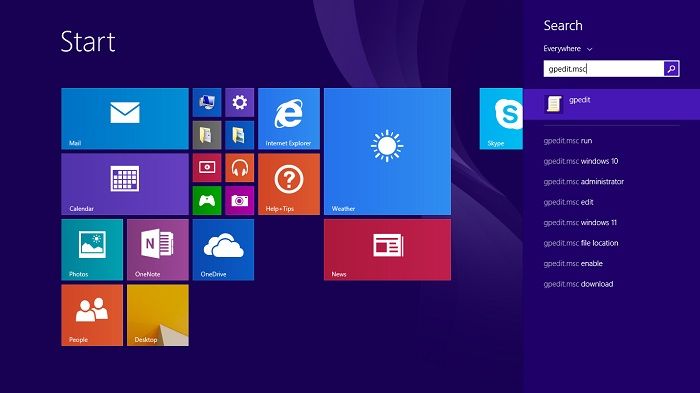
Open your start menu, search "gpedit. msc", and launch.
Step 2. Navigate to Internet Communication Settings
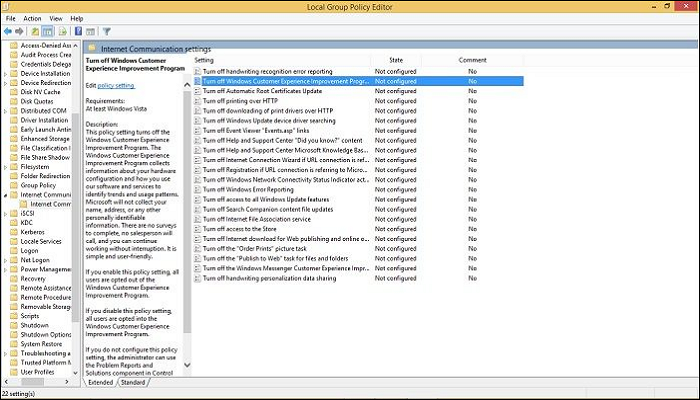
From Computer configuration>Administrative Template>System>Internet Communication Settings.
Step 3. Disable the Customer Experience Program
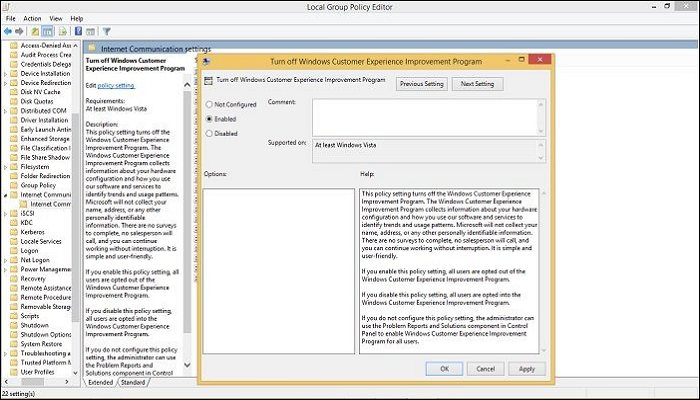
To disable the Windows Customer Experience Program, double-click on "Turn off Windows Customer Experience Program" and from the pop-up box, select the "Enable" box, apply the change, and click OK.
Step 4. Restart
You might need to restart your computer for the changes to take effect.
Final Thoughts
The "user profile service failed the logon" error is a frustrating Windows issue that can lead to profile and account loss if not handled properly. Fortunately, there are 6 different methods to resolve this issue, ranging from easy to more complicated, allowing users to choose the best approach for their situation. However, it's essential to exercise caution when attempting these methods, as some require administrative authority and can potentially damage your computer if not done correctly.
FAQs
1. What is meant by a user profile?
A user profile is a comprehensive collection of information about a user, encompassing their basic details, social tags, documents, experiences, and lifestyle, among other things.
2. What does a profile reset do?
A profile reset returns customized system settings to their default, unlike an account reset which completely wipes the computer and restores it to its default state.
3. What is the difference between the user account and the user profile?
Your user profile is a collection of your preferences and customizations, while your user account is the basic information of the user in the system, which determines which features and permissions the user can access.
4. How do I create a user profile?
Step 1. Open PC Settings and select Update and Security
Step 2. Click on Family and other users
Step 3. Click on Create a new user
Step 4. Choose whether you want to create a local account or a Microsoft account
Step 5. Set Username and password and proceed
Related Articles
- Dash Cam Card Full Error: How to Fix 'Dash Cam Says SD Card Full'
- Brand New Ways to Reset/Erase Mac M1/M2 [Safe & Sound]
- [Fix] A required device isn't connected or can't be accessed with error
- How to Fix Checking File System on C Error on Windows 7/8/10/11 Startup
- How to Change Network Names on Windows
To change the name of your network on Windows 10, you can follow the steps outlined in this post, which offers two methods to update your network name. By reading the full post, you'll be able to determine which method is most suitable for your needs. - Quickly Check If a Hard Drive Is Failing Using SMART on WIndows 10/11 [2023 New Guide]
It's essential to keep a check on the hard drive's health, and in this post, we will share how you can check if a hard drive is failing using SMART technology. However, it will only work on the drives which support SMART, and most modern storage devices support it.
Products
Articles & Tutorials
- Data Recovery
- Data Backup
- File Recovery
- File Backup
- System Backup and Restore
- Disk and Partition Clone
- Technical articles
- Mobile articles
- Disk Master Help
- Windows Data Recovery Tutorials
- Windows Secure Delete Tutorials
- Windows Partition Management Tutorials
- Windows File Backup and Restore Tutorials
- Windows System Backup and Restore Tutorials
- Windows Disk Backup and Restore Tutorials
- Windows Clone Tutorials