How to Fix Mac Won't Boot from USB | Detailed Tutorial for Mac
The solutions to fix Mac won't boot from USB can be found in the table, where you can quickly find the solutions to fix the issue, including checking the USB drive, resetting the NVRAM, booting in safe mode, and more.
| Workable Solutions | Step-by-step Troubleshooting |
|---|---|
| Fix 1. Create Bootable USB Correctly to Fix Mac Won't Boot from USB | Install macOS via the App Store or Apple's website. Make sure it fits your Mac and isn't damaged...Full steps |
| Fix 2. Enable Mac to Boot from USB Drive or External Hard Drive | Connect your Mac to the USB or external hard disk. Hold the Option key while turning on your Mac...Full steps |
| Fix 3. Reset NVRAM, PRAM, and SMC to Fix Mac Won't Boot from the USB | The NVRAM, PRAM, or SMC may get corrupted, preventing your Mac from booting from a...Full steps |
Starting your Mac from an external disc or USB flash drive can be difficult, sometimes causing it to shudder at booting, show an error message, or hang at the loading screen.
If your Mac won't boot from USB devices, this article will help you troubleshoot the issue and provide a solution. Additionally, if you're concerned about data loss, we'll also show you how to use Qiling Data Recovery Wizard for Mac, a powerful tool to recover your data.
Possible Reasons Why Mac Won't Boot from USB
Booting from a USB disk or external hard drive can be helpful for troubleshooting, installing macOS, or accessing files, but sometimes a Mac won't boot from the external device. This issue can be caused by a variety of reasons, including a faulty USB port, a corrupted bootable drive, or a problem with the external hard drive's connection to the Mac.
| 💻Software incompatibility | First and foremost, your macOS If you're trying to start your Mac from a USB device, it may not be compatible with your Mac's version of macOS, or the USB device may contain damaged or incompatible data or software, causing issues with starting your Mac. |
| 💽Hardware issues | Your Mac runs on several hardware components, including the logic board, hard drive, and other crucial parts. If any of these components fail or become damaged, your Mac may experience issues or stop working altogether.RAM (Random Access Memory)Hardware faults in a Mac can cause the computer to freeze, crash, or overheat, and may also destroy the operating system, leading to issues with booting from external devices. |
| 👿Malware | Malicious software on your Mac could be causing issues with the boot process, potentially damaging your device and creating problems from within, which might prevent it from booting properly.viruses Using a Mac can block your computer from starting from USB or external hard drives, which can likely corrupt your files. |
| 🔌USB drive issues | If your USB drive is not formatted correctly or has physical damage, your Mac may not detect it, making it impossible to use it for booting. |
If your Mac won't boot from a USB drive, there could be several reasons behind this issue. The USB drive might not be bootable, the boot order might be set incorrectly, or the USB drive might be damaged.
Retrieve Data from Mac When Mac Won't Boot
Before attempting to fix your Mac's inability to boot from USB, consider recovering your important data using professional software like Deep Data Recovery for Mac. This is particularly crucial if you plan to reinstall macOS or erase your hard drive, as it allows you to access your files even when your Mac is unbootable.
Deep Data Recovery for Mac is a powerful tool that can recover data from any Mac device, including those that are unbootable. It scans your hard disk to recover deleted files, photos, important documents, emails, and audio, allowing you to preview and select the files you need to restore before storing them elsewhere.
To recover files from a non-booting Mac, you'll need a functional Mac to create a bootable USB drive using Deep Data Recovery for Mac. This will allow you to start the non-booting Mac and initiate the recovery process.
Step 1. Install and run Deep Data Recovery for Mac on another Mac computer, select "Unbootable Mac > Start" to initiate the recovery process.
Step 2. To create a bootable USB drive, select a prepared USB drive and click "Next" to initiate the process.
- Warning
- The creator will prompt to erase the drive to reallocate the space; then it can write the bootable files to this drive, but first, please back up all USB files before processing "Eraser".
Step 3. The program creates a 2GB space on a USB, saving the boot files, while leaving the remaining space available for storage.
Step 4. After completing the process, boot the corrupted Mac from the bootable disc and start the recovery. To do this, follow the guide provided. It's recommended to restore the data to an external hard drive instead of the original Mac.
Step 5. After booting the Mac, launch Deep Data Recovery for Mac. Select the disk location, such as an internal HDD/SSD or a removable storage device, where you lost data and files. The recovery tool will then automatically scan for lost files.
Note: To avoid further data loss, create a backup of your Mac before attempting data recovery. After backing up, you can use software to recover data from the Mac backup, allowing your computer to write new data again.

Create Bootable USB Correctly to Fix Mac Won't Boot from USB
To create a bootable USB drive on a Mac, ensure the USB drive is properly formatted and has a valid bootable operating system installed, such as macOS or a compatible Linux distribution. This can be achieved by using the built-in Disk Utility app or a third-party tool like Etcher. Additionally, verify that the USB drive is recognized by your Mac and that the bootable operating system is correctly installed and configured.
Step 1. To install macOS, you can download it from the App Store or Apple's website, ensuring that the version you choose is compatible with your Mac and not damaged.
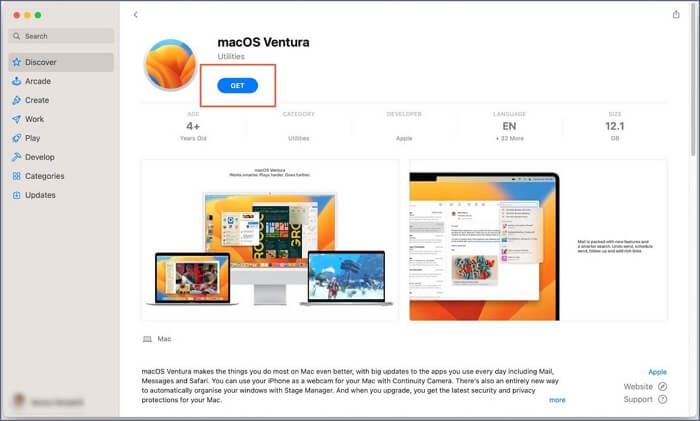
Step 2. Insert a 16GB or larger USB drive into your Mac, which will erase any existing data on the drive.
Step 3. Select the USB drive from Disk Utility's sidebar.
Step 4. Erase the USB drive, select Mac OS Extended (Journaled) format and GUID Partition Map scheme, name it "Untitled", and click Erase.
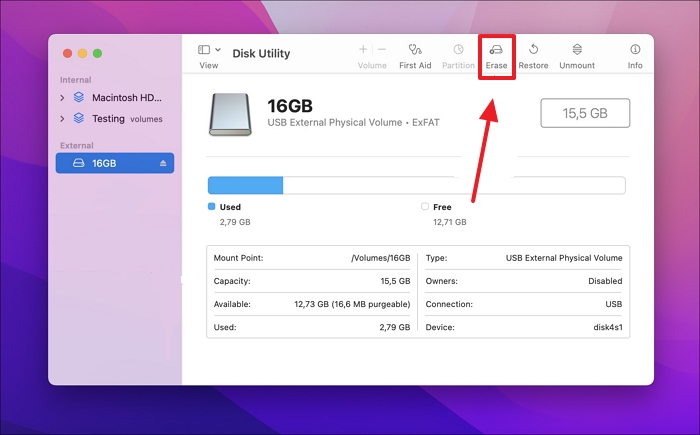
Step 5. Open Terminal and type in the command: sudo /Applications/Install\ macOS\ Big\ Sur.app/Contents/Resources/createinstallmedia --volume /Volumes/Untitled, replacing "Big Sur" with the name of the downloaded macOS version.
Step 6. Type in your administrator password and press Y when asked.
Step 7. Unplug the USB drive when it finishes.
Once you've created a working USB drive for your Mac, you can proceed to install macOS from it. To do this, connect the USB drive to your Mac, then restart it. As it boots up, hold down the 'Option (⌥)' key until the Startup Disk menu appears.
Step 1. Connect the USB disk to your Mac.
Step 2. Start your Mac while holding the Option key.
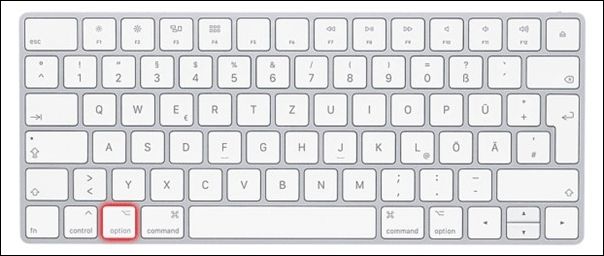
Step 3. To boot from a USB drive, first, the computer will display a menu with several boot device options. Select the USB drive from the menu and press the Enter key to initiate the booting process.
Step 4. The macOS installer is launched from the USB device when the Mac begins to boot.
Step 5. Follow the on-screen directions to install macOS on your Mac.
Enable Mac to Boot from USB Drive or External Hard Drive
If you're unable to boot your Mac from a USB flash drive, it may be due to compatibility issues with your device. To resolve this, follow these simple steps to enable your Mac to boot from a USB device.
Step 1. Connect your Mac to the USB or external hard disk.
Step 2. Hold the Option key while turning on your Mac.
Step 3. To boot from a USB or external hard disk, select the device from the boot menu and press Enter. This will initiate the boot process from the chosen device.
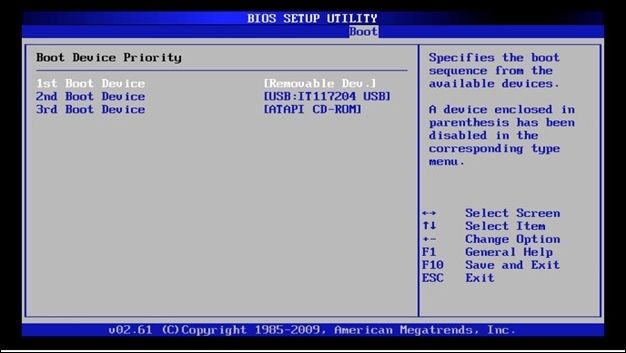
Step 4. Your Mac will automatically boot from the specified device.
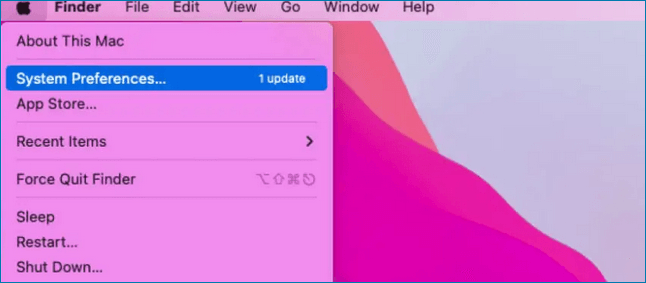
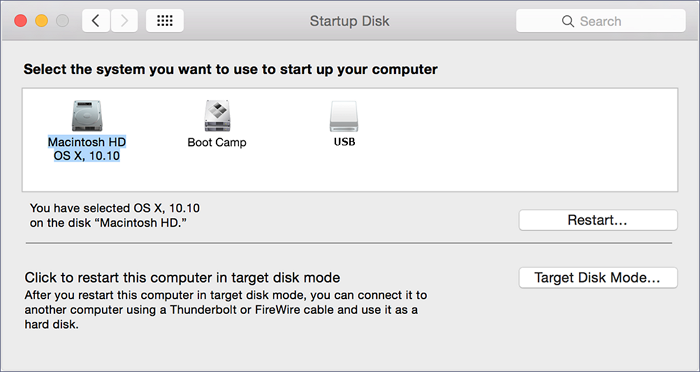
To change the startup disk to always boot from a USB device or external hard drive, go to System Preferences, click on Startup Disk, and select the desired disk from the list. This will ensure that your Mac always boots from the selected disk, even if the internal hard drive is not available.
Step 1. Select System Preferences from the Apple menu.
Step 2. When asked for an administrator password, choose "Startup Disk".
Step 3. Select the removable drive as the boot device and restart your computer.
Reset NVRAM, PRAM, and SMC on Mac to Fix Mac Won't Boot from the USB
If your Mac won't boot from a USB drive due to corrupted NVRAM, PRAM, or SMC, you can try resetting these parts using various techniques, which may help resolve the issue and allow your system to start up properly. These parts track important Mac preferences like volume level, screen resolution, and starting disk, and resetting them may resolve the problem.
Reset NVRAM and PRAMTo reset NVRAM and PRAM on a Mac, turn it off, then press and hold the Option, Command, P, and R keys while turning it back on, holding for 20 seconds before releasing the keys. You'll know it's working when you see the Apple logo or hear the startup chime. This process is often used to resolve issues with startup disks, booting, or other system problems.
Reset SMC: On Macs with detachable batteries, turn off and remove the battery. Hold the power button for 5 seconds, reinsert the battery, and switch on. On Macs with non-removable batteries, turn off and plug in, then release the Shift, Control, Option, and Power keys after 10 seconds. Start your Mac.
To reset the System Management Controller (SMC) on a MacBook Pro running macOS Ventura or Monterey, follow these steps: Go to System Preferences, then click on "Energy Saver." Click on the "Options" tab and then click on the "Show All" button.
Do you know how to reset SMC MacBook Pro? MacBook Pro with different chips have different methods. Read more >>
Conclusion
If your Mac won't start from a USB drive, the problem could be due to a hardware or software issue. To fix the issue, you can try resetting the System Management Controller, booting in safe mode, or using a different USB drive. If none of these solutions work, you may need to contact Apple support or take your Mac in for repairs.
Deep Data Recovery for Mac allows you to recover your data before attempting any alternative methods, especially if your Mac is no longer bootable. The software can scan your hard drive thoroughly and recover photos, videos, documents, emails, music, and other items, which can be previewed before being saved in a different location. This should be your first step in retrieving your data.
If your Mac won't boot into OS X, you can still use Deep Data Recovery for Mac to recover your data by creating a bootable USB drive on a functional Mac. You can download and test Deep Data Recovery for Mac for free, and then follow the instructions in Part 2 of this post to retrieve your information.
Mac Won't Boot from USB FAQs
Here are some possible reasons why your Mac won't boot from a USB drive:
1. How to fix Mac that won't boot after the macOS High Sierra update?
If your Mac won't boot after the macOS High Sierra update, try booting in Safe Mode, Recovery Mode, or Internet Recovery Mode, using the tools available to fix the disk, restore the system, or reinstall macOS. If these solutions don't work, you may need to contact Apple for assistance or take your Mac in for repairs.
2. How to force Mac to boot from USB?
To boot from a USB drive on a Mac, hold the Option (⌥) key during startup, and select the USB drive from the list of boot devices. Alternatively, you can set the USB drive as the default boot device in System Preferences.
3. Why can't I boot my Mac from USB?
You can't boot from a USB on your Mac due to issues like faulty bootable media, hardware or software problems with the Mac, or malware interfering with the process.
4. Can I recover data from an unbootable Mac?
You can recover data from an unbootable Mac using professional data recovery software - Deep Data Recovery for Mac.
- 1. Create an Qiling bootable USB.
- 2. Launch the software and choose the startup disk to scan.
- 3. Preview and recover files from your Mac.
Related Articles
- External Hard Drive Temperature Range [Full Guide in 2023]
- How to Mirror a Hard Drive in Windows 10 [step by step]
- Reinstall macOS Not Working: 4 Tested Ways to Fix It
- Fix IE Browser Shuts Down Suddenly in Windows 10/8/7 Error
- What Is System Partition? [Best Explained in 2023]
A system partition is a specific partition on a computer's hard drive where the operating system is installed. It's a crucial part of the computer's setup, and in this article, we'll explore what a system partition is, its importance, and how to create one if needed. - All Information About System Restore Explorer [Updated 2022]
System Restore Explorer lets you view, mount, and manage System Restore points on Windows. Recover specific files without performing a full system restore.
Products
Articles & Tutorials
- Data Recovery
- Data Backup
- File Recovery
- File Backup
- System Backup and Restore
- Disk and Partition Clone
- Technical articles
- Mobile articles
- Disk Master Help
- Windows Data Recovery Tutorials
- Windows Secure Delete Tutorials
- Windows Partition Management Tutorials
- Windows File Backup and Restore Tutorials
- Windows System Backup and Restore Tutorials
- Windows Disk Backup and Restore Tutorials
- Windows Clone Tutorials