Reinstall macOS Not Working: 4 Tested Ways to Fix It
Several Mac users have reported that reinstalling macOS not working error, prompting a guide to discuss possible fixes for this issue.
| Workable Solutions | Step-by-step Troubleshooting |
|---|---|
| Fix 1. Check Mac Internet Connection | The simplest solution for reinstalling macOS Not Working is to check the internet connection...Full steps |
| Fix 2. Reinstall macOS in Safe Mode | Turn off the system, and hold the power button. Release it when the startup options appear...Full steps |
| Fix 3. Repair Disk to Reinstall macOS | Open Disk Utility, select View, choose Show All Devices, and select the disk you want to repair...Full steps |
| Fix 4. Reinstall from Recovery Mode | Enter Recovery Mode. Select reinstall macOS X in Utilities. Follow the instructions...Full steps |
| Other Practical Fixes | Erase your Mac to reinstall macOS, and resetting PRAM to reinstall macOS can be useful...Full steps |
The occurrence of "reinstall macOS not working" can be attributed to various reasons, making it essential to understand these issues to apply the right solution.
Causes of Reinstall macOS Not Working
The "reinstall macOS" not working problem can occur due to various reasons, including issues with the recovery mode, problems with the installation media, and errors with the installation process itself. Additionally, hardware problems or conflicts with other software on the Mac can also prevent the reinstall process from working properly. Furthermore, user error or incorrect steps during the installation process can also lead to this issue.
🎭Malware attack: Virus attacks can be deadly and often create several problems within the system, leading to issues such as reinstalling macOS not working.
📂Corrupt installer files: To ensure the installer files are not corrupted, it's essential to verify their integrity before reinstalling. This can be done by checking the files' hash values or using a checksum tool to validate their accuracy. If the files are found to be corrupted, they should be replaced with fresh copies from a trusted source, such as the official website or a reliable download mirror.
💾Lack of storage space: macOS requires a minimum of 22 GB of free space on the disk to complete the installation process. If the disk has insufficient space, the installation will not be completed.
🍎System errors: Temporary glitches or errors within your MacBook Pro/Air can also hamper reinstallation, but running "First Aid" can help identify and resolve any issues.
How to Fix Reinstall macOS Not Working
If you're experiencing issues with reinstalling macOS, don't worry - there are some amazing solutions to fix the problem. You can try checking out the troubleshooting steps to see if they resolve the issue, or you can try resetting the System Management Controller (SMC) and Power Management Unit (PMU) to see if that resolves the problem. Additionally, you can try booting your Mac in Safe Mode and then reinstalling macOS to see if that works. If none of these solutions work, you can try resetting the NVRAM and SMC, or even seeking help from Apple Support if you're still experiencing issues.
Fix 1. Check Mac Internet Connection
The simplest solution for reinstalling macOS not working is to check the internet connection, as a stable and strong internet connection is required for the process. If the internet connection is poor, it may interfere with the reinstalling process, making it advisable to check the connection before proceeding.
You can also switch to a Wi-If you're experiencing slow internet speeds, try restarting your router or modem. If that doesn't work, check for physical obstructions, update your router's firmware, or consider upgrading your internet plan. If none of these solutions resolve the issue, contact your internet service provider for further assistance.
Fix 2. Reinstall macOS in Safe Mode
To enter Safe Mode on a Mac, you can hold down the Shift key while booting up, or for certain models, hold down the power button until the device shuts down, then press the power button again while holding down the Shift key. This will prevent any third-party software from loading and can help resolve issues related to software conflicts.
For Apple Silicon Macs, here are the steps:
Step 1. Turn off the system, press and hold the power button.
Step 2. Release it when you can see the startup options window.
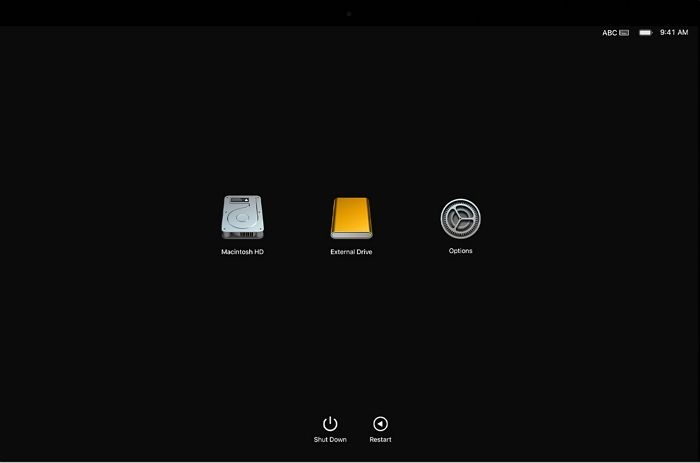
Step 3. To boot in safe mode, choose the Mac startup disk (Macintosh HD) and press and hold the "Shift" key.
Step 4. Now, click on "Continue in Safe Mode".
Step 5. Log into the system.
For Intel-based Macs, check out these steps:
Step 1. Turn off your Mac.
Step 2. To reset a Mac, turn on your Mac, press and hold the "Shift" key simultaneously, and release it once you see the login window. Then, click on the "Users" button and select the user account you want to reset.
Step 3. When you come across the login window, release the key.
Step 4. To reinstall macOS, you can start your Mac in safe boot mode, which will allow you to access the installation process without any interference from other applications. This can be done by restarting your Mac and immediately holding down the Shift key, which will bring up the login screen with "Safe Boot" displayed in the upper-right corner. Once you are logged in, you can proceed with the reinstallation process.
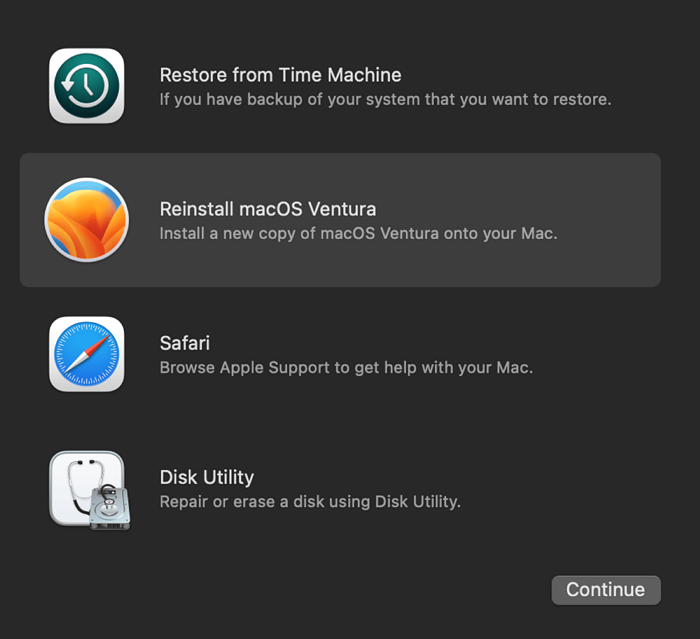
Fix 3. Repair Your Disk to Reinstall macOS
To resolve issues with the disk that can prevent the reinstallation of the macOS, it is recommended to repair the disk first. This involves following a series of steps, including checking the disk for errors, running a disk utility, and attempting to repair the disk using the built-in Disk Utility tool. If the disk is severely damaged or corrupted, it may be necessary to seek professional assistance or replace the disk entirely. Prioritizing disk repair can help ensure a successful macOS reinstallation.
Step 1. Open "Disk Utility" and select "View".
Step 2. Choose "Show All Devices".
Step 3. Go to the disk you want to repair.
Step 4. Select the "First Aid" tab.
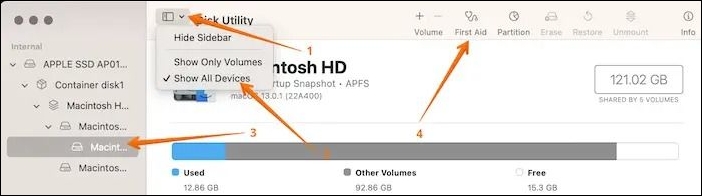
Step 5. Click "Run". When the process completes, select "Done".
To resolve the issue, first, restart your Mac in Recovery Mode. Open Disk Utility and select the startup disk. Click Erase, then select the disk format as APFS or GUID Partition Map.
If you're experiencing issues with reinstalling macOS, don't worry - it's a common problem! To fix the issue, first, make sure you're using the correct installation media and that it's compatible with your Mac.
Fix 4. Reinstall macOS from Recovery Mode
The easiest solution to fix the reinstallation macOS is not working is to opt for reinstallation from the Mac Recovery Mode.
Check out these easy steps:
Step 1. Enter the "Recovery Mode".
Step 2. In the "Utilities" window, select "reinstall macOS".
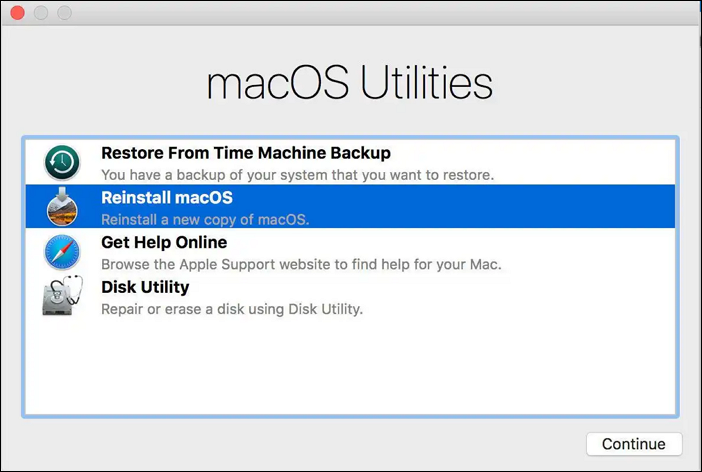
Step 3. Follow the on-screen instructions.
Here, you should remember that the steps to enter Recovery Mode differ based on the model.
For Silicon Macs:
Step 1. Turn on the system.
Step 2. Press and hold the power button.
Step 3. Release it when you see the startup options window.
Step 4. Go to "Options".
Step 5. Click "Continue".
For Intel-based Macs:
Step 1. Turn on the system.
Step 2. Press and hold the "Command + R" keys.
Step 3. Release the keys when you see the Apple logo.
Fix 5. Erase Your Mac to Reinstall macOS
If the above solutions do not work, you can erase the Mac. To do this, you can boot your Mac in recovery mode, select Disk Utility from the Utilities window, select the startup disk from the sidebar, click the "Erase" button, and confirm that you want to erase the disk. After that, you can reinstall macOS. If you're unable to boot your Mac, you can try booting from an external drive with a compatible operating system.
Step 1. Enter the "Recovery Mode".
Step 2. Select "Disk Utility".
Step 3. Choose "Continue".
Step 4. Select "Macintosh HD".
Step 5. Go to the "Erase" button.
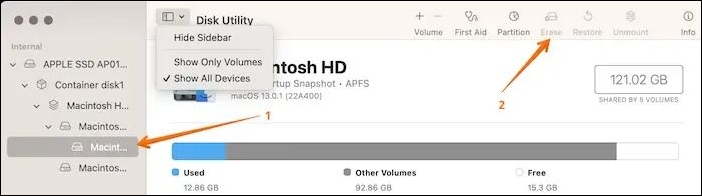
Step 6. Enter name and format.
Step 7. Select "Erase Volume Group" or "Erase". If asked, enter the Apple ID.
Step 8. After the process is done, quit "Disk Utility". Now, try to reinstall macOS and see if the issue is fixed.
To erase a Mac, you can use the built-in Disk Utility app or a third-party software. However, data loss can occur during the process, and professional data recovery software may be needed for Macintosh HD recovery.
The Deep Data Recovery for Mac is a user-friendly data recovery tool that can restore various data types, including audio, video, and email, making it suitable for both beginners and experts.
The Deep Data Recovery for Mac is a helpful tool that assists in recovering data from various situations, including accidentally deleting files, formatting a drive, or experiencing a system crash. It can also help recover data from external devices, such as USB drives, memory cards, and hard drives, even if they are no longer recognized by the system. Additionally, it can recover data from a Mac that won't boot or is experiencing startup issues, making it a valuable resource for users who need to recover important files.
- Malware attacks can cause significant damage to a device, leading to loss of data, system crashes, and other issues.
- Formatting: Formatting the system might lead to data loss.
- Human error is the main cause of data loss due to accidental deletion.
- A system crash can occur due to temporary bugs or glitches in the device, leading to a shutdown.
To quickly recover deleted files on a Mac, follow these steps: first, stop using the affected drive or volume to prevent further data loss; next, check if the deleted files are still in the Trash by opening the Trash, selecting the files you want to recover, and dragging them back to their original location; if the files are not in the Trash, you can try using a third-party data recovery software like Disk Drill or Deep Data Recovery Wizard to scan the affected drive and recover the deleted files; finally, if you're unable to recover the files using the above methods, you may need to consult a professional data recovery service for further assistance.
Note: To create a backup, click on "Disk Backup" on the left, which will allow the software to recover deleted files from the backup image, preventing further damage to your disk and data and making it safer and more reliable.
Step 1. Scan for deleted files
Select the hard drive, external drive, or SSD where your important data & files were deleted and click "Search for lost files".

Step 2. Filter the lost files
The software will perform quick and deep scans on the selected volume to find deleted files, with options to filter results by file type and path.

Step 3. Recover deleted files
Double-To recover deleted files, click on the deleted files to preview them. Once you're satisfied, click the "Recover" button to restore them.

Fix 6. Reset PRAM to Reinstall macOS
PRAM, or Parameter Random Access Memory, stores essential information such as startup disk settings and speaker volume, among other things. If there's an issue with PRAM, it can cause problems with reinstalling macOS.
To reset the PRAM on an M2 Mac, follow these steps: 1) Shut down your Mac. 2) Locate the PRAM battery, which is usually found on the logic board. 3) Press the power button while holding down the Command (⌘) + Option (⌥) + P keys.
Step 1. Turn down the system.
Step 2. Press and hold the "Command + Option + P + R" keys.
Step 3. When you hear the startup sound twice, release the keys.
Conclusion
Reinstalling macOS Not Working can become quite frustrating. However, multiple solutions can help you fix the issue, such as resetting PRAM, reinstalling via Recovery Mode, erasing your Mac, or using Safe Mode.
You can use Deep Data Recovery for Mac, a data recovery tool that can help you easily restore your lost data, instead of using the solutions that might lead to data loss.
Reinstall macOS Not Working FAQs
Reinstalling macOS may not be working for some users, and they may be looking for answers. One possible issue is that the installation process may be stuck or frozen, preventing the user from proceeding.
1. How do I force reinstall on Mac?
To force reinstall an application on a Mac, follow these steps: Go to the Applications folder and drag the application you want to reinstall to the Trash. Then, go to the App Store, click on the "Purchased" tab, and find the application you just trashed.
Step 1. Quit the application that is causing the process to stop, and then uninstall it by dragging it to the Trash or using "Move to Trash".
Step 2. Delete unnecessary files and folders in the Library folders, including Application Support, Caches, Preferences, and Saved Application State, to free up space and improve system performance.
Step 3. To resolve the issue, you can try hard restarting your MacBook and then reinstalling the application by downloading it from the developer's website or using the Mac App Store. This should resolve any issues that may have caused the app to malfunction.
2. Why is my macOS Monterey not installing?
Multiple reasons can cause macOS Monterey to fail installation, including low storage space, internet connectivity issues, software incompatibility, and problems with the Apple server.
3. What to do when macOS don't reinstall?
If macOS won't reinstall, you can try resetting the PRAM, reinstalling macOS through Recovery Mode, or erasing the Mac and reinstalling macOS.
4. Why won't it let me install macOS?
Various reasons such as virus attacks, temporary errors, bugs, or lack of disk space may prevent the installation of macOS, and pinpointing the exact reason might not be possible.
Related Articles
- How to Factory Reset Laptop Windows 7 [2023 Ultimate Guide]
- How to Use Git Delete File [Full Tutorial for Git]
- How to Repair a Mac Disk with Disk Utility [Official Method]
- Thunderbird Profile Missing? Solutions to Restore Quickly
- How to Downgrade from Monterey to Big Sur [macOS 12 to 11]
To downgrade from Monterey to Big Sur, follow these three proven methods. Downgrading macOS Monterey becomes straightforward with these steps. If you lost some of your critical data while downgrading the macOS, Deep Data Recovery could be your great helper. - How to Download and Install ADB Drivers on Windows 11[2024 Updated]
We can extend the uses of Android ecosystems on our PC using Android development tools like ADB and Fastboot, but to do so, we need to download and install ADB software and drivers on our devices, which can be done on Windows 11 using various methods and ways.
Products
Articles & Tutorials
- Data Recovery
- Data Backup
- File Recovery
- File Backup
- System Backup and Restore
- Disk and Partition Clone
- Technical articles
- Mobile articles
- Disk Master Help
- Windows Data Recovery Tutorials
- Windows Secure Delete Tutorials
- Windows Partition Management Tutorials
- Windows File Backup and Restore Tutorials
- Windows System Backup and Restore Tutorials
- Windows Disk Backup and Restore Tutorials
- Windows Clone Tutorials