What Is Mac Safe Mode and How to Start up Your Mac to It
Mac Safe Mode is a troubleshooting feature that helps resolve both hardware and software issues by booting the system with only the most essential components. It allows users to identify and fix problems that may be preventing the system from functioning properly.
It is often used when other troubleshooting methods have failed, providing a last resort option for resolving issues.

Mac Safe Mode: What Can It Do
In Safe Mode, macOS only loads the apps and files it needs to run, excluding third-party apps and extensions, even if they're installed. This allows for a basic assessment of the system disk and removal of system caches that might be causing issues.
Safe Mode is a system feature that starts the computer in a safe environment, where third-party apps are not run, and the system checks for issues, potentially resolving problems in some cases.
How to Boot Mac in Mac Safe Mode
To boot a Mac in Safe Mode, the steps differ depending on whether your Mac has an Intel processor or Apple Silicon. Follow the appropriate instructions below for your Mac model.
For Intel-based Macs, follow these steps:
Step 1. Turn on the system, then press and hold the Shift key as it boots up.
Step 2. Release the key when you see the login window. Log into the system.
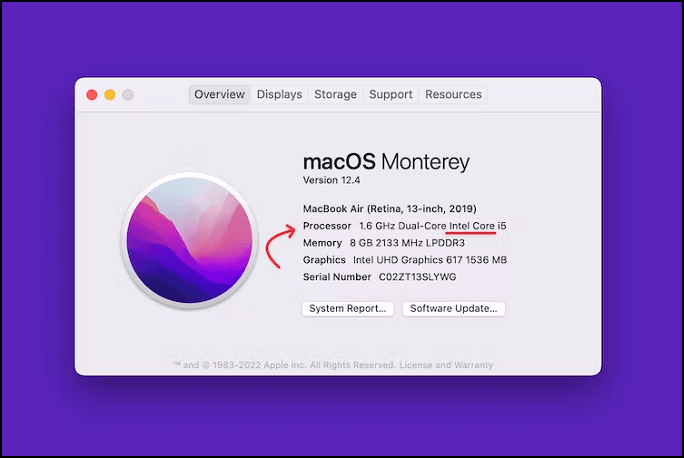
For Apple Silicon Macs, follow these steps:
Step 1. Press the power button and hold it until the system shuts down. This will completely power off the system, and it will not be accessible until it is turned back on.
Step 2. Release the Shift key when you see the startup options. Select the system disk.
Step 3. Press and hold the Shift key.
Step 4. Choose Continue in Safe Mode. Log into the system.

What Are Shortcuts to Be Used for Mac Safe Mode
On Macs, different shortcuts are used for Safe Mode depending on the type of Mac. For Intel-based Macs, pressing the Shift key is required, while Apple Silicon Macs use a combination of the Power and Shift keys to enter Safe Mode.
What Are the Options in Mac Safe Mode
Safe Mode on a Mac only loads vital kernel extensions to troubleshoot startup errors, disabling all third-party apps, features, and startup items.
Booting into Mac Safe Mode leads to the following activities: The system boots with only the necessary kernel extensions and system software, disabling all third-party kernel extensions and login items.
This loads only the bare minimum of system software, allowing the system to boot and run in a minimal environment so the user can troubleshoot and diagnose issues without the influence of third-party software.
- A directory check of the startup drive
- Delete font caches
- Disable third-party fonts (not provided by Apple)
- Disable login items and startup apps
- Deletion of the dynamic load cache
- Running only the needed kernel extensions
How to Use Safe Mode to Resolve Mac Startup Issues
Mac Safe Mode can be used to resolve various Mac startup issues, such as running with an unstable internet connection, addressing freezing problems, or when the system has slowed down.
If you're having trouble booting into macOS normally, or if your system is experiencing repeated crashes or restarting issues, you can rely on Safe Mode as a solution.
If your Mac is experiencing issues, booting in Safe Mode can resolve the problem. Try scanning for malware and uninstalling apps to see if the issue persists. If it does, reboot normally to see if the problem is fixed. If not, it's time to consider a more severe solution.
If you're having trouble with your Mac, a factory reset is the last resort. Before doing this, make sure to back up all your data, as it will be erased. If the reset doesn't solve the problem, contact Apple Support for further assistance.
Conclusion
On a Mac, Safe Mode is a stable environment where you can run necessary apps and troubleshoot issues. To enter Safe Mode, follow a few simple steps, allowing you to scan for malware, uninstall apps or files, and check for macOS updates.
Related Articles
- What Is Tracert/Traceroute Command? How to Run It on Windows, Mac, and Linux?
- Time Machine Backup Schedule - A Beginner Guide
- Should I Get a NAS or External Hard Drive for Backup?
- Great Discover Virus | Here Is Everything You Should Know
- How to Solve Screen Freezes but PC Keeps Running (2024 Answers)
If your screen freezes but your PC continues to run, it's a common issue that can be easily resolved. By applying a few simple fixes, you can identify and address the problem, ensuring your computer runs smoothly again. - What Happens If an SD Card Is Corrupted [Full Guide on 10 Fixes]
This page explains what happens if an SD card is corrupted and provides ten full guides on how to fix SD card corruption.
Products
Articles & Tutorials
- Data Recovery
- Data Backup
- File Recovery
- File Backup
- System Backup and Restore
- Disk and Partition Clone
- Technical articles
- Mobile articles
- Disk Master Help
- Windows Data Recovery Tutorials
- Windows Secure Delete Tutorials
- Windows Partition Management Tutorials
- Windows File Backup and Restore Tutorials
- Windows System Backup and Restore Tutorials
- Windows Disk Backup and Restore Tutorials
- Windows Clone Tutorials